


What Is JOPDF? A Quick Overview of the Free PDF Editor
JOPDF is a free PDF editor that has gained traction among students, remote workers, and anyone who needs to make quick changes to a document without downloading software. Unlike many "free" PDF editing tools that lock features behind paywalls or demand email signups, JOPDF delivers its core functionality with no registration required. You land on the site, upload your file, and start working.
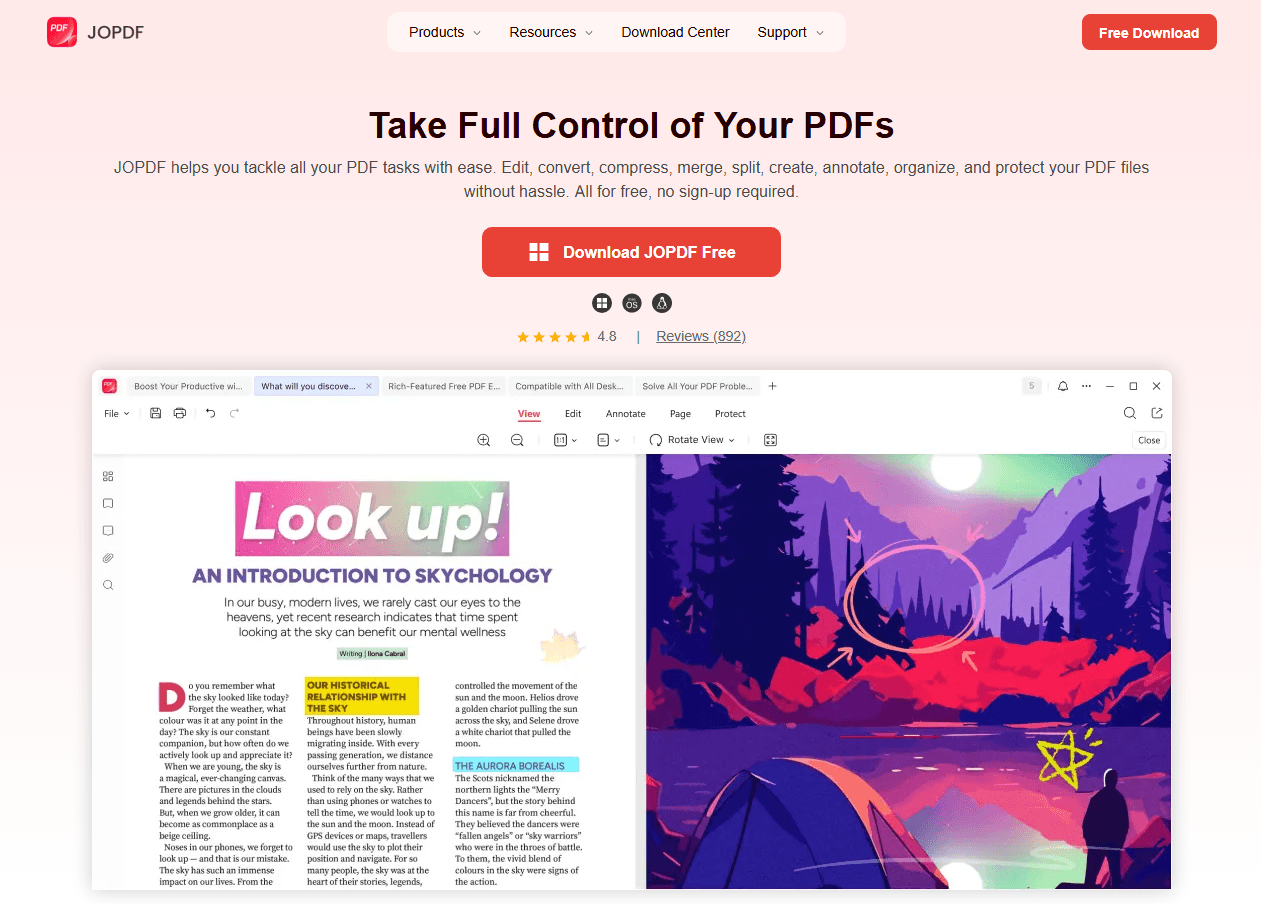
The platform covers the essentials most users need day-to-day: editing text and images, merging multiple files into one PDF, compressing large documents for email, converting between formats, annotating for review, printing with optimized settings, and organizing pages. It's a toolkit designed for speed and simplicity rather than depth.
Who is JOPDF for? Primarily three groups.
-
Students who need to merge lecture slides, compress assignments before submission, or fill out forms.
-
Casual office users who occasionally need to tweak a contract or reorder pages in a scanned document.
-
Anyone who doesn't want to install software for a task they do twice a month.
JOPDF Pricing: 100% Free, No Strings Attached
Is JOPDF free? The short answer: yes, JOPDF is genuinely free. JOPDF PDF editor is completely free with no hidden costs, no subscriptions, no ads, and no registration required. You can download the best PDF editor and use all its features immediately without ever paying a cent or creating an account.
What "Free" Means for JOPDF?
Unlike many offline PDF editors that claim to be free but lock advanced features behind paywalls, JOPDF offers every feature at no cost:
-
No Trial Period: The software is not a trial version - you can use it indefinitely, and all functions remain fully accessible without time limits.
-
No Watermarks: Documents you edit or create do not have watermarks imposed on them.
-
No Ads: The interface is clean and ad-free, providing a distraction-free experience.
-
No Registration: You do not need to sign up or create an account to use any feature.
License Type:
JOPDF PDF editor free tool is distributed as Freeware (free software). According to the package metadata, its license is GPL-3.0. It is available for Windows (7, 8, 10, 11) and macOS (version 10.13 or later, including M-series chip support).
How JOPDF Compares to Paid Alternatives?
In independent comparisons, JOPDF stands out as a "zero-threshold" free option, covering everyday PDF editing, conversion, and compression needs. It is best suited for students, light office workers, and budget-conscious users.
Note on JOPDF Advanced Features
While JOPDF is free, it does not include certain advanced capabilities found in paid PDF editor, such as:
-
OCR (Optical Character Recognition) for scanned documents
-
AI features like summarization, translation, or rewriting
If you need these features, you may need to consider paid JOPDF alternatives. But for the vast majority of everyday PDF tasks, such as, PDF editing, converting, merging, compressing, and annotating, JOPDF offers a compelling and truly free solution.
JOPDF Security: Is Your Document Data Safe?
When choosing a PDF editor for business, security is often the top concern, especially when handling sensitive documents like contracts, financial records, or personal information. Here's a detailed look at how JOPDF password protects PDF.
Local Processing: Your Files Never Leave Your Computer
The most important security feature of JOPDF is that it is an offline-first application. All file processing happens locally on your device; nothing is uploaded to external servers. This means:
-
No cloud exposure: Your documents are never stored on third-party servers where they could be intercepted or accessed without your knowledge.
-
No data leaks: Since files are processed locally, there's no risk of data breaches from cloud storage vulnerabilities.
-
Complete control: You decide where your files are saved and who has access to them.
This offline architecture makes JOPDF a secure choice for professionals handling confidential information, such as legal contracts, financial statements, or medical records.
Password Protection and Encryption
JOPDF PDF editor for PC includes a robust PDF encryption feature that allows you to encrypt PDF and control access to your documents. Here's how it works:
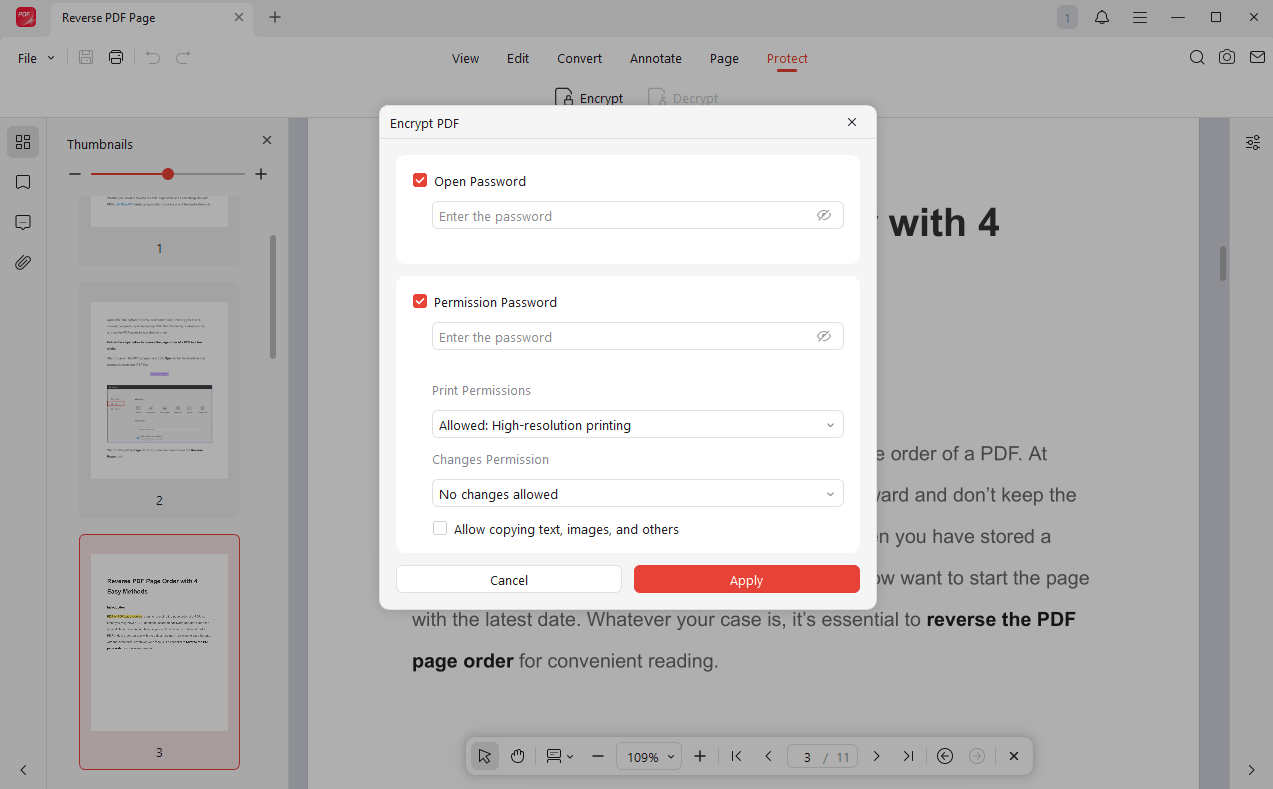
Two Types of Passwords:
- Open Password (User Password): Anyone who wants to open the PDF must enter this password.
- Permissions Password (Owner Password): Controls specific actions like printing, editing, or copying text.
Customizable Permission Settings:
-
Prevent others from printing your PDF
-
Disable text or image copying
-
Block modifications to file content
-
Restrict other actions as needed
The encryption process is straightforward and takes just a few clicks, making it accessible even for non-technical users. Once encrypted, unauthorized users cannot open or edit PDF without the correct passwords.
Ultimate Ways to Remove Encryption from PDF - Easy Steps
No longer need the encryption of a PDF or want to remove encryption from PDF to view or edit the content? Here are several easy ways to remove PDF encryption.
READ MORE >Built-In Security Features
Beyond basic password protection, JOPDF desktop PDF editor provides several additional PDF security measures:
-
100% protection promise: The software is designed to keep your files secure from unauthorized access.
-
Permission controls: Granular settings to restrict specific actions like editing, printing, or copying.
JOPDF Features Review: Every Tool We Tested
We ran JOPDF through a series of real-world tasks in July 2026. Here's what worked, what didn't, and what you should know before uploading your first file.
PDF Editing — Functional for Basic Text Changes
JOPDF breaks the traditional "read-only" barrier by letting you edit PDF free much like you would in a Word processor.
JOPDF's PDF editing mode lets you add text boxes, insert images, and draw shapes onto an existing PDF. You click where you want the new content, type or paste your text, and adjust font size and color. For filling out a form that wasn't designed as a fillable PDF, or adding a missing line to a document, it's perfectly adequate.
For specific PDF text editor tools, you can check here:
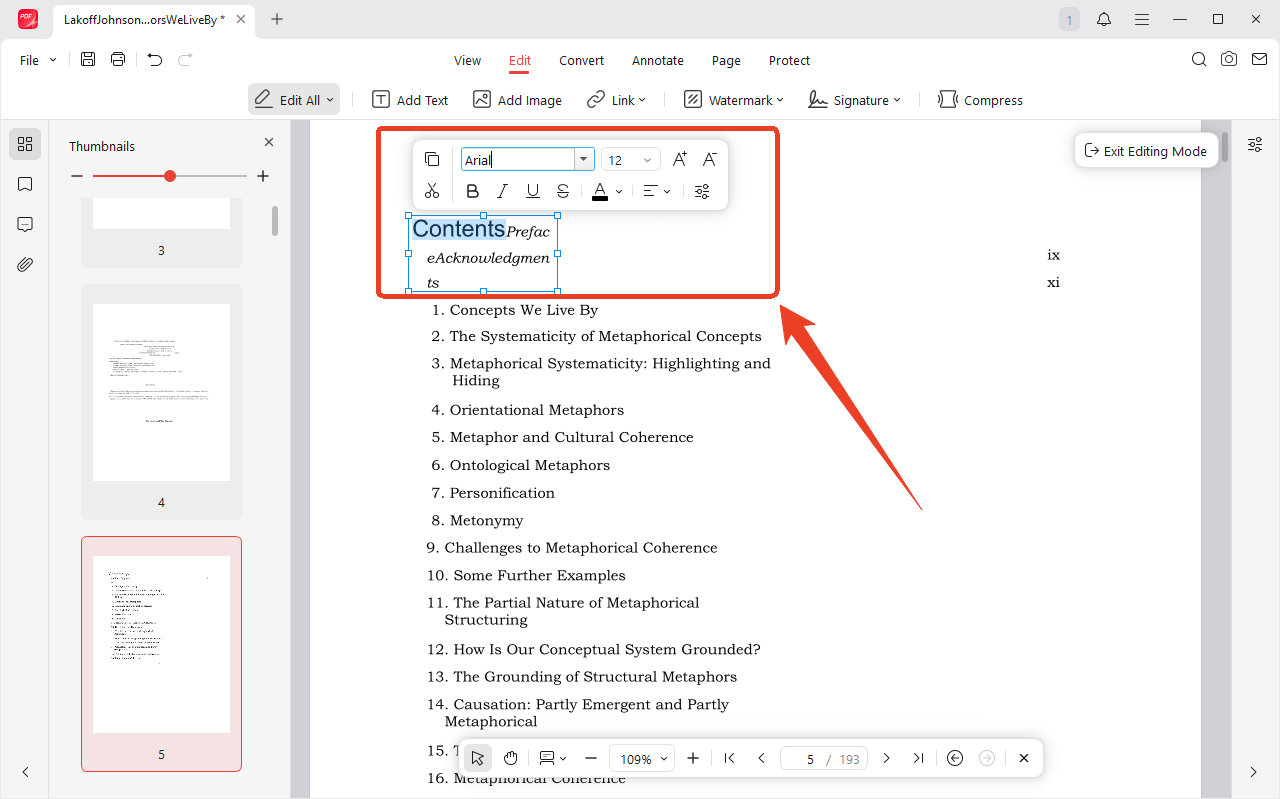
Edit PDF Text: You can add, delete, or rewrite text anywhere in the document, with full control over font type, size, color, and alignment.
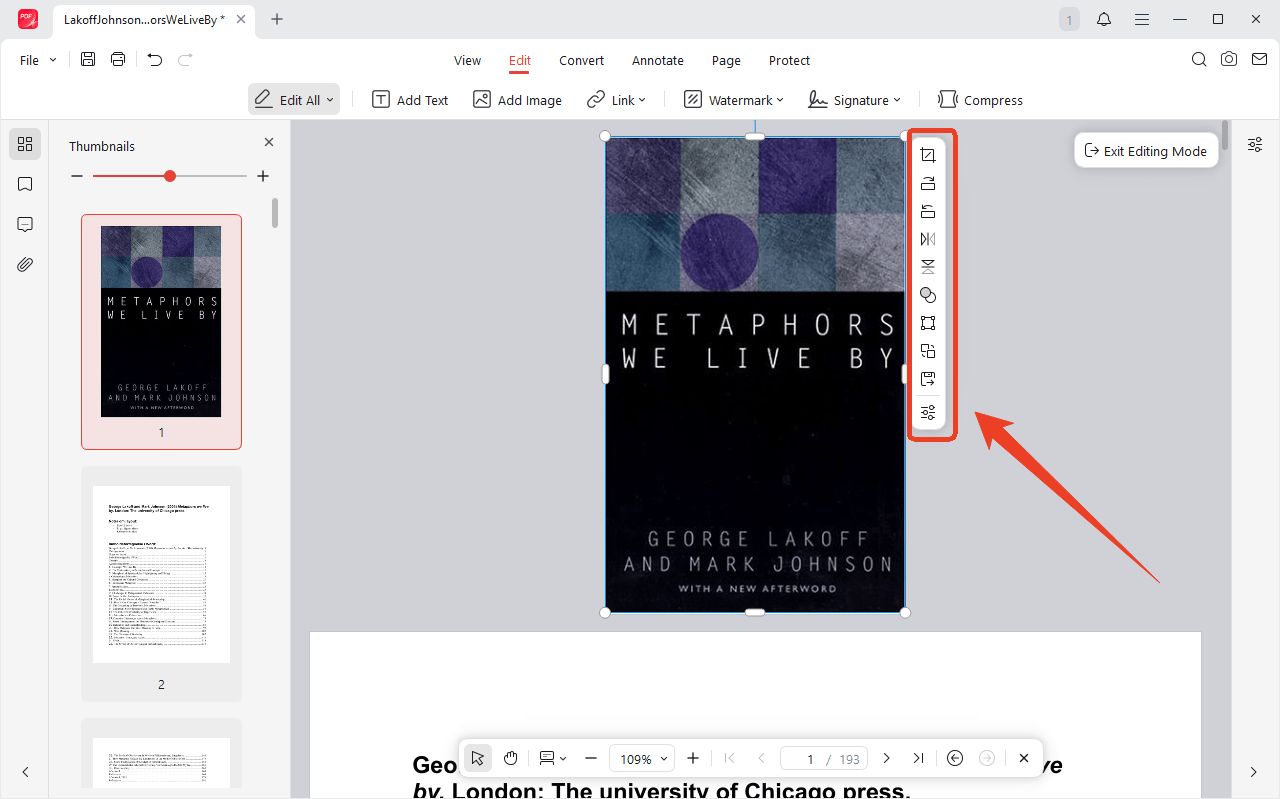
Edit Images: The software allows you to add new images, edit PDF image, replace existing ones, or remove images entirely. You can also crop, rotate, resize, and adjust image opacity.
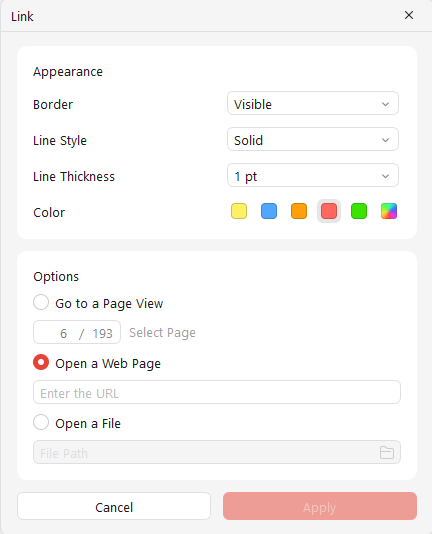
Manage Links: You can insert new hyperlinks (to web pages or other files), edit existing links, or remove all links from a document, with options to customize style and color.
Word-like Experience: The interface is designed to feel intuitive and accessible, even for users without prior PDF editing experience.
Merge & Compress — Everyday Essentials Done Right
Merge and compress are the features most users reach for first, and they're where JOPDF PDF merger performs best. This feature set helps you efficiently manage file sizes and combine multiple PDFs.
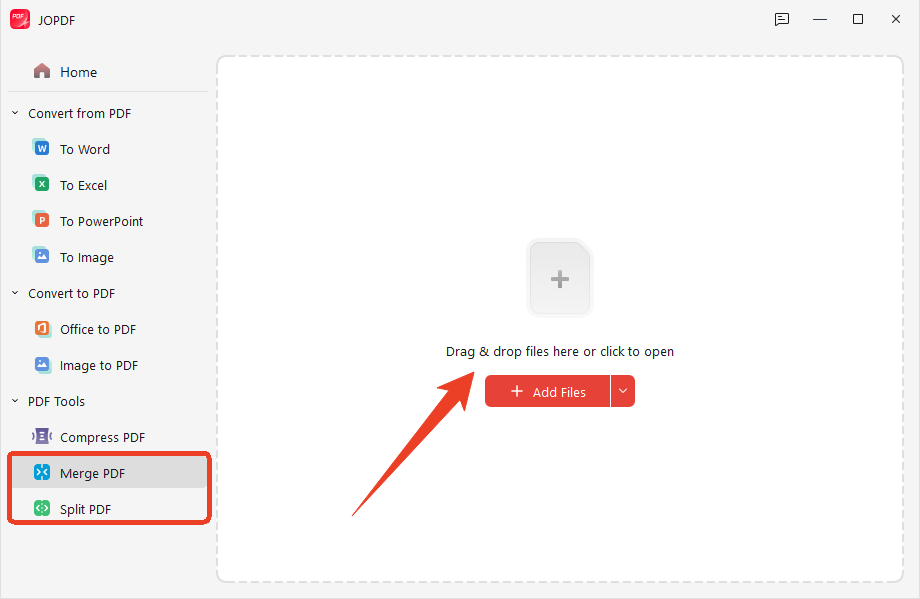
Merge & Split PDF
-
Merge PDFs: Combine multiple PDFs into a single document, with drag-and-drop support for page reordering.
-
Split PDFs:Divide a large file into separate documents by page range or split a single page into multiple sections.
We tested combining five PDFs totaling 42MB. Processing took under 15 seconds. The output preserved page order, orientation, and content fidelity. There were no blank pages inserted between files. The interface lets you drag and drop to reorder files before merging, which is intuitive. We did hit a limit at 20 files in a single merge; beyond that, the tool prompted us to split the job.
Compress PDF
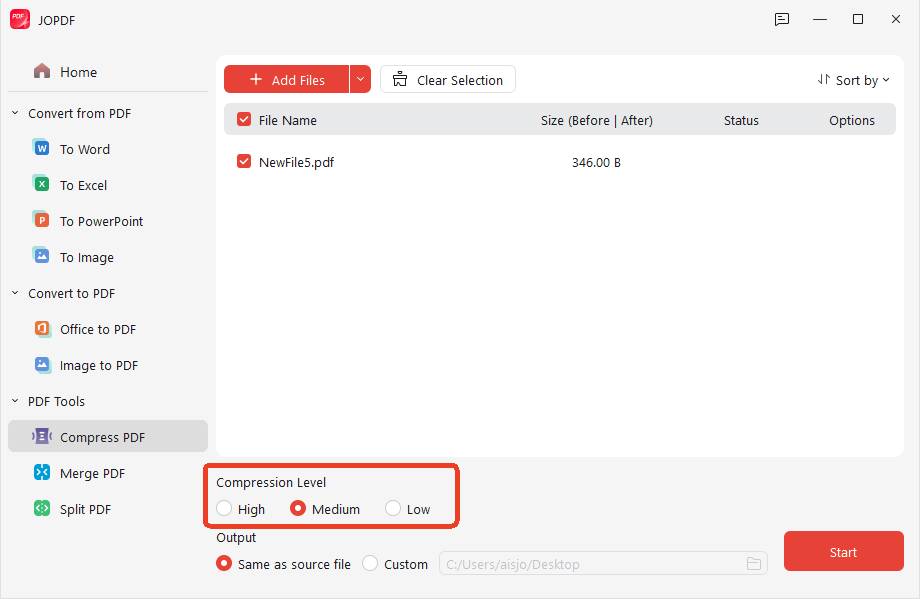
JOPDF PDF compressor offers a smart compression algorithm that analyzes the document's structure, including text, images, and vectors, and applies targeted optimization strategies.
-
Quality Preservation: The tool aims to reduce file size by 50% or more while maintaining visual clarity and text sharpness.
-
Multiple Levels: Users can choose from different compression levels (low, medium, high) depending on their needs, whether for email attachments or cloud storage.
-
Batch Processing: Multiple files can be compressed simultaneously, making it efficient for handling large batches of documents.
We tested three compression levels on a 28MB scanned textbook chapter.
-
"Medium" setting shrink PDF to 7.2MB with negligible visual quality loss. During this process, text remained sharp, images showed minor artifacts only at 200% zoom.
-
"Maximum" compression brought it to 3.1MB with noticeable blur on detailed graphics.
-
"Minimum" preserved near-original quality at 11.4MB. For email attachments and submission portals with file size caps, the Recommended setting hits the sweet spot.
PDF Conversion — Where Free Tools Show Their Limits
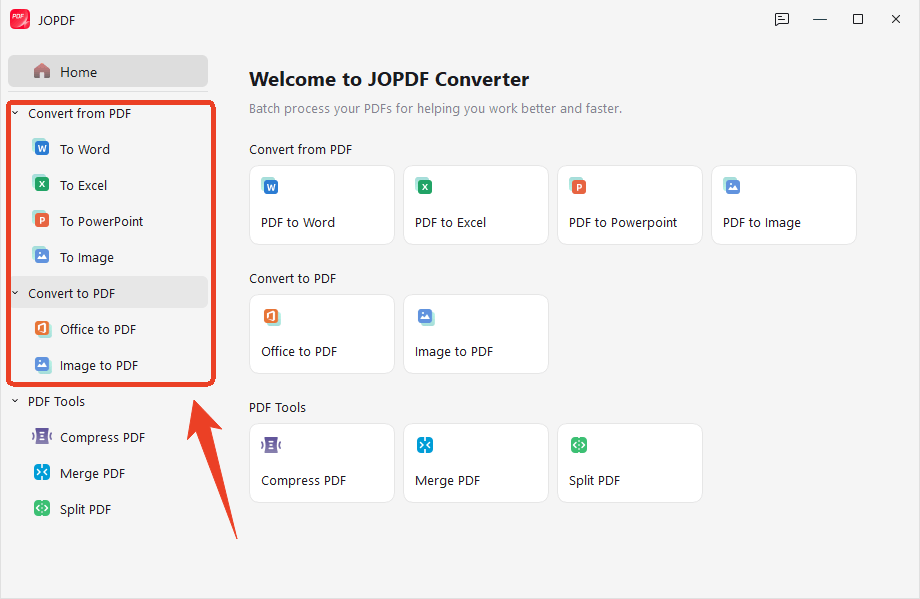
JOPDF PDF converter includes a robust batch conversion engine that supports a wide range of formats:
-
PDF to Other Formats: Convert PDFs to Word (.docx), Excel (.xlsx), PowerPoint (.pptx), and various image formats (JPG, PNG).
-
Other Formats to PDF: Convert Word, Excel, PowerPoint, and image files into high-quality PDFs.
-
High Success Rate: Independent testing shows that PDF-to-Word conversion yields high accuracy, with complex document layouts being rendered reliably.
-
Batch Processing: The conversion function supports batch operations, allowing you to convert multiple files at once, a feature rarely found in free PDF editors.
Print PDF — More Than Just Ctrl+P
JOPDF provides standard printing functionality that allows you to print PDF documents directly from the application. The interface integrates seamlessly with your system's print settings, so you can adjust print quality, page ranges, and copies as needed.
While this feature is straightforward and reliable for everyday printing, it does not currently include advanced booklet-printing or custom imposition tools found in some professional PDF printer.
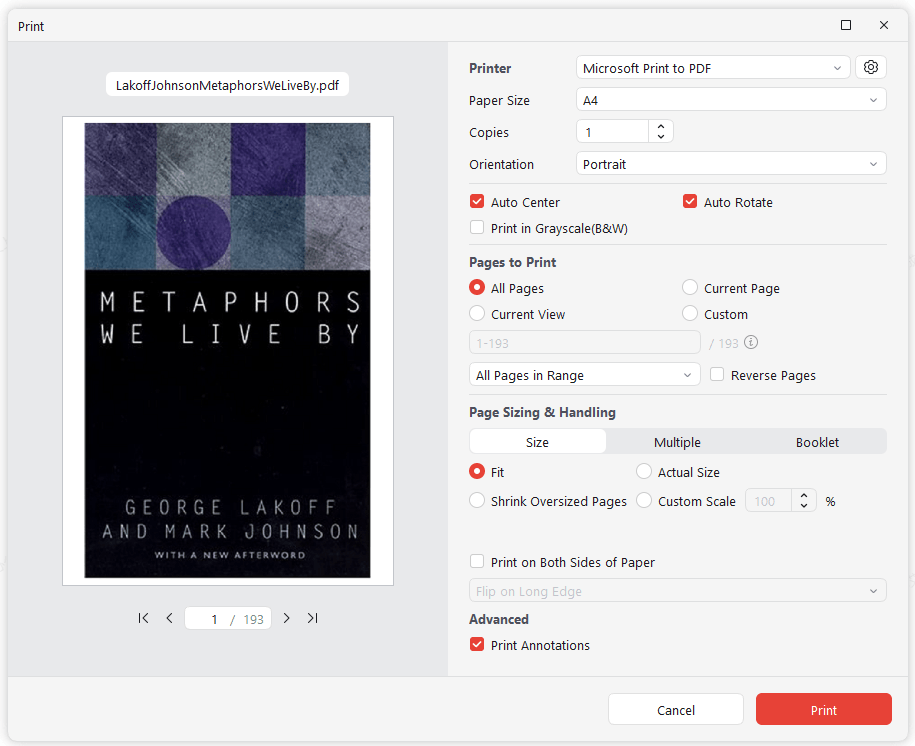
The tool renders the PDF for print output specifically, not screen display. You get controls for page orientation, scaling, and margin adjustment. A live preview shows exactly what the printed PDF page will look like.
We tested it with a 50-page document that consistently lost right-side content when printed through Chrome's default dialog. JOPDF's print output preserved all content within the printable area. For students printing lecture handouts or professionals printing contracts for signing, this feature alone justifies using the platform over browser defaults.
Organize PDF — Simple Page Management
JOPDF's PDF Organize tool covers the four page-level operations most users need:
-
Reorder: Drag and drop thumbnails to rearrange pages. Responsive even with large documents. Handles multi-select for moving blocks of pages.
-
Extract: Select specific pages and save them as a new PDF. Useful for pulling a single chapter from a textbook or a single form from a packet.
-
Rotate: Rotate individual pages or all pages at once. Handles the common problem of scanned pages appearing sideways.
-
Crop Pages: Adjust page dimensions to your preferred size, removing unwanted borders or margins.
The thumbnail-based interface is standard but well-implemented. For a student assembling a final project from multiple sources, the Organize tool handles the job without complexity.
Annotation Tools — Lightweight but Sufficient for Reading
JOPDF's annotation suite includes highlight, underline, strikethrough, sticky notes, and basic shape drawing (rectangle, circle, arrow). There's also a freehand drawing tool for marking up diagrams.
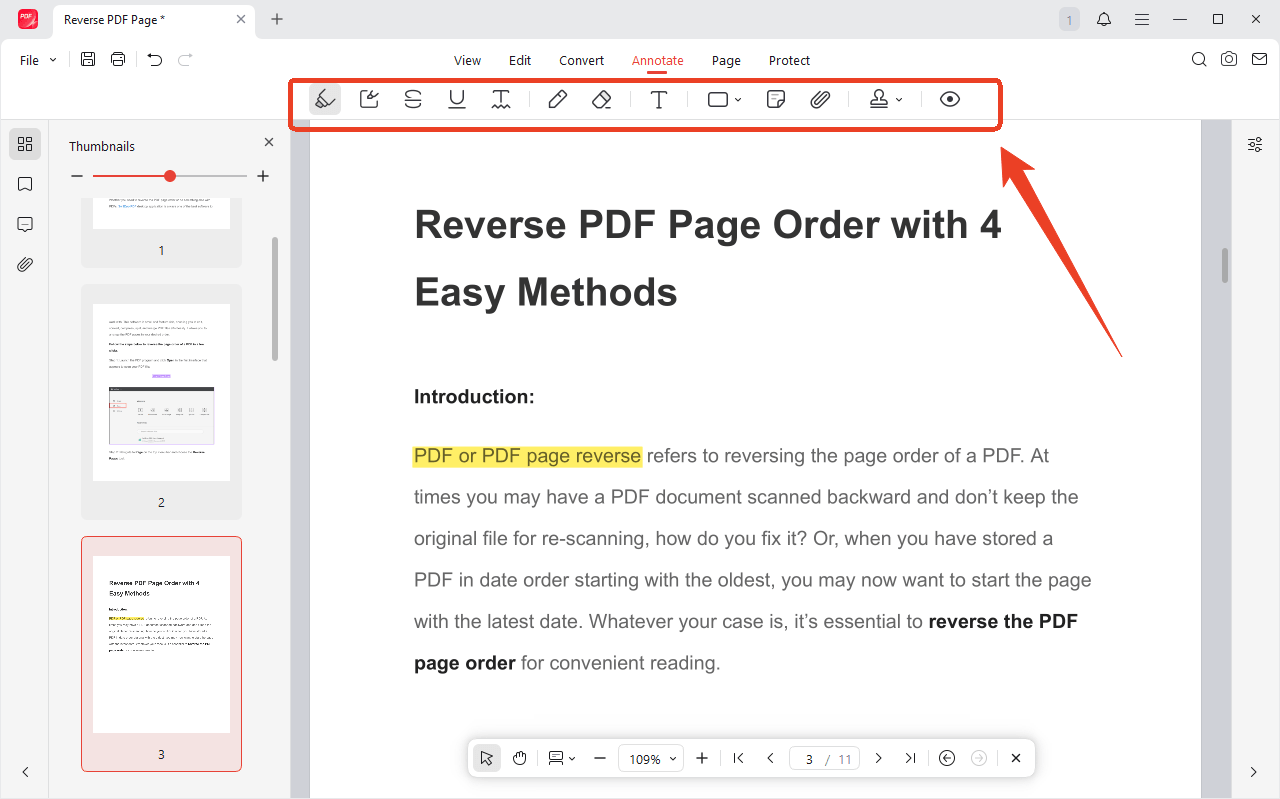
For reading and reviewing, the tools are adequate. You can highlight key passages in an article, add sticky note comments for a collaborator, or strike through text you plan to cut. Color options for highlights are limited to yellow, green, blue, and red, enough for most purposes, but not for complex color-coded review systems.
JOPDF PDF annotator offers over 15 annotation tools, making it suitable for document review and collaboration:
-
Highlighting Tools: Highlight, underline, strikethrough, or add wavy lines to emphasize text.
-
Drawing Tools: Use pencil, eraser, shapes, and freehand drawing to mark up content.
-
Display Control: Show or hide all annotations with a single click to review clean and marked versions.
The main limitation: annotations are static. There's no commenting thread for back-and-forth discussion, no approval workflow, no way to filter annotations by author. For solo review or simple peer feedback, JOPDF works. For collaborative editing with a team, a more robust tool is needed.
JOPDF Pros and Cons: An Honest Assessment
To help you decide if JOPDF PDF editor free fits your workflow, here's a balanced look at its strengths and limitations based on real user experiences and expert reviews to JOPDF.
JOPDF Pros
-
Completely Free and Unrestricted: JOPDF is 100% free with no hidden costs, no watermarks, no ads, and no registration required.
-
Lightning-Fast Performance: The software is lightweight (around 30–50 MB) and launches in under a second.
-
Clean, Intuitive Interface: JOPDF PDF text editor features a minimalist, well-organized design that is beginner-friendly.
-
Essential Editing Tools for Everyday Tasks: The software covers all common PDF needs.
-
Strong Cross-Platform Support: JOPDF runs on Windows, macOS, and Linux.
-
Privacy-Focused Offline Processing: All file processing happens locally on your computer - nothing is uploaded to external servers. This makes JOPDF a secure choice for handling sensitive documents like contracts and financial records .
-
Regular Updates and Growing Feature Set: The software is actively maintained with new features being added over time, including expanded language support and conversion capabilities.
JOPDF Cons
-
Limited Advanced Features: JOPDF does not include OCR, AI-powered features, and Form creation or editing interactive fillable forms.
-
Converter Plugin Required: While JOPDF itself is lightweight, advanced format conversion requires downloading an additional plugin (approximately 180 MB).
-
Best for "Point Edits," Not Extensive Formatting: Multiple reviews note that JOPDF performs excellently for specific updates, but struggles with large-scale paragraph reflow and complex formatting changes.
-
Complex Formatting May Break in Conversions: While PDF-to-Word conversion is generally stable, complex document layouts may occasionally shift or lose formatting. A Linux user compared it to WPS's PDF converter and noted that JOPDF's conversion quality was "not as good, but it's free".
-
No Cloud Syncing or Collaboration Features: JOPDF is designed for local use only. It lacks cloud-based file syncing, real-time collaboration, or team annotation features commonly found in paid alternatives.
-
Limited Editing for Certain PDF Types: Some PDFs, particularly those generated by certain AI tools, cannot be edited at all. In testing, one reviewer found that an AI-generated presentation PDF displayed a "this scanned PDF cannot be searched or edited" message, making text modifications impossible.
-
Potential Issue with File Associations: Some Linux users reported that setting JOPDF as the default PDF opener did not work consistently across systems.
JOPDF User Reviews: What Real Users Are Saying
To give you a complete picture of what it's like to use JOPDF, I've gathered feedback from independent reviews, tech blogs, and user forums. Here's what real users are saying about their experience.
Positive User Reviews - What Users Like
-
Users frequently praise JOPDF's minimalist and well-organized design. One reviewer noted that the interface is "sleek" and provides "seamless handling for most operations," with multiple tabs that make switching between documents efficient.
-
The fact that JOPDF is genuinely free is a major selling point for many users. One reviewer appreciated that "no account registration is required, and you can start editing PDFs immediately after installation".
-
Users consistently highlight JOPDF's speed. One reviewer noted it's "lightweight and fast in loading PDF files" with "no ads, so you know you're going to maximize your screen space".
-
For basic PDF editing needs, users find JOPDF more than adequate. One reviewer noted that "the editing itself works well in practice, and for simple changes it's perfectly fine".
-
Several users highlighted the encryption tools. One reviewer called the encryption feature "10/10", noting it "allows you to add passwords for opening and passwords for permissions" to control printing and copying.
-
Linux users particularly appreciate JOPDF's availability. One user called it "a good, lightweight PDF tool for everyday office users" and noted that "the interface style is relatively modern and coordinates well with deepin's overall UI style".
Negative User Reviews - What Users Dislike
-
A common criticism is that JOPDF works best for point edits, not extensive formatting changes. One reviewer found that "during testing, the program didn't perform as well for modifications in large chunks.
-
Some users find the additional plugin installation frustrating. One reviewer noted that "depending on the feature you want to use, you need to additionally download and install a plugin. Since plugins are separated by function, it gets a bit tedious".
-
Users have noted the absence of certain advanced tools. One reviewer mentioned they were "testing it, but it seems there's no flatten function... this feature is really important to me".
What Users Say About Security
A Japanese reviewer conducted a VirusTotal scan of the JOPDF installer and found that "only 1 out of 71 security vendors flagged a warning" but confirmed the official website is clean. The review concluded that with "no account registration, no purchase or personal information entry, and the ability to use it offline, the risk of data being sent externally is quite low".
Powerful JOPDF PDF Editor Alternative - SwifDoo PDF
While JOPDF is an excellent free option, some users need advanced features like OCR and AI-powered tools. For those users, SwifDoo PDF offers a compelling alternative.
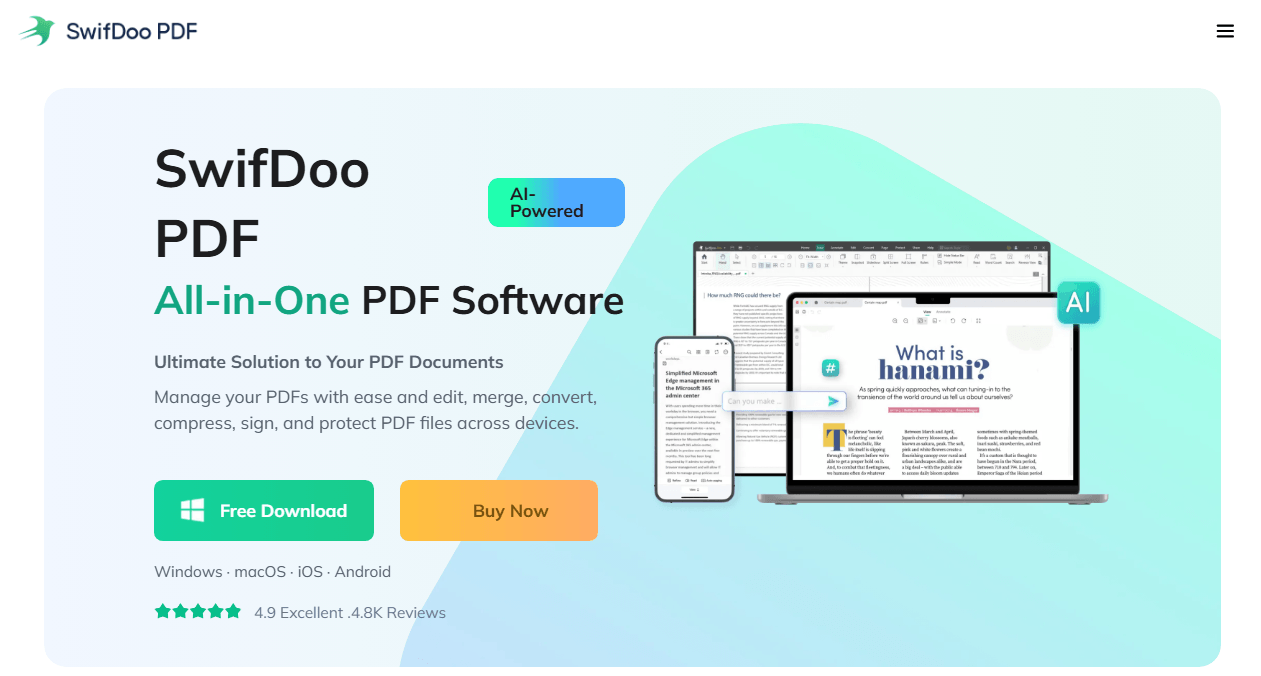
SwifDoo PDF is a feature-rich PDF editor available on Windows, macOS, iOS, and Android . It provides a comprehensive set of tools that go beyond basic PDF editing:
-
OCR (Optical Character Recognition): SwifDoo PDF includes fast and accurate OCR, allowing you to convert scanned documents and image-based PDFs into editable, searchable text. You can even turn image-only files into Word, Excel, or editable PDF formats while preserving the original layout.
-
AI-Powered Features: Powered by ChatGPT 4.0, SwifDoo AI lets you summarize long documents, translate content into over 100 languages, rewrite and proofread text, and chat directly with PDFs to ask questions about the content.
-
Cross-Platform Support: Unlike JOPDF (which is desktop-only), SwifDoo PDF works across Windows, macOS, iOS, and Android, letting you access your documents on any device.
-
Cloud Storage: SwifDoo offers 10GB of cloud storage for seamless access across devices.
Final Verdict
When your PDF tasks outgrow JOPDF's free boundaries, SwifDoo PDF provides a natural next step. It's a desktop application with lifetime licensing, local file processing, and the advanced features JOPDF doesn't attempt to offer. The two tools aren't enemies. They complement each other: JOPDF for the quick fix, SwifDoo for the heavy lifting.


