


Why Choose an Offline PDF Editor?
Let’s be honest: While online tools are convenient, they do have their limitations. Slow upload speeds, file size limits, privacy concerns - the list of issues goes on and on. Offline PDF editors store files on your computer, thereby solving all these problems.
We prefer this approach for three reasons: speed, security, and reliability. All you have to do is open the app, edit the file, and save it. Also, there are other reasons you should choose a PDF editor free offline:
-
No File Size Limits: Online tools usually cap file sizes. A proper PDF editor offline for Windows 10 can handle massive files without blinking.
-
No Recurring Costs: Many offline tools offer one-time purchases instead of subscriptions. You pay once and you're done. No monthly fees eating into your budget.
-
Privacy and Security: An offline PDF editor keeps everything on your machine. No third-party server.
-
Speed: When we tested offline PDF editor free options side by side with web tools, the desktop apps consistently finished faster, especially on large files over 50MB.
6 Best Free Offline PDF Editors Compared
We spent weeks testing these six offline PDF editor tools side by side. Below is a quick breakdown of how they stack up on the features that matter most - text editing, OCR, conversion, signatures, and AI tools. Use this table to narrow down your choices before you download anything.
|
Feature |
SwifDoo PDF |
PDFgear |
Foxit PDF Editor |
PDF-XChange Editor |
Adobe Acrobat Pro |
Sejda PDF Desktop |
|---|---|---|---|---|---|---|
|
Text editing |
Excellent |
Good |
Excellent |
Limited in free |
Excellent |
Good |
|
Image editing |
Replace, resize, rotate |
Basic |
Full control |
Limited |
Full control |
Basic |
|
OCR (scanned PDFs) |
Multi-language, fast |
Basic |
Strong |
Average |
Best-in-class |
Paid only |
|
PDF to Word/Excel |
High fidelity |
Good |
Good |
Good |
Excellent |
Paid only |
|
Merge/Split pages |
Yes |
Yes |
Yes |
Yes |
Yes |
Yes |
|
E-signatures |
Full workflow |
Yes |
Yes |
Basic |
Full workflow |
Basic |
|
AI assistant |
Summary, chat, translate |
Chat only |
Summary, chat, translate |
No
|
Summary, chat |
No
|
|
Batch processing |
Yes |
Limited |
Yes |
Limited |
Yes |
Paid only |
|
Redaction |
Yes |
Yes |
Yes |
Basic |
Yes |
No |
|
Document comparison |
No |
No |
Yes |
Yes |
Yes |
No |
|
Watermark add/remove |
Yes |
Basic |
Yes |
Basic |
Yes |
Basic |
|
Form creation & filling |
Yes |
Basic |
Yes |
Basic |
Yes |
Basic |
|
File compression |
Yes |
Basic |
Yes |
Basic |
Yes |
Paid only |
|
Page rotation/cropping |
Yes |
Yes |
Yes |
Yes |
Yes |
Yes |
|
Portable version |
Yes |
No |
No |
Yes |
No |
No |
What this best PDF editor free offline tools compared table tells us:
-
SwifDoo PDF, Foxit PDF Editor, and Adobe Acrobat Pro are the only two tools that check nearly every box. The difference? SwifDoo PDF offers a one-time purchase with full feature access during trial, while Adobe locks you into a subscription after seven days.
-
Foxit is a strong contender for business teams, though its free trial expires in 14 days.
-
PDF-XChange Editor excels at speed and annotation but isn't built for heavy editing.
-
Sejda Desktop keeps things simple but paywalls too many core features.
For most Windows users who want a PDF editor free offline trial with room to grow, SwifDoo PDF is the clear starting point.
SwifDoo PDF – Best Overall Offline PDF Editor for Windows
SwifDoo PDF is probably the most well-rounded free PDF editor offline we tested, especially if you're on Windows. It has a clean, modern interface that feels like Microsoft Office, so there's almost no learning curve.
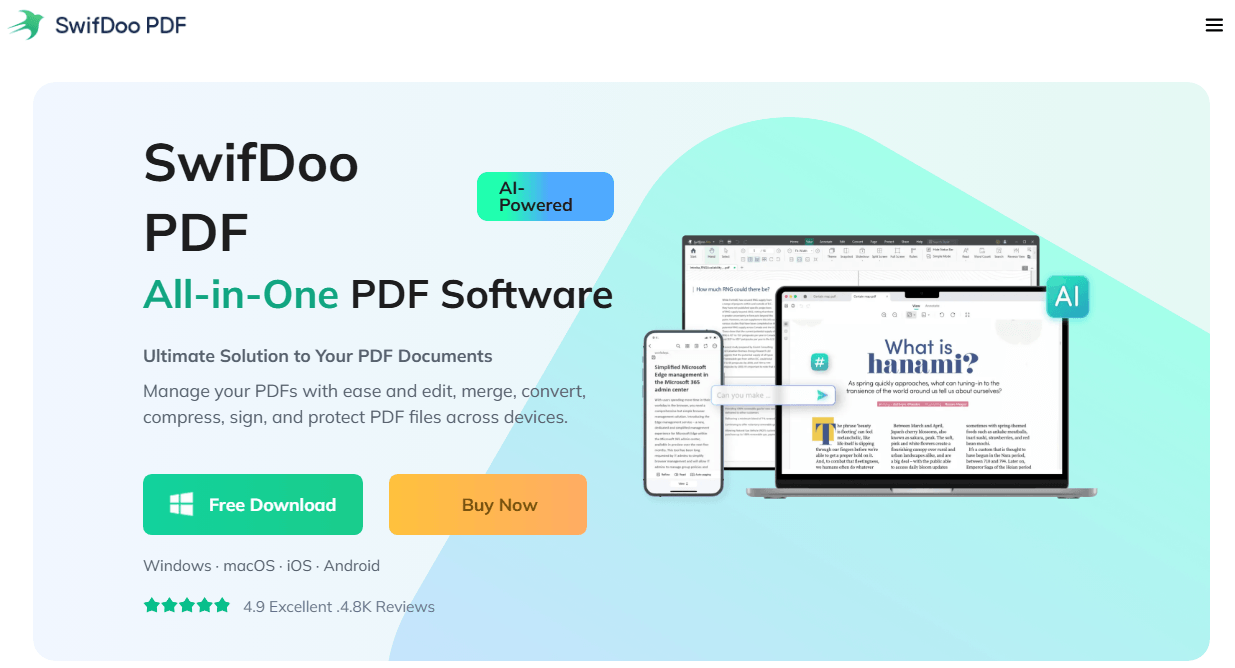
Key Features:
-
Edit text and images directly, like in Word
-
Convert PDFs to/from Word, Excel, PPT, images, and even CAD files
-
OCR for scanned documents
-
AI-powered assistant that can summarize or translate PDFs
-
Password protection with two-level encryption
-
Batch processing for multiple files at once
-
Compress PDFs to reduce file size
-
Merge and split PDFs
-
Combines just about every essential PDF function into one place
-
Clean, modern UI that's not overwhelming
-
Cross-platform support (Windows, Mac, iOS, Android)
-
AI features actually save time on long documents
-
Very lightweight (only about 10 MB disk space)
-
The Mac version lacks some features the Windows version has (like OCR and file conversion)
-
Some features require a paid plan
-
Monthly plan feels expensive for what you get ($10/month)
-
AI features are limited in the free version
SwifDoo PDF vs PDF Expert: The Ultimate Feature Comparison
Need a PDF editor that won’t let you down? Investigate SwifDoo PDF vs PDF Expert on Windows and Apple systems to choose the option that fits your requirements.
READ MORE >A Deep Dive into SwifDoo PDF's Main Features
We tested SwifDoo PDF on both Windows and Mac to see how it really performs. Here's a detailed breakdown of its core features.
-
PDF Editing: Edit Like Word
This is where SwifDoo PDF shines. You can directly click on text in a PDF and start typing – just like in Word. We opened a complex PDF with tables and images, and the editing worked perfectly. You can adjust font size, color, alignment, and spacing without any trouble.
For images, you can resize, crop, move, rotate, or replace them. You can also add links, watermarks, and annotations easily. The interface uses a ribbon-style toolbar that feels familiar. We didn't need to hunt through menus – everything was right where we expected it to be.
-
PDF Conversion: The Format Shuffle
SwifDoo supports batch conversion between PDF and Word, Excel, PowerPoint, JPG, PNG, EPUB, and even CAD formats. We converted a 20-page PDF to Word, and the layout held up well.
On Windows, the conversion is fast and accurate. On Mac, however, file conversion is missing entirely. That's a major downside if you're not on Windows.
-
OCR: Scanning Made Searchable
We fed a 50-page scanned PDF through the OCR engine. It took about 20 seconds and turned the scanned pages into searchable, editable text. The text recognition was decent – not perfect, but accurate enough for editing and searching.
Important: This feature is only available on Windows. Mac users don't get OCR.
-
SwifDoo AI: The Smart Assistant
SwifDoo AI is powered by ChatGPT4o and offers several tools :
-
Summarize: Condense long documents into key points.
-
Translate: Translate PDFs into 100+ languages.
-
Rewrite & Proofread: Improve clarity and fix grammar.
-
Chat: Ask questions and get answers directly from your PDF.
We tested the summarizer on a 20-page report. It gave us a clear bullet-point summary in seconds. This feature is useful for anyone who handles long documents regularly.
However, the AI feature requires an internet connection. And the free version is limited to 10 questions and 3 documents per month.
How to Summarize a Poem: A Complete Step-by-Step Guide
Learn how to summarize a poem with this step-by-step guide. Includes poem summary examples, format tips, and how SwifDoo PDF AI helps you summarize poetry fast.
READ MORE >5. Page Management & Organization
SwifDoo includes a full set of page management tools :
-
Split: Break a PDF into smaller files.
-
Rotate, delete, extract, and reorder pages.
We merged five PDFs into one in about five seconds. The process was smooth and intuitive.
The Verdict
If you're on Windows, this is probably the best free PDF editor offline you'll find. The free version is decent, but the paid version unlocks everything. One thing we liked: the lifetime license option. You pay once ($50-$70) and you own it forever. Compare that to Adobe's annual subscription, and it's a great deal.
Ideal for: Anyone on Windows who needs professional PDF editing without an internet connection. Great for free PDF editor offline users who want to try before they buy. If you need an offline PDF editor free download with full features during the trial period, start here.
PDFgear – Best Completely Free Offline PDF Editor
PDFgear caught our attention because it claims to be totally free - no trials, no paywalls, no watermarks. We were skeptical. After testing it for two weeks, we're impressed. It's a solid PDF free editor offline choice for budget-conscious users.
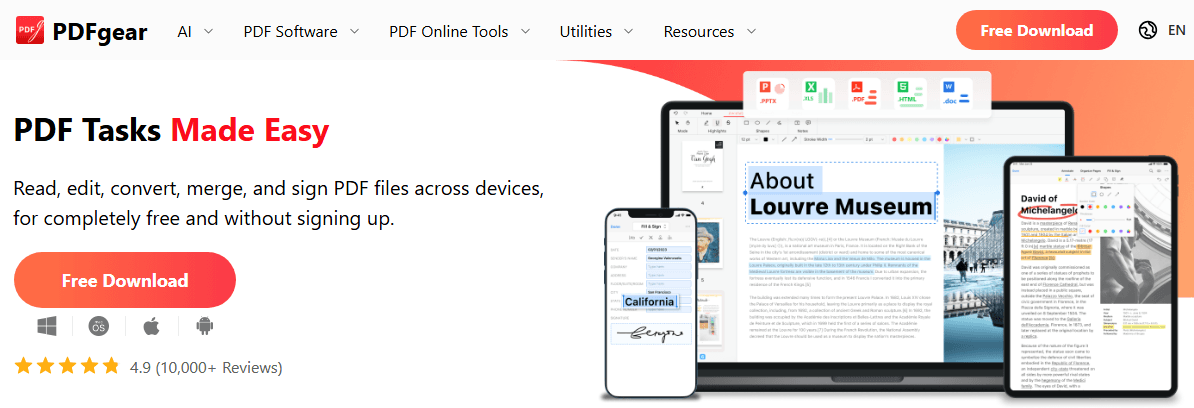
Tech publications have been raving about it. PCMag called it "by far the best free PDF editor we've tried". Digital Trends described it as a "holy grail" for a free, offline PDF editor. So we had to test it.
Key Features that we love:
-
Genuinely free. No account required. No credit card asked. You download it and start editing. That's rare in this space.
-
Built-in AI chat. You can ask questions about your PDF and get answers based on the content. We tested it with a user manual and it pulled accurate information quickly.
-
Clean interface. The design is modern and uncluttered. New users won't feel overwhelmed.
-
Totally free, no watermarks, no page limits, no account required
-
Works offline for most tasks
-
Clean, polished interface
-
Very easy to use – open file, edit, save, done
-
Great for basic to medium PDF editing needs
-
Lacks some advanced enterprise features like professional-grade redaction
-
Not as easy to use as paid apps; some editing tasks are harder to figure out
-
AI features need an internet connection
-
No direct integration with cloud storage services
We were skeptical. "Completely free" usually means "watermarks" or "limited features." But PDFgear genuinely delivered. We installed it on Windows 11, opened a PDF, and started editing text immediately. No signup, no prompts to upgrade, no restrictions.
We tried to break it by opening a 200-page PDF with complex formatting. It handled it fine. We converted a PDF to a PowerPoint file – it worked, though the formatting wasn't perfect (but honestly, no converter is).
The AI Copilot feature is interesting. We asked it to summarize a long legal document, and it gave us a bullet-point summary. It's not perfect, but it's a nice bonus for a free tool.
One thing we didn't like: some editing tasks require more clicks than they should. Finding the "edit text" button took us a minute. In paid apps like SwifDoo PDF, it's right there on the main toolbar.
The Verdict
PDFgear is the best offline PDF editor free if you're on a budget. Period. It handles 90% of what most people need from a PDF editor. If you're a student, occasional user, or someone who hates subscriptions, this is your tool.
Ideal for: Students, home users, and anyone who needs an easy PDF editor offline without spending a cent.
Foxit PDF Editor – Best for Business & Enterprise
Foxit has been around for years and serves the enterprise market well. The desktop app is a robust PDF editor offline for pc solution with collaboration features that teams appreciate. That's why enterprise IT teams actually recommend it as a lighter, faster alternative to Adobe Acrobat. We tested the trial version for this review.
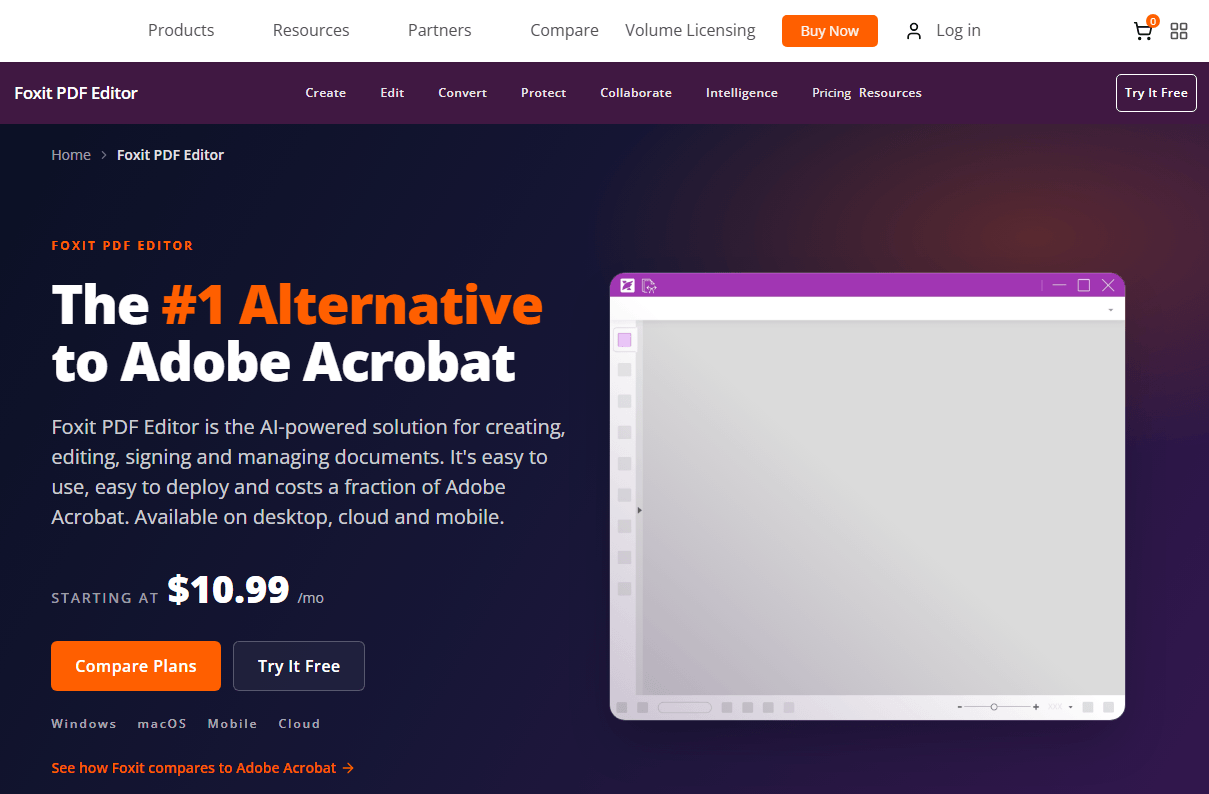
What we love:
-
Enterprise-grade security. Redaction, digital signatures, and permission controls are all here. Foxit is built for compliance-heavy environments.
-
SharePoint and Teams integration. If your company lives in Microsoft's ecosystem, Foxit fits right in.
-
Connected PDF technology. Track who opens your documents and what they do with them. Useful for sensitive distribution.
-
Strong OCR and editing tools. Text and image manipulation work well, though the interface takes time to learn.
-
Very fast viewer (huge architectural drawings open in seconds)
-
Feature parity between desktop and mobile versions
-
Strong security features (redaction, encryption, permissions)
-
Trusted by businesses and legal teams
-
Works offline for most tasks
-
Free tier is mostly a reader; real editing needs the paid version
-
Expensive at about $9.99/month or $99.99/year
-
UI has too many menus, which adds friction for simple tasks
-
Users report stability issues (crashes, lag, save failures)
-
Recent UI updates have made the app feel outdated to some users
We tested Foxit on Windows. The viewer is genuinely fast. We opened a 100-page PDF with high-res images, and it loaded instantly. The annotation tools are robust. We liked the form-filling capabilities too – it's what Foxit is known for.
But we ran into issues. The app crashed twice while we were editing a 50-page contract. Text recognition was unreliable; sometimes it didn't recognize a word and we had to type it manually. We also found the UI confusing. To edit text, we had to click through three menus instead of just clicking on the text itself.
The Verdict
Foxit is for people who edit PDFs daily and need desktop-mobile parity. It's also for businesses that need redaction, forms, and security features built in. But casual users should probably skip it – the free version isn't useful for editing, and the paid version is expensive.
PDF-XChange Editor – Best Lightweight Offline PDF Editor
PDF-XChange Editor is the fastest-loading PDF offline editor we tested. It launches instantly, even on older hardware. It's fast, it's portable, and it doesn't hog your system resources. If you need quick comments, highlights, and markup tools, this is the offline free PDF editor for you.
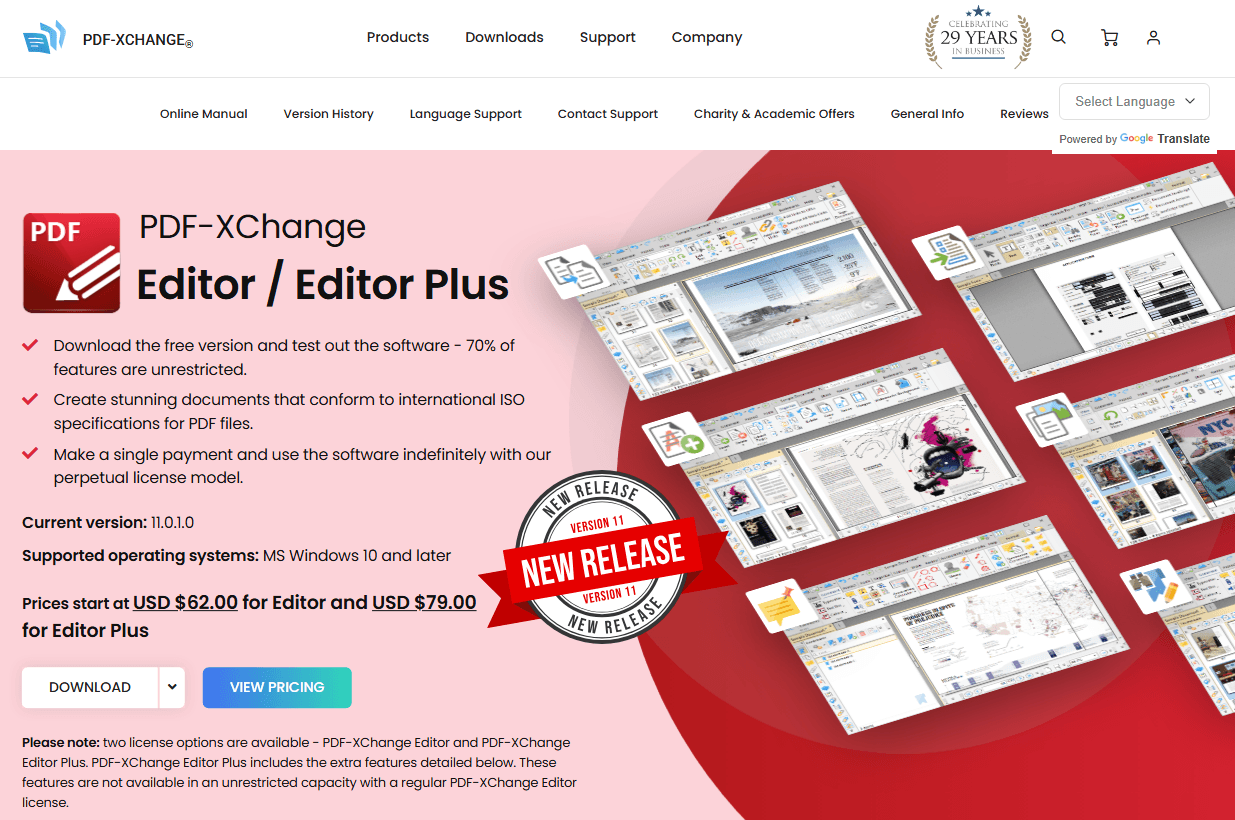
What we love:
-
Incredible speed. The app opens in under two seconds on our test machine. Editing feels instant.
-
Rich annotation toolkit. Stamps, highlights, measurement tools, sticky notes - it's all here and it all works well.
-
Portable version. You can run it from a USB drive without installing anything. Perfect for working on shared or locked-down computers.
-
Free tier includes basic editing. You can annotate and even edit text without paying.
-
Very fast and lightweight
-
Portable version available – no installation needed
-
Clean, modern interface
-
Covers the basics well
-
Free version is usable for basic tasks
-
Some features are only available in the paid version
-
Free version lacks OCR and document signing
-
Not as feature-rich as SwifDoo or Foxit
-
Windows-only (no Mac or Linux support)
We kept PDF-XChange Editor on a USB stick for a week, using it on three different computers. It never failed to launch, never crashed, and never asked for an internet connection. That's impressive.
The downside? When we needed to do serious text editing, like changing sentences rather than adding comments, the free version fell short. However, We changed a few words, added a highlight, and saved the file. That was fast and smooth.
For annotation work, it's excellent. For full document editing, look elsewhere. Besides, we hit the paywall quickly. We tried to OCR a scanned PDF – the free version told us to upgrade. We tried to sign a document – same thing. It's a bit frustrating because the free version feels like a teaser for the paid version.
The Verdict
PDF-XChange Editor is a great PDF editor offline for pc if you need something fast and lightweight. It's also perfect if you want a portable tool you can carry on a USB drive. But if you need OCR or signatures, you'll have to pay for it.
Ideal for: Users who need a fast, portable PDF editor offline for annotations and markup. Great for PDF free editor offline users who mostly comment on documents rather than rewrite them.
Adobe Acrobat Pro – The Industry Standard
We can't talk about PDF editor offline tools without mentioning Adobe Acrobat Pro. It's the most recognized name in the category, and for good reason - the feature set is unmatched.
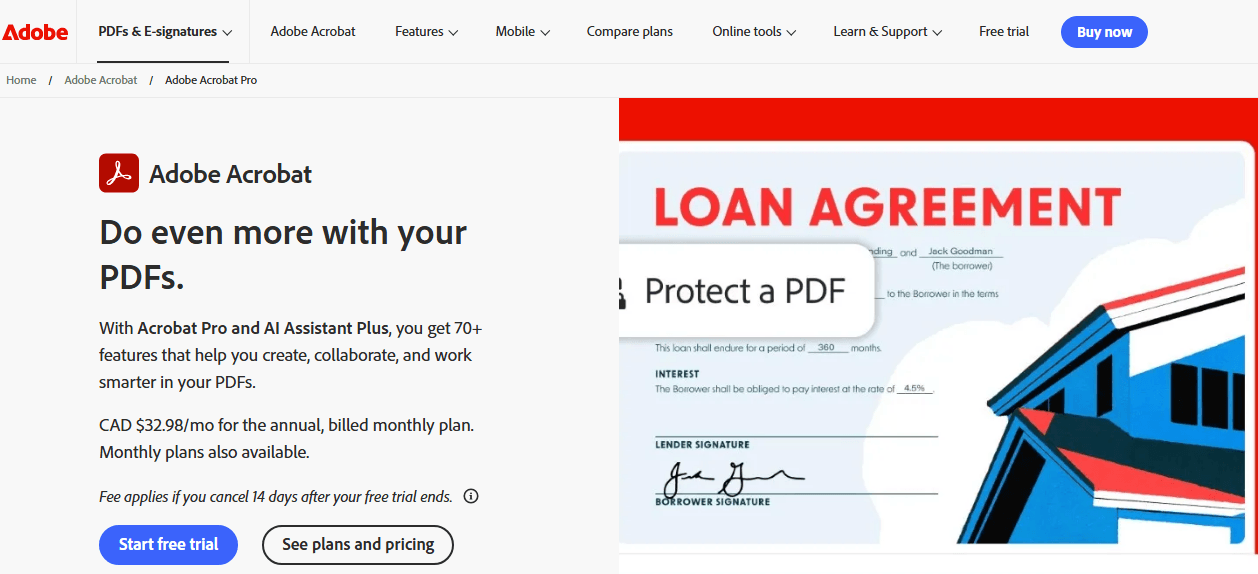
What we love:
-
Everything you could possibly need. Advanced OCR, redaction, forms, signatures, accessibility tools, document comparison.
-
Industry-leading OCR. Adobe's recognition engine handled every scan we threw at it, including low-quality faxes.
-
Creative Cloud integration. If you use Photoshop, InDesign, or Illustrator, Acrobat fits your workflow.
-
Mobile companion apps. Edit on the go with reasonably capable Android and iOS apps.
-
Most comprehensive feature set available
-
Works offline for desktop tools without requiring cloud connection
-
Converts PDFs to Word, Excel, and PowerPoint with high accuracy
-
Very secure (banks and governments use it)
-
Standardized in most enterprises
-
Trusted brand you can depend on
-
Very expensive (around $249.88 for a 1-year subscription)
-
Often slow, even on newer MacBooks
-
Crashes sometimes when editing
-
Interface is cluttered and hard to navigate
-
Overkill if you only need basic editing
-
Subscription-only (no one-time purchase option
Adobe PDF Compare: Compare Two PDFs with Adobe Acrobat
How can I compare two PDF files with Adobe? If you're also wondering. Read this blog, it'll show you how you can do Adobe PDF compare with a step-by-step guide.
READ MORE >There's no denying Acrobat's power. We used it to redact sensitive information from a 100-page legal document, and it handled the job perfectly. But we also watched it consume over 1GB of RAM while idle. And when the trial ended, we were hit with a subscription price that made us wince. For users seeking a PDF editor offline free solution, Adobe isn't it. For professionals who need every feature and can justify the cost, it remains the benchmark.
The Verdict
Adobe Acrobat Pro is the right offline PDF editor for professionals who need advanced features and are willing to pay for them. If you're a lawyer, government employee, or someone who works with PDFs daily, it makes sense. For everyone else? There are cheaper and faster PDF editor alternatives.
SwifDoo PDF vs Adobe Acrobat: A Side-by-Side Comparison
Wondering which software is best for your PDF handling needs? Here, we have thoroughly compared SwifDoo PDF vs Adobe Acrobat to help you choose the best one.
READ MORE >Sejda PDF Desktop – Best for Quick Offline Edits
Sejda PDF Desktop is the tool for occasional users. It's simple, focused, and free for light use. The free version lets you do three tasks per day on files up to 200 pages and 50 MB. That's enough for most people.
What we love:
-
Simple, focused interface. No clutter. Just the tools you need, right where you expect them.
-
Cross-platform support. Works on Windows, Mac, and Linux - the only tool on this list with full Linux support.
-
Quick launch. The app opens fast and gets out of your way.
-
Core editing works. Text edits, links, forms, and page tools all function without drama.
-
Inline text editing – you can click on text and change it directly
-
Desktop app works completely offline
-
Perpetual license option – pay once, own it forever
-
Very clean, minimalist interface
-
Generous free tier (3 tasks/day, 50 MB, 200 pages)
-
Cross-platform (Windows, Mac, Linux)
-
200-page limit on the free tier (too restrictive for long documents)
-
No mobile apps (desktop and web only)
-
Customer support is email-only with slow response times
-
Limited advanced features compared to SwifDoo or Adobe
-
No OCR in the free version
We used Sejda to edit a 10-page report we had scanned. The inline text editing was impressive – we clicked on a line, and Sejda used its recognition algorithm to turn it into editable text. It wasn't perfect, but it was close enough for a quick edit.
We also tried merging five PDFs into one. It took about five seconds. We compressed a 20 MB PDF to 6 MB with minimal quality loss.
But we hit the 200-page limit quickly. We tried to work on a 250-page manual, and the free version blocked us. We also missed having mobile access – sometimes you need to edit a PDF on your phone.
Sejda PDF to Word: How to Use It Efficiently
Master Sejda PDF to Word with our step-by-step guide. Click on this page to uncover the mystery of Sejda PDF editor and convert PDFs hassle-free.
READ MORE >The Verdict
Sejda is the ideal PDF editor offline free for occasional users who need a reliable, easy-to-use tool. The free tier is generous, and the perpetual license ($69) is a great deal for frequent users. If you only edit PDFs occasionally, start here.
Ideal for: Casual users who need a simple PDF file editor free offline for occasional quick edits on any operating system.
How to Choose the Best Offline PDF Editor for Your Needs
Picking the right best offline PDF editor comes down to a few simple questions.
-
How often will you use it? Daily users should invest in SwifDoo PDF or Foxit. Occasional users can get by with PDFgear's free version or Sejda Desktop. If you only annotate, PDF-XChange Editor's free tier might be all you need.
-
What's your budget? Zero dollars? PDFgear is the clear winner. Willing to pay once? SwifDoo PDF's one-time purchase beats Adobe's subscription. Need enterprise features? Foxit justifies its price.
-
Do you need OCR? If you're working with scanned documents, OCR matters. SwifDoo PDF and Adobe Acrobat lead here.
-
Privacy concerns? Every tool on this list processes locally, but security features vary. Redaction, password protection, and permission controls are strongest in Adobe, Foxit, and SwifDoo PDF.
Conclusion
You don't need to pay for Adobe to edit PDFs offline. There are plenty of great free offline PDF editor options available. We have showed you several available offline PDF editors and you can try some of them based on the provided information. Just try a few of these tools and see which one fits your workflow. Most of them offer free versions, so you can test before committing.


