What Is OCR for Bank Statements?
OCR (Optical Character Recognition) is a technology that recognizes printed text in scanned documents and converts it into machine-readable text. When applied to bank statements, OCR enables you to extract transaction details, account information, and other financial data from scanned PDFs and images.
Generally, if you frequently work with financial documents, converting scanned statements into searchable PDFs is one of the simplest ways to improve productivity. How to OCR a bank statement? Keep reading!
Method 1. OCR a Bank Statement with SwifDoo PDF
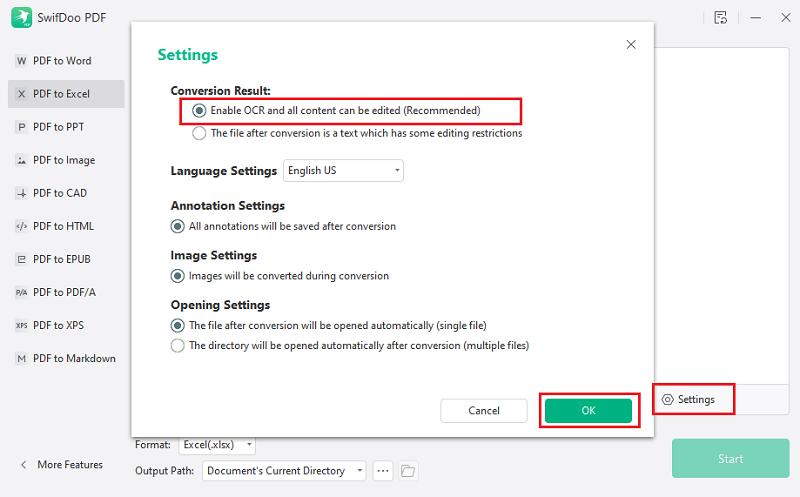
If you're looking for an easier and more affordable alternative, SwifDoo PDF includes an OCR feature that converts scanned bank statements into searchable and editable PDFs. With OCR, SwifDoo PDF can recognize text in scanned PDFs. What’s more, it enables you to convert images or scanned PDFs to editable PDFs or other formats like Word or Excel.
Besides OCR, SwifDoo PDF also provides a wide range of PDF editing tools, making it a practical solution for everyday document management. Here, let’s learn how to OCR a bank statement in SwifDoo PDF.
Step 1. Click the button below to download SwifDoo PDF and install it on your Windows PC. Then launch this excellent OCR software to get to its main interface.
Step 2. Click Open to locate and select your bank statement, and then click the Open button to import the scanned file.
Step 3. Now, click the OCR feature from the toolbar or the Apply OCR button in the top banner.
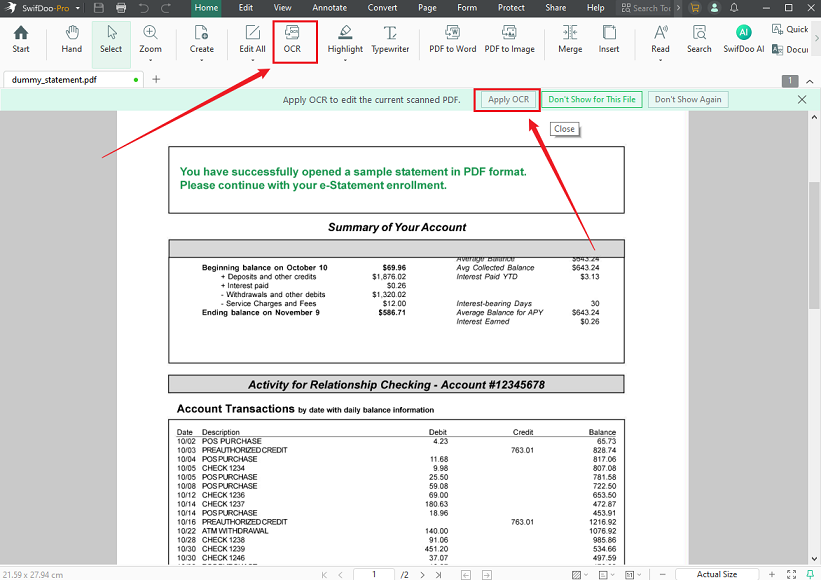
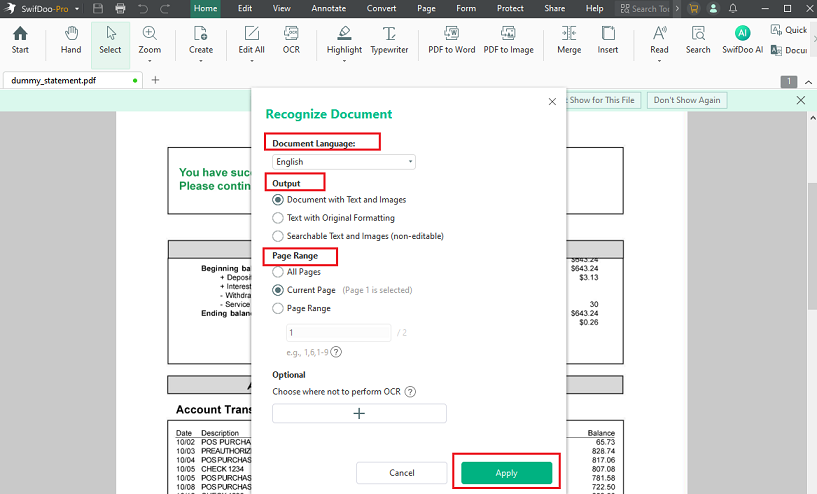
Step 4. In the Recognize Document dialog, choose the appropriate recognition language first, select the pages you want to OCR, and customize other settings. Next, click Apply to start the OCR process. When the process is over, the searchable file will open in SwifDoo PDF. You can use it to edit and refine the file.
Why Is SwifDoo PDF Recommended?
Compared with traditional OCR software, SwifDoo PDF offers a streamlined workflow. You can use it to OCR PDFs and edit them with comprehensive PDF editing features. Below are some highlighted features of SwifDoo PDF:
- It allows you to perform OCR on scanned bank statements and convert them into searchable or editable PDFs in a simple workflow.
- It enables you to edit PDF text and images directly within the same application.
- It lets you annotate bank statements by adding comments, highlights, and markup tools.
- It supports merging and splitting PDF files for better document organization.
- It provides compression tools that help reduce large PDF file sizes without significant quality loss.
- It allows you to convert PDFs into Word, Excel, PowerPoint, and image formats for flexible data usage.
- It offers password protection features to secure sensitive financial documents.
- It helps you organize and rearrange PDF pages for better document structure and readability.
Pros of SwifDoo PDF
- Easy-to-use interface
- Fast OCR processing
- Supports multiple recognition languages
- Includes comprehensive PDF editing tools
- Offline processing helps protect sensitive financial information
Cons of SwifDoo PDF
- The OCR feature is only available in SwifDoo PDF for Windows.
Method 2. OCR a PDF Bank Statement in Adobe Acrobat Pro
Adobe Acrobat Pro is one of the most widely used PDF editors and includes a powerful OCR engine. With it, you can easily convert scanned PDFs into searchable and editable documents. In addition, you can batch OCR PDFs with Adobe Acrobat Pro. How to convert a bank statement to a searchable PDF in Adobe? Below are the exact steps for your reference:
Step 1. Launch Adobe Acrobat Pro and open your bank statement PDF.
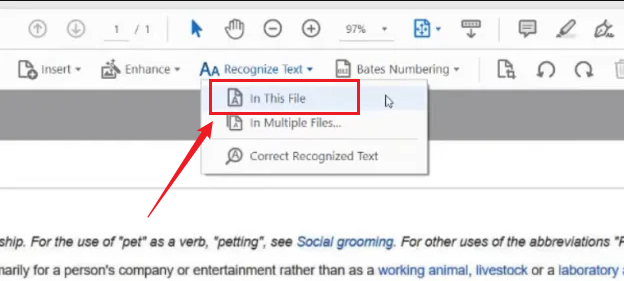
Step 2. Go to All tools and select the Scan & OCR option. Then, under the Recognize Text section, select the “In this file” option for the currently open document.
Step 3. Next, choose the page range and select the primary language. Then, click the Settings icon to set Searchable Image or Editable Text & Images as the PDF output style.
Step 4. Now, click the Recognize Text button to start the process. Finally, go to File > Save As to save the newly editable bank statement file.
Pros
- Excellent OCR accuracy
- Supports multiple languages
- Preserves the original document layout
- Batch OCR for multiple files
- Multiple export formats
Cons
- Requires a paid subscription
- More expensive than many alternatives
Method 3. OCR a Bank Statement with an Online OCR Tool
If you only need to OCR bank statements occasionally, an online OCR service can be a convenient solution. You don’t need to install any software since these online tools can directly work in your web browser. You can use tools, like Google Drive and i2OCR. Google Drive is one of the easiest free ways to perform OCR on a bank statement. Meanwhile, it uses Google Docs’ built-in OCR engine to extract text from uploaded PDFs or images. Here, let’s see how to OCR a bank statement online.
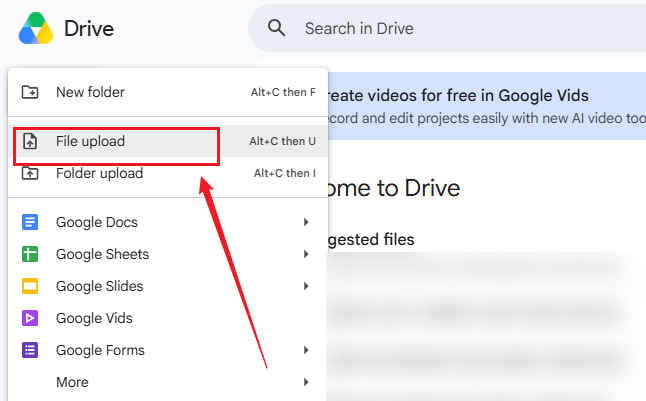
Step 1. Visit Google Drive, sign in with your Google account, click + New, and select File upload to upload your scanned bank statement.
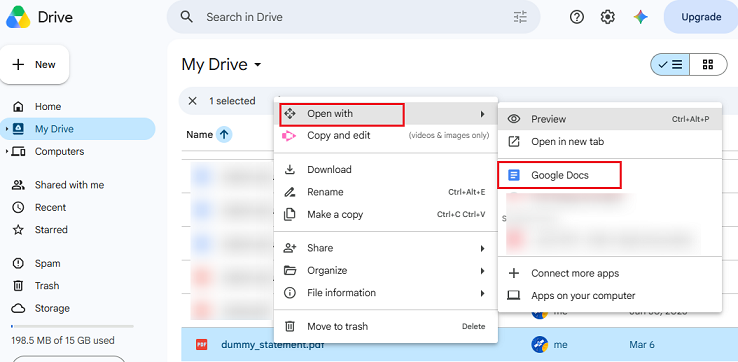
Step 2. Right-click the file in Google Drive, select Open with, and choose Google Docs.
Step 3. Then, Google will automatically begin processing the file using OCR. Next, Google Docs will open a new document. Now, the bank statement file is editable and searchable. You can review the file and make corrections if needed.
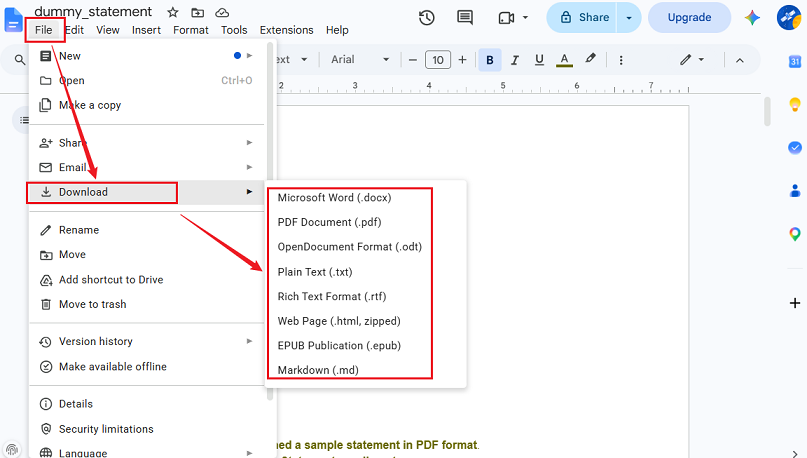
Step 4. Finally, go to File > Download and select the needed format like Microsoft Word (.docx) and PDF Document (.pdf).
Pros
- No installation required
- Accessible from any device with an internet connection
- Suitable for occasional OCR tasks
- Many tools offer free plans or limited free usage
Cons
- Uploading sensitive financial documents may raise privacy concerns
- Free versions often limit file size or the number of pages
Best OCR Bank Statement Software
What is the best OCR bank statement software? Here, I prepare a comparison table for you:
|
Tool |
Best For |
OCR Accuracy |
Export Formats |
Offline |
|
Adobe Acrobat Pro |
Professional document management |
Excellent |
PDF, Word, Excel |
✔ |
|
SwifDoo PDF |
Everyday PDF editing and OCR |
Excellent |
PDF, Word, Image |
✔ |
|
Google Drive |
Free OCR |
Good |
Google Docs |
✘ |
|
ABBYY FineReader PDF |
Enterprise document processing |
Excellent |
PDF, Word, Excel, CSV, and more |
✔ |
|
Nanonets |
Automated financial document extraction |
Excellent |
Excel, CSV, API |
✘ |
Conclusion
It can be much easier to work with scanned financial documents with OCR technology. Meanwhile, with reliable OCR software, you can convert scanned files into searchable and editable files. How to OCR a bank statement? Both SwifDoo PDF and Adobe Acrobat Pro are good offline options. If you need a convenient solution, use an online OCR service. Now, select an OCR tool and have a try.