


Why Use an Online Tool to Delete PDF Pages
Due to their convenience and accessibility, online PDF removers are popular. What are the benefits of using online tools to remove pages from PDF online? Below are some main benefits:
- No software installation required: You can access online PDF removers in your browser without installing any software.
- Available on most platforms: Most online PDF removers are compatible with Windows, Mac, Linux, and mobile devices.
- Fast and easy to use: Most online tools have an intuitive interface and require only a few clicks.
If you only need to remove pages occasionally, an online PDF editor is often the most efficient solution. If you often handle PDF files, a desktop PDF editor should be your choice. SwifDoo PDF is a reliable PDF editor.
How to Delete PDF Pages Online
Though there are many different online PDF removers, the process to remove unwanted PDF pages is similar. Here, let’s learn the universal step-by-step method to remove unwanted pages from PDF online.
Step 1. Upload Your PDF Document
First, open your chosen online PDF remover in your browser and upload your target PDF file from your local or cloud storage.
Step 2. Select the Pages You Want to Delete
Once the PDF is loaded, click and select the pages you want to remove or enter page numbers manually.
Step 3. Preview the Changes
Some online tools let you preview the modified PDF before applying changes.
Step 4. Download the Changed PDF
Once the unwanted PDF pages are removed, download the new PDF file to your device.
4 Best Online Tools to Delete PDF Pages
To save your time, I have chosen 4 excellent, safe online PDF page removers. In the content below, I will walk you through them one by one. Now, let’s get started.
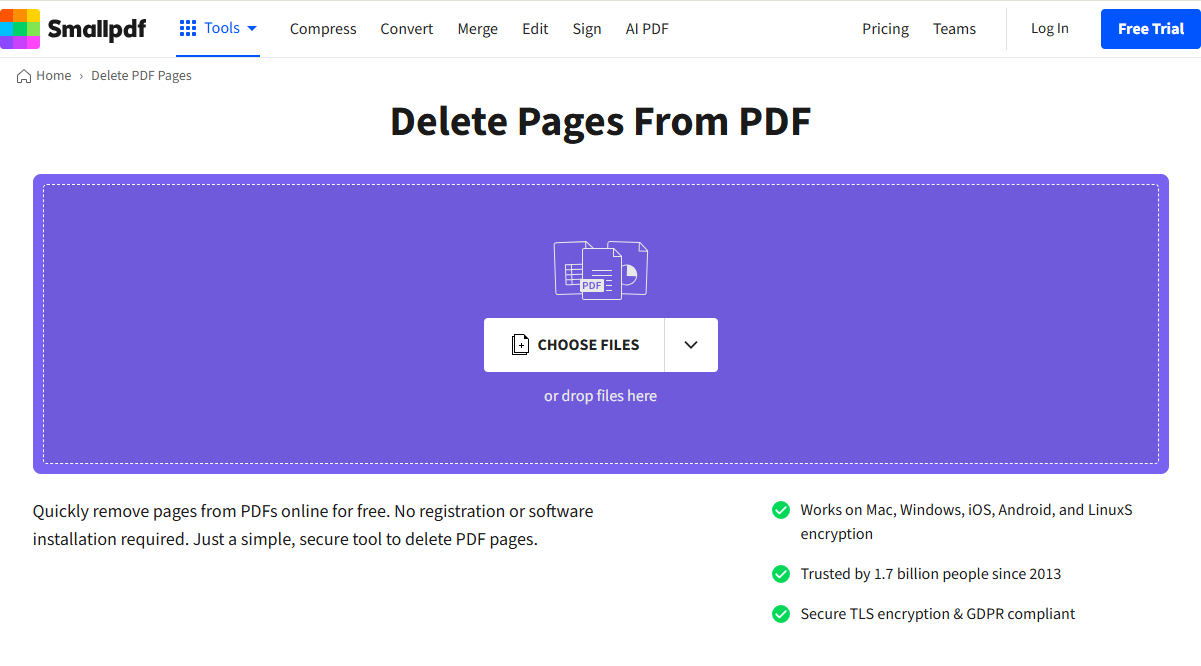
#Smallpdf
Smallpdf is a web-based PDF tool that offers solutions to almost all your PDF problems. It is a piece of cake to remove PDF pages with Smallpdf. In addition, it enables you to rearrange PDF pages, extract pages from a PDF, or split PDFs. What’s more, Smallpdf has the capacity for converting PDF to Word, Excel. PPT, JPG, and vice versa. Even if you are using it for the first time, you’ll be astonished by its clean and user-friendly interface. You can use it for free, but it has free usage limits.
Best For: Smallpdf is ideal for beginners who need a simple, intuitive experience.
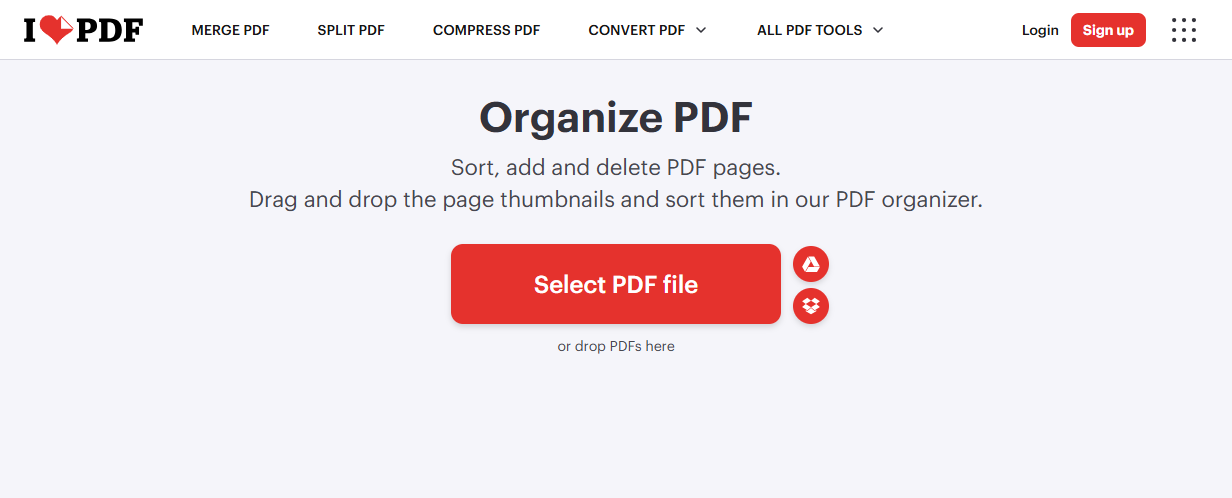
#iLovePDF
iLovePDF is an excellent online service for handling PDFs effectively, offering features to edit, organize, optimize, convert, and secure PDFs. With its PDF-organizing features, you can add or delete PDF pages at your convenience. Moreover, iLovePDF supports handling multiple PDFs. Like Smallpdf, iLovePDF also applies usage limits for the free version.
Best For: iLovePDF is ideal for users handling several PDF files at once.
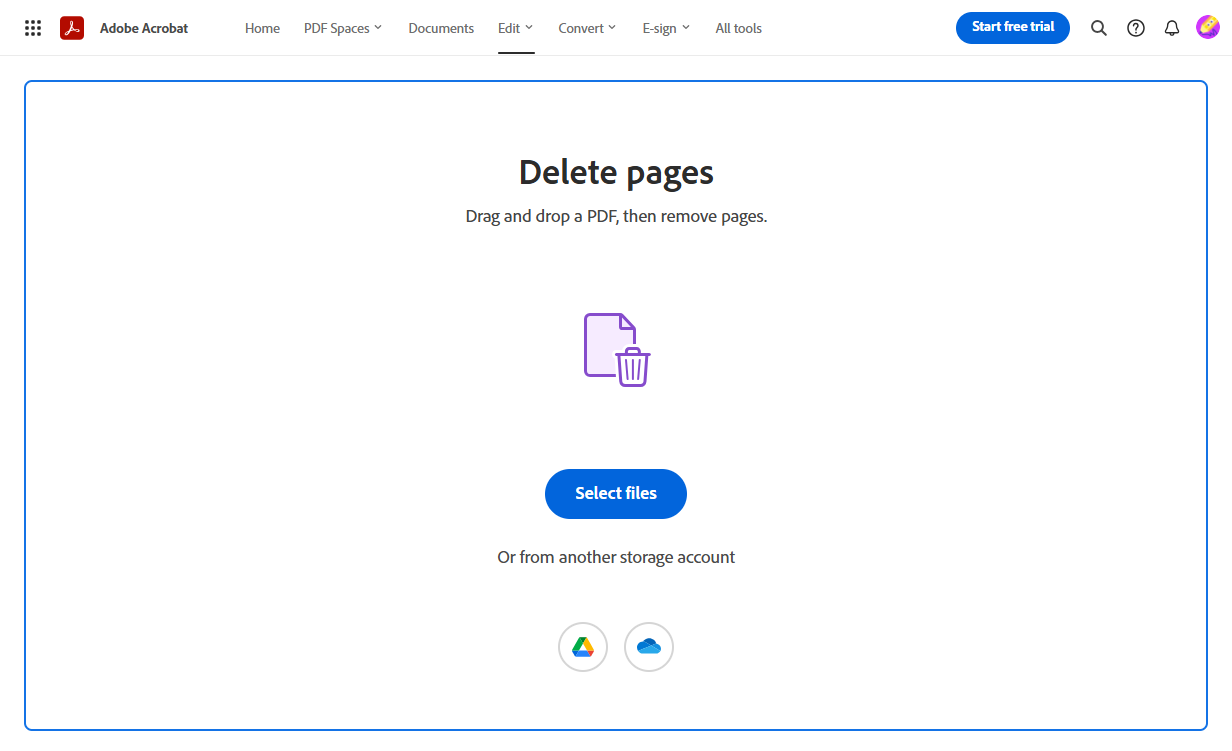
#Adobe Online PDF Editor
In addition to the offline program, Adobe also offers an online tool to work with PDF files. Adobe Online PDF Editor is a free online tool that lets you make changes to PDFs without downloading or installing any software. You can use it to remove PDF pages with ease. Additionally, it enables you to fill and sign PDFs, add text, or annotate PDFs.
However, you can only enjoy limited features in the free online version. Meanwhile, it requires an Adobe account.
Best For: Adobe Online PDF Editor is best for users who want a professional-grade result without installing Adobe Acrobat.
#PDF2Go
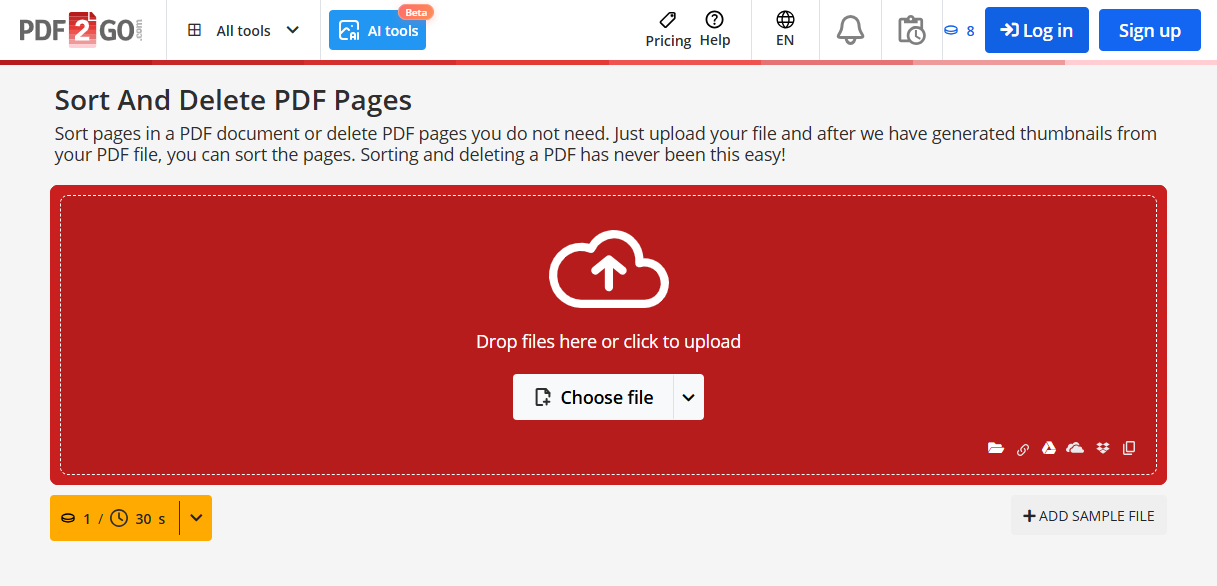
PDF2Go is an online PDF editor that allows you to remove unwanted PDF pages and insert blank pages. What’s more, PDF2Go is operated by a German company and securely processes files, automatically deleting them after 24 hours. Furthermore, you can use it to merge PDFs, compress PDFs to reduce file size, make scanned PDFs searchable and editable, and more. But some of its advanced features are only available in its paid versions.
Best For: PDF2Go is best for users who need to handle PDFs occasionally.
Alternative Ways to Delete PDF Pages Offline
If you need to handle confidential PDFs and are concerned about privacy, deleting PDF pages offline may be a better option. Here are some offline PDF editors for your choice.
- SwifDoo PDF
- Adobe Acrobat
- Foxit PDF Editor
- PDF-Xchange Editor
- JOPDF
Among them, I’d like to introduce SwifDoo PDF here. As a cost-effective Adobe Acrobat alternative, it offers most of the features Adobe offers. In addition to deleting PDF pages, SwifDoo PDF enables you to insert or replace PDF pages. Also, you can use its various features to make your PDF look professional. Here’s how to delete PDF pages without Adobe in SwifDoo PDF.
Step 1. Download this reliable PDF editor and install it on your computer. Then, launch it to get to its main interface.
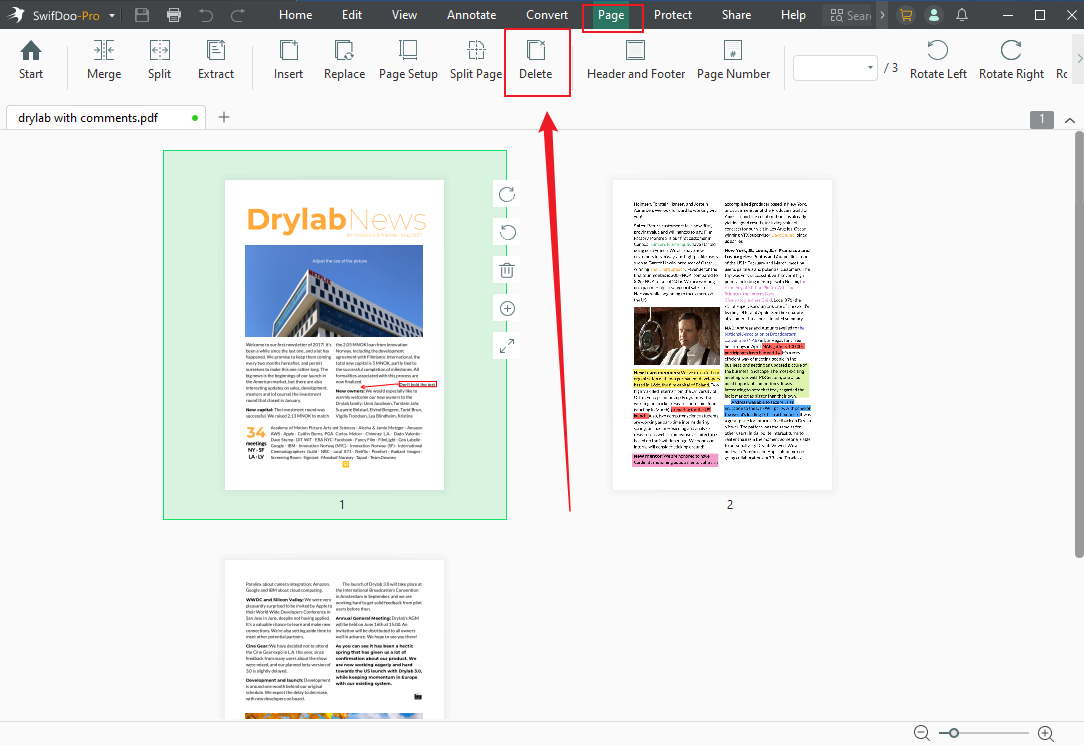
Step 2. Click Open to import your PDF file and click the Page tab from the top menu. Next, click the Delete option.
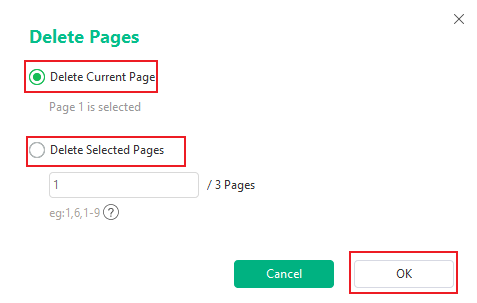
Step 3. In the Delete Pages pop-up, tick the Delete Current Page option to delete the current one. Or, tick the Delete Selected Pages option and type in the pages you want to remove. Later, click the OK button.
Then, you can save the modified PDF file.
Is It Safe to Delete PDF Pages Online
Security is the common concern when using online tools. Is it safe to delete PDF pages or edit PDFs online? Generally, the answer depends on the tool and on what kind of information is in your PDF. When you choose an online PDF tool, you need to consider the following safety factors: HTTPS encryption during file transfer, automatic file deletion after processing, and clear privacy policies.
Meanwhile, when processing sensitive PDF files, you’d better use offline PDF tools like SwifDoo PDF.
Conclusion
It is not difficult to delete PDF pages online. A reliable, safe PDF page remover is essential. In this article, I offer 4 reliable online tools for your choice. Additionally, you can use offline tools to handle sensitive PDFs if you are still concerned about the security of online tools.



