


Why Merging Large PDFs Can Cause Quality Loss
Quality loss often happens when PDFs are merged incorrectly. We have concluded some common reasons to help you merge large PDFs without losing quality. Just avoid the following mistakes:
-
Compress large files during merging: Some PDF mergers automatically compress files to reduce size, which can lower resolution.
-
Re-save multiple times: Each save can degrade image and text quality, especially with scanned documents.
-
Use unsupported formats: Some PDFs include high-resolution images that may not be handled correctly by certain software.
-
Apply incorrect settings in PDF merging tools: Tools with default settings focused on speed often compromise on quality.
Apart from the above common mistakes, you also need to choose a professional PDF merging tool, in which OCR-compatible tools are prone to preserve readability and image quality. In the next part, we'll show you both desktop and reputable online tools that have proven to deliver high-quality outputs during large-scale PDF merging.
Merge Large PDFs with Desktop Software
Desktop software often provides the most control and reliability when merging large PDF files. It's a more reliable way for users handling large or complex PDFs and needing to keep PDF quality after merging. There are two main, widely acclaimed large PDF mergers here that are well worth trying.
SwifDoo PDF Merger
How to merge large PDF files without losing quality? SwifDoo PDF can totally handle this problem. SwifDoo PDF is our top recommendation for desktop PDF merging. Tested with large files several times, SwifDoo PDF just maintained high-quality resolution, keeping text crisp and images clear. Actually, this is something many free tools fail to deliver.
Here are some key highlights during the tests we found:
-
Fast and Reliable: Merges multiple large PDFs in seconds without slowing down your computer.
-
Preserve Original Quality: Ensures images, charts, and scanned documents remain sharp.
-
Flexible Options: Available as a desktop app for offline use and an online PDF tool for quick access anywhere.
-
User-Friendly Interface: Drag-and-drop your PDFs and merge them with one click.
During testing, SwifDoo PDF consistently preserved image resolution and formatting when merging large PDFs. Unlike some free online tools that reduce file quality, SwifDoo PDF handles both text-heavy and image-heavy files flawlessly. Its drag-and-drop interface and fast processing make it a top choice for users looking to merge large PDF files without losing quality.
To merge large PDFs without losing quality, try the next steps:
Step 1: Click the button to download and install SwifDoo PDF safe.
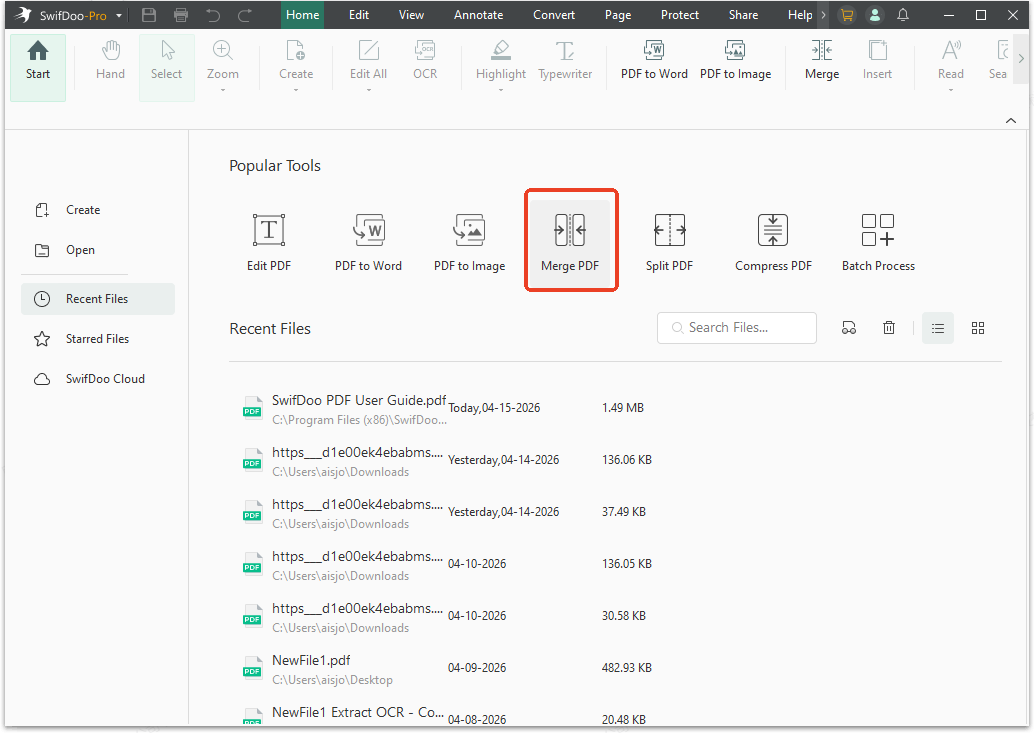
Step 2: Launch the merging tool and choose Merge PDF.
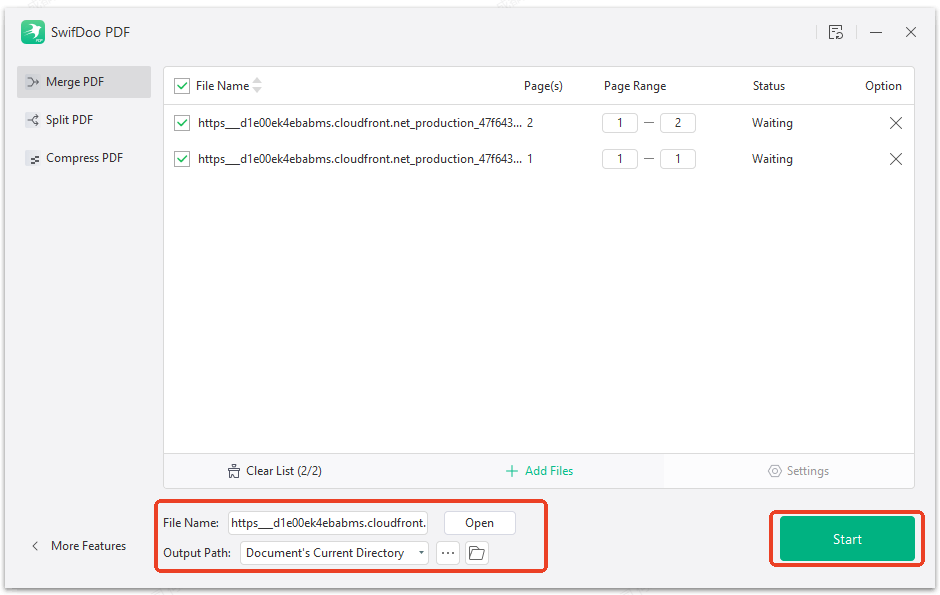
Step 3: Drag the large PDF files you want to merge to the section and configure the file name and output path. Then, click Start to initiate the process.
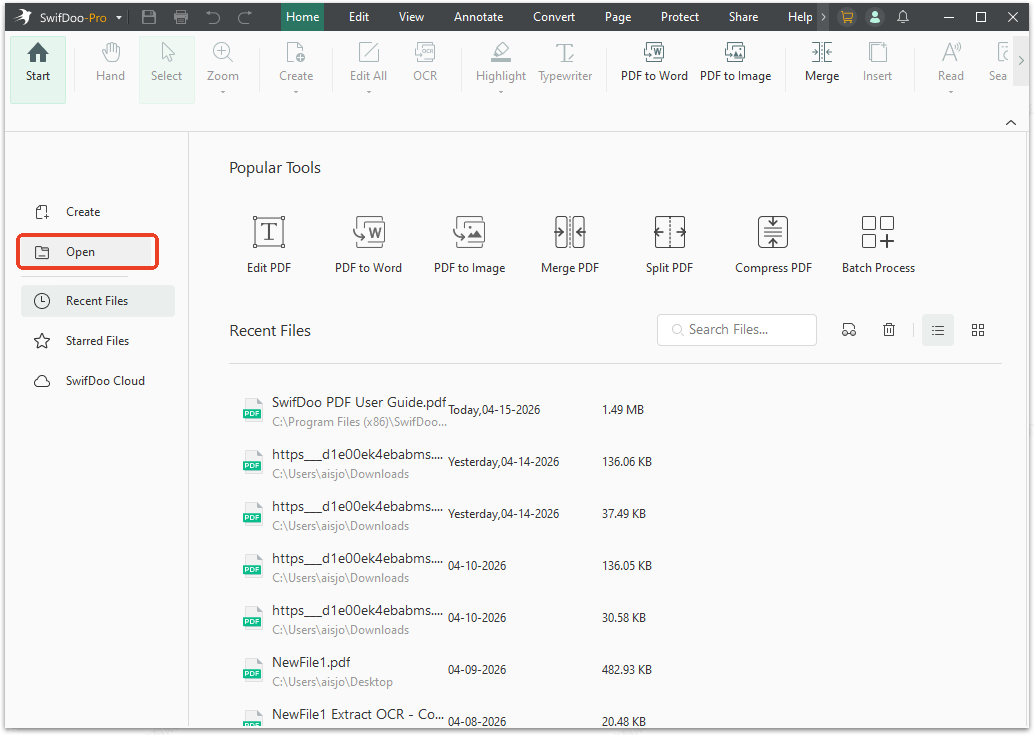
Alternatively, you can choose another way to combine multiple large files with original resolution.
Step 1: When you enter the PDF merging tool, click Open from the left panel to choose one of your desired files.
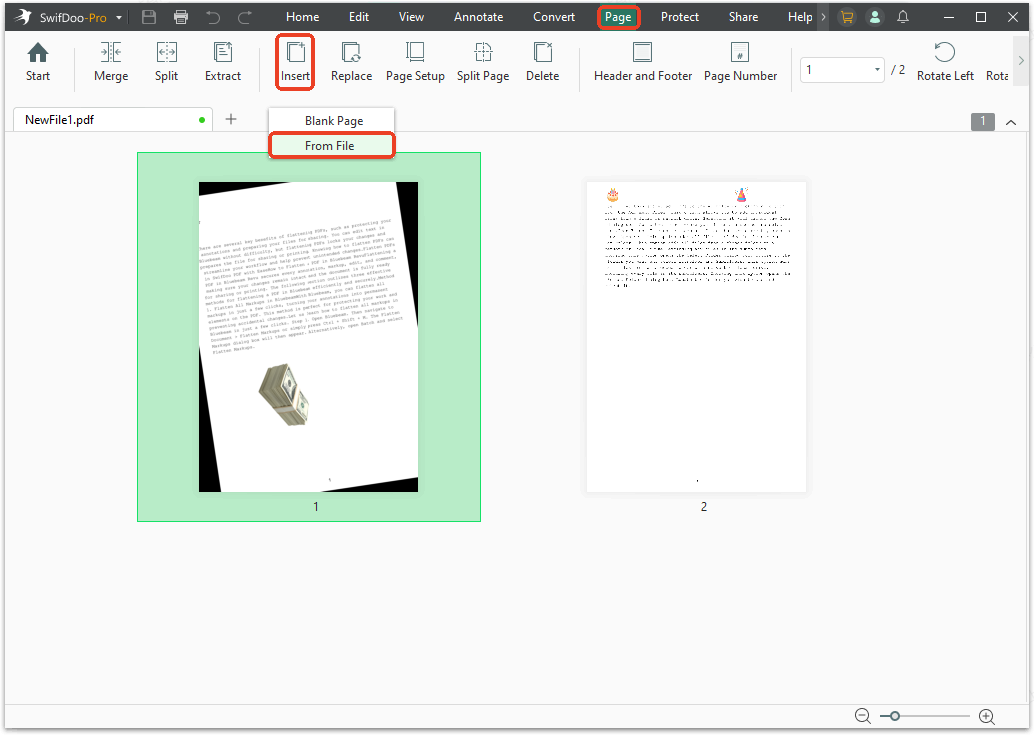
Step 2: Go to Page > Insert from the top navigation bar and click From File from the drop-down menu.
Step 3: In the pop-up window, configure which files and pages you want to insert and where to insert them. When settled, choose Insert.
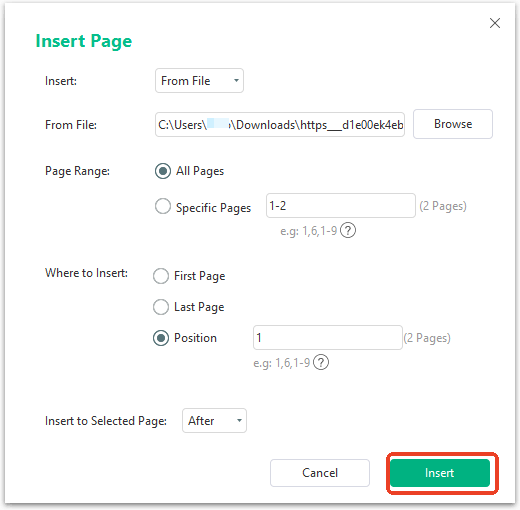
Compared to the first method, to merge large PDF files as one whole, the second one is more flexible to adjust pages as you want. You can only add specific pages from different PDF files.
Adobe Acrobat Pro
Adobe Acrobat Pro is a professional-grade tool that reliably merges PDFs. It preserves formatting and resolution but comes with a higher price tag and a steeper learning curve. While it’s trusted globally, that's not worth it for users who just need a fast, straightforward merge. If this is a long-term project, Adobe Acrobat Pro can also offer you a worthwhile return on your investment.
So, how to merge large PDF files without losing quality with Adobe Acrobat Pro?
Step 1: Launch the tool and select Menu > Combine files.
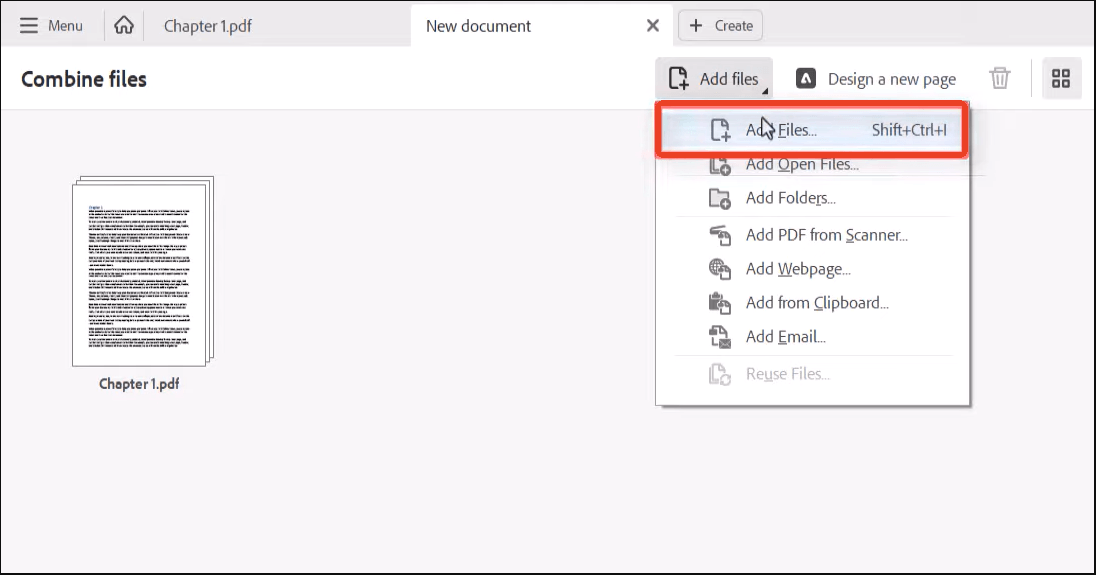
Step 2: Choose Add Files and drag and drop the wanted files into the Combine Files window.
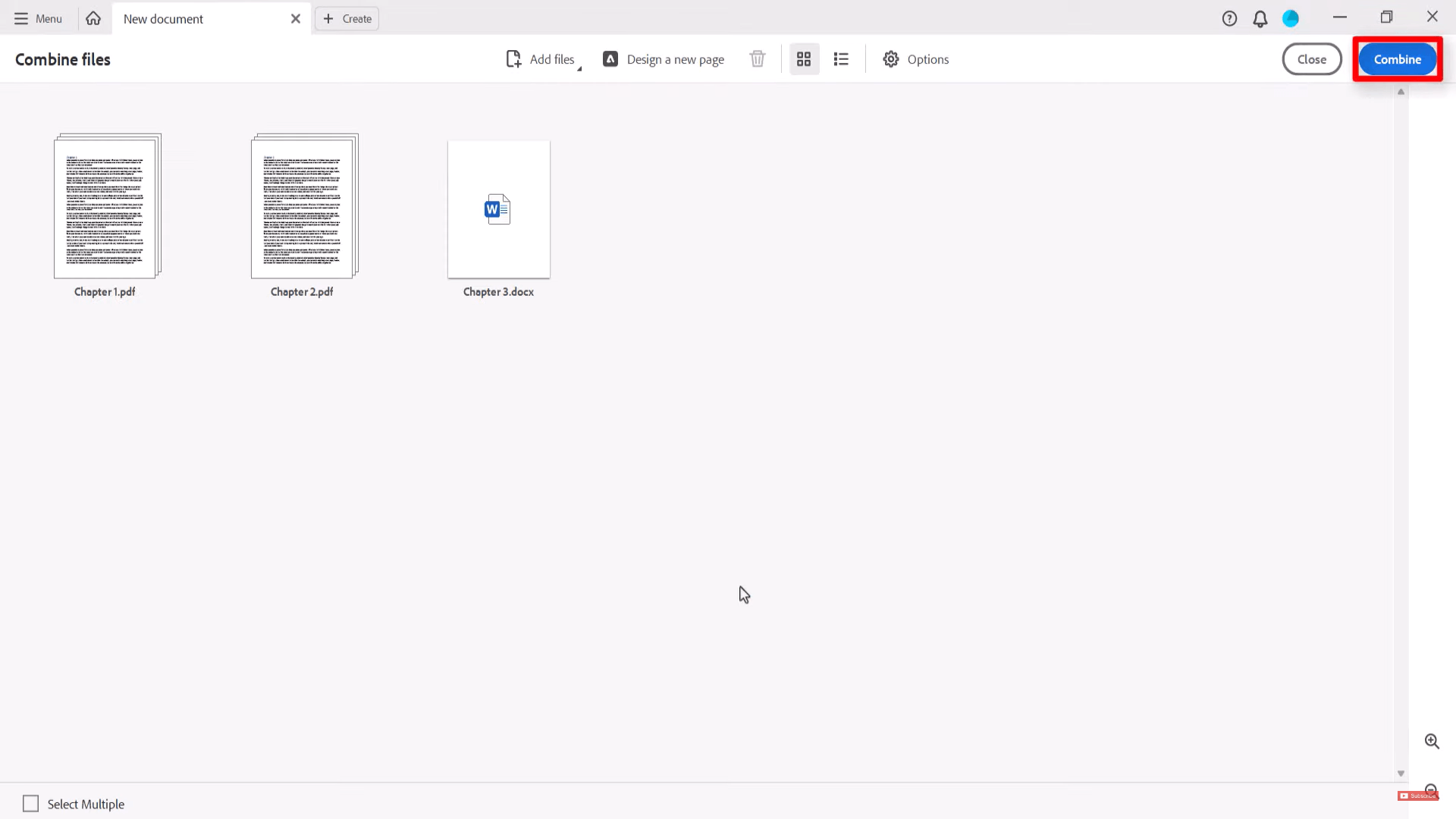
Step 3: Configure the files and pages as you like and click Combine to combine your multiple large files without compromising.
![Reduce PDF File Size Without Losing Quality [Win/Mac/Online]](https://img.swifdoo.com/image/reduce-pdf-file-size-without-losing-quality.png)
Reduce PDF File Size Without Losing Quality [Win/Mac/Online]
This guide will tell you how to reduce PDF file size without losing quality. This will make it easier for you to manage, process, or share PDF files!
READ MORE >Merge Large PDFs with Online Tools
Online tools are convenient for merging large files without losing quality when you don’t want to install software, but here are some tips for using online tools:
-
Avoid uploading sensitive documents unless the platform guarantees security.
-
Use high-speed internet for faster processing of large files.
ILovePDF
ILovePDF is a popular online option, easy to use, and suitable for casual tasks. It keeps PDFs fairly clear, but large files sometimes take longer to process, and high-resolution images may be slightly compressed. For users handling very large or image-heavy PDFs, it may not preserve quality as consistently as SwifDoo PDF.
Step 1: Go to the official ILovePDF website for the PDF combiner and click Select PDF files.
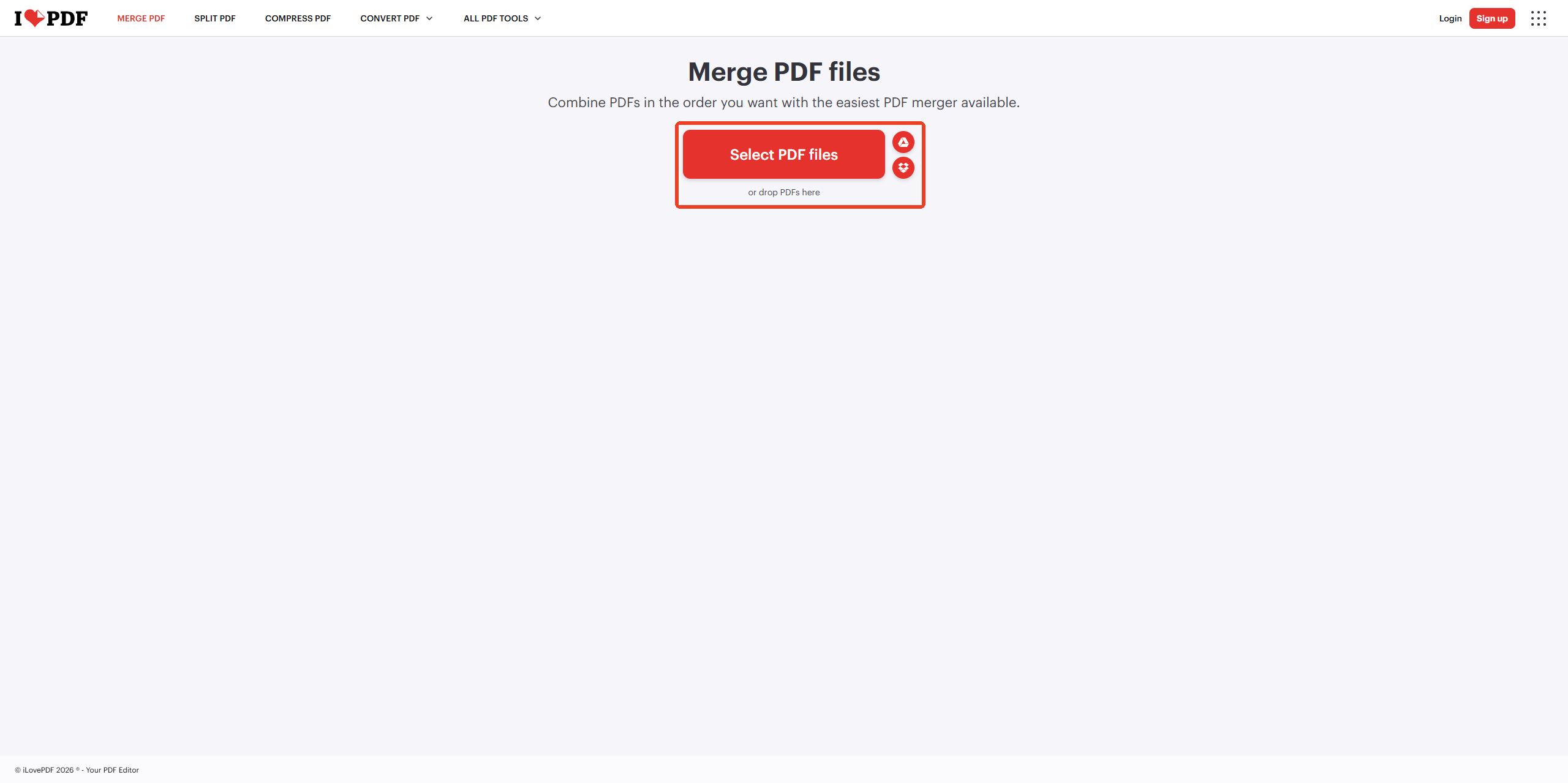
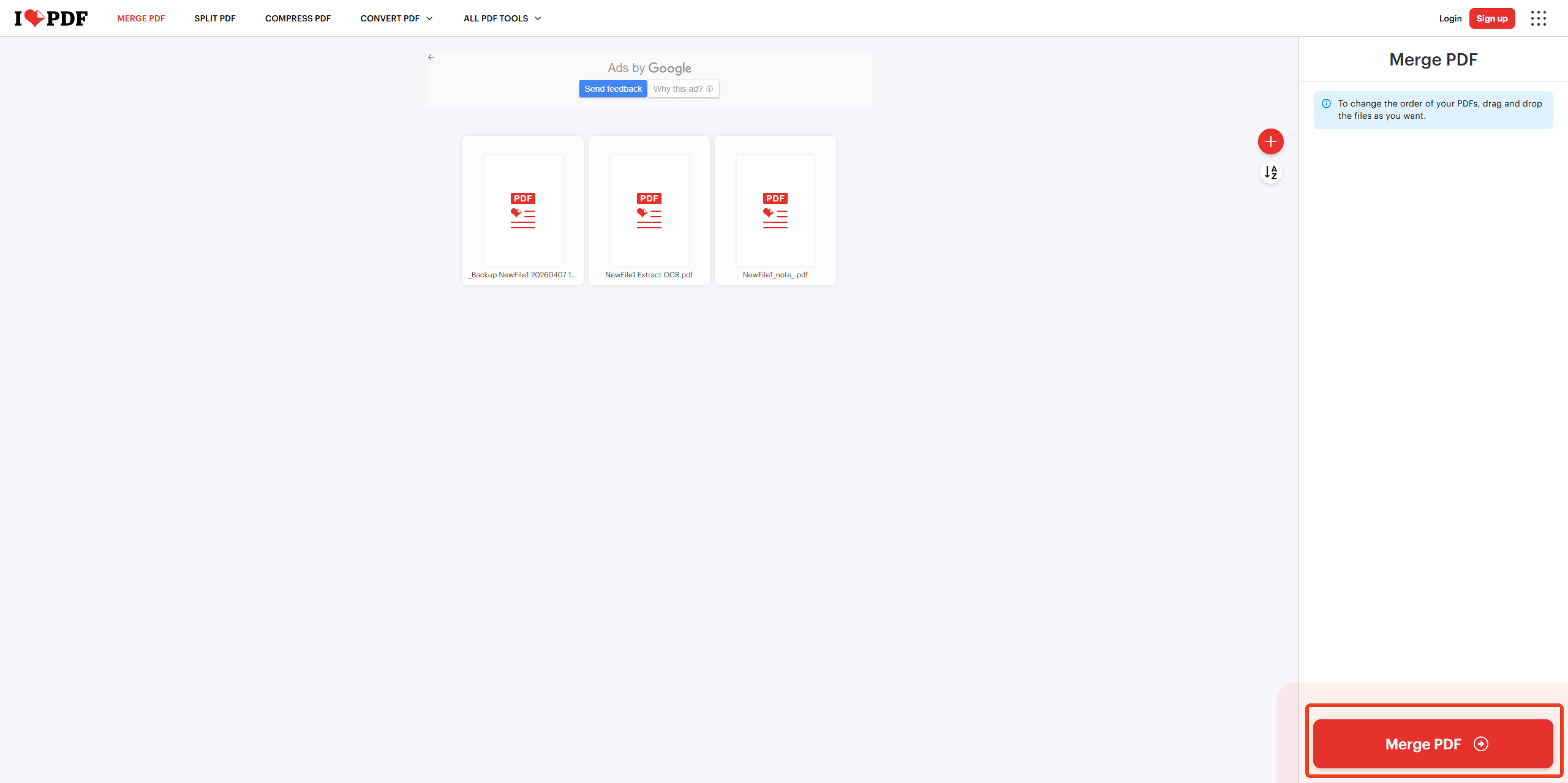
Step 2: Choose the PDFs you want to upload and click Merge PDF.
Top 3 Ways to Merge PDF Files Efficiently
Merging more than a few PDF files into a single file is no longer a problem as these three ways can help you out. Check out how to merge PDFs for free.
READ MORE >SmallPDF
SmallPDF is convenient for small merges and has a simple interface. For users who want a quick merging, it's a good option to combine large PDFs online.
Step 1: Go to its official online tool site and drop your files in the designated section.
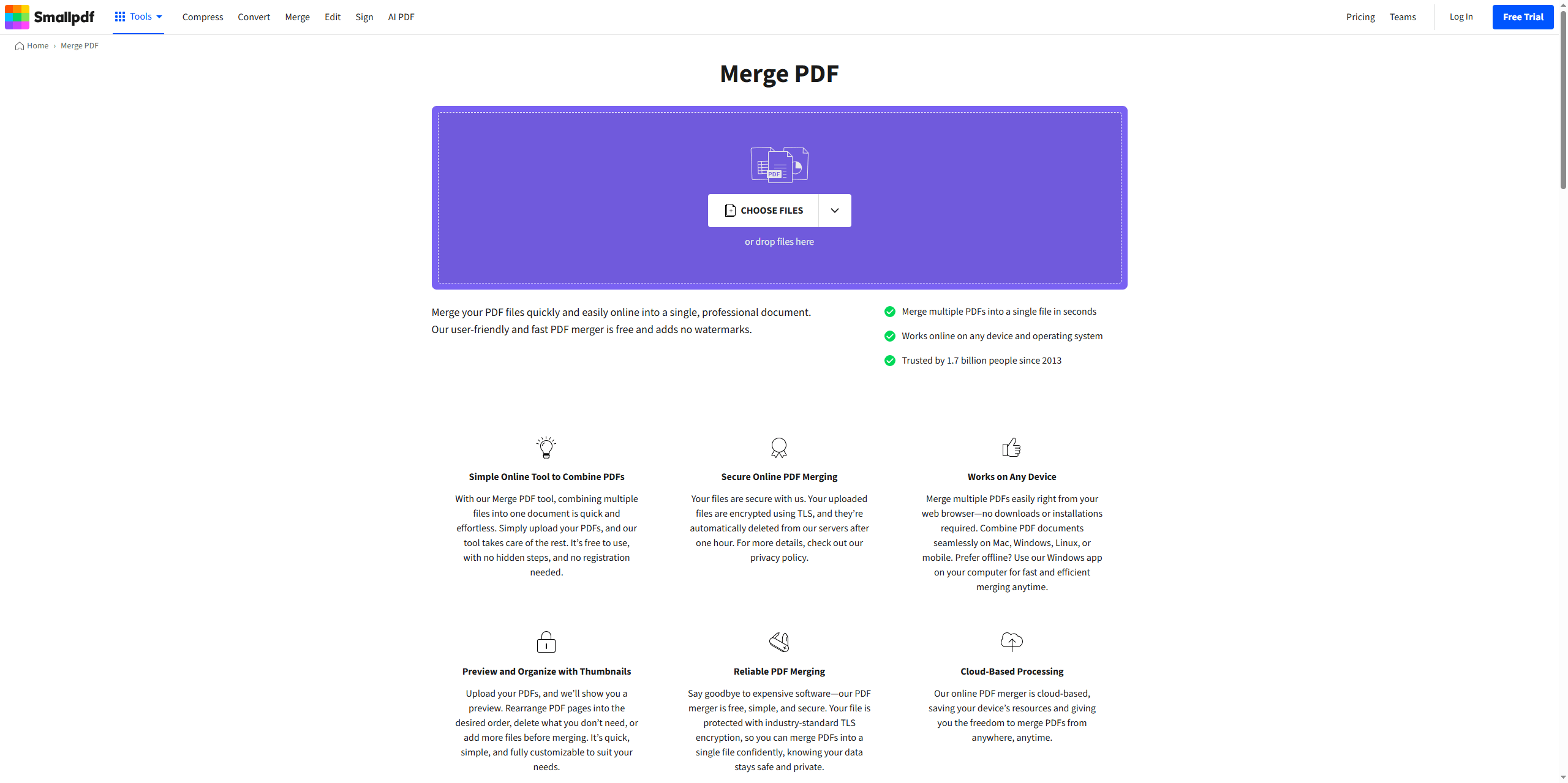
Step 2: Check the PDF file options and select Finish to start the process.

Conclusion
Merging PDFs doesn’t have to result in blurry images or reduced resolution. By choosing the right tools, especially desktop software like SwifDoo PDF, you can easily merge large PDF files without losing quality. Whether you prefer desktop software or online tools, the tips and methods shared in this guide ensure your PDFs remain clear, professional, and ready for sharing.


