


Why Annotating PDF Lecture Notes Matters
Research shows that students who interact with their notes retain information more effectively, and digital annotation can amplify these benefits. Especially on Reddit, we’ve noticed that many students, and even professionals, have similar issues to annotate PDF lecture notes slides. They usually find annotating slides in a PDF difficult due to software limitations or unfamiliarity with digital note-taking techniques.
We will resolve these problems one by one from the following parts. First of all, choosing the right PDF app for annotating lecture slides is quite important. Here, we will introduce some free annotation programs for different devices, and you can choose from them based on your demands.
Top Free Tools for PDF Slide Annotation for Laptop
When annotating lecture slides on a laptop, users typically need stable performance, full annotation features, and the ability to handle large PDFs without lag. Desktop tools are often better suited for long study sessions and complex documents.
#1. SwifDoo PDF (Best Overall for Laptop Annotation)
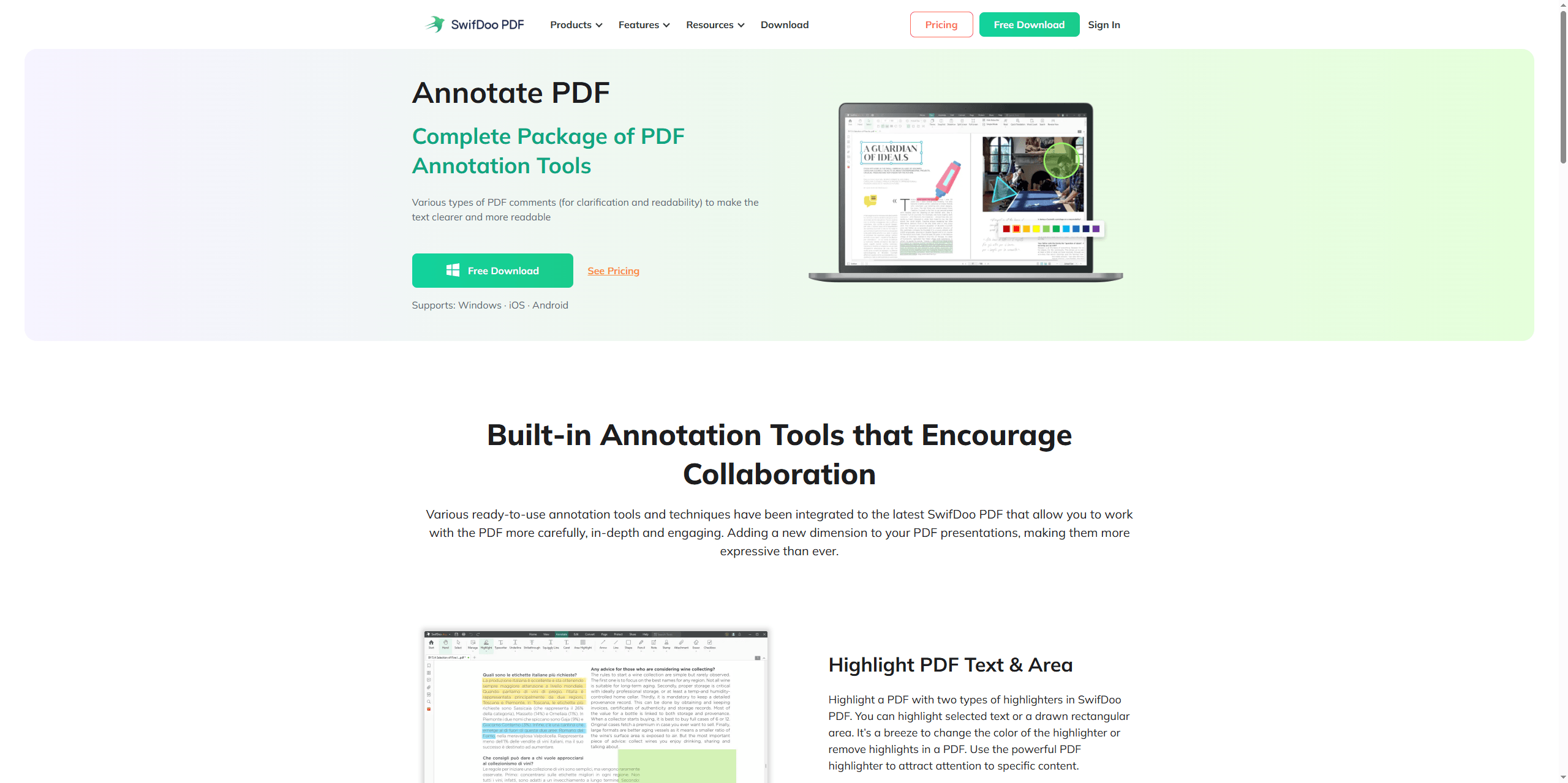
For students who want a balance between performance and usability, SwifDoo PDF annotation tool offers a complete annotation solution designed specifically for handling lecture materials efficiently. According to its official documentation, it integrates multiple annotation tools to make PDFs more interactive and readable.
What Highlights:
-
It provides highlighting, underlining, and area-marking tools to emphasize key lecture content.
-
It maintains original formatting even after heavy annotation, ensuring slides remain structured.
-
It supports smooth performance on large lecture PDFs without noticeable lag.
-
It offers both desktop and online access, enabling flexible study across devices.
From a practical standpoint, SwifDoo PDF is especially suitable for students who frequently annotate lecture notes, review slides, and export clean study materials, making it one of the most well-rounded tools in this category.
11 Best PDF Annotators in 2025: Apps for Various Devices
Looking for the best PDF annotator to highlight, add notes to, and do more with PDFs on Windows, Mac or mobile? Here are the 11 annotation apps.
READ MORE >How to Annotate Slides in a PDF with SwifDoo PDF?
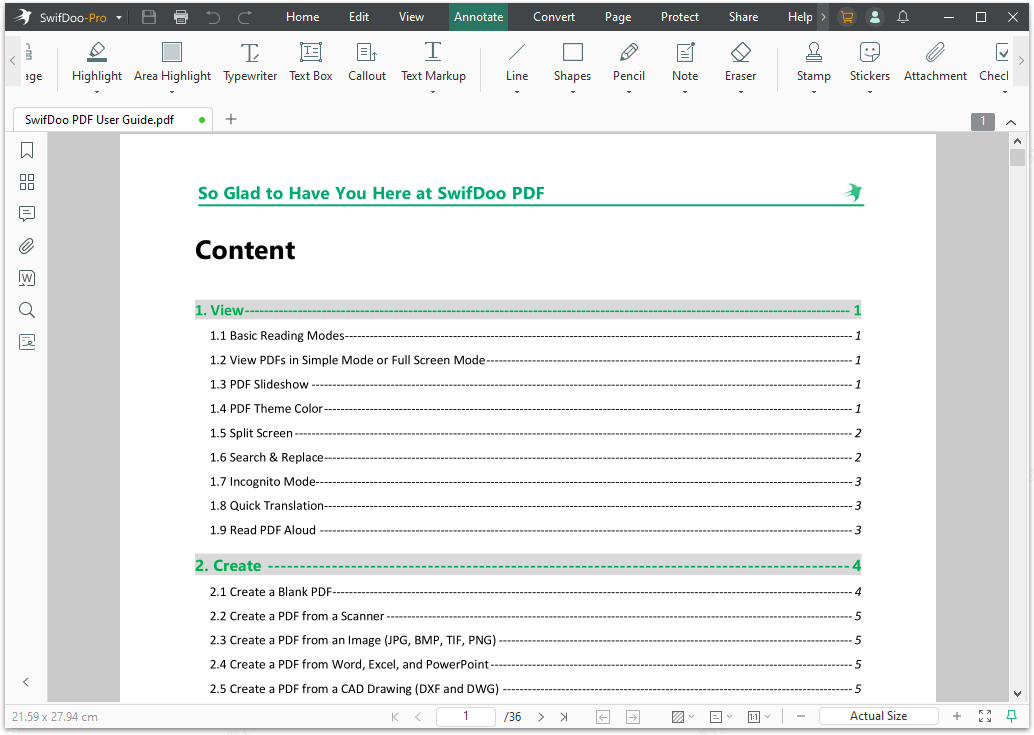
SwifDoo PDF provides an intuitive interface to make every annoation options easily accessible. From the following picture, you can see the annotation features listed in the top menu bar, which have covered most of the annotation demands for students, teachers, and other professionals.
If you want to collaborate with someone to annotate a pdf in notes, you can send the annotated PDF to others by email, Dropbox, or Google Drive using the “Share” feature of the program.
#2. PDF Annotator (Windows)
For users who prefer a more handwriting-oriented experience on laptops, PDF Annotator focuses on making annotation feel closer to writing on paper.
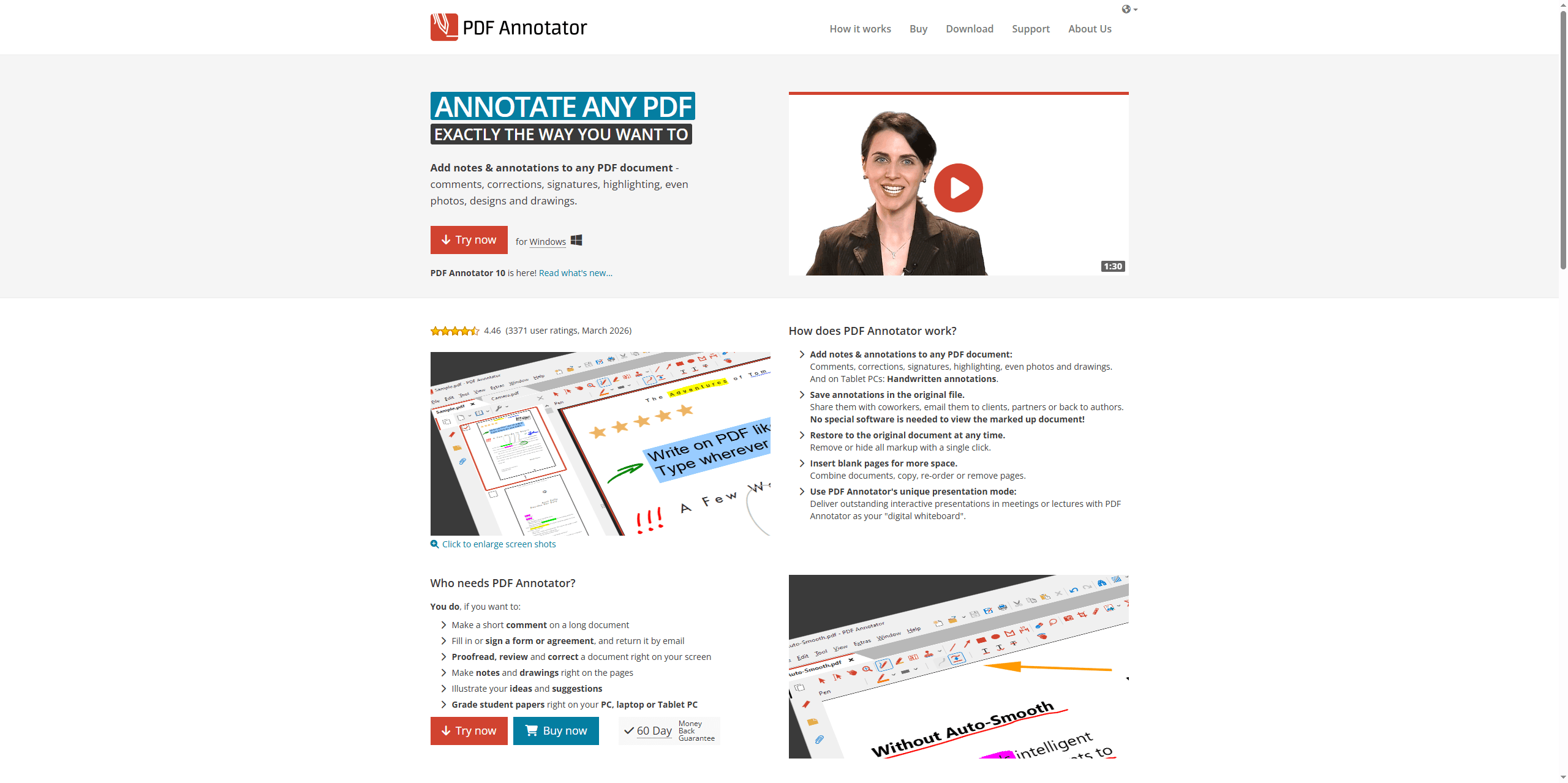
Key features:
-
It allows users to handwrite directly on PDFs using a stylus or mouse.
-
It enables saving annotations directly into the original PDF without conversion.
-
It is optimized for Windows environments with a simplified interface.
This tool is particularly useful for users who want a pen-and-paper-like annotation experience rather than structured note-taking.
Top Free Tools for PDF Slide Annotation for iPad/Tablet
Tablet users usually prioritize handwriting precision, stylus responsiveness, and flexible note-taking layouts, which differ from desktop needs.
#1. GoodNotes
For students who prefer writing directly on slides, GoodNotes turns PDFs into a flexible digital notebook, allowing a more natural annotation workflow.
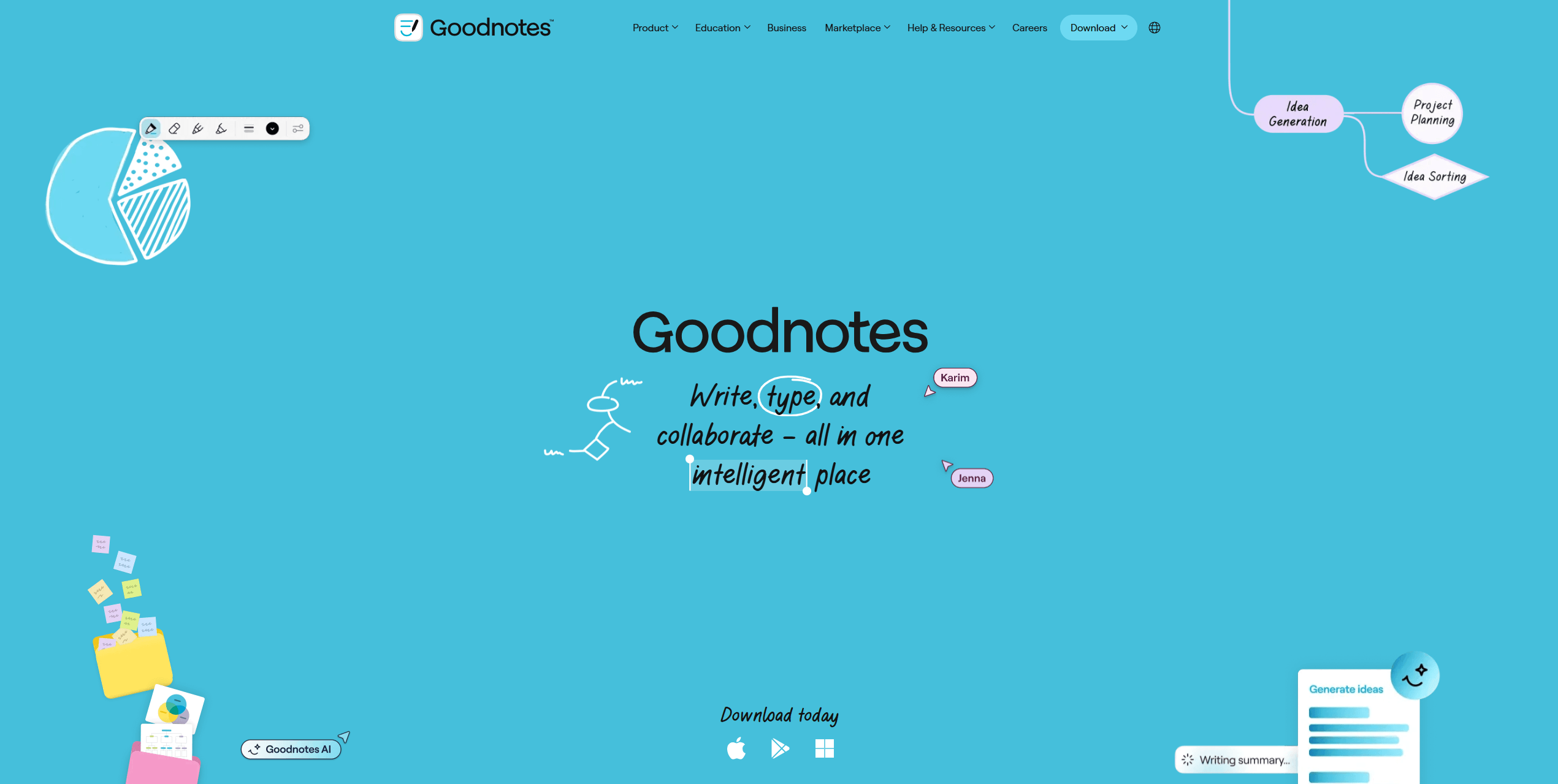
Key features:
-
It allows users to write anywhere on PDF slides using a stylus.
-
It provides smooth and responsive pen input for long study sessions.
This makes GoodNotes ideal for users who want to annotate lecture notes in a freeform, notebook-style format.
#2. Notability
Notability is designed for students who want to combine multiple forms of note-taking into a single workflow, especially during live lectures.
Key features:
-
It supports audio recording synced with notes for lecture review.
-
It enables easy organization of annotated lecture materials.
-
It offers cloud syncing for cross-device accessibility.
This tool is especially effective for students who need to annotate slides in real time while capturing lecture context.
Top Free Tools for PDF Slide Annotation Online
#1. Drawboard PDF
For users who want a browser-based solution with strong collaboration features, Drawboard PDF provides a well-rounded annotation experience across devices.
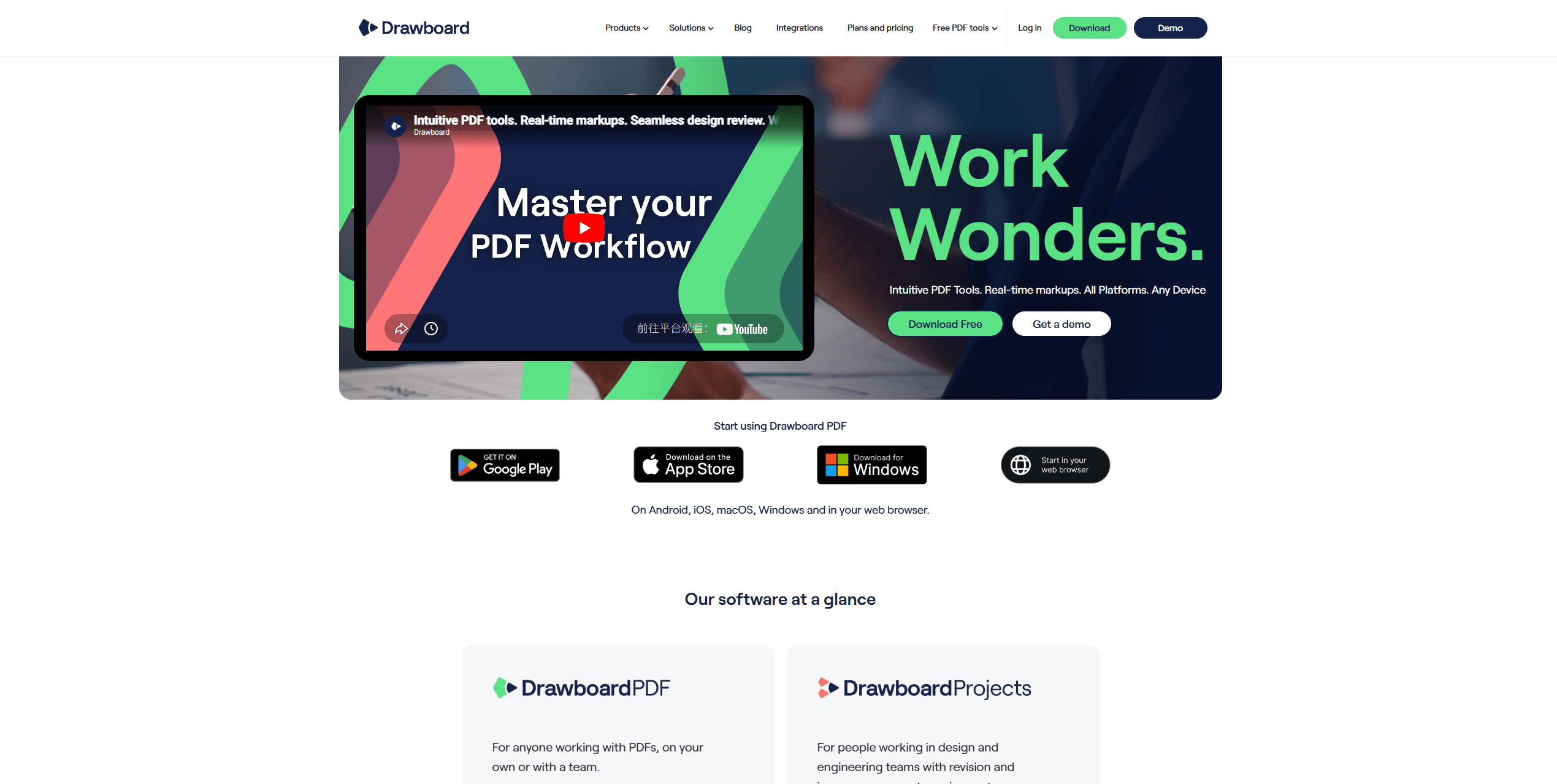
It supports the next features:
-
Real-time markup and commenting directly on PDFs.
-
Syncing annotations across devices instantly.
-
Drawing, highlighting, and note tools for detailed feedback.
-
Cloud platforms for easy document sharing.
Drawboard is particularly useful for group study, collaboration, or reviewing shared lecture materials.
#2. LeedPDF (Open-Source Online Tool)
For users who prioritize privacy and simplicity, LeedPDF offers a lightweight, browser-based annotation experience without requiring uploads to external servers.
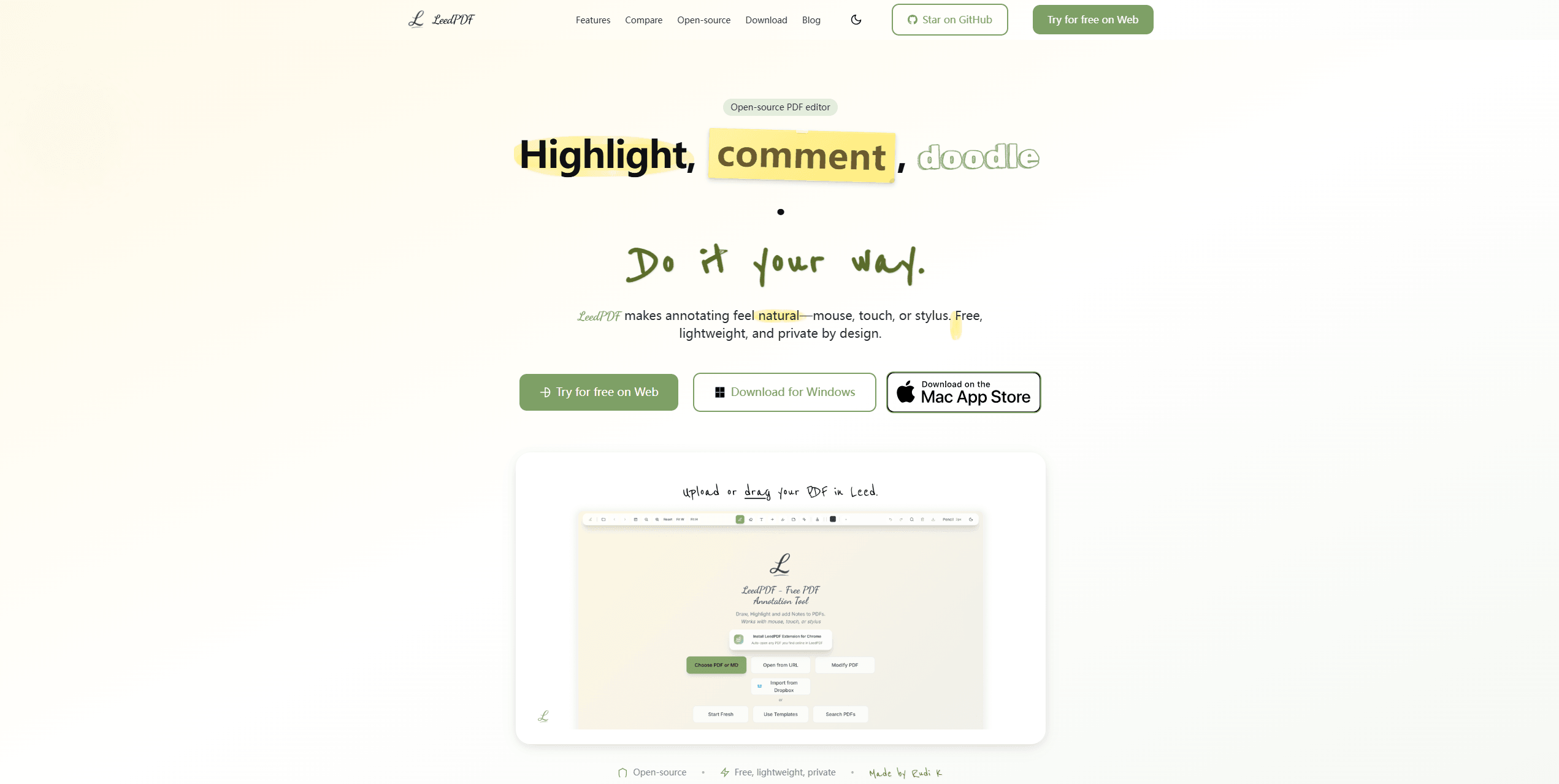
What the annotation tool supports:
-
Highlighting, commenting, and freehand drawing directly in the browser.
-
Local processing, meaning files stay on your device for privacy.
-
Clean and distraction-free interface for focused study.
-
Working with mouse, touch, or stylus for flexible annotation.
This makes LeedPDF a strong option for users who want a simple, private, and lightweight annotation tool without complexity.
How to Annotate PDF Lecture Notes Slides Effectively
The key to productive digital annotation is not just the software but also the techniques and workflow you adopt. Below is a detailed, step-by-step approach to making your PDF lectures interactive and study-friendly.
Once you have the right app, effective annotation comes down to technique. A thoughtful approach ensures your notes are useful, organized, and review-friendly.
Annotation Techniques for PDF Lecture Slides and Notes
Annotating lecture slides is the way to turn passive reading into active learning. The way you annotate can directly affect how well you understand and retain information. Instead of randomly highlighting or adding scattered notes, using structured annotation techniques helps you build a clearer mental framework of the material.
Below are some practical and effective methods you can apply when you annotate PDF lecture notes slides:
#1. Selective highlighting
Selective highlighting is one of the most commonly used techniques, but it needs to be done carefully. Rather than highlighting entire sentences, focus only on keywords, formulas, or definitions that represent the core idea.
Over-highlighting is a common mistake. When everything is marked, nothing stands out. For example, in a biology lecture slide, instead of highlighting the whole paragraph about “cell division,” it’s more effective to highlight just terms, then add a short note explaining the difference.
#2. Margin Annotation
You can add short explanations, questions, or summaries next to the content. This technique is especially helpful for complex slides that include diagrams or dense text. By writing your own interpretation in the margins, you actively process the information rather than just reading it.
For instance, if a slide explains an economic model, you might add a note like “This graph shows supply increases when price drops, similar to last week’s example.” These small notes make revision much faster later on.
#3. Visual Annotation
Drawing arrows, circles, or quick sketches helps connect ideas across the slide. This is particularly useful in subjects like engineering, medicine, or chemistry, where relationships between elements matter more than isolated facts.
For example, when studying a process diagram, drawing arrows to indicate flow or adding labels to key steps can make the concept much easier to recall during exams.
#4. Color Coding
Instead of using one color for everything, assign meaning to each color. For example:
-
Yellow for key definitions
-
Blue for examples
-
Red for important warnings or exam points
Over time, this system trains your brain to quickly identify different types of information, improving both scanning speed and memory retention.
#5. Layered Annotation
During the first pass, you might highlight key ideas. On the second review, you can add deeper notes or questions. On the third pass, you might summarize the entire slide in one sentence. This layered approach mirrors how learning actually works, gradually building understanding instead of trying to capture everything at once.
![How to Remove Layers from PDF Files in 2026 [3 Best Methods]](https://img.swifdoo.com/image/remove-layers-from-pdf.png)
How to Remove Layers from PDF Files in 2026 [3 Best Methods]
Looking for practical ways to remove layers from PDF files? Get the 3 best online and offline tools to remove layers from PDF files or flatten them with ease.
READ MORE >#6. Question-Based Notes
Instead of just writing what the slide says, turn key points into questions. For example, instead of noting “Photosynthesis occurs in chloroplasts,” write “Where does photosynthesis occur?” This transforms your annotated PDF into a self-testing tool, which is proven to improve long-term retention.
Workflow Tips for Annotating Lecture Slides
While annotation techniques are important, your overall workflow determines how efficiently you study. A well-structured workflow ensures that your annotations remain organized, accessible, and actually useful when exams approach.
#1. Annotate lecture slides as close to the lecture as possible. Annotating during or immediately after a lecture helps you retain context, which is often lost if you delay. For example, if a professor emphasizes a particular slide verbally, adding that insight as a note right away makes your PDF far more valuable than the original slides alone.
#2. Separate reading and annotating phases when needed. For very dense materials, it can be helpful to first skim through the slides to understand the structure, and then go back for detailed annotation.
#3. Use split-screen or multi-device setups. For example, you might open the lecture slides on your laptop using a tool like SwifDoo PDF, while writing additional notes on a tablet or notebook. Alternatively, you can annotate directly within the PDF while referencing external materials.
#4. Develop a repeatable annotation system, such as using the same color codes, symbols, and note styles across all PDF lectures. When your brain recognizes patterns in your notes, it processes information faster. Inconsistent annotation, on the other hand, can make revision feel like starting from scratch.
#5. Review and refine annotations regularly. Annotation should not be a one-time activity. After a few days, revisit your slides and simplify or reorganize your PDF notes.
#6. Keep everything in one place whenever possible. Instead of scattering notes across multiple apps or formats, try to consolidate them within your annotated PDF. Tools like SwifDoo PDF make this easier by allowing you to add comments, shapes, and text directly into the document while preserving formatting. This creates a single, reliable study resource that you can revisit anytime.
#7. Think of your annotated slides as a revision-ready document. Before exams, you should be able to open your PDF and quickly review key points without needing additional materials. If your annotations are clear, structured, and concise, your slides effectively become a personalized study guide.
Common Problems When Annotating Lecture Note PDFs
While digital note-taking should make studying easier, many students find themselves frustrated when trying to annotate PDFs. Some of the most common issues include:
-
Large or heavy PDFs: Slides with images, charts, or embedded videos may open slowly or lag during annotation.
-
Limited annotation features: Some apps only allow highlighting, leaving no room for freehand notes or diagrams.
-
Cross-device syncing issues: Notes made on a tablet may not appear correctly on a laptop or phone.
-
Loss of annotations: Some tools fail to save your notes properly, requiring repeated effort.
-
Difficulty merging notes: Adding annotations from multiple sources or previous versions of lecture slides can be cumbersome.
Addressing these issues starts with the right tools and a structured approach to annotation.
![How to Compress PDF Offline on Windows and Mac [Paid & Free]](https://img.swifdoo.com/image/compress-pdf-offline.png)
How to Compress PDF Offline on Windows and Mac [Paid & Free]
Explore simple ways to compress PDF offline on Windows and Mac using trusted software that keeps files clear, secure, and manageable.
READ MORE >Summary
Learning to annotate PDF lecture notes slides effectively can transform your study habits. Most important, you need to choose a reliable PDF app for annotating lecture slides. Across different devices, the best tool depends on how you study:
-
Laptop users: SwifDoo PDF offers the best balance of performance, usability, and formatting stability.
-
Tablet users: GoodNotes and Notability provide a more natural, handwriting-based experience.
-
Online users: Drawboard and LeedPDF offer convenient, accessible solutions with varying levels of power and privacy.
From a real-world usage perspective, tools that combine annotation depth, file stability, and cross-device flexibility, like SwifDoo PDF, tend to deliver the most consistent results, especially for students working with large lecture slide PDFs regularly.


