


What Is ArtCraft Launcher?
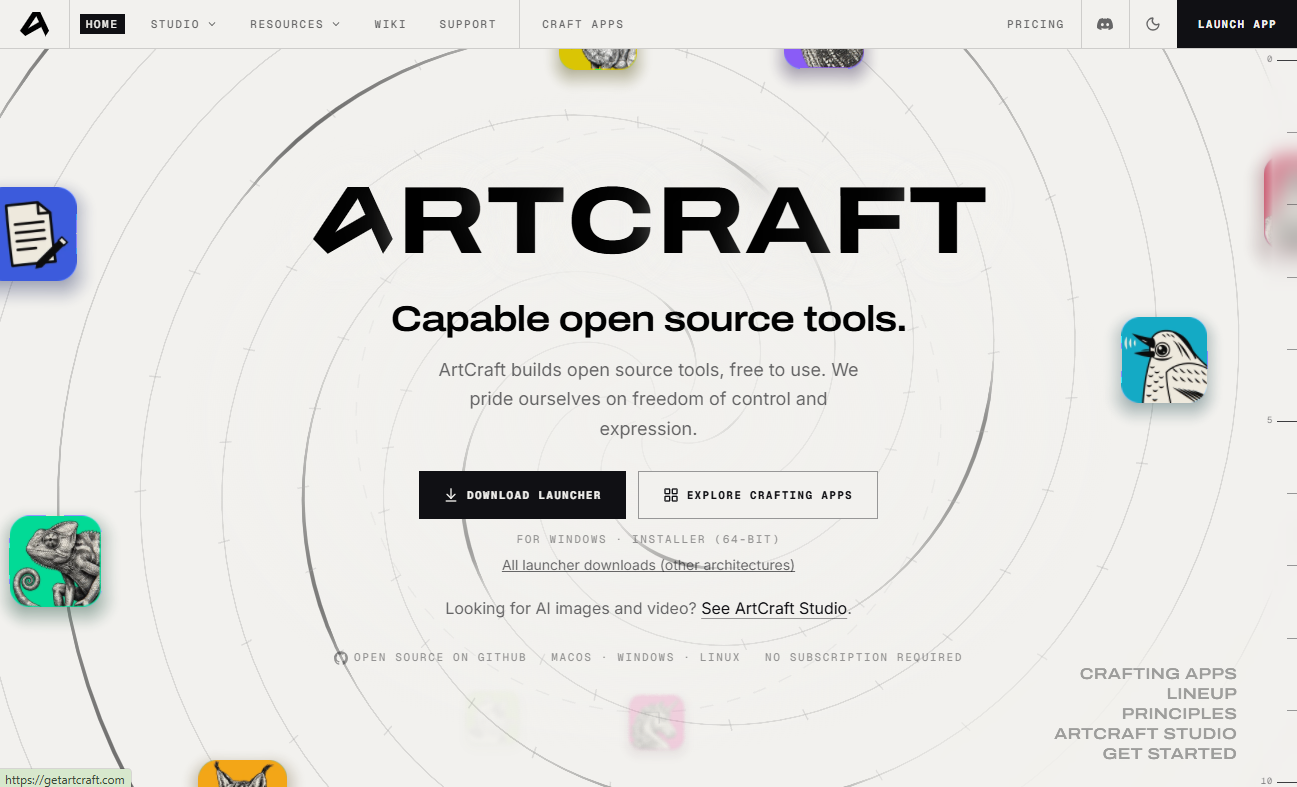
ArtCraft Launcher is a free, open-source desktop application manager developed by the ArtCraft team. It is designed to install, update, and launch applications in the Craft App Suite from one centralized interface.
Instead of searching through multiple application repositories and downloading installation packages individually, you can use ArtCraft Launcher to browse available software, identify installed applications, and manage their versions.
What’s more, ArtCraft Launcher can automatically select compatible application packages based on your operating system and processor architecture. Meanwhile, it can check downloaded files against published SHA-256 checksums to help verify their integrity. Furthermore, ArtCraft Launcher supports Windows, macOS, and Linux, with additional platform builds available in its release repository.
In short, ArtCraft Launcher serves as a centralized installer and updater for the Craft Apps, helping users manage multiple creative and productivity applications more conveniently.
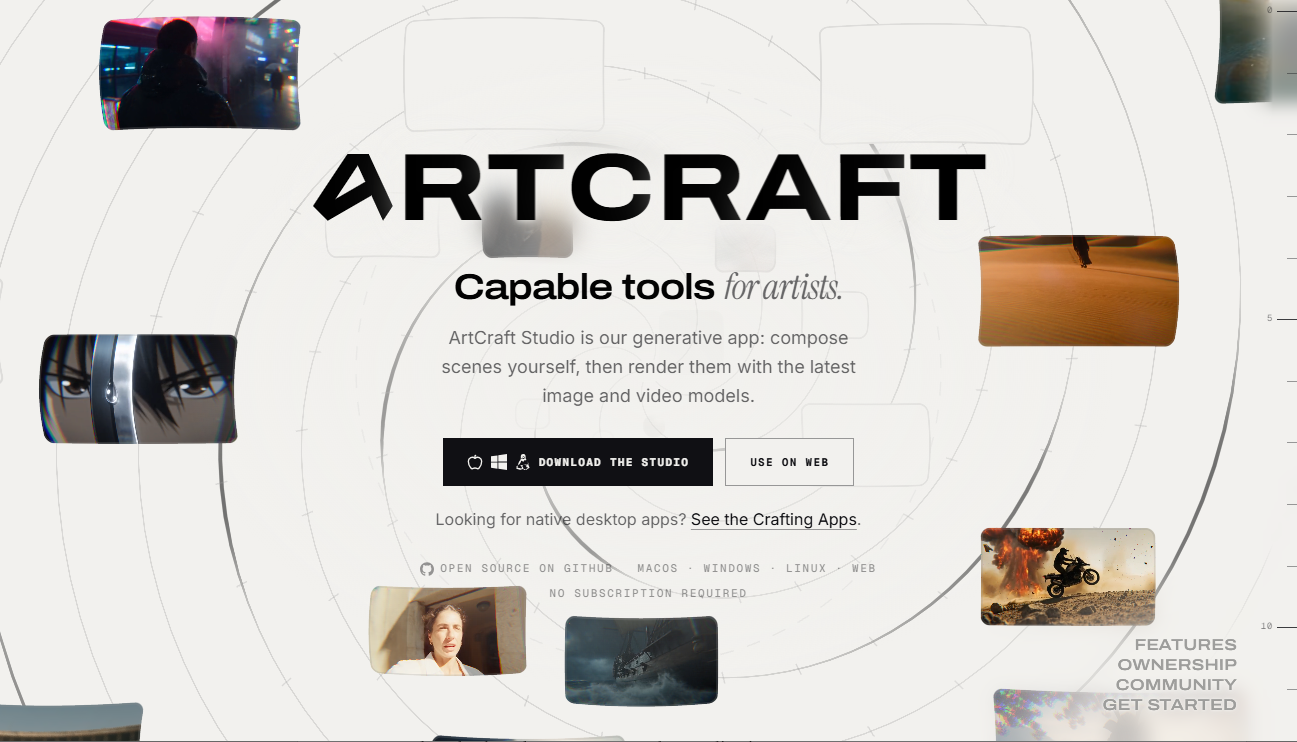
Key Features of ArtCraft Launcher
ArtCraft Launcher provides several useful features for managing the Craft App Suite. Below are the main capabilities of ArtCraft Launcher.
1. Install Craft Apps in One Place
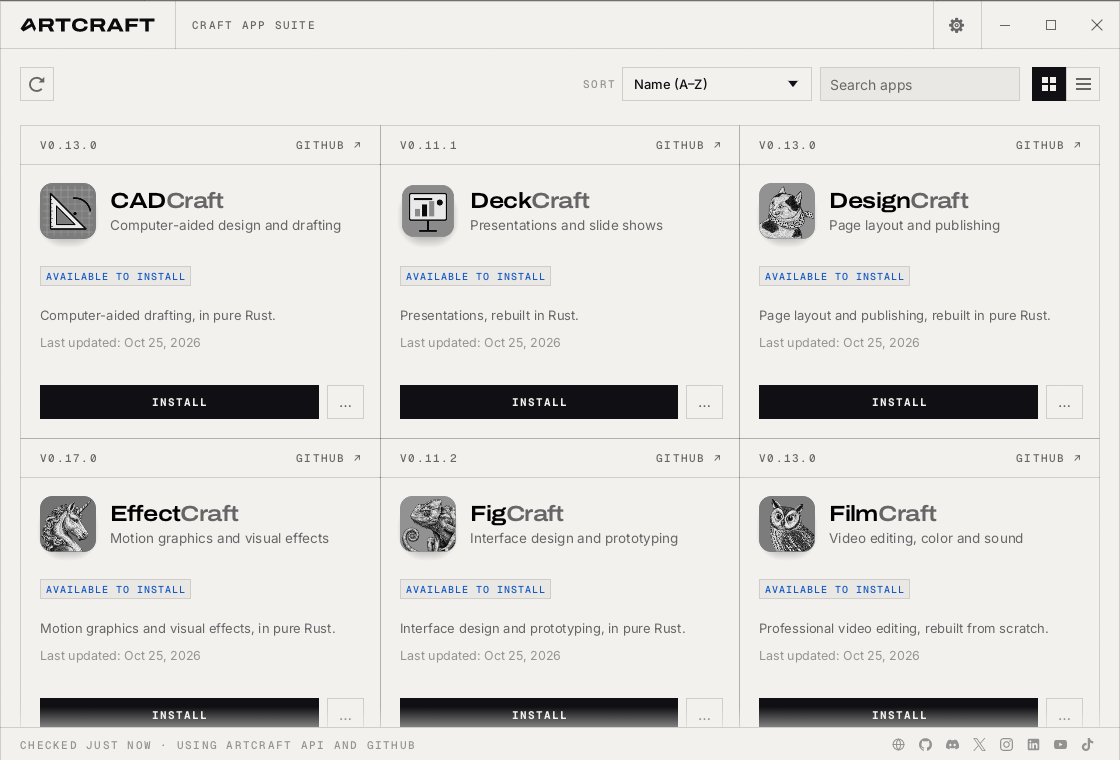
One of the biggest advantages of ArtCraft Launcher is that it brings supported applications into a centralized catalog. You don’t have to visit individual GitHub repositories or search for compatible installation packages manually. Instead, open ArtCraft Launcher, browse the desired Craft Apps, and select the application you want.
ArtCraft Launcher automatically identifies the appropriate package for your operating system and processor architecture. Depending on the application and platform, its supported installation formats may include MSI, DMG, AppImage, DEB, RPM, and Flatpak.
2. Check for and Install Application Updates
ArtCraft Launcher can check the release information of Craft Apps and notify you when updates become available. You can review installed applications and update the software without manually visiting individual release pages. It also provides version-management options, allowing you to review available releases and manage application versions where supported.
3. Launch and Manage Applications from One Interface
In addition, ArtCraft Launcher works as a centralized application hub. After installing a Craft App, you can open it directly from the launcher instead of searching through your computer’s installed programs. It can also remain accessible through the Windows system tray or macOS menu bar, allowing you to return to it whenever you need to check updates or open another application.
4. Verify Downloads with SHA-256 Checksums
When you download software from the internet, it may always involve some risk of file corruption or unexpected modification. ArtCraft Launcher can check downloaded application packages against the SHA-256 checksums published with their corresponding releases.
If a downloaded file does not match its expected checksum, the verification process can identify the discrepancy before installation. This provides an additional download-integrity check and helps reduce the risk of installing an incomplete or altered package.
How to Download ArtCraft Launcher for Windows, Mac, and Linux
You can download ArtCraft Launcher from its official GitHub repository. Go to the ArtCraft Launcher GitHub Releases page and find the latest version for your operating systems and processor architectures.
Download ArtCraft Launcher for Windows
If you use a Windows computer, follow these steps:
- Visit the official ArtCraft Launcher Releases page (https://github.com/storytold/craft-launcher/releases) and find the latest stable release.
- Expand its Assets section to view the available download packages.
- Locate the Windows package that matches your processor architecture.
- Then download the appropriate file.
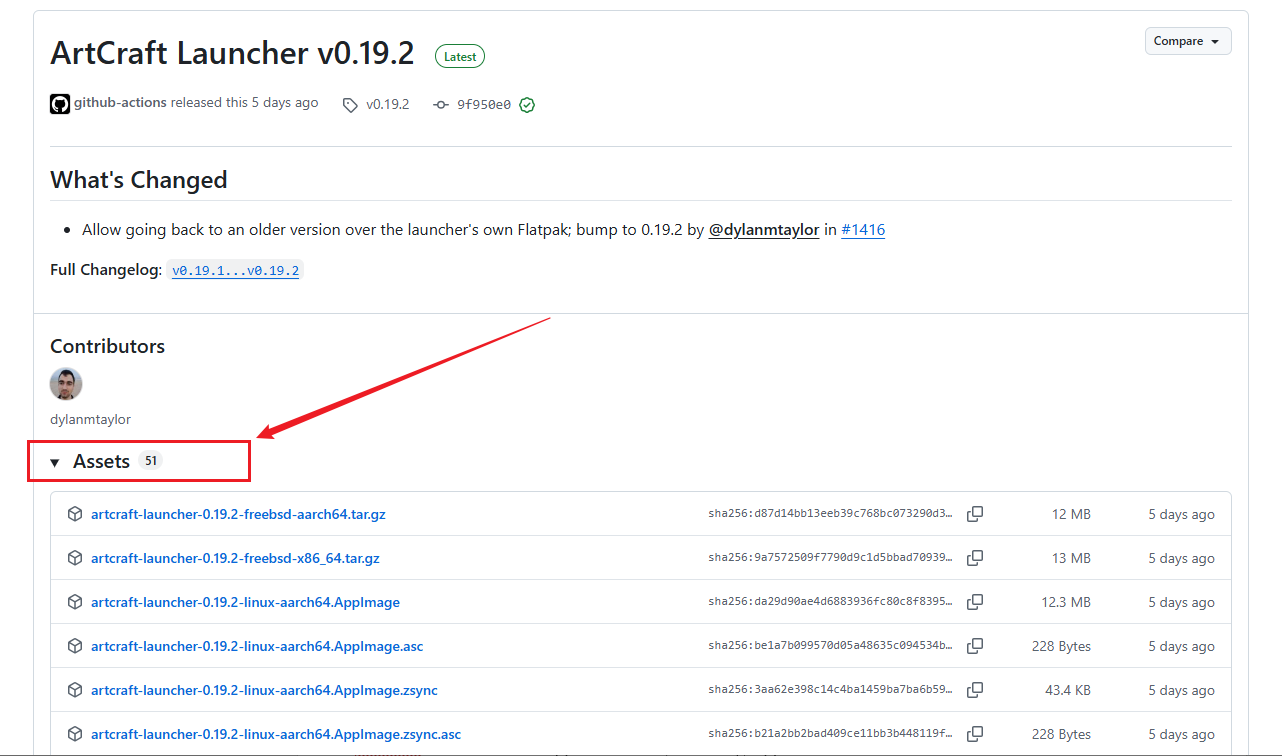
Most Intel- and AMD-based 64-bit computers should use the x64 build. If you have a Windows on ARM device, choose the ARM64 build.
Download ArtCraft Launcher for macOS
ArtCraft Launcher also supports macOS, including Apple Silicon Macs. Below is how:
- Open the official GitHub Release page for ArtCraft Launcher.
- Find the latest stable release.
- Expand Assets and look for the macOS package that matches your Mac’s processor. Then, click to download the appropriate DMG file.
Download ArtCraft Launcher for Linux
Depending on the distributor and processor architecture, you can choose from different package formats for Linux. Below are some common available formats:
- AppImage: Convenient for users who prefer a portable application package.
- DEB: Suitable for Debian-based distributions, such as Ubuntu and Linux Mint.
- RPM: Intended for distributions that use RPM package management, such as Fedora and openSUSE.
- Flatpak: An alternative for systems that support Flatpak.
- RUN: An installation script or self-contained installer, as provided by the release.
To download ArtCraft Launcher on Linux, below are the exact steps:
- Visit the official GitHub Releases page and find the latest stable release.
- Expand Assets and locate the Linux package compatible with your processor architecture.
- Download the appropriate package and follow the installation instructions for the selected format.
How to Install and Use ArtCraft Launcher
After downloading the appropriate package, you can install ArtCraft Launcher and start managing your installed Craft Apps. In these instructions, I only show you the general installation and usage process on different operating systems.
Step 1. Install ArtCraft Launcher
In fact, the installation process depends on the ArtCraft Launcher package you downloaded.
On Windows:
- Open File Explorer, navigate to your Downloads folder, and locate the downloaded ArtCraft Launcher package.
- If you downloaded an archive, extract its contents first.
- Run the included installer or executable according to the release instructions.
- Then follow the installation prompts and approve the necessary permissions.
On macOS:
- Locate the downloaded DMG file and double-click it to open the disk image.
- Follow the installation instructions provided with the package.
- If the package uses the standard drag-and-drop installation method, drag ArtCraft Launcher into the Applications folder.
- Open the Applications folder and launch ArtCraft Launcher.
On Linux:
Unlike on Windows and Mac, ArtCraft's installation procedure on Linux depends on the package format. Below are some examples:
- #For a DEB package on Ubuntu or Debian, open a terminal in the download directory and run: sudo apt install ./artcraft-launcher-<version>-linux-x86_64.deb (You need to replace the filename with the actual downloaded package name.)
- #For an RPM package on Fedora, use: sudo dnf install ./artcraft-launcher-<version>-linux-x86_64.rpm
- #For an AppImage package, first make the file executable: chmod +x artcraft-launcher-<version>-linux-x86_64.AppImage. Then run it: ./artcraft-launcher-<version>-linux-x86_64.AppImage
These commands assume an x86_64 system. If you use ARM64, select the corresponding aarch64 package.
Step 2. Run ArtCraft Launcher
After installation, open ArtCraft Launcher from your desktop application menu or installation directory. On the main interface, you can see applications in the Craft App Suite. Here, you can browse the catalog, review installed applications, and check their versions.
Step 3. Install a Craft App
Once ArtCraft Launcher is open, you can install an application directly from its catalog.
- Browse the available Craft Apps.
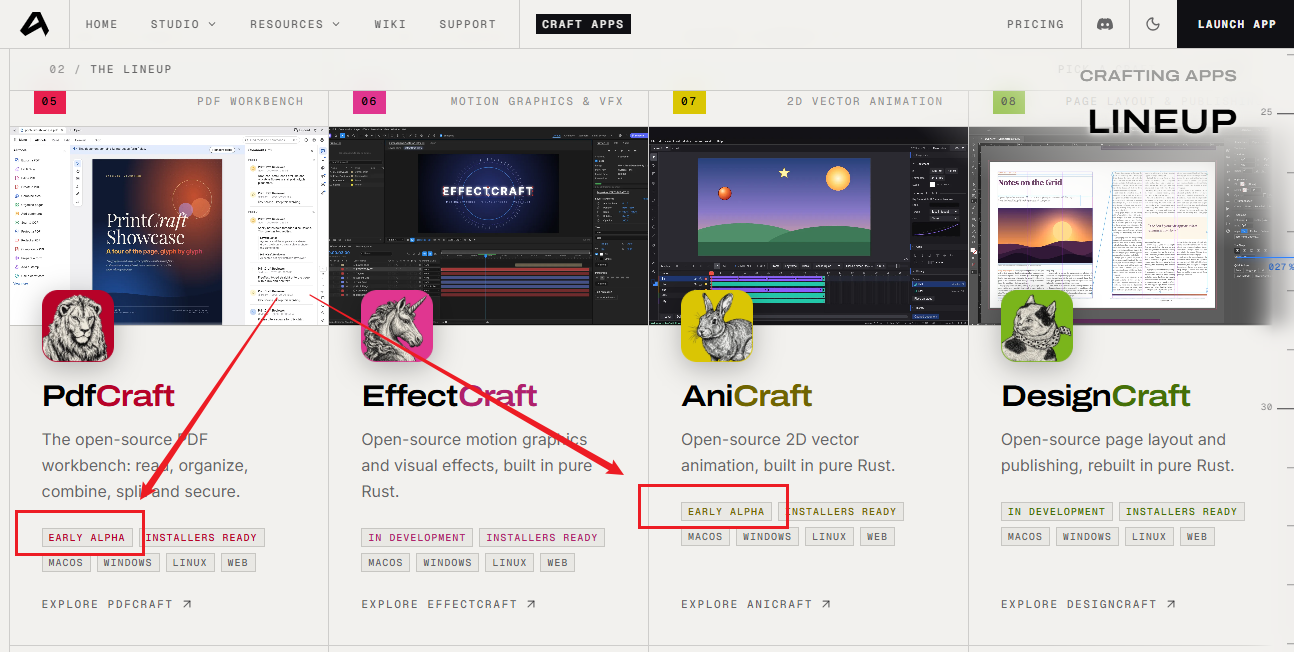
- Find the application you want to install, such as pdfCraft, PhotoCraft, FilmCraft, or VectorCraft.
- Open the application details and review the available version and download information.
- Select the installation option and wait for the package to download, pass verification, and install.
ArtCraft Launcher can automatically select a compatible package based on your operating system and processor architecture.
Step 4. Update or Open an Installed Application
After installing Craft Apps, you can manage them through ArtCraft Launcher.
- To open an installed application: Launch ArtCraft Launcher, find the application in your installed applications list, and select the application to open it.
- To update an application: Open ArtCraft Launcher, check the installed application list for available updates, select the application you want to update, review the available version and download information, and follow the update prompts to update it.
Is ArtCraft Launcher Safe?
ArtCraft Launcher is an open-source desktop application with publicly available source code and release history. Meanwhile, it uses SHA-256 checksum verification to check downloaded application packages. These are useful transparency and download-integrity measures. However, they do not guarantee that every release or installation operation is completely free from security issues.
What Happened in the Windows Antivirus Incident
According to the project's official incident report, users began reporting antivirus warnings after the v0.10.0 release in October 2026.
This issue involved updating multiple applications installed for all users on a Windows computer. During this process, ArtCraft Launcher used a hidden, elevated PowerShell process to execute installation commands. This behavior resembled patterns commonly associated with malware and triggered antivirus detection, including a Kaspersky behavioral detection.
The project identified this update route as the likely cause based on the reported behavior and subsequently reverted the relevant change on its development branch. However, the incident report also explained that the detection had not been independently reproduced or conclusively confirmed as resolved at the time of its October 31 status update.
Therefore, this incident should be treated as a documented security-related compatibility concern, not as proof that ArtCraft Launcher is malware. For more details, refer to: https://github.com/storytold/craft-launcher/blob/main/docs/incident-2026-10-windows-antivirus.md
How to Download and Use ArtCraft Launcher More Safely
Meanwhile, you can refer to the tips below to safely download and use ArtCraft Launcher.
- Download from the official repository: Avoid third-party download sites and unofficial installation packages.
- Check the release information: Review the latest release notes and security-related announcements before installing.
- Verify downloaded files: Compare the package's SHA-256 checksum with the value published by the official release.
- Pay attention to antivirus warnings: Don't automatically dismiss a security warning simply because the application is open source.
- Avoid disabling antivirus protection: If your security software blocks an installation or update, investigate the detection before proceeding.
Fix “ArtCraft Launcher Not Working”
You may also encounter some problems when using ArtCraft Launcher. Here are some common problems and corresponding solutions for your reference:
1. ArtCraft Launcher Won’t Open
If ArtCraft Launcher doesn't start after installation, try these solutions:
- Check the installation and make sure the installation process completed successfully and that the application files are available.
- Restart your computer to resolve temporary system or application conflicts.
- Check system compatibility to confirm that your operating system and processor architecture meet the ArtCraft Launcher’s requirements.
- Reinstall ArtCraft Launcher from the official GitHub repository.
2. ArtCraft Launcher Cannot Download Apps
If ArtCraft Launcher cannot download an application, try the following methods:
- Check your internet connection and make sure your computer can access the internet and the relevant GitHub release pages.
- Check the selected package and verify that the application supports your operating system and processor architecture.
- Review the release page to check whether its installation package is available.
- Check download verification. If the SHA-256 checksum doesn’t match, download the package again.
3. ArtCraft Launcher Update Failed
A network interruption, installation permission issue, or package verification failure can cause you to fail to update ArtCraft Launcher. You can try to close ArtCraft Launcher, check your internet connection, restart your computer, open ArtCraft Launcher again, and check for available updates.
Wrapping Up
What is ArtCraft Launcher? It is an application providing a convenient way to install, update, and open Craft Apps from one centralized desktop interface. With support for Windows, macOS, and Linux, it helps you to manage different creative and productivity tools without manually searching for individual application downloads and updates.
Meanwhile, this article also shows how to download, install, and use ArtCraft Launcher. Hopefully, this article is helpful to you.