


What Happens to Quality When You Enlarge a PDF Image?
It’s easy to enlarge a PDF image by dragging the corners, but it turns out that the picture stretches into something unrecognizable. More than that, you may encounter other issues:
- Low-resolution bitmaps blur when enlarged. A 200×200 pixel image stretched to 400×400 pixels doesn't gain detail, while it gains interpolated pixels that the software guessed at. No PDF editor can fix this. If you enlarge a PDF image without losing quality, the only way is to start with a high-resolution source.
- Vector graphics scale cleanly. Logos and illustrations created as vectors can be enlarged indefinitely without pixelation. But most images embedded in PDFs, like photos, screenshots, and scanned pages, are bitmaps. If your image is a PDF image blurry when enlarged, it's almost certainly a bitmap that didn't have enough pixels to begin with.
How to keep the PDF image resolution when resizing? Before you enlarge, check the original image's resolution. If it's low, consider replacing it with a higher-resolution version rather than stretching what's there. SwifDoo PDF can help you replace images, but it can't invent detail that was never captured.
How to Enlarge a PDF Image with SwifDoo PDF?
SwifDoo PDF is a free desktop PDF editor for Windows and Mac that handles images inside PDFs without the upload-and-download cycle of online tools. You can click any embedded image and enlarge the image on the PDF page – drag a corner to scale proportionally or drag an edge when you deliberately want to stretch it.
Beyond resizing, SwifDoo PDF lets you replace low-resolution images with higher-quality versions, crop unwanted borders, rotate, and reposition images anywhere on the page. SwifDoo PDF also includes merging, compression, OCR, and format conversion, so once you've enlarged an image, you can compress the file for email or convert the whole document to another format without opening a second application.
Step 1: Download and install SwifDoo PDF and launch it.
Step 2: Open your PDF in SwifDoo PDF and click on the image you want to enlarge. Then selection handles appear around it.
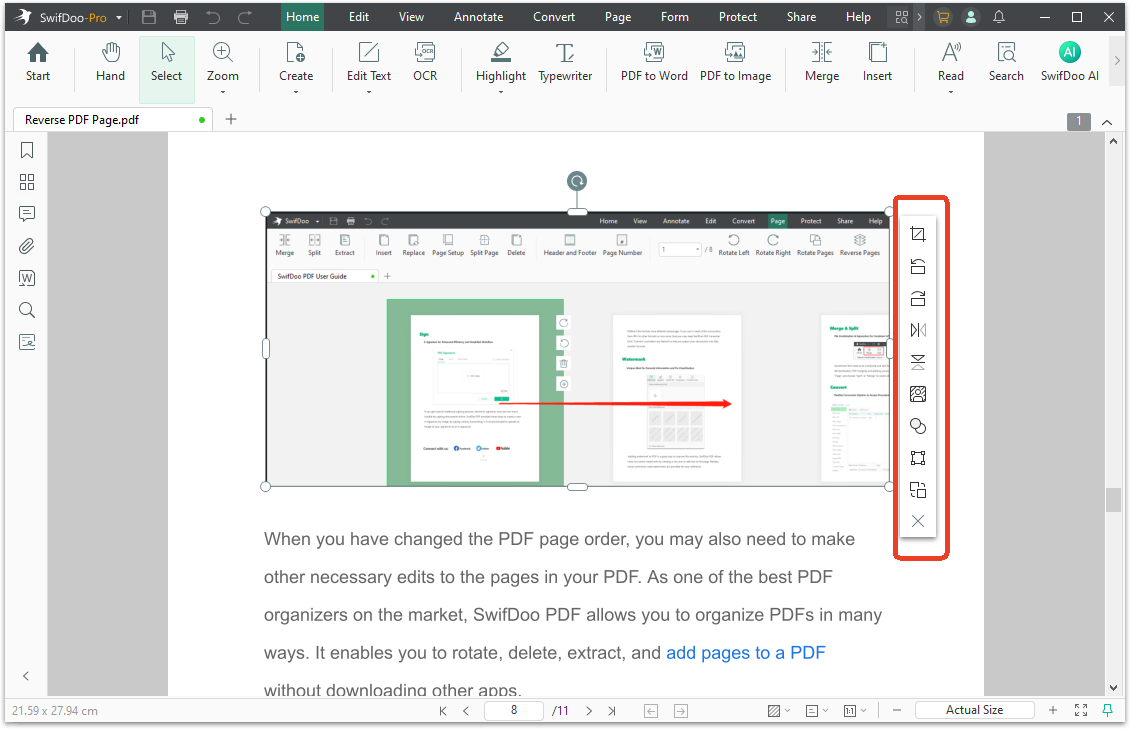
Step 3: Click the Resize option from the side menu and drag a corner handle outward to make the image larger.
- Dragging a corner keeps the proportions intact by default.
- Dragging an edge stretches the image in one direction only.
Then release when you're satisfied with the size and save the document.
How to Enlarge a PDF Image While Keeping Proportions?
If you want to keep the proportions of the PDF image, here are some methods to avoid distortion.
- Only drag the image corners, not the edges. Edge dragging changes one dimension only, and the image looks squashed or stretched.
- Lock the PDF image aspect ratio. In SwifDoo PDF, dragging a corner handle preserves the aspect ratio by default. You can also keep the ratio by holding Shift while dragging.
- Crop first and then enlarge the PDF image. If the image has space around the subject, cropping to the subject and then enlarging the cropped result often looks better than stretching the whole thing.
How to Enlarge a PDF Image When the PDF Is Scanned
Sometimes the PDF isn't a document with images inside it, but a scanned page where the entire content is one image. In this case, you can't resize individual elements. Try the following tips to enlarge a PDF image.
Option A: Use OCR but understand its limits. OCR makes the text searchable and editable, but it doesn't separate images from the page. You'll still be dealing with a single visual unit. If your goal is to enlarge scanned PDF image content, OCR alone won't solve it.
Option B: Extract, enlarge, replace. If you need a specific image from a scanned page enlarged, you can extract the page as an image, crop out the portion you need, enlarge it in an image editor, and then place it back into a new PDF.
Option C: Zoom for reading, not for editing. If you just need to see the image more clearly while reading, use the zoom function. It won't change the file, but it solves the immediate problem of "I can't see this."
Conclusion
How to enlarge a PDF image? SwifDoo PDF's SwifDoo PDF resize image workflow handles your embedded image or a full-page scan. For scanned pages, the extract-and-replace approach is the practical workaround. Remember to grab a corner, not an edge. If the enlarged image looks blurry, change to a higher resolution.


