How to Delete Text from a PDF with SwifDoo PDF
Unlike Microsoft Office formats, PDF (Portable Document Format) is not actually editable by default. In other words, if you need to modify or edit text in a PDF, you will fall flat in the end. So, is it possible to delete the text we don’t want anymore? In this case, a dedicated PDF editor turn out to be helpful. Probably you’ve never heard of this Windows-based software before, but now you do.
SwifDoo PDF is a feature-rich PDF text editor that can add, find, and replace text in a PDF. Users can change the font, color, and size at the same time. Provided below is how to take advantage of it to work for you.
- 1) Delete Text from a PDF by the Edit Feature
Rapid development has been made in the PDF software industry. Now you can remove text and keep the original formatting in your PDF in a few clicks. Follow the guide.
Step 1: Open a PDF document that you wish to get rid of undesired contentin with SwifDoo PDF;
Step 2: Navigate to the toolbar and choose Edit, then click Edit All to enter editing mode.
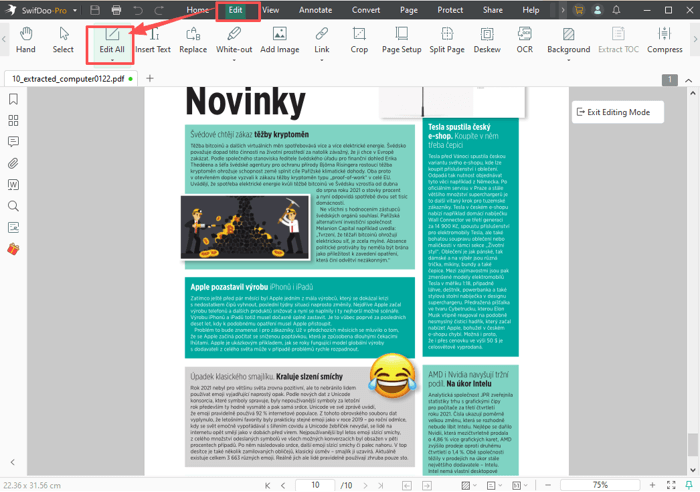
Step 3: Select the text you don’t want, press Backspace or Delete on your keyboard, or right-click on the text to choose Delete;
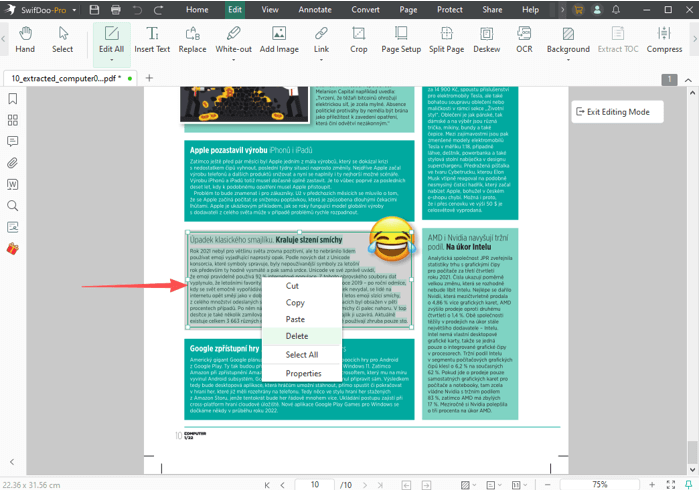
Step 4: If needed, further edit the content using other tools, and then save the changes.
- 2) Delete Text from a PDF by Erasing
SwifDoo PDF offers the option to erase the PDF text. It's not the Eraser annotation tool but a PDF editing option. A PDF eraser can remove text when it's used to white out text in a PDF. So you won’t worry about information leaks. Let’s take a look at how to remove text from a PDF.
Step 1: Still, open a PDF in SwifDoo PDF and go to the Edit tab on the toolbar;
Step 2: Choose the White-out eraser tool in the PDF applicationin and select the white color;
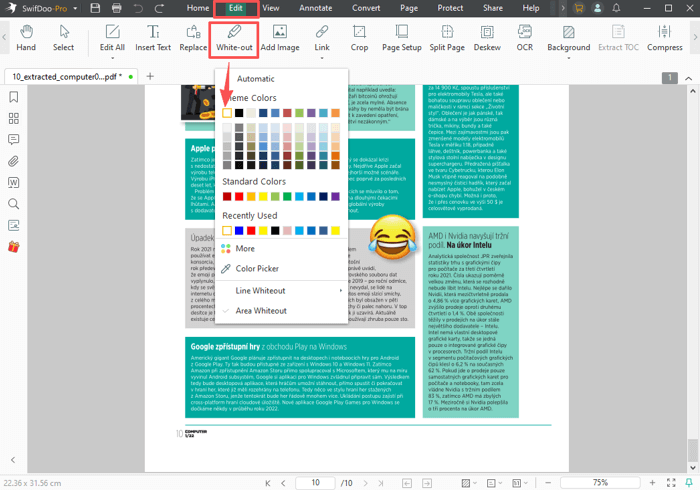
Step 3: Then draw over the text you need to delete from the PDF using your cursor;
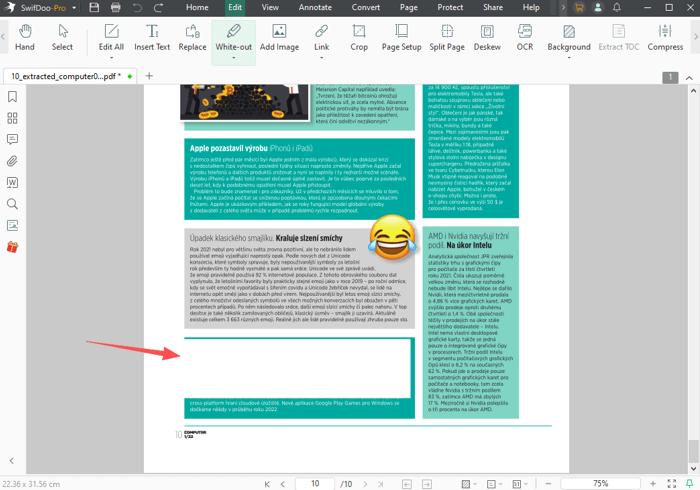
Step 4: The underneath text is covered up and deleted, and then save the edited file.
Please bear in mind that this is an irretrievable action. Once you apply a PDF eraser, the content vanishes entirely and cannot be recovered. Think twice before it all.
This above two options don't apply to scanned PDFs. Things get trickier when your PDF is a scanned copy or image-only PDF. We have published the tutorial to edit and remove text from a scanned PDF.
- 3) Delete text in a PDF Document by converting PDF to Word
The other conventional method is to convert PDF into an editable Word document. This approach may not be the most straightforward one though. Still, it offers an opportunity to delete text from a PDF based on images using OCR settings.
Step 1: Download SwifDoo PDF from the official website or Microsoft AppSource;
Step 2: Launch the program, open your PDF and click Convert > PDF to Word;
Step 3: Add your PDF file to the converter window, click Settings to check if the OCR option is enabled.
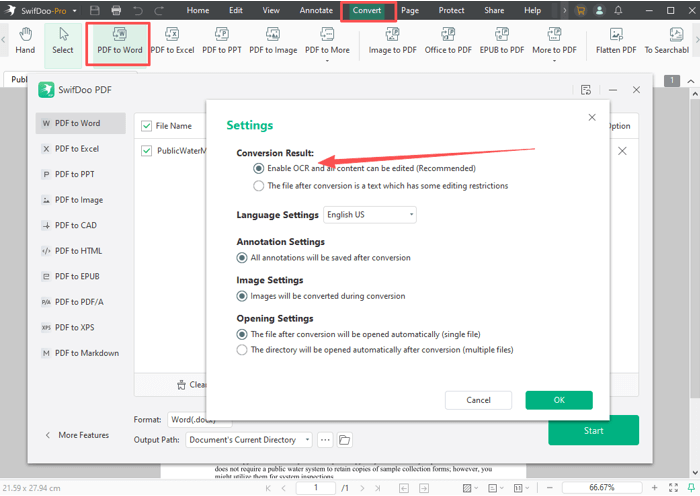
Step 4: Click Start to output this PDF into an editable Word document.
Step 5: Open the converted Word doc, remove the unwanted text and export the file as a PDF.
As we said earlier, this solution can erase unnecessary content from PDFs. I guess you don’t want to go to the trouble. For this reason, the first method is strongly suggested. If needed, you can use the tools under the "Edit" menu to add new text to the PDF and do many more.
How to OCR a PDF and Recognize Text in PDF: 6 Ways in 2025
Looking to find how to OCR a PDF? Use these 6 ways to help you recognize and extract text to make PDFs searchable or editable with a few simple steps.
READ MORE >How to Delete Text in a PDF with PDF Expert
When it comes to how to delete text from a PDF on Mac, Preview may escape your lips. The truth is, Mac users cannot deal with the existing PDF text in Preview as it's only a PDF viewer. Therefore, how do you do? PDF Expert comes into play. PDF Expert is a comprehensive PDF text editor on Mac, iPhone, and iPad. With the ability to edit, view, annotate, and sign PDFs, this product is the top 1 paid app in the Mac App Store. It also allows Mac users to change, add, and redact text in a PDF.
Let’s dive into how to delete text on a PDF using PDF Expert.
Step 1: Download PDF Expert from the App Store;
Step 2: Open a PDF document in the app, select Edit in the top menu, and choose Text ribbon;
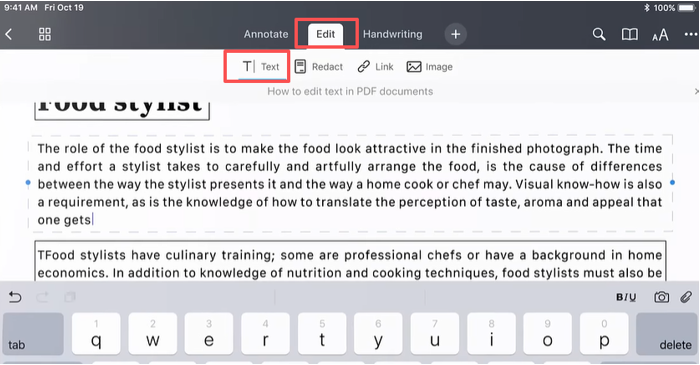
Step 3: Select the unwanted text and press Backspace on the keyboard to delete the PDF text.
Though easy to use, PDF Expert is not a free app. When the free trial expires, you still need to pay. The good news is that we have many online tools to recommend.
7 Go-to Methods to Add Text Box to PDF for Free
Adding new text to an existing PDF is not easy. Read this post to find out the 7 go-to methods to add text boxes to PDF for free so as to type text easily.
READ MORE >How to Remove Text from a PDF with Online Free Tools
Suppose you ever wonder how to delete text from a PDF with no download and registration process required. In that case, this section is of huge help as we will discuss online PDF text remover to help.
AvePDF
If you need to remove text from a PDF online for free without login , you’re here at the right place. AvePDF is a free web-based application you cannot miss. It can delete the entire and partial PDF text. Check out how it works:
Step 1: Open the official website and go to Edit > Remove Text;
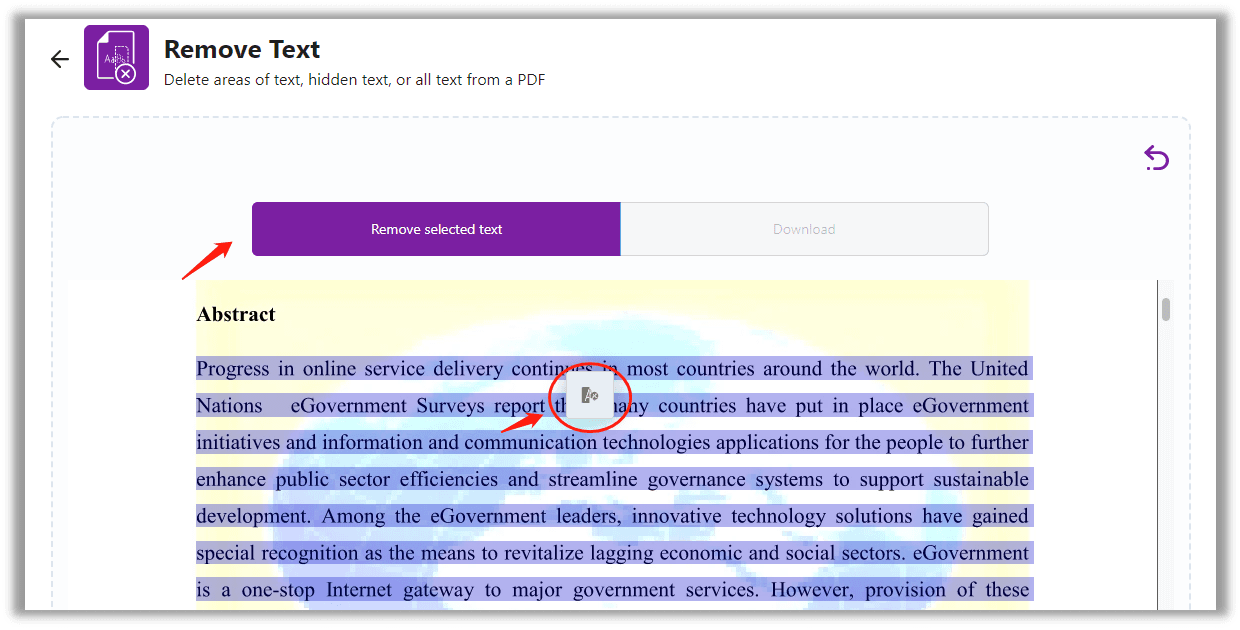
Step 2: Upload a PDF file from a local folder, Google Drive, Dropbox, or hyperlink;
Step 3: Choose a delete mode (full or targeted), and select the text you want to remove. When ready, hit the Download button.
The process of removing text requires no complicated operation, and it is a FREE online tool. Therefore, we’d like to give AvePDF a thumbs up. On top of being a PDF text editor, AvePDF is a versatile PDF tool that integrates the ability to do PDF conversion.
Sejda
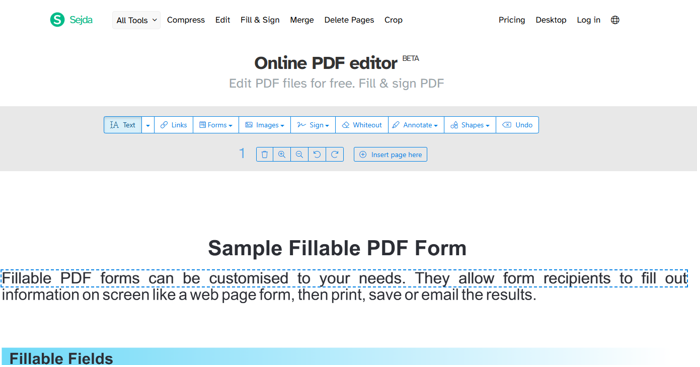
Another online free PDF editor to delete text from a PDF is Sejda. This online solution also has no sign-up requirment. It's good for a clean and intuitive interface. It has a lot of useful PDF manipulation tools. You can add form fields, images, and annotations. You can downloaded edited files without a watermark.
Glance at how to delete text in a PDF file online for free.
Step 1: Open the online Sejda PDF editor, and upload the PDF you want to delete text from.
Step 2: Click the Text button in the toolbar to make the text editable.
Step 3: Hover over your cursor over the text line, click into the text box and select the text.
Step 4: Press the Delete key to delete the selection.
Why Cannot I Edit and Delete Text from a PDF?
Before it all, we must be clear about the nature and primary goal of creating a PDF document: for easier sharing and maintained formatting. That is to say, a professional PDF editor is needed if one wants to make any changes to the PDF text.
PDF protection: When users cannot delete unwanted text from a PDF, they must confirm whether a permission password secures this PDF. If that's the case, use an PDF app to remove the password from the PDF and delete the permissions, for instance, SwifDoo PDF.
Image PDF: Otherwise, check if this PDF is a scanned PDF document created by scanned software or not. If yes, try an OCR engine to recognize the document and edit the scanned document.
Final Thoughts
We hope you know how to delete text from your document with desktop and online programs from the detailed description. If you need an all-in-one PDF software, SwifDoo PDF might be worth a try. If you don’t need to edit PDFs regularly, online services can solve your need.