


Part 1. What Is "Batch Editing"?
Batch editing allows you to run one automated operation on numerous PDF documents or pages in one go. It removes the need to repeat the same task manually, saving time and effort.
With batch editing, you can batch convert formats, batch compress PDF file sizes, batch merge documents, batch encrypt sensitive files, or batch OCR PDFs to make text searchable. This method guarantees accuracy, uniformity, and efficiency, making it ideal for professionals managing large volumes of documents.
Overall, batch editing simplifies document management, making it quicker and more efficient to handle multiple PDFs.
Method 1. How to Batch Edit PDFs with SwifDoo PDF
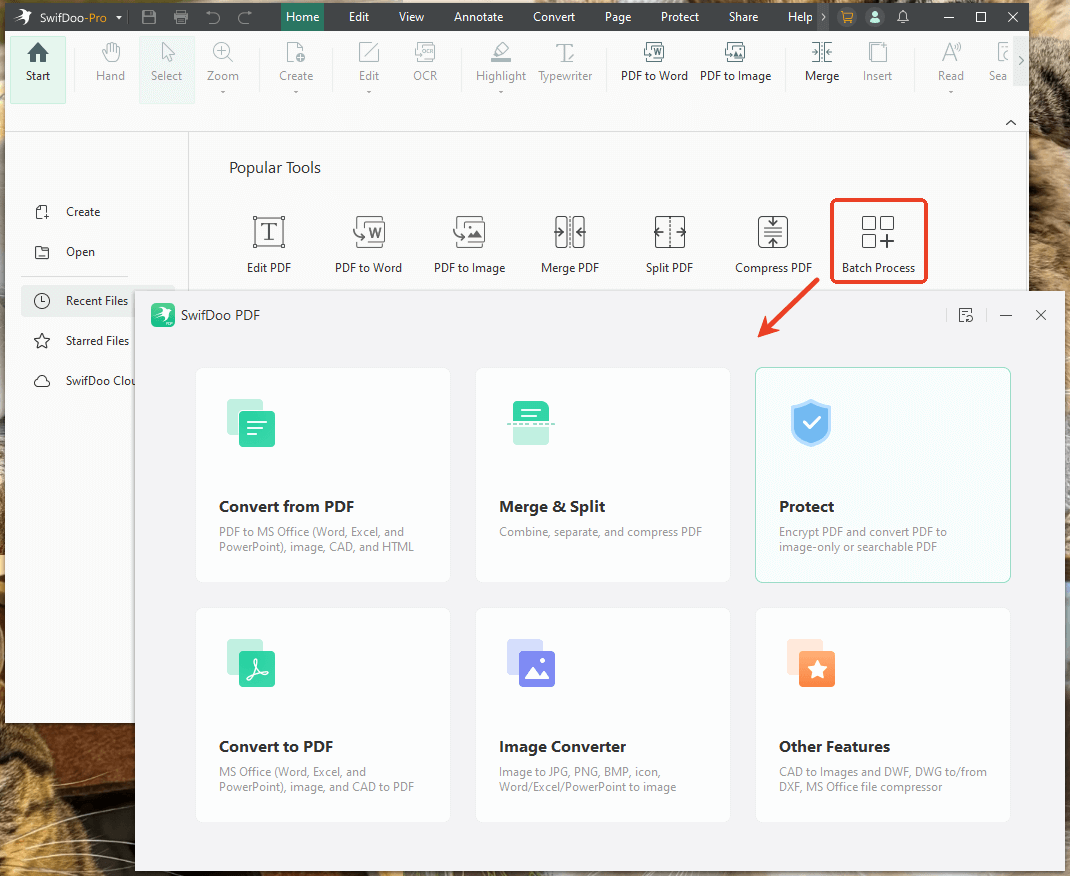
For those seeking simplicity, SwifDoo PDF is a fast, efficient, and affordable Adobe Acrobat alternative compared to the complexity of Acrobat. Hit the ‘Batch Process’ button on the Home interface to start working. Whether converting or compressing, SwifDoo PDF handles multiple tasks quickly and accurately.
Learn how to batch edit PDF files with SwifDoo PDF in just a few clicks.
Step 1. Download and launch the SwifDoo PDF application.
Step 2. Find the Batch Process button in the main interface under Popular Tools or the Home section. Select an operation to run.
Step 3. Add the files you wish to process by dragging and dropping them into the designated area or using the Add Files option.
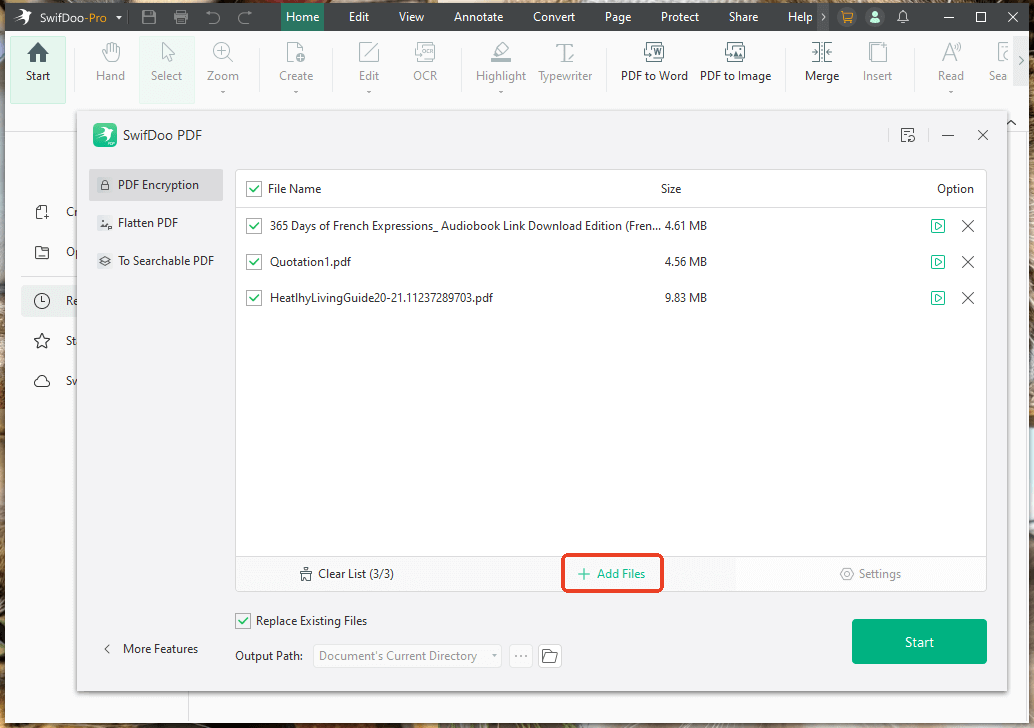
Step 4. Set up the parameters and preferences for the chosen action.
Step 5. Apply the changes to start the batch operation in your PDF document.
Pros:
- Effectively performs regular batch tasks, including converting PDFs to other formats
- Enables batch compressing files, adding watermarks, or encryption to save time
- Offers a clean and intuitive, user-friendly interface to carry out bulk operations quickly and smoothly
- Includes SwifDoo AI to handle your PDF document more effectively
Cons:
- SwifDoo PDF for Mac has limited features and functionalities
Method 2. How to Batch Edit with Adobe Acrobat Pro
Adobe Acrobat stands out as a reliable solution for complex tasks, including batch editing and batch OCR PDF. Its automated Actions let you update multiple files at once, making large-scale document management faster and more consistent.
Learn how to batch edit PDF in Acrobat step by step for smooth workflow management.
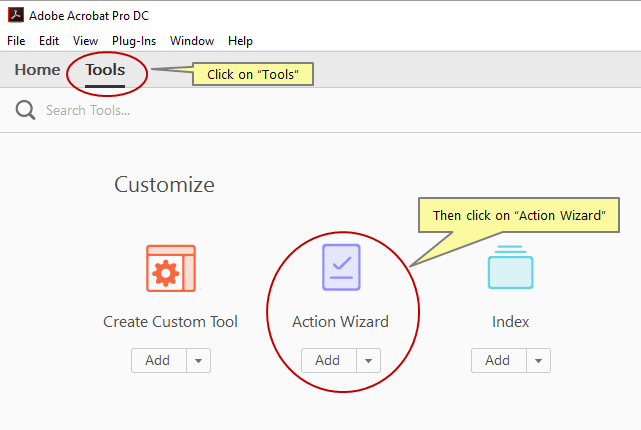
Step 1. Open Adobe Acrobat Pro. And navigate to the Tools pane. Then, click the Action Wizard option (or Guided Actions in newer versions).
Step 2. Click New Action to begin creating a custom batch process. Next, choose how the files will be selected.
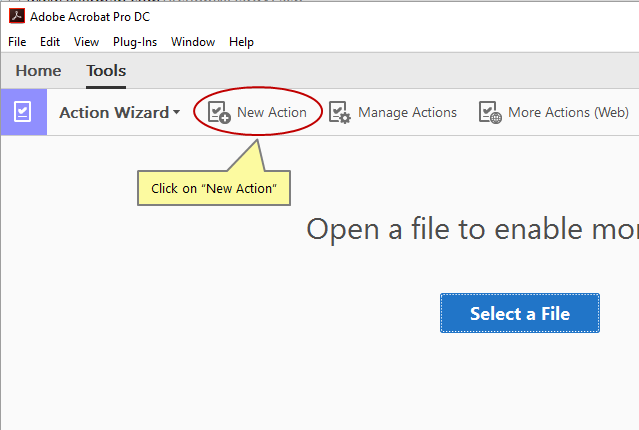
As an option, choose “Ask when action is run” or click the folder icon to add multiple files or an entire folder at once.
Step 3. In the right panel, pick the automation tasks you want from the list of available actions.
Common options include:
- Document Processing: Optimize scanned PDFs or perform Optical Character Recognition (OCR).
- Protection: Add passwords or set permissions.
- Pages: Include, remove, or turn pages as needed.
Step 4. Configure the options for each task separately. And, if needed, arrange the steps in the desired order.
To prevent interruptions, ensure all commands run in non-interactive mode during the batch workflow.
Step 5. Click Save and give your new action a descriptive name and description for future use.
Pros:
- Creates custom workflows to automate repetitive tasks on multiple files
- Provides a wide range of tools for creating, editing, signing, and organizing PDFs
- Ensures consistent results across numerous documents
- Offers strong security standards for handling sensitive documents
Cons:
- The advanced features required for batch processing, particularly the Action Wizard, are locked behind a paid subscription
- A steep learning curve and processing large batches of complex files can be resource-intensive
Method 3. How to Batch Edit PDFs Online
If you want a quick solution without installing software, online tools such as Smallpdf make batch editing easy. Thanks to its simple interface and cloud-based processing, you can quickly convert, compress, or merge files.
The batch PDF converter lets you handle multiple PDFs at once, making online editing efficient, flexible, and accessible on any device.
Check out the steps to batch edit PDF online using Smallpdf in a few clicks.
Step 1. Head to Smallpdf.com in your preferred web browser.
Step 2. Pick the action you need, including Convert, Merge, Print, and more.
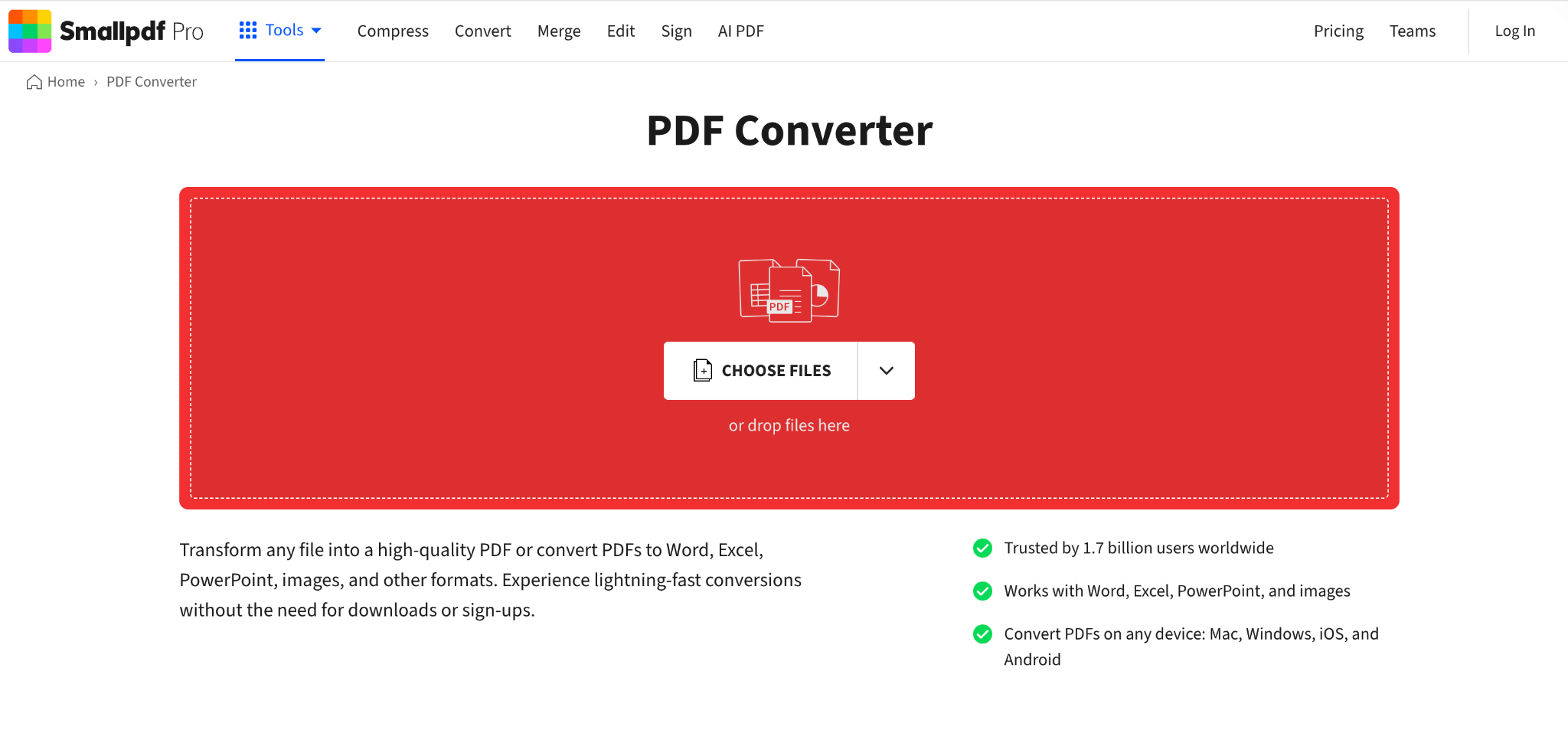
Step 3. After your selection, click Choose Files and add all your required PDF files to the workspace. Smallpdf executes your chosen action and presents the list of tasks that need to be completed.
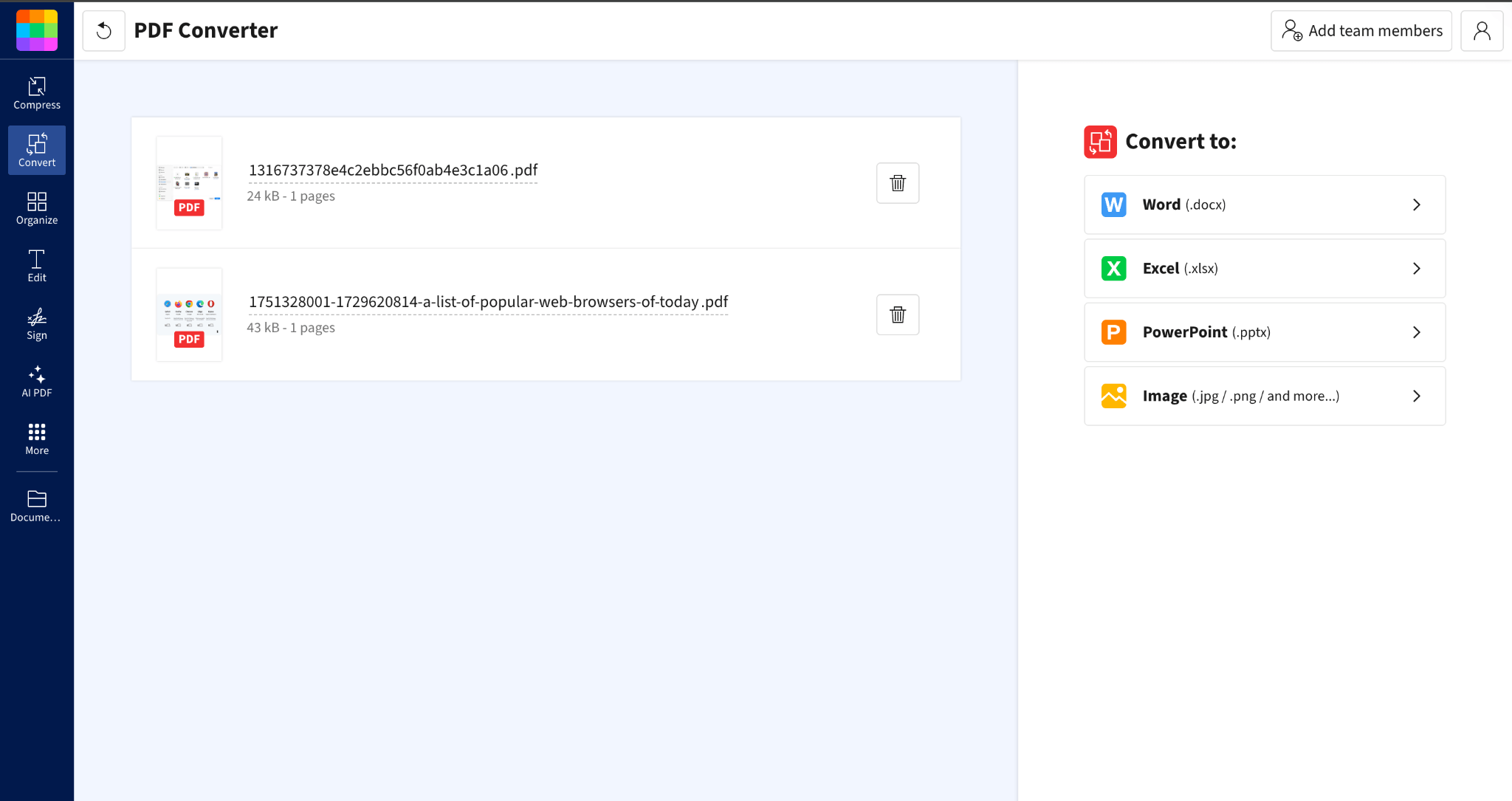
Step 4. After processing, click the Download button to save the edited PDF to your device.
Step 5. You can easily share the document by pressing the Share button.
Pros:
- User-focused, intuitive layout that helps beginners handle batch processing with ease
- Includes a wide array of batch-processing features— convert, compress, and merge PDFs— all from a single platform
- Can be easily accessed on the go from any device with an internet connection
- The Pro version, which includes more batch features, is often considered more affordable than competitors
Cons:
- The free version has significant limitations, such as processing only two files per day for some functions
- The options for batch editing are limited for more complex or nuanced tasks, lacking advanced customization
Wrapping Up
Editing PDFs is one of the most efficient ways to manage large document workloads without repetitive manual tasks. Whether you use desktop software or online tools, the ability to batch edit PDF files—convert, compress, merge, encrypt, or OCR—saves time and ensures consistency.
Adobe delivers advanced automation, whereas SwifDoo PDF and online tools offer simpler, cost-effective alternatives. Batch editing mastery lets you streamline tasks, increase productivity, and maintain orderly files with ease. You can try all of them and see which one suits you best.



