


What Is Kindle File Format
Before you choose a PDF to Kindle converter, it helps to understand what file formats your Kindle actually supports. Amazon uses a family of formats, each with different capabilities.
Native Kindle Formats (Best for Reading)
|
Format |
Full Name |
Best For |
|---|---|---|
|
AZW |
Amazon Word |
Older Kindle format with basic features |
|
|
Kindle Format 8 (KF8) |
Modern format with advanced typography, drop caps, and tables |
|
KFX |
Kindle Format 10 |
Newest format with enhanced layout, page flip, and sticky notes |
|
MOBI |
Mobipocket |
Older format, widely compatible but limited features |
Let's check how to convert between PDF and Kindle formats:
Formats Kindle Accepts (With Conversion)
|
Format |
How It Works |
|---|---|
|
|
Read "as-is" (fixed layout, no text reflow) |
|
EPUB |
Emailed via Send to Kindle; automatically converted to AZW3/KFX |
|
DOC/DOCX |
Emailed via Send to Kindle; automatically converted |
|
TXT, HTML, RTF |
Emailed via Send to Kindle; automatically converted |
Best Desktop PDF to Kindle Converters
Desktop PDF to Kindle converters offer several advantages over online tools: no file size limits, no privacy concerns, faster processing, and often better formatting preservation. Here are the top two desktop options.
Send to Kindle Desktop App (Official)
If you're looking for the most straightforward way to get PDFs onto your Kindle, Amazon's official Send to Kindle desktop app is worth considering. It's not a converter in the traditional sense, but rather a delivery tool that transfers your files directly to your Kindle library. Users can also share converted PDF files across multiple Kindle devices and the Kindle mobile app.
Not only is this app an official Amazon product, it is also a great file delivery tool that supports multiple file formats, including PDF, DOCX, TXT, RTF, JPEG, PNG, and more. The app also converts PDF to Kindle format automatically during the upload process, making it a convenient PDF to Kindle converter for users who prefer an official solution.
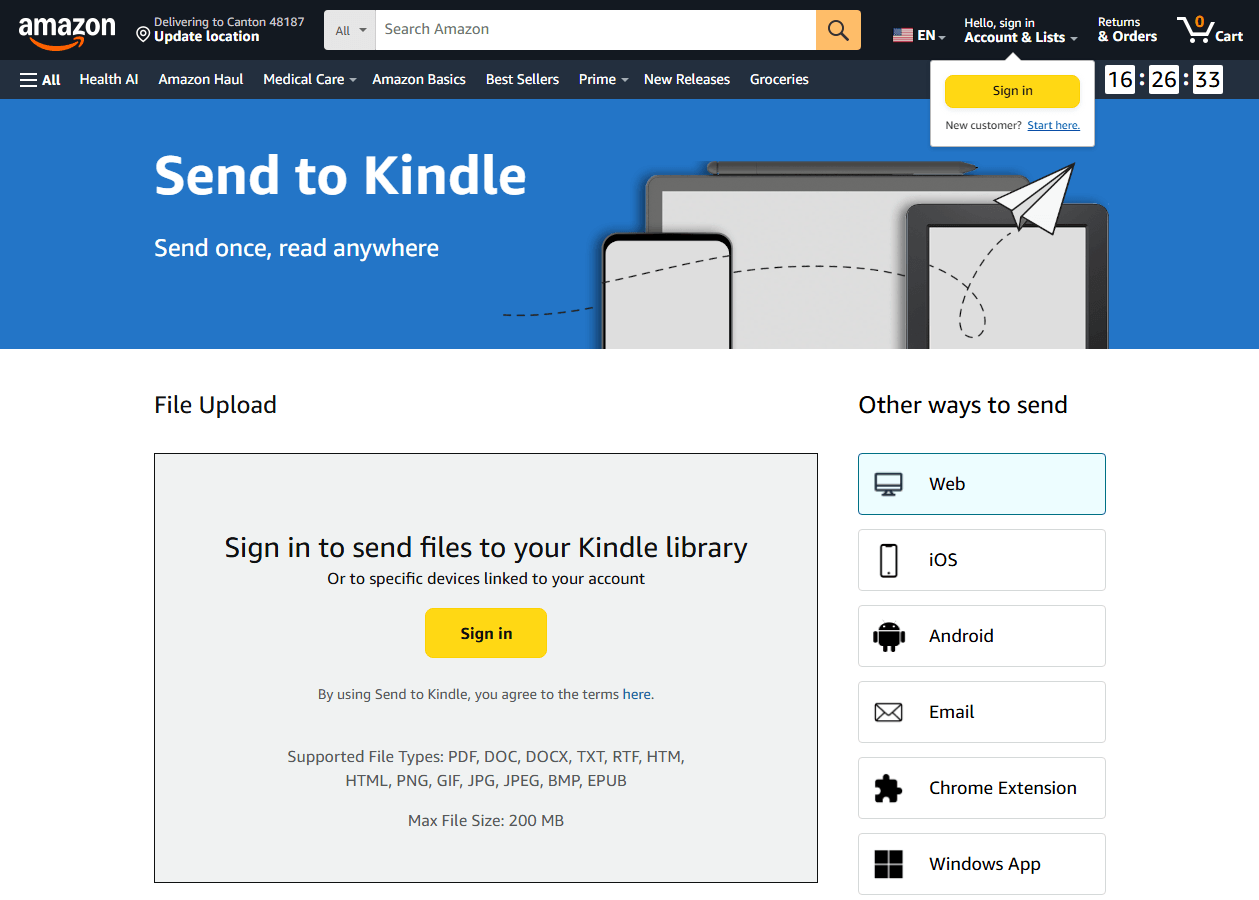
Key Features:
-
Official Amazon product — guaranteed compatibility
-
Automatic conversion to Kindle format during upload
-
Supports multiple file types, not just PDF
-
Syncs across all devices on the same Amazon account
-
Completely free
How to Convert PDF to Kindle with Send to Kindle:
-
Download and install the Send to Kindle app from Amazon's website.
-
Sign in with your Amazon account credentials.
-
Drag and drop your PDF file into the app window.
-
Wait for the upload and conversion process to complete.
-
The file will appear in your Kindle library automatically, ready to download on any device.
Calibre – The All-in-One Ebook Manager
Calibre is the most popular PDF to Kindle converter Calibre tool among Reddit users. It's a free, open-source ebook manager that supports conversion to AZW3, MOBI, EPUB, and more. Many Reddit threads recommend Calibre for its flexibility and batch processing capabilities.
That said, Calibre ebook converter has a reputation for being somewhat unforgiving. The interface hasn't changed much over the years, and PDF conversion — especially with complex layouts — can produce unpredictable results without manual tweaking.
What makes Calibre special is its depth. Beyond simple PDF conversion, it functions as a complete ebook management system. You can catalog thousands of titles, edit metadata, download covers, and organize collections — all from a single interface.
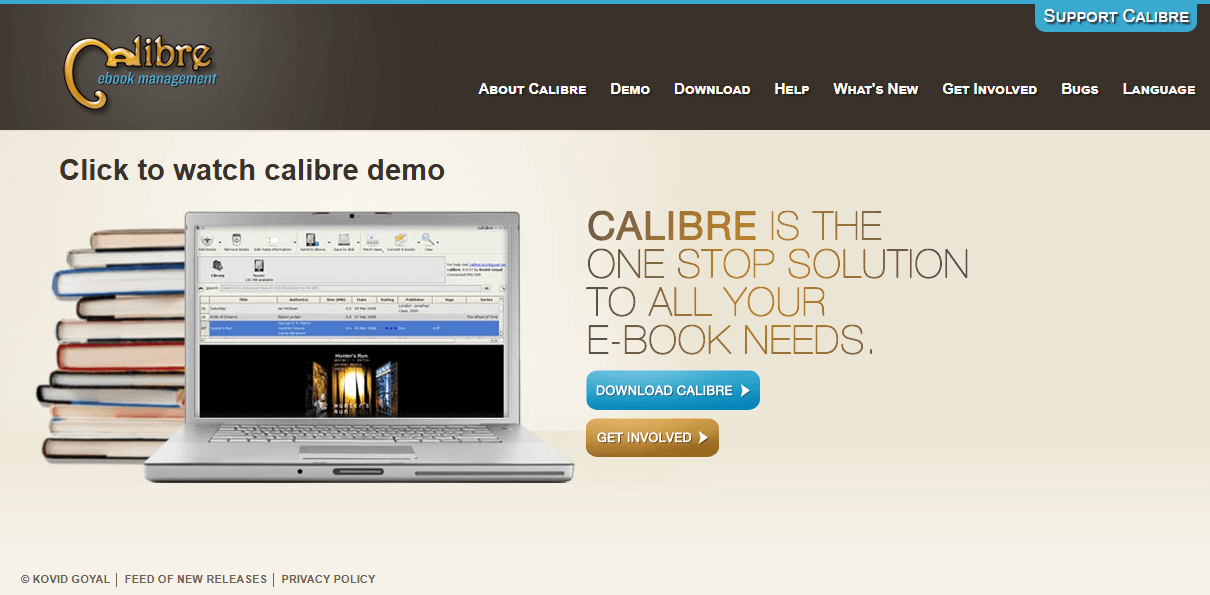
Key features:
-
Wide Format Support: Converts between nearly every ebook format imaginable: PDF, EPUB, MOBI, AZW3, TXT, HTML, and dozens more. It's essentially a universal Kindle PDF converter.
-
Metadata Editing: Edit titles, authors, covers, and tags — crucial for keeping your Kindle library organized.
-
Library Management: Organize thousands of ebooks with tags, collections, and custom columns.
-
Device Integration: Connect your Kindle directly and transfer books with one click.
-
Free and Open Source: No cost, no subscriptions, no hidden fees.
-
Completely free
-
Direct AZW3 and MOBI output
-
Built-in library management
-
Active user community
-
PDF conversion quality can be inconsistent, especially with complex layouts
-
Interface feels dated and clunky
-
Steep learning curve for advanced features
-
Requires manual tuning for best results
Best Online PDF to Kindle Converters
If you don't want to install software, online PDF to Kindle converters offer a convenient alternative. They're best suited for occasional use, small files, and non-sensitive documents. Here are three popular options.
Aspose PDF to Kindle Converter
Aspose offers a free online PDF to Kindle converter that works in your browser. You don't need to install any software. The platform supports over 100 file formats, including PDF, EPUB, DOCX, XLSX, PPTX, HTML, making it a versatile PDF to Kindle converter free of charge for quick jobs. It also converts PDF to a host of ebook formats, including EPUB and MOBI, which can then be sent to Kindle devices with ease.
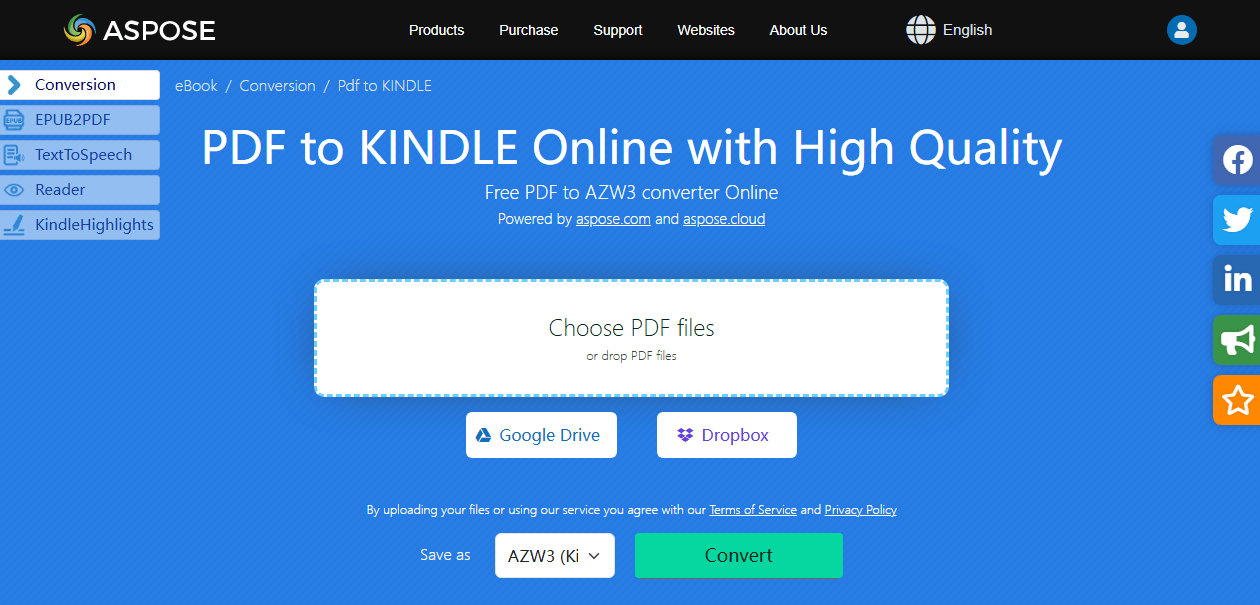
Converted files are automatically downloaded to the user's browser download folder and can be opened and previewed with any compatible application. Users can also share converted files via email or cloud storage services.
Files are processed on Aspose's servers, and the platform deletes uploaded content within 24 hours. That's reasonable, but it still means your document travels through a third-party system. For non-sensitive files, this is perfectly fine. For confidential documents, you'll want to look elsewhere.
-
No registration required
-
Fast processing
-
Clean, simple interface
-
Files deleted after 24 hours
-
Limited to EPUB output
-
No batch conversion
-
File size limits (approximately 50MB)
-
Requires internet connection
GroupDocs PDF to AZW3 Converter
Most online converters settle for EPUB output. GroupDocs goes a step further by offering direct PDF to AZW3 conversion — a rarity among browser-based tools.
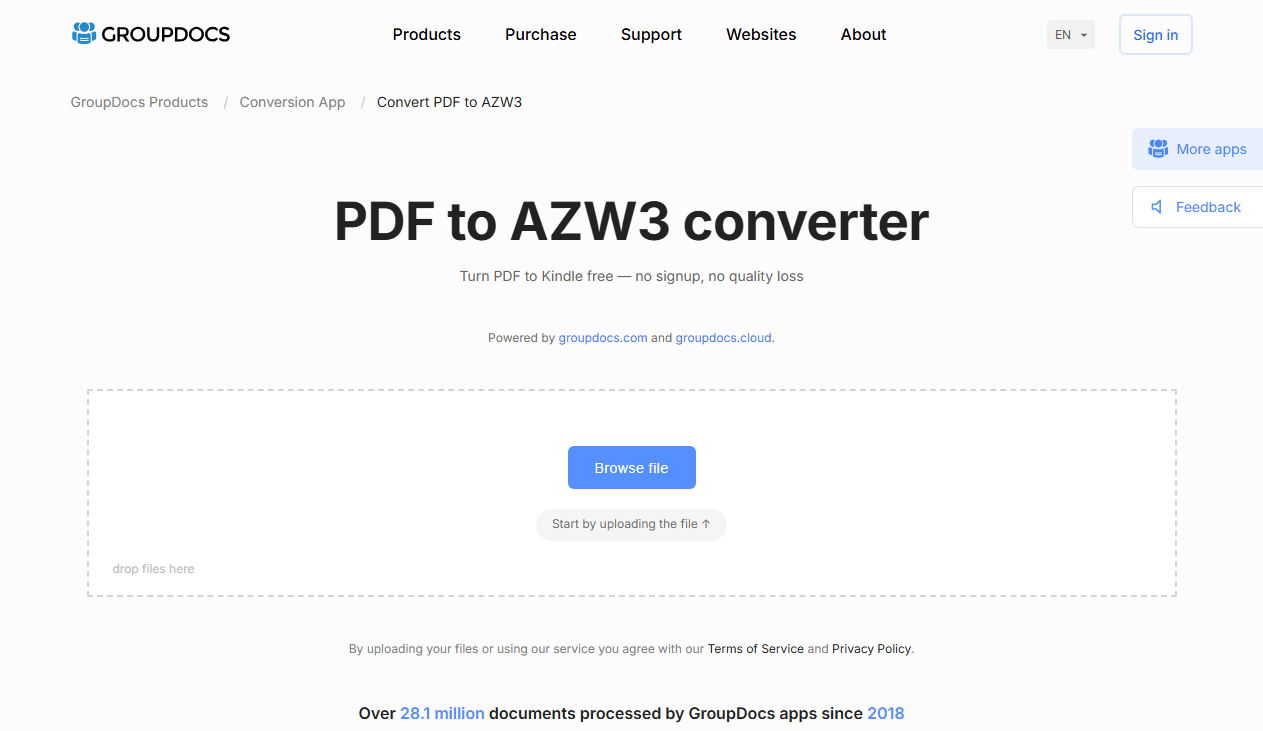
The process is straightforward: upload your PDF, select AZW3 as the target format, and download the result. There's no need to create an account, and the interface is clean enough that you'll have no trouble navigating it on your first visit.
GroupDocs processes files on its cloud servers and automatically purges them after 24 hours. The main limitation is size. With a 25MB cap, this tool isn't suitable for image-heavy PDFs or long documents. But for text-based files that need to convert PDF to Kindle free online, it's a reliable choice.
-
Direct AZW3 output
-
No registration needed
-
Works on any device with a browser
-
Files deleted after 24 hours
-
Small file size limit (approximately 25MB)
-
No batch processing
-
No OCR for scanned PDFs
-
Requires internet connection
Online-Convert.com PDF to Kindle
Online-Convert.com has been around since 2009, making it one of the oldest file conversion platforms on the web.
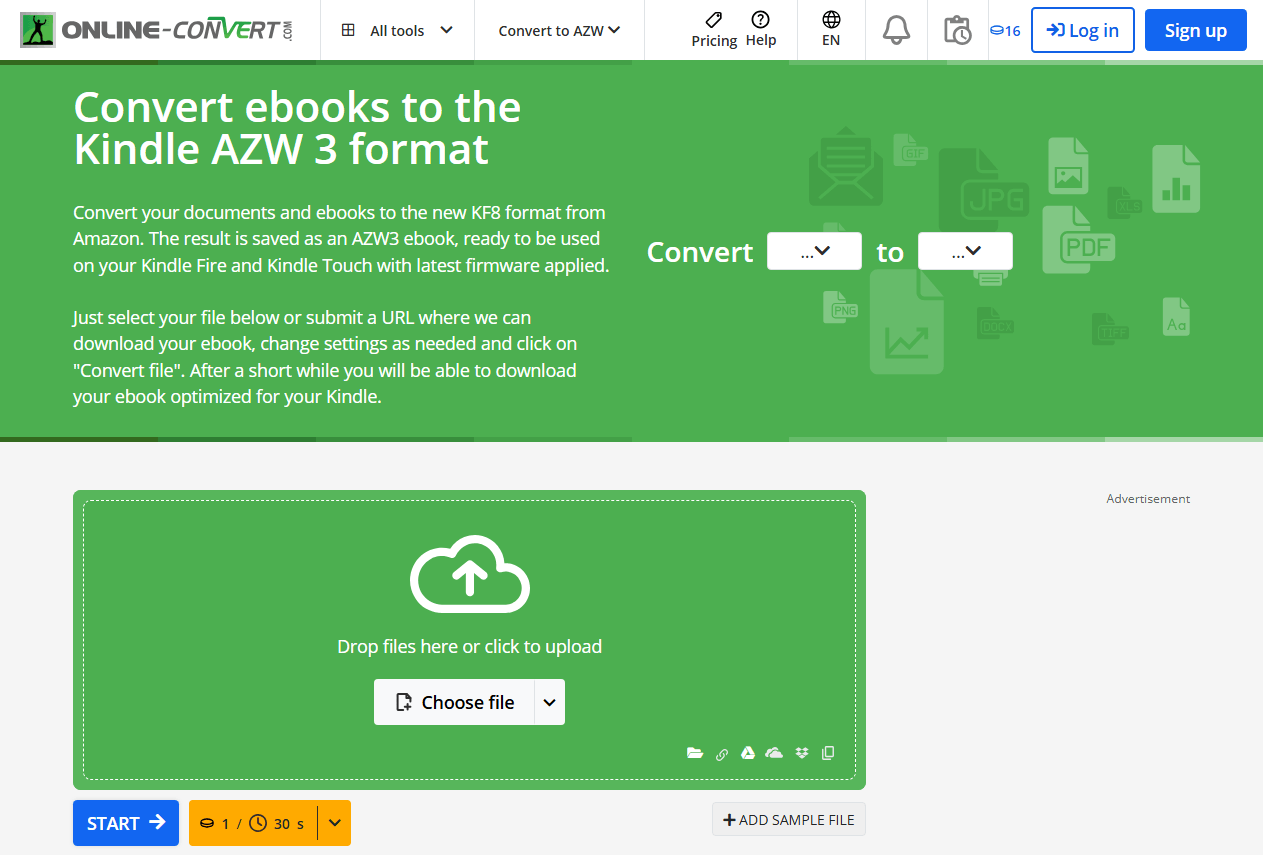
What sets this platform apart is the level of control it offers. Most online PDF to Kindle converters are one-click affairs with zero customization. Online-Convert.com, by contrast, lets you adjust font sizes, page orientation, color modes, and more before you convert. You can also batch-process multiple files, which is unusual for a web-based PDF to Kindle converter.
The free tier, however, comes with limitations. Expect slower processing during peak hours and caps on daily conversions. If you need more throughput, you'll have to upgrade to a paid plan.
-
Multiple output formats (MOBI, AZW3, EPUB)
-
Advanced settings for font size, page orientation, etc.
-
Batch conversion support
-
HTTPS encryption
-
Free tier has limitations
-
Slower processing on busy servers
-
Requires internet connection
-
Files uploaded to third-party servers
PDF to Kindle Converters for Comics & Image-Heavy PDFs
Standard PDF to Kindle converters often struggle with image-heavy PDFs like manga, comics, and graphic novels. Fortunately, there are specialized tools for this use case.
Kindle Comic Converter (KCC) – Best for Manga
Kindle Comic Converter is a free, open-source tool designed specifically to convert comics, manga, and image-heavy PDFs into Kindle-compatible formats. It optimizes images for e-ink screens, making it the top choice for visual content.
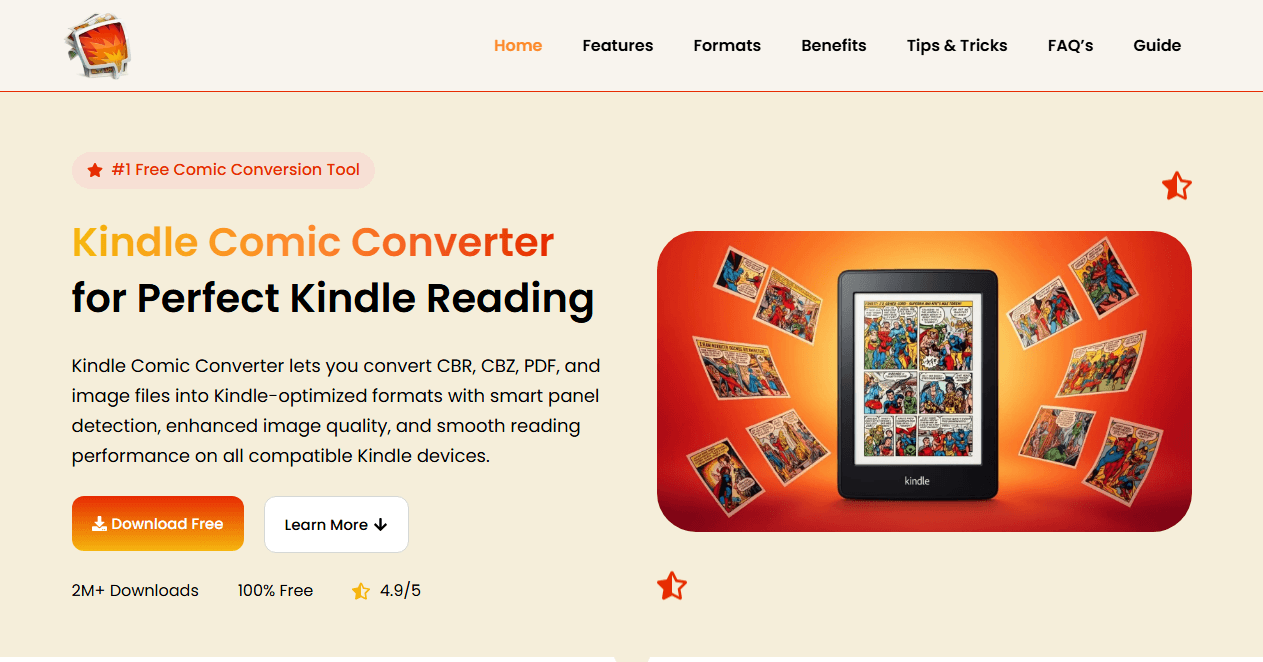
Instead of simply extracting text and images, KCC optimizes every page for your specific Kindle model. Panel sizes are adjusted, contrast is enhanced for e-ink displays, and manga can be configured for right-to-left reading.
You'll need to install it on a Windows, Mac, or Linux machine, and there's a bit of a learning curve involved. But for manga enthusiasts, the kcc comic converter is nothing short of essential.
-
Specialized for comics and image-heavy files.
-
Produces better results than Amazon's built-in conversion for visual content.
-
Free and open-source.
-
Supports batch processing.
-
Not designed for text-heavy documents.
-
Requires some setup and configuration.
-
Output formats are limited to MOBI/AZW3/EPUB.
Readloom – Convert PDF to EPUB on iOS
For readers who live in Apple's ecosystem, Readloom convert PDF for Kindle on the iPhone and iPad.
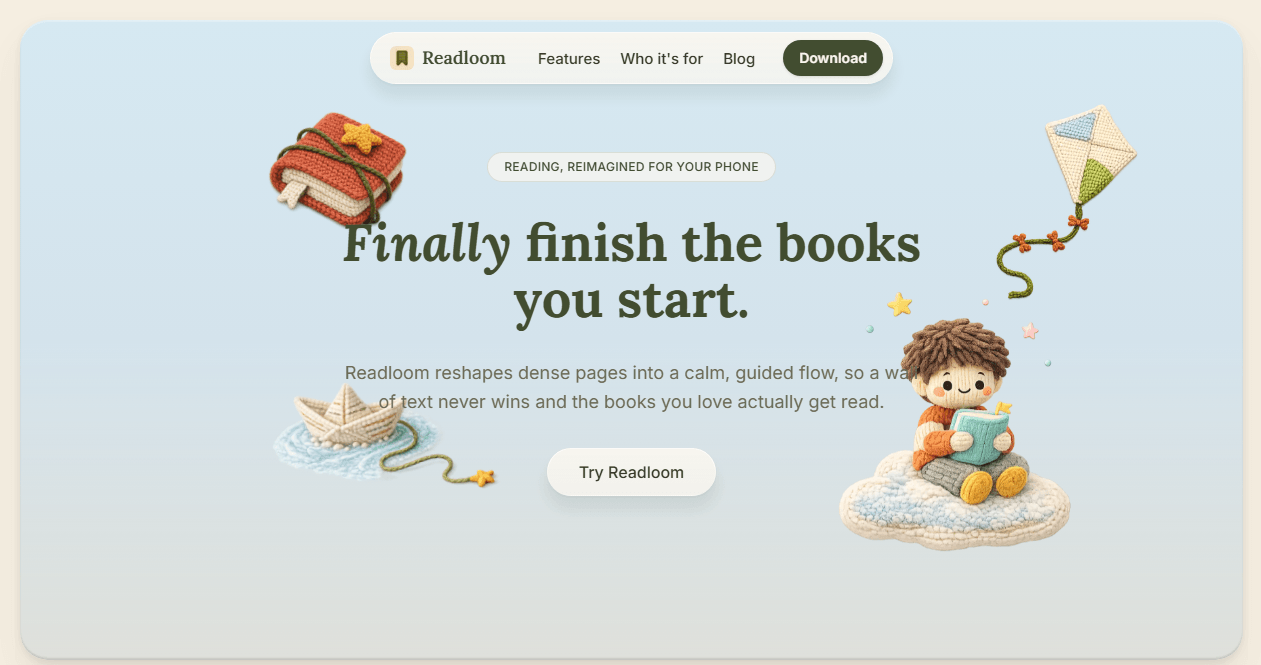
Readloom takes a mobile-first approach that sets it apart from other tools on this list. The app is designed to reformat PDFs for comfortable reading on small screens, with a focus on preserving text flow and readability.
The app's interface is polished and intuitive, reflecting its iOS-native design. Some features require an internet connection, as conversions may be processed on Readloom's servers rather than locally.
-
Mobile-native for iOS
-
Clean, modern interface
-
Good for on-the-go conversions
-
Integration with iOS Files app
-
iOS only (no Android or desktop version)
-
EPUB output only
-
May require subscription for full features
-
Requires internet connection for some functions
SwifDoo PDF – Best All-in-One Desktop Converter
SwifDoo PDF is a complete PDF management tool that handles convert PDF to Kindle tasks with ease. It supports PDF to EPUB conversion, which is one of the most versatile formats for Kindle readers. You can convert a PDF to EPUB for Kindle while preserving the original layout, fonts, and images.
-
Batch conversion: Convert multiple PDFs to EPUB simultaneously.
-
OCR support: Turn scanned PDFs into editable text before converting, essential when you need to convert PDF to Kindle without losing formatting.
-
Preserve formatting: Keeps tables, graphics, and hyperlinks intact.
-
Cross-platform: Works on Windows and macOS.
How to Convert PDF to Kindle with SwifDoo PDF
Step 1: Download and install SwifDoo PDF on your Windows or Mac computer.
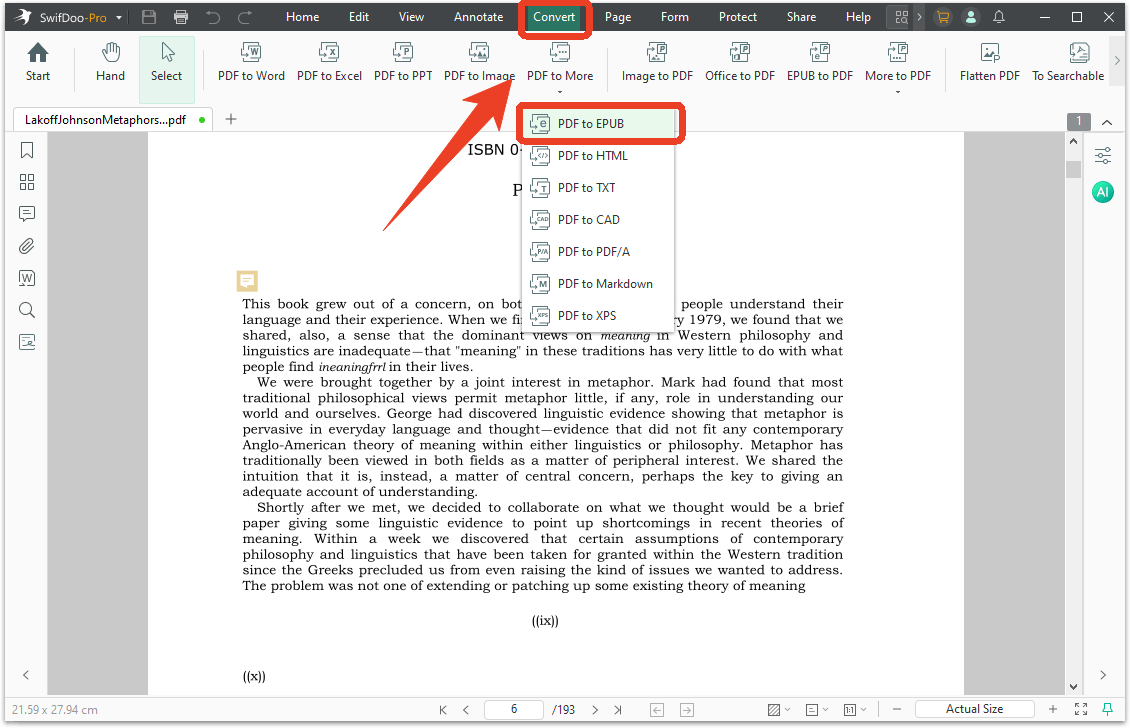
Step 2: Open your PDF file from SwifDoo PDF and choose Convert > PDF to More > PDF to EPUB.
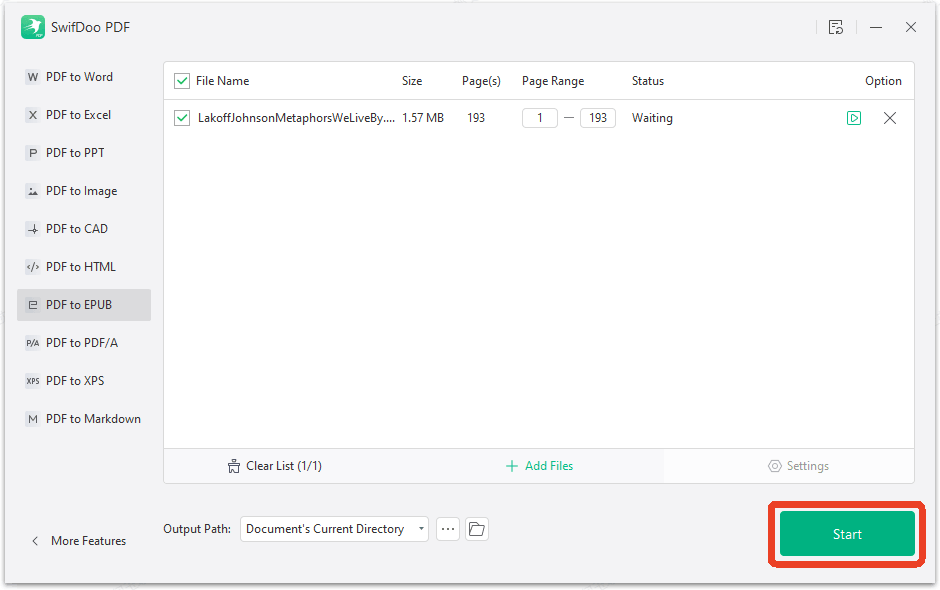
Step 3: Configure the output path and click Start.
Once converted to EPUB (or another compatible format), use Amazon's Send to Kindle service to transfer the file to your device. You can also send PDF to Kindle directly via email if you prefer, though converted files will look far better.
Read PDF on Kindle: Easy Methods to Add PDFs to Kindle Devices
It is easy to add a PDF to your Kindle device. This article walks you through three methods to help you read PDFs on Kindle.
READ MORE >Conclusion
Choosing the right PDF to Kindle converter depends on your specific needs. For most text-based documents, Calibre remains the best free PDF to Kindle converter thanks to its flexibility and power. If you need a full PDF editor with conversion capabilities, SwifDoo PDF is a solid Kindle PDF converter. And for comics and manga, KCC is unmatched.
For online conversions, Aspose and FreeConvert are handy PDF to Kindle converter free online tools; just be mindful of privacy with sensitive documents.
Ready to convert your PDFs for Kindle? Download SwifDoo PDF to edit, OCR, and convert your documents in one place.


