


What Can A PDF to ZIP Converter Do for You?
A PDF to ZIP converter doesn't actually change your document's format. PDF and ZIP serve fundamentally different purposes, and understanding that distinction prevents confusion.
- PDF is a document format. It preserves layout, fonts, and images exactly as the author intended. A PDF is meant to be opened, read, and printed.
- ZIP is an archive format. It packages one or more files into a single container, optionally applying compression to reduce total size. A ZIP file is meant to be transferred, stored, or delivered as a bundle.
So when users search for a way to convert PDF to ZIP their documents, what they really need is a method to compress and package multiple PDFs into one transferable file.
There are three criteria to evaluate whether the PDF to ZIP converter is great for you:
- Compression effectiveness: how much smaller do your files actually get
- Privacy protection: where does the processing happen
- Operational efficiency: how many steps does it take
Based on the three criteria, we find and test the following best free PDF-to-ZIP converter tools.
Tool 1: Built-in PDF to ZIP Converter on Windows
Windows has included ZIP support since the late 1990s, and it remains the fastest way to convert PDF to ZIP for casual use. The process is built into File Explorer.
- Completely free
- No installation required
- Works on every Windows version
- Instant processing
- No password protection
- No compression level control
- No support for splitting large archives
- Minimal compression benefit for PDFs
How to zip PDF files on Windows? Here is a step-by-step guide:
Step 1: Place all the PDFs you want to package into a single folder.
Step 2: Select the files. Hold Ctrl and click each file or press Ctrl + A to select everything.
Step 3: Right-click the selection and choose Send to > Compressed (zipped) folder.
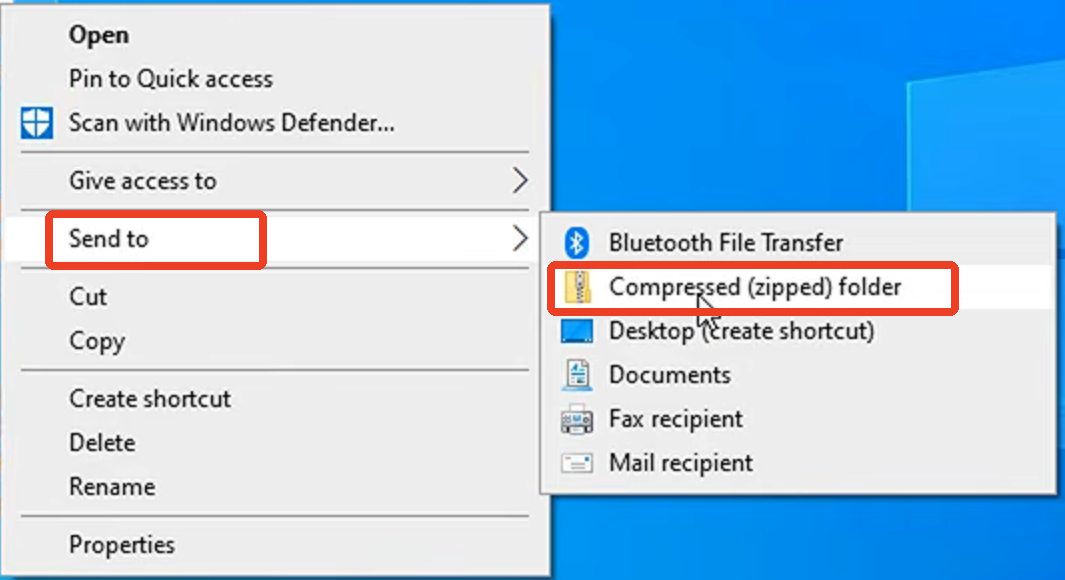
Step 4: Windows creates a ZIP file with a default name. Rename it to something descriptive.
Step 5: Move or share the ZIP file as needed.
The process is straightforward to zip PDF files on Windows, and it requires zero technical knowledge.
Tool 2: macOS Archive Utility (Finder Compress)
macOS handles ZIP compression through Finder, and the process is equally simple. If you're wondering how to zip PDF files on Mac, it takes about five seconds.
- Native macOS integration
- Instant compression
- Terminal option for encryption
- Clean, simple interface
- No built-in encryption through Finder
- No compression level control
- Command-line required for password protection
- Minimal compression benefit for PDFs
How to zip PDF files on Mac? Here is a step-by-step guide:
Step 1: Select the PDFs you want to compress in Finder.
Step 2: Right-click the selection.
Step 3: Choose Compress from the context menu.
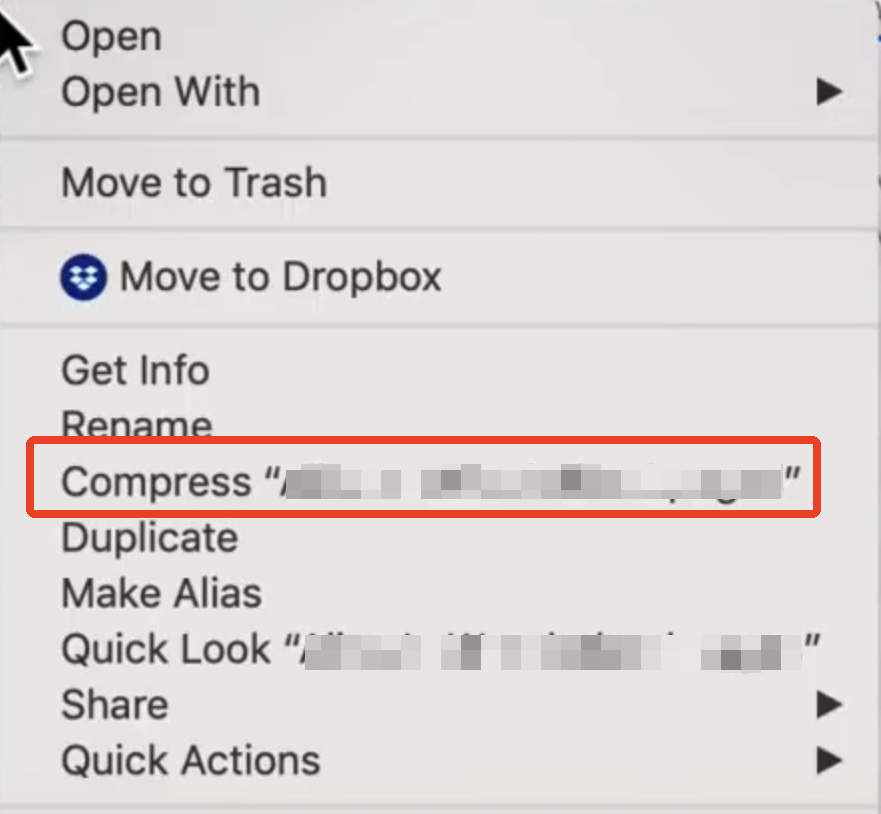
Step 4: Rename the resulting ZIP file as needed.
For Password-Protected ZIPs:
macOS's Finder doesn't offer built-in ZIP encryption. To create an encrypted archive, you'll need Terminal:
- Navigate to the folder and run zip -er archive.zip *.pdf
- You'll be prompted to enter and verify a password
Third-party tools like Keka or BetterZip provide a graphical interface for the same task.
Tool 3: SwifDoo PDF (Compress Before Zipping)
As we mentioned before, zipping a PDF barely reduces its size. PDF is already a compressed format. When you try to compress a PDF to zip a typical PDF file, you might save 5-15%, and sometimes less. The real space savings come from compressing the PDF content itself before packaging.
You can try SwifDoo PDF compressor, which can reduce it to 2-5MB by optimizing image resolution, removing redundant data, and cleaning up embedded fonts. This tool is especially suitable for users with large, image-heavy PDFs who need meaningful size reduction before packaging.
SwifDoo PDF's Key Advantages
- Significant size reduction (up to 90% for image-heavy PDFs)
- Batch compression for multiple files
- Preserves text searchability and document structure
How to reduce PDF size and zip it? Here is the full process: compress first, then package.
Step 1: Download and install SwifDoo PDF.
Step 2: Open the application and navigate to the Compress PDF tool.
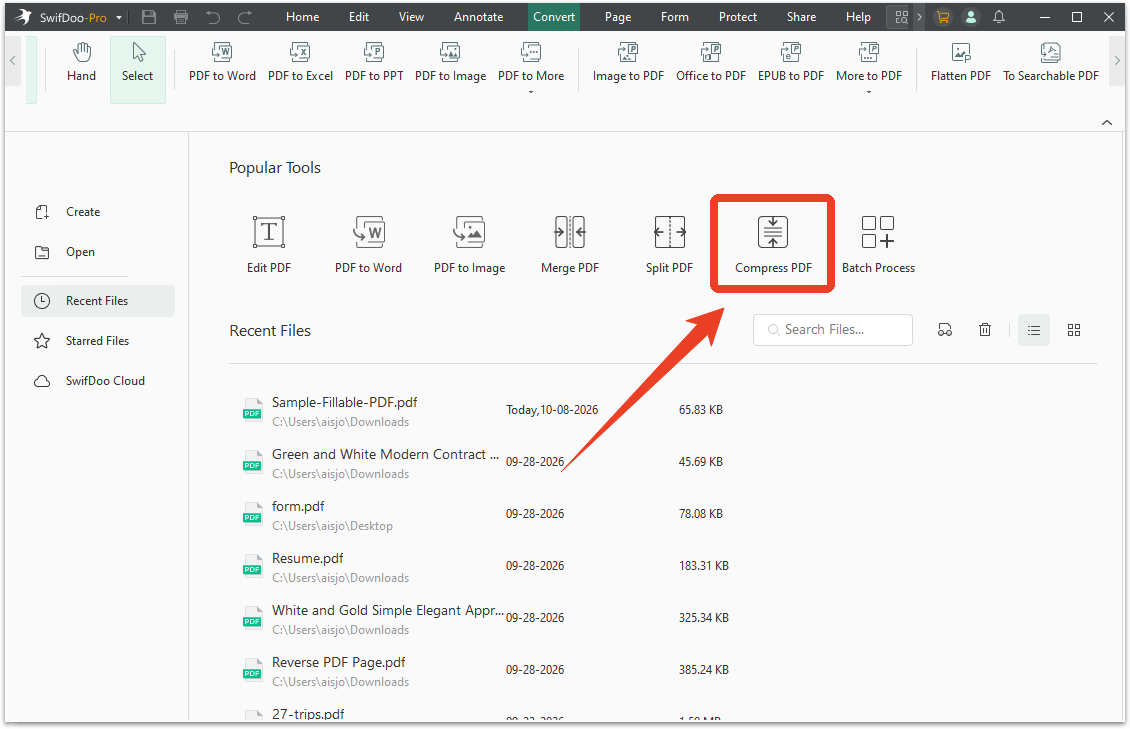
Step 3: Add your PDF files. Batch processing is supported.
Step 4: Choose a compression level that balances file size against visual quality.
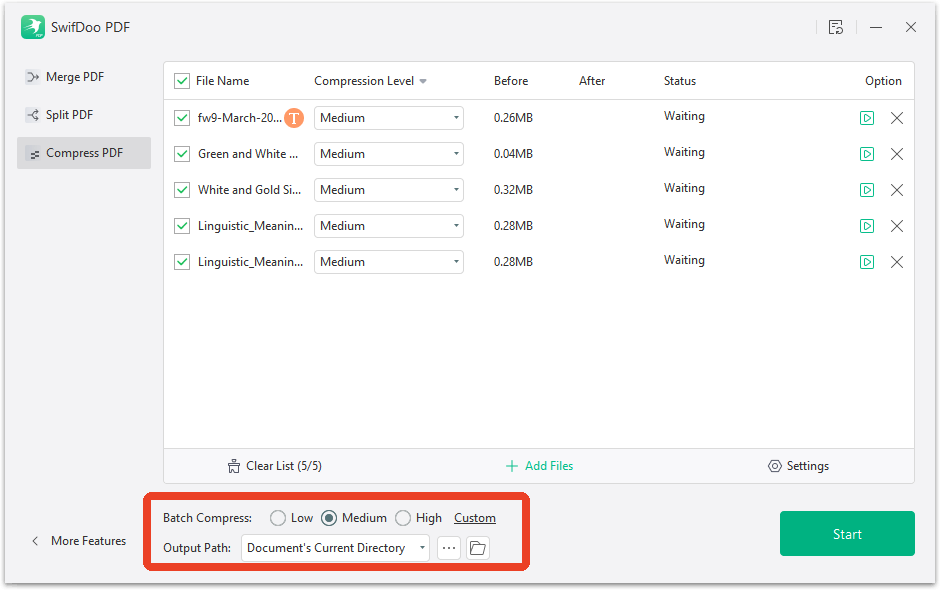
Step 5: Click Start and wait for processing to complete.
Step 6: Select the compressed PDFs and create a ZIP archive using the built-in Windows or Mac method.
How to Compress an Image: 4 Ways to Make Image Smaller
This post explains how to compress an image in 4 ways. You can reduce the file size without losing much quality using third-party and native applications.
READ MORE >Tool 4: iLovePDF (Online PDF to ZIP)
If you don't want to install anything, online tools offer a browser-based alternative. iLovePDF is one of the most popular platforms in this category, offering a PDF to ZIP online service that compresses and packages files server-side.
Free online tools come with restrictions that become apparent quickly:
- File size limits: Free users face caps on uploads and daily operations.
- Privacy exposure: Your documents are uploaded to a third-party server.
- Speed depends on your connection: Large uploads take time.
- Compression quality varies: Some tools aggressively compress, degrading document quality.
Best For: Small, non-sensitive files when you don't have access to your own computer. For a one-time PDF-to-ZIP free task, it works fine. For recurring use or sensitive documents, the desktop approach is safer and faster.
Is iLovePDF online PDF to ZIP service safe? depends entirely on what you're uploading. For publicly available documents or non-sensitive materials, the risk is minimal. For contracts, medical records, financial statements, or anything containing personal information, the answer is no.
How to Secure Your Documents Online: 7 Smart Strategies
This article takes a closer look at some practical solutions for protecting documents online to avoid exposing you to severe losses.
READ MORE >How to use iLovePDF online PDF to ZIP tool?
Step 1: Visit iLovePDF's website and select the Compress PDF tool.
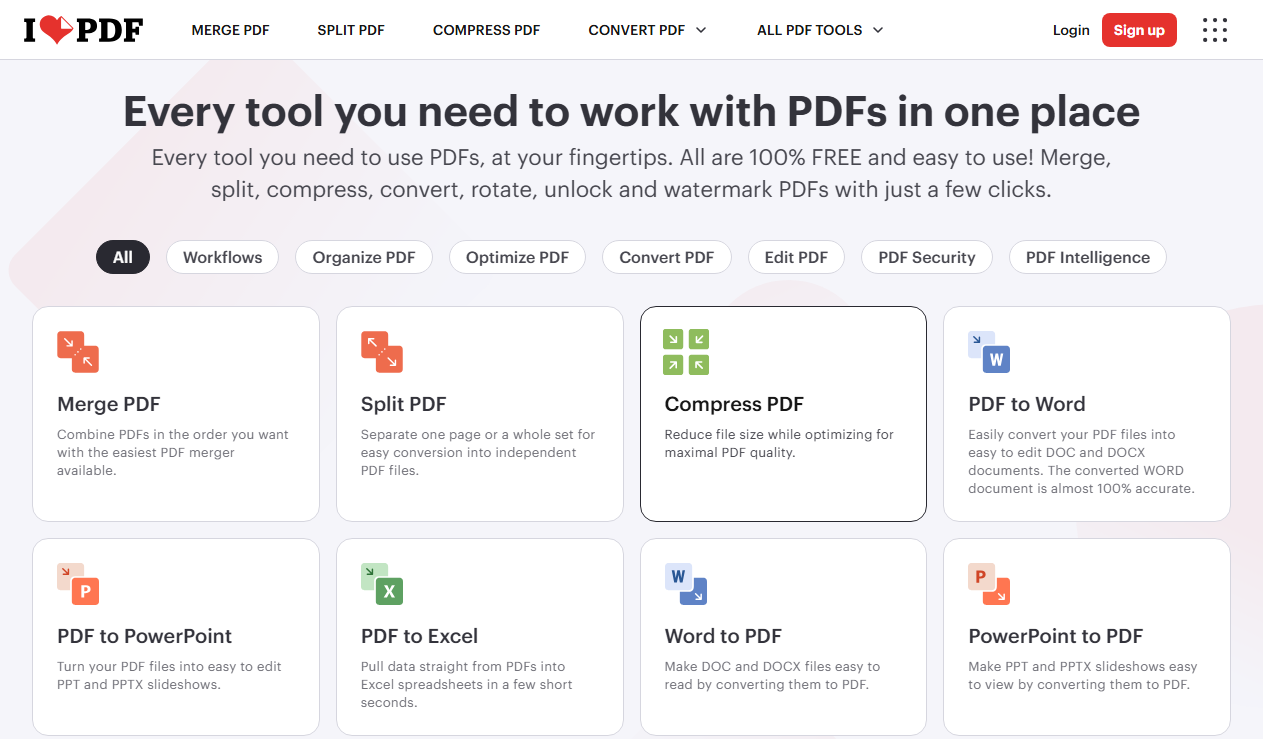
Step 2: Upload your PDF files by clicking the “Select PDF files” button or dragging them into the browser window.

Step 3: Select your compression level —”RECOMMENDED COMPRESSION" or "EXTREME COMPRESSION."
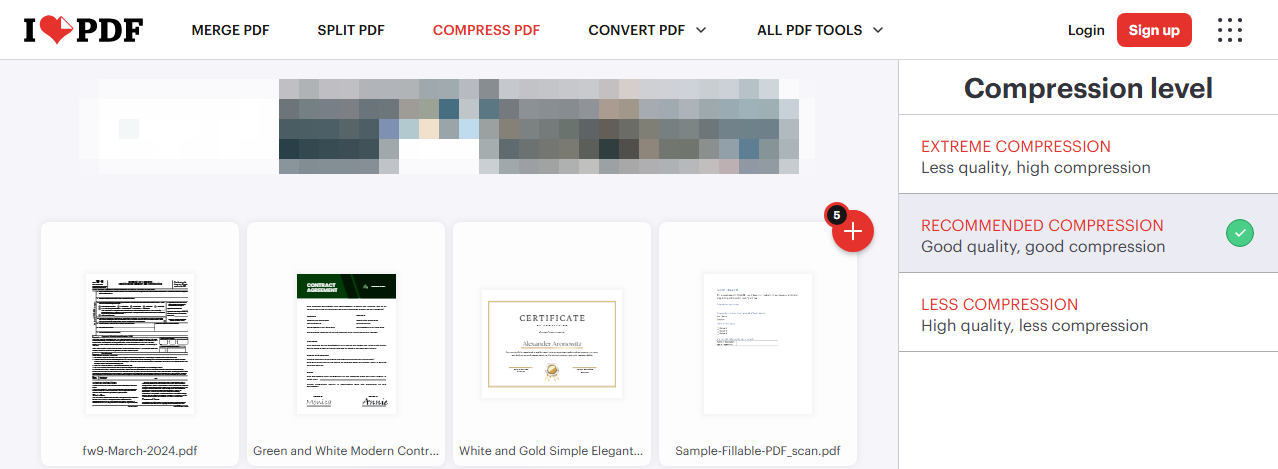
Step 4: Click Compress PDF. The server processes your files.
Step 5: Download the resulting compressed PDFs, then use the site's ZIP option if available, or package them locally.
iLovePDF PDF to Word: How to Convert PDF to Word Online/Offline
Is iLovePDF PDF to Word worth using? Follow this gudie to convert PDF to Word with iLovePDF or another excellent iLovePDF desktop alternative.
READ MORE >Tool 5: 7-Zip (Advanced ZIP Creation)
7-Zip is a free, open-source file archiver that goes far beyond what Windows and macOS offer. It supports multiple archive formats, provides AES-256 encryption, and allows compression levels that system tools can't match.
The encrypted ZIP archive feature is particularly valuable for business use. AES-256 encryption ensures that even if the archive is intercepted, the contents remain inaccessible without the password.
- Completely free and open source
- AES-256 encryption support
- Custom compression levels
- Split archive capability
- Supports many formats beyond ZIP
- Requires installation
- Interface feels technical
- Overkill for simple packaging tasks
- No PDF-specific compression (works at archive level only)
Best For: Users who need encryption, split archives, or fine-grained control over the compression process.
How to create a ZIP with 7-Zip? Here is a full process to convert PDF to ZIP.
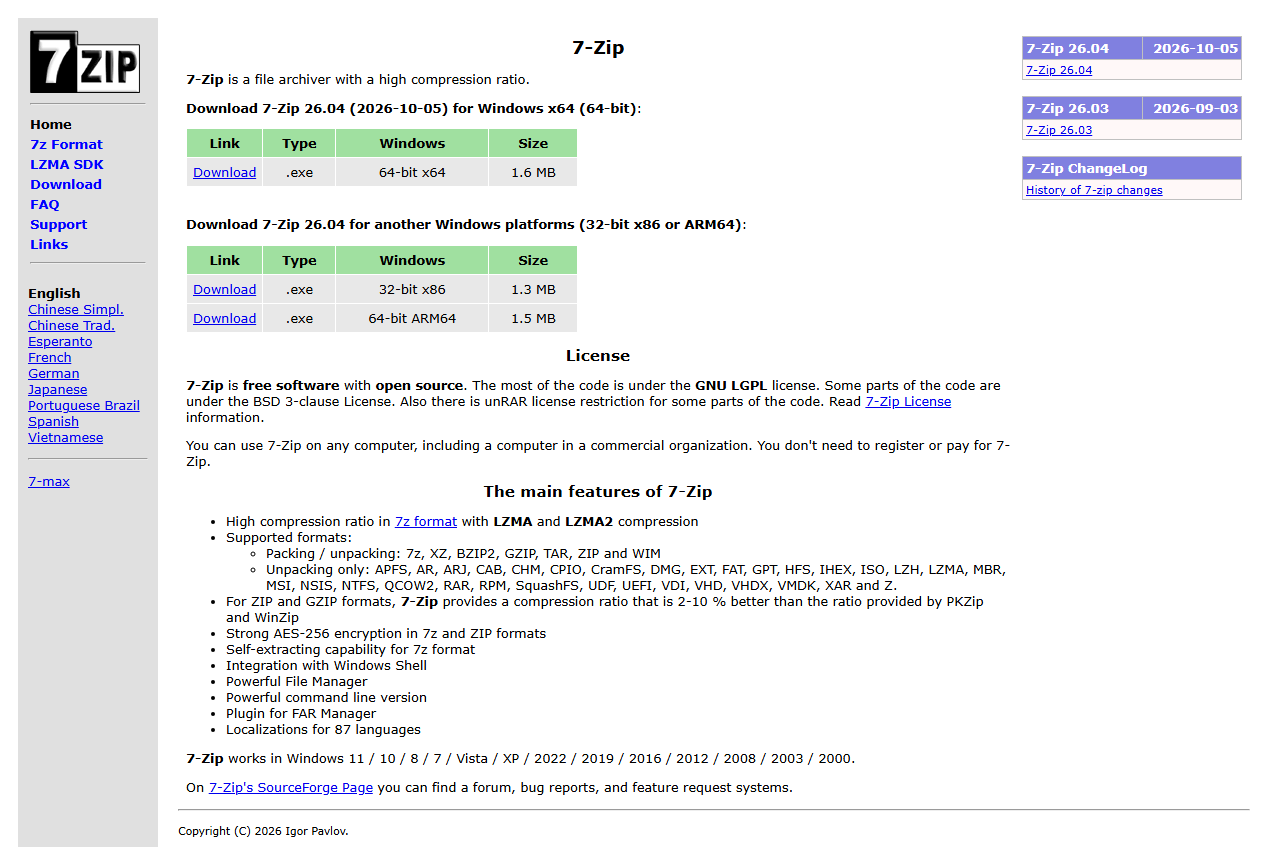
Step 1: Download and install 7-Zip from the official website.
Step 2: Select the PDF files you want to archive in File Explorer.
Step 3: Right-click and choose 7-Zip > Add to archive.
Step 4: In the dialog box, select ZIP as the archive format.
Step 5: Set the compression level. For PDFs, "Normal" or "Fast" is usually sufficient since PDFs are already compressed.
Step 6: To encrypt, enter a password in the Encryption section and select AES-256.
Step 7: For large archives, set the volume size under "Split to volumes" to create multi-part ZIPs.
Step 8: Click OK to create the archive.
PDF to ZIP Converter Comparison Table
| Tool | Platform | Price | Compression Effect |
Encryption |
Batch Processing |
Privacy |
Best For |
|---|---|---|---|---|---|---|---|
| Windows Built-in | Windows | Free | Minimal (5-15%) | No | Yes (select all) | Local | Quick packaging |
| macOS Archive Utility |
macOS | Free | Minimal (5-15%) | Terminal only | Yes (select all) | Local |
Quick packaging |
| SwifDoo PDF |
Win/Mac/Linux | Free | Significant (up to 90%) | Batch Encryption | Yes | Local | Compressing large PDFs |
| iLovePDF |
Web | Free/Paid | Moderate | No | Yes |
Cloud upload |
Non-sensitive files |
| 7-Zip |
Windows | Free | Minimal for PDFs | AES-256 | Yes | Local | Encrypted archives |
Conclusion
This article covers five best PDF-to-ZIP converter tools and their pros and cons. They can work on different devices, including Windows, Mac, and online. Choose the one that you need and follow the step-by-step instructions to compress PDF to ZIP.
We recommend using SwifDoo PDF – the most effective PDF to ZIP converter – to reduce image-heavy documents while keeping text sharp and searchable. Now, download SwifDoo PDF Free and start building smaller, cleaner PDF archives today.


