Nitro PDF Pro vs. Adobe Acrobat Pro: Quick Comparison
Before examining their features in detail, here’s a quick overview of how Nitro PDF Pro compares with Adobe Acrobat Pro.
|
Comparison |
Nitro PDF Pro |
Adobe Acrobat Pro |
|
PDF Viewing |
Yes |
Yes |
|
PDF Creation |
Yes |
Yes |
|
PDF Editing |
Yes |
Yes |
|
PDF Conversion |
Yes |
Yes |
|
OCR |
Yes |
Yes |
|
PDF Annotation |
Yes |
Yes |
|
Form Creation |
Yes |
Yes |
|
Electronic Signatures |
Yes |
Yes |
|
PDF Comparison |
Yes, supported editions |
Yes |
|
PDF Redaction |
Yes |
Yes |
|
Password Protection |
Yes |
Yes |
|
AI Features |
Available |
Available through eligible plans |
|
Cloud Integration |
Available |
Yes |
|
Windows Support |
Yes |
Yes |
|
macOS Support |
Yes |
Yes |
|
Mobile Support |
iOS |
iOS and Android |
|
Pricing |
Subscription and eligible license options |
Subscription |
Overall, both Nitro PDF Pro and Adobe Acrobat Pro cover most everyday PDF tasks. However, their differences become more apparent when you examine advanced PDF document, cloud collaboration, licensing, and platform compatibility.
- Nitro PDF Pro is worth considering if you primarily work with PDFs on a desktop and want a familiar interface with comprehensive editing and conversion tools.
- Adobe Acrobat Pro is a strong choice if you need advanced PDF workflows, PDF comparison, extensive integrations, and cross-device access.
If you need a cost-effective alternative to Adobe Acrobat Pro and Nitro PDF Pro, consider SwifDoo PDF. It is a feature-rich PDF editor available on Windows, macOS, Linux, Android, and iOS. You can enjoy most features in Adobe Acrobat Pro and Nitro PDF Pro. For instance, it enables you to make PDFs searchable and editable via OCR, redact them, fill out and sign them, and more. Also, it includes SwifDoo AI to chat with PDFs, summarize PDFs, and other AI-powered features.
Nitro PDF Pro Review
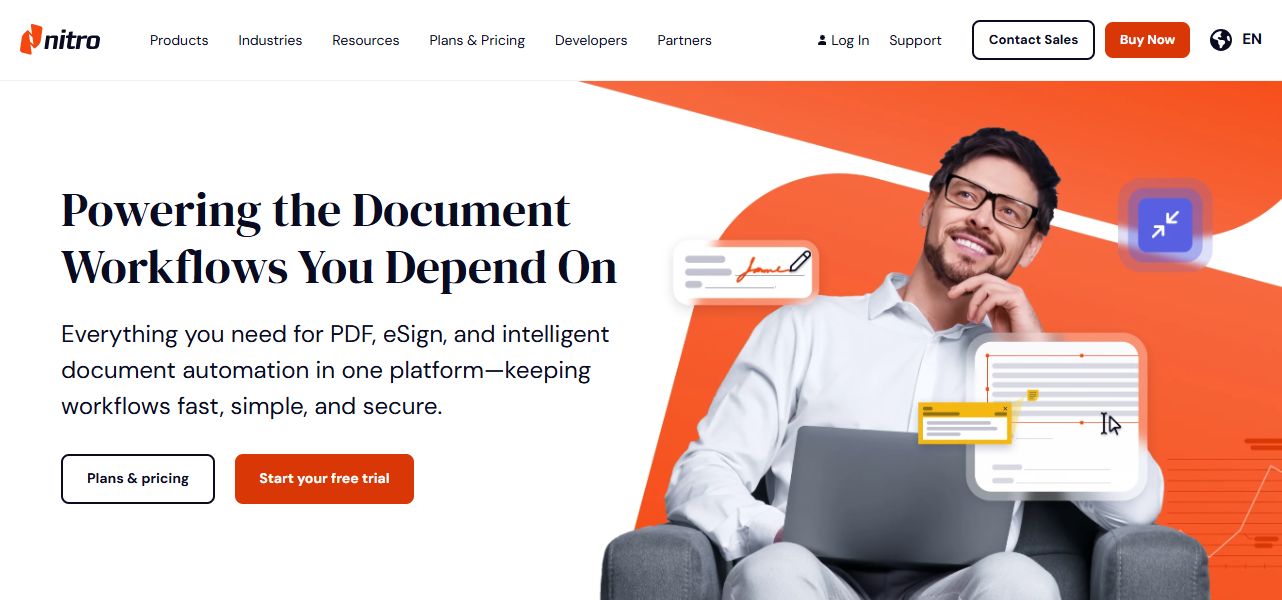
Nitro PDF Pro is a PDF editing and document management application developed by Nitro. It provides tools for creating, editing, converting, reviewing, signing, and securing PDF documents. What’s more, if you are a Microsoft Office user, you must be familiar with its interface. Its ribbon-style toolbar organizes frequently used functions into different tabs, making it relatively easy to find editing and document management tools.
Additionally, Nitro’s product lineup includes desktop software for Windows and macOS, as well as an iOS application.
Key features of Nitro PDF Pro
Here are some of the main capabilities of Nitro PDF Pro:
- PDF Editing: Modify existing PDF text, images, and other elements in a PDF.
- PDF Conversion: Convert PDFs into editable formats, including Microsoft Word and Excel, and create PDFs from other file types.
- OCR: Recognize text in scanned PDFs and make image-based PDFs searchable and editable.
- Page Management: Insert, delete, extract, rotate, rearrange, and combine PDF pages.
- PDF Annotation: Highlight PDF text, add comments, draw shapes, and insert notes.
- Electronic Signatures: Create and add e-signatures to PDFs.
- Form Management: Fill out PDF forms and create interactive forms.
- Protect PDFs: Apply password protection, permissions, and redaction.
- Document Comparison: Identify differences between PDF versions in supported editions.
Pros and Cons of Nitro PDF Pro
- Familiar Microsoft Office-style interface.
- Comprehensive PDF editing and conversion tools.
- OCR support for scanned documents.
- Effective features for managing and annotating PDFs.
- Create and insert electronic signatures.
- Available on cross-platforms.
- Some features depend on the selected plan or edition.
- Its mobile and platform ecosystem is more limited than Adobe's.
- Some advanced business workflows require additional Nitro products or services.
Adobe Acrobat Pro Review
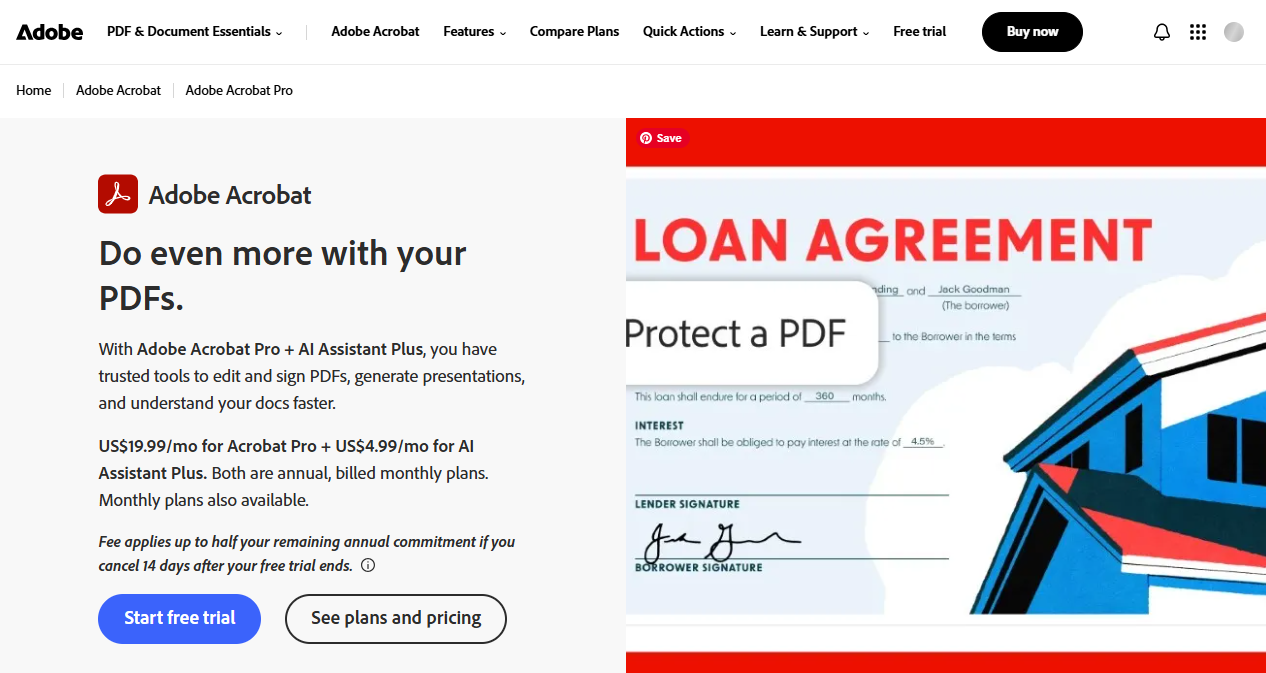
Adobe Acrobat Pro is regarded as an industry-leading PDF editor. It provides a broad range of tools for creating, editing, converting, signing, organizing, and securing PDFs. What’s more, Acrobat Pro also integrates with Adobe’s cloud service and document collaboration workflows. In addition to working on Windows and Mac, Adobe also provides companion mobile applications and browser-based services for additional workflows.
Key Features of Adobe Acrobat Pro
Below are some main features of Adobe Acrobat Pro:
- PDF Editing: Edit text, images, links, and other elements within PDFs.
- PDF Conversion: Convert PDFs into Word, Excel, PowerPoint, and image formats.
- OCR: Recognize text in scanned documents and make scanned PDFs searchable or editable.
- Page Management: Merge, split, extract, delete, and rearrange PDF pages.
- PDF Annotation: Highlight content, add comments, and draw on PDFs.
- Electronic Signatures: Sign PDFs and request signatures from other people through Adobe's e-signature services.
- Form Creation: Create fillable PDF forms and manage form fields.
- Document Comparison: Compare different versions of PDF documents and identify changes.
- PDF Security: Apply passwords, permissions, encryption, and permanent redaction.
- AI Assistant: Use AI-powered features to summarize documents, ask questions, and extract information, subject to plan and feature availability.
Pros and Cons of Adobe Acrobat Pro
- Extensive PDF editing and document management capabilities.
- Advanced OCR and document comparison tools.
- Comprehensive form creation and e-signature workflows.
- Integration with Adobe's cloud and productivity ecosystem.
- AI-powered document assistance.
- Relatively expensive subscription.
- Its extensive interface and feature set may be overwhelming for beginners.
Nitro PDF Pro vs. Adobe Acrobat Pro: Feature-by-Feature Comparison
To help you understand the differences between Adobe Acrobat Pro and Nitro PDF Pro, I have prepared the following side-by-side comparison. Now, let’s check them one by one.
PDF Editing and Conversion: Which Offers a Better Desktop Workflow
Is Nitro PDF Pro better than Adobe Acrobat Pro? Both of them let you edit PDF text and images, rearrange PDF pages, combine PDFs, and convert PDFs into formats such as Word, Excel, and PowerPoint. The difference is more about the user experience and the surrounding workflow than basic editing capability.
- Nitro PDF Pro: Its Windows interface uses a familiar Microsoft Office-style ribbon, making it relatively straightforward if you regularly work with Word and Excel. Meanwhile, it provides PDF-to-Office conversion, page editing, and document creation tools. What’s more, Nitro’s latest release highlights improvements to PDF-to-Office conversion quality.
- Adobe Acrobat Pro: It provides a comprehensive editing workspace for modifying text and images, organizing pages, exporting files, and working with PDFs across desktop, web, and mobile environments. More importantly, when PDF editing is only one part of a larger document workflow, its integration with other Adobe and productivity services is useful.
Which is better? Nitro is worth considering if you prefer a traditional desktop interface and mainly edit and convert PDFs. Acrobat is a stronger fit if you need to work across multiple devices or regularly use Adobe's broader document services.
OCR and Scanned PDF Editing: Which Handles Scanned PDFs Better
If you need to handle scanned or image-based contracts, invoices, or paper records, OCR quality matters. It determines how accurately an application recognizes text and turns image-based pages into searchable or editable documents.
- Nitro PDF Pro: It includes built-in OCR for turning scanned PDFs into searchable and editable PDFs. More importantly, Nitro’s newer OCR engine is designed to improve recognition accuracy on noisy or low-resolution scans, support multiple languages, and process large PDFs more efficiently.
- Adobe Acrobat Pro: Its Scan & OCR tools recognize text in scanned PDFs and allow you to create searchable PDFs or edit recognized content. What’s more, its OCR is integrated into Acrobat’s wider PDF-editing workflow, so you can move from scanning to editing and organizing without switching applications.
Which is better? Both are suitable for routine OCR tasks. Nitro's recent OCR improvements make it worth testing if you regularly process low-quality scans. Acrobat is convenient if you already use its editing and document-management tools.
6 Trusted PDF Editors with OCR in 2026 [Full Review and Comparison]
How to make a scanned PDF searchable or editable? Read this article to learn the 6 best PDF editors with OCR to recognize text in scanned PDFs.
READ MORE >PDF Comparison and Redaction: Which Is Better for Reviewing Sensitive PDFs
If you work with contracts, legal documents, financial records, or frequently revised reports, this is one of the more important areas to consider.
- Adobe Acrobat Pro: Its Compare Files tool can help you identify differences between PDF versions, while its redaction tools permanently remove selected confidential information. In addition, Acrobat Pro includes advanced document-review and redaction capabilities that are useful in professional workflows.
- Nitro PDF Pro: It supports comparing two PDF versions to identify changes. Meanwhile, it also provides redaction tools, while newer Smart Tools capabilities can help detect and redact sensitive information.
Which is better? Both can compare PDFs and redact sensitive information. Adobe Acrobat Pro is a strong choice if you regularly review contracts and need a more extensive PDF-review workflow. Nitro is a capable alternative for desktop comparison and redaction tasks. Whichever you choose, verify that redacted information is permanently removed rather than merely covered by a black shape.
Forms and Electronic Signatures: Which Is Better for Sending PDFs to Others
If you only need to prepare a form or sign a PDF yourself, either PDF editor is sufficient. If you need to send PDFs to multiple people and track their responses, the associated e-signature service becomes more important.
- Adobe Acrobat Pro: It provides tools for preparing fillable forms, signing PDFs, and requesting electronic signatures. Moreover, its broader Adobe Sign services support workflows such as reusable templates, web forms, and tracking signatures.
- Nitro PDF Pro: It supports creating and filling PDF forms, adding signature fields, and signing PDF documents. Nitro also offers Nitro Sign and related form workflows for sending and managing documents electronically.
Which is better? For creating fillable PDFs and signing documents yourself, both are practical choices. If your main goal is to send PDFs to other people, collect signatures or feedback, and track whether recipients have responded, I would recommend Adobe Acrobat Pro over Nitro PDF Pro.
AI-Powered PDF Tools: Which Offers More Useful PDF Assistance
AI is becoming a more noticeable part of PDF software. Which one offers more useful PDF assistance?
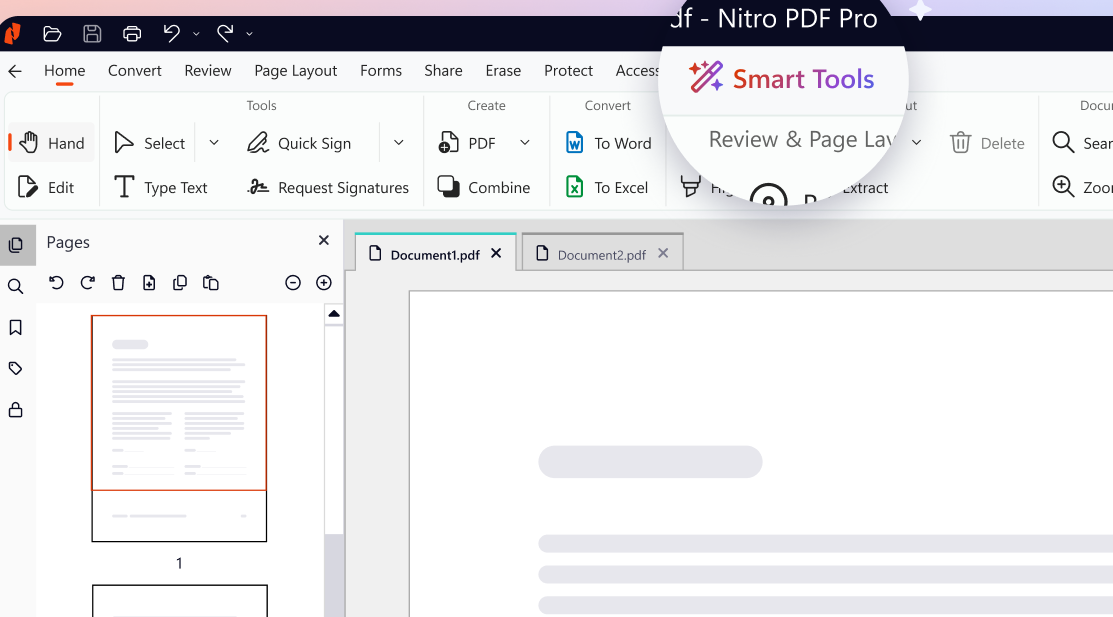
- Nitro PDF Pro: Nitro PDF Pro v26 introduces a dedicated Smart Tools tab that brings its AI capabilities together. You can use it to chat with PDFs, summarize documents, extract tables, convert static PDFs into interactive forms, and more.
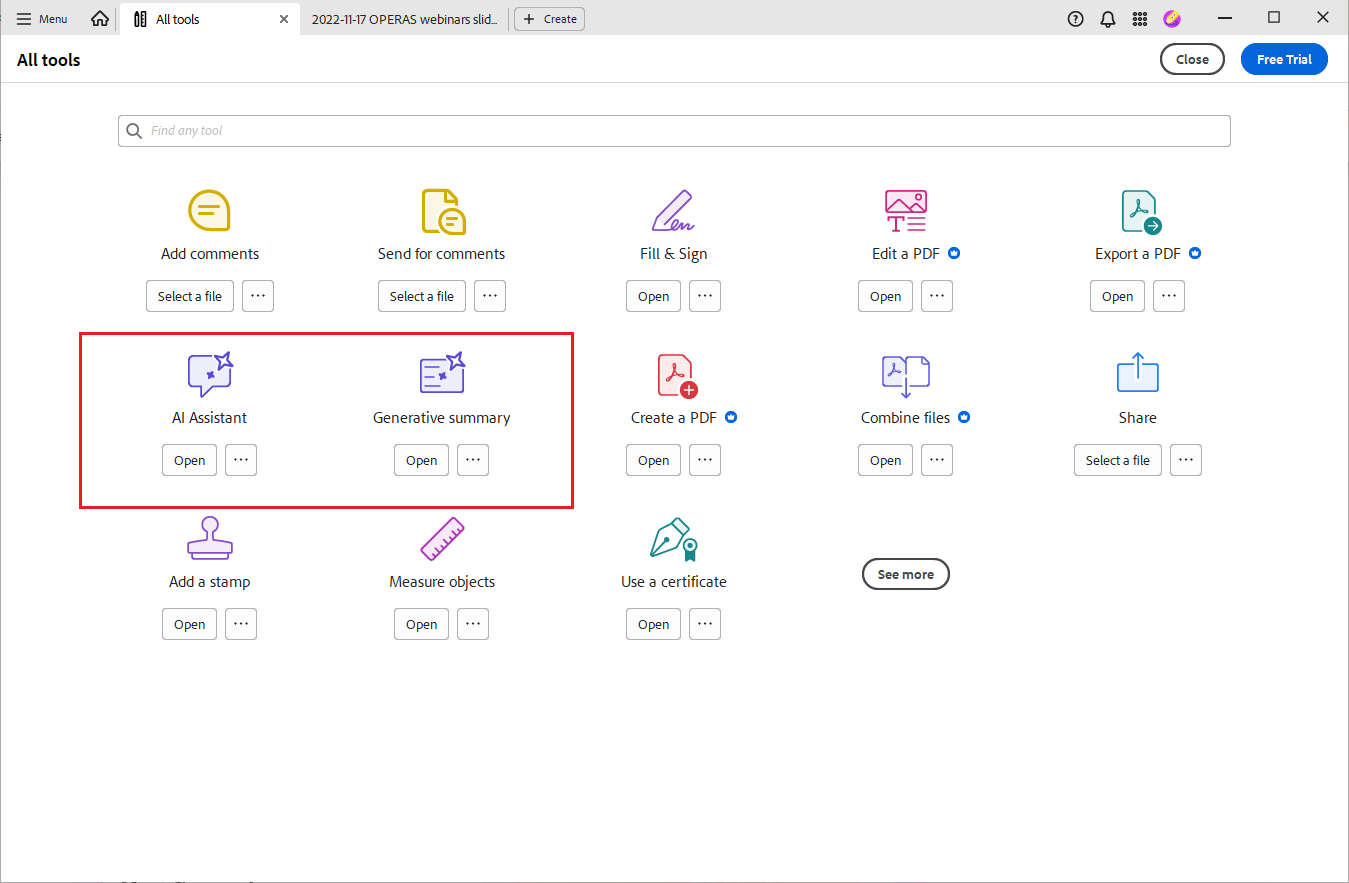
- Adobe Acrobat Pro: Adobe Acrobat Pro has a broader generative AI ecosystem. Its major capabilities include an AI assistant, PDF Spaces, generative summaries, AI-driven PDF editing via prompts, AI image generation, and AI-generated presentations and podcasts.
Which is better? Nitro is appealing if you want AI-assisted extraction, form creation, and document tasks integrated into a desktop PDF editor. Adobe is attractive if you want to work with AI across multiple documents and use features such as PDF Spaces. All in all, Adobe Acrobat Pro offers a more comprehensive AI-powered document experience, while Nitro PDF Pro offers particularly practical AI tools for automating PDF tasks.
Platform Compatibility and Document Access: Which Fits Your Devices
More importantly, platform compatibility should also be considered.
- Nitro PDF Pro: Nitro offers desktop products for Windows and macOS, as well as an iOS app. However, the available features and product editions are not identical across platforms. For example, Nitro PDF Classic is positioned as a Windows desktop product.
- Adobe Acrobat Pro: Acrobat provides desktop software for Windows and macOS, along with web and mobile access. Its connected services make it easier to work with documents across devices and access cloud-based sharing and collaboration features.
Which is better? Nitro is a good fit if most of your PDF work takes place on a Windows or Mac computer. Adobe Acrobat Pro is more suitable if you frequently switch between desktop, browser, and mobile devices or rely on cloud-based document workflows.
Overall Feature Comparison: Adobe Acrobat Pro vs Nitro PDF Pro
|
Comparison Area |
Nitro PDF Pro |
Adobe Acrobat Pro |
|
Desktop interface |
Office-style ribbon on Windows; platform-specific interface on Mac |
Comprehensive PDF workspace with extensive tools |
|
PDF editing |
Text, image, and page editing |
Text, image, and page editing |
|
PDF conversion |
Word, Excel, and PowerPoint export |
Word, Excel, PowerPoint, and other export options |
|
OCR |
Built-in OCR with recent engine improvements |
Integrated Scan & OCR tools |
|
PDF comparison |
Compares PDF versions |
Compare Files with detailed review tools |
|
PDF redaction |
Built-in redaction; AI-assisted options may be plan-dependent |
Advanced redaction tools |
|
Form creation |
PDF form creation and AI-assisted form creation options |
Fillable form creation and preparation |
|
E-signatures |
Nitro signing tools and Nitro Sign services |
Acrobat signing tools and Acrobat Sign services |
|
AI assistance |
Smart Tools for document chat, extraction, and other tasks |
AI document assistance; advanced workspace features depend on plan |
|
Device access |
Windows, macOS, and iOS, depending on edition |
Windows, macOS, web, and mobile |
|
Licensing |
Subscription and eligible multi-year license options |
Subscription-based plans |
Nitro PDF Pro vs Adobe Acrobat Pro Pricing
Pricing is another major factor when deciding between Nitro PDF Pro and Adobe Acrobat Pro. Though both of them offer professional editing tools, they use different licensing arrangements. Nitro offers subscription plans as well as an eligible three-year license, while Adobe primarily promotes subscription-based Acrobat plans.
How Much Does Nitro PDF Pro Cost
Its current product lineup includes Nitro PDF Standard, Nitro PDF Plus, and Nitro PDF Classic. For US users, the listed Nitro PDF Standard price is $15 per user per month when billed annually. For detailed pricing, refer to the latest price on the official Nitro pricing page.
How Much Does Adobe Acrobat Pro Cost
Adobe offers several Acrobat plans, including Acrobat Standard, Acrobat Pro, and Acrobat Studio. Here, you should know that the pricing varies by region. The pricing table below is for individual users in the United States.
|
Adobe Plan |
Price |
|
Adobe Acrobat Standard |
$14.99/month |
|
Adobe Acrobat Pro |
$19.99/month |
|
Adobe Acrobat Studio |
$24.99/month |
For detailed information, refer to the details on the Adobe Acrobat pricing page.
Nitro PDF Pro vs Adobe Acrobat Pro: Which One Should You Choose
After reading the comparison above, you may still not be able to make the final choice. In this section, I will guide you to make the choice that matches your daily PDF workflows.
Choose Nitro PDF Pro if:
- You primarily edit and manage PDFs on Windows or macOS.
- You prefer a familiar Microsoft Office-style interface.
- You regularly convert PDFs into Word, Excel, and PowerPoint.
- You need OCR for scanned PDF documents.
- You frequently annotate, sign, and organize PDFs.
Choose Adobe Acrobat Pro if:
- You need a comprehensive PDF editing and management solution.
- You frequently work with scanned documents and OCR.
- You need advanced document comparison and redaction.
- You regularly create and manage fillable PDF forms.
- You send documents for signatures and track their progress.
- You rely on Adobe services and cross-platform document workflows.
Final Words
When comparing Nitro PDF Pro vs Adobe Acrobat Pro, both of them offer powerful PDF editing, conversion, OCR, annotation, signing, and security capabilities. However, they differ in pricing, platform compatibility, and advanced document workflows. Nitro PDF Pro is a good choice if you prefer an Office-style interface with comprehensive PDF tools. Adobe Acrobat Pro is a better option if you require advanced PDF management, document comparison, redaction, and integration with Adobe’s broader ecosystem.