


Way 1. Fill Out PDF Form on Windows with SwifDoo PDF (Recommended)
When you want to solve this problem quickly, having the right tool is very important. Many people want to know what the best PDF editor for Windows is. For beginners and those who want things to be simple, we highly recommend the SwifDoo PDF program.
SwifDoo PDF is a professional PDF editor with a range of features. Moreover, it is easy to use, and even people with no technical knowledge can master it effortlessly.
- One of the best things about SwifDoo PDF is its smart PDF form filler. When you open a normal form in SwifDoo PDF, it automatically finds all blank fields. It will highlight these boxes to show you exactly where you need to click and type.
- Plus, SwifDoo PDF makes it possible to fill out a PDF form that is not fillable. Sometimes, a PDF looks like a form, but it is actually just a picture of a form. You cannot click on the lines. This is called a "non-fillable" PDF. But don’t worry, SwifDoo PDF gives you a special tool to create your own text boxes anywhere on the page.
Here is how to fill out a PDF form on Windows 10/11 using SwifDoo PDF:
Step 1. Click the download button below. Follow the instructions on your screen to install it.
Step 2. Open the SwifDoo PDF program. Click Open and select the PDF document you want to fill out.
Step 3. If the form is ready to use, simply click on the highlighted boxes and type your information.

Step 4. If the form is not fillable, look at the menu at the top of the screen. Click on the Edit button, and then select Insert Text. Now, click anywhere on the document where you want to type. A small box will appear, and you can type your words right there.

You can also go to Annotate > Checkbox to add text, cross marks, check marks, and dots.
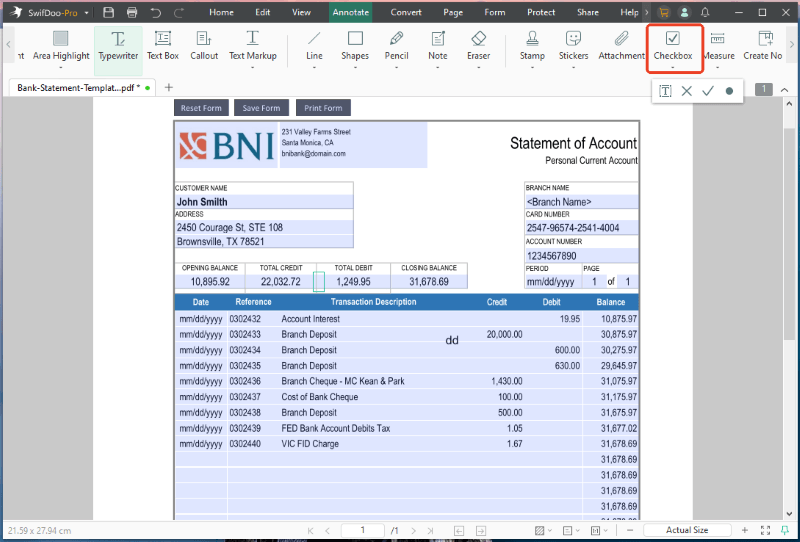
Step 5. When you are finished, click the Save button in the top-left corner. Or, you can click the down-arrow button next to SwifDoo PDF, select Save as to save the document as a new one.
SwifDoo PDF is a complete tool. In addition to form filling, it can help you with many other tasks, such as editing PDFs, combining two PDFs, reducing large files, and adding your personal signature. Download SwifDoo PDF and give it a try today!
Way 2. Fill Out PDF Form on Windows with Adobe Acrobat
You might have heard of Adobe before. In fact, you might already have a free version of it on your computer called Adobe Acrobat Reader. Adobe is one of the oldest programs for opening PDFs. It is very safe and reliable. The free version lets you read documents and fill out basic forms.
Here is how to fill out PDF forms on Windows with Adobe Acrobat:
Step 1. Launch Adobe Acrobat and import your document.
Step 2. Now, you can click the form field on the document and start typing your information.
Step 3. If you need to add a checkmark or want to fill out a "non-fillable" PDF, you can click the Fill in form fills option.
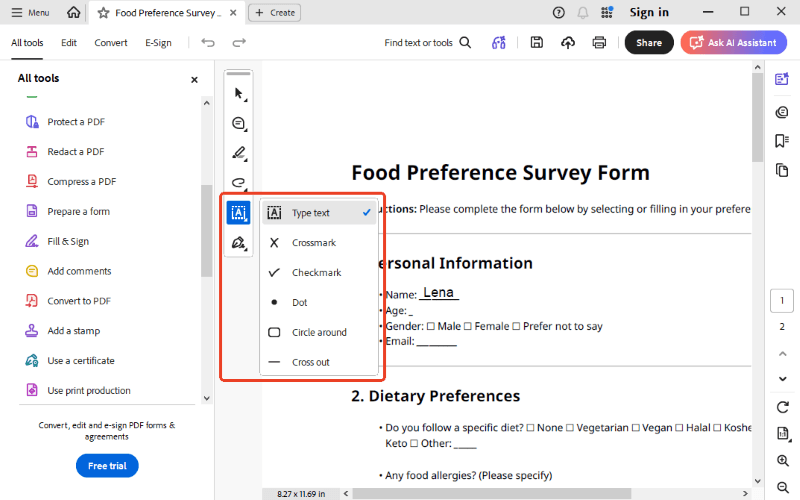
Step 4. Remember to save your work! Click the Save button when you are done.
Adobe is a good choice, but the free version has some limits. If you want to change the original text or do more advanced things, they will ask you to pay for a costly subscription. This is why many people prefer simpler, more affordable options like SwifDoo PDF.
Way 3. Fill Out PDF Form Windows in Microsoft Edge
Did you know that your computer already has a built-in tool that can help you? If you have a Windows 10 or Windows 11 computer, you have a web browser called Microsoft Edge. Most people use Microsoft Edge to search the internet. But it can also act as a basic tool to fill out a PDF form. This is the fastest method if you are in a hurry and do not have time to download any new software.
Here are the steps to use Microsoft Edge:
Step 1. Right-click the PDF. Go to Open with and choose Microsoft Edge from the list.
Step 2. The document will open right inside your web browser. If it is a simple form, you can just click on the empty boxes and start typing on your keyboard.

Step 3. If the form does not let you click the boxes, please click the Add Text button. Now, click anywhere on the document and type your details.
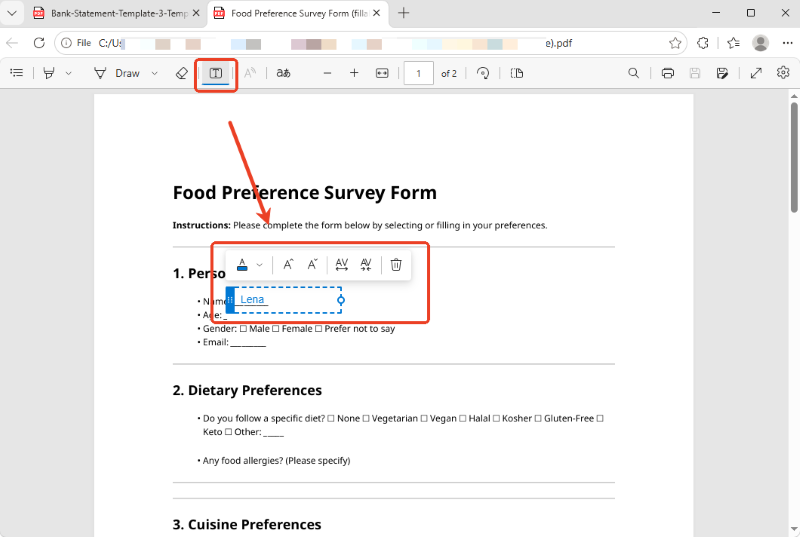
Step 4. When OK, click the Save or Save as button to download your document to your computer.
Microsoft Edge is very convenient. However, it is a very basic tool. It might not work well with very complex forms, and it lacks many additional features that make your document look professional.
Way 4. Fill Out PDF Form on Windows via an Online Tool
If you do not want to install any programs, you can use an online tool. The steps are simple: upload your file, type on it, and download it back to your computer. Many of them are free to use for basic tasks.
Here is how to use an online tool:
Step 1. Open your web browser and search for an online PDF form filler. Here we choose Smallpdf.
Step 2. Follow the prompts to upload your document.
Step 3. The website will load your document onto the screen.
Step 4. Go to the form field and type your name, date, and other details.
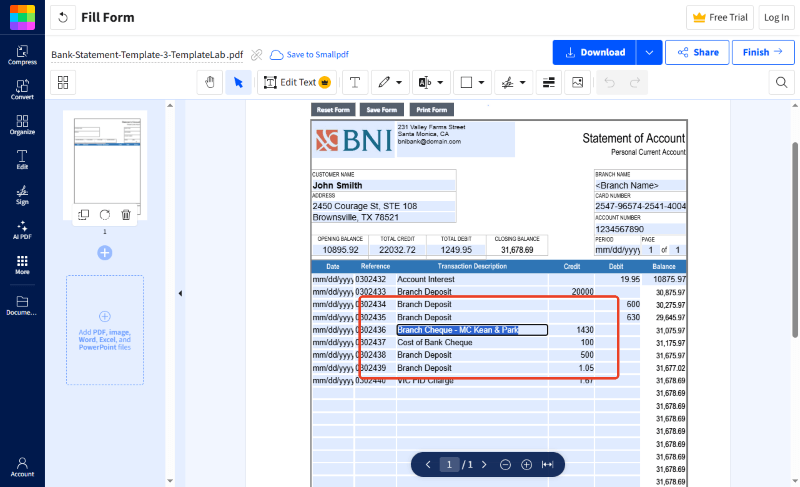
Step 5. When you are finished, look for a Download or Save button. Click it to save the filled document back onto your computer.
Conclusion
That’s all about how to fill out a PDF form on Windows 10/11. Now you know four different ways to complete your documents on your computer.
- You can use the built-in Microsoft Edge browser for a quick fix, Adobe for standard reading, or an online tool if you do not want to download apps.
- However, SwifDoo PDF remains our top recommendation. It is perfect for beginners, highly secure, and makes typing on non-fillable pictures incredibly easy.
Pick the method that works best for you, and say goodbye to printing and scanning forever!



