


Part 1. Why Is My Fillable PDF Not Working?
When you face this problem, your first thought might be: why can’t I fill in a PDF form? It looks like a normal form, but the computer will not let you do anything. There are three main reasons why this happens.
The most common reason is that the document is a "flat" PDF. It was probably scanned from a real physical scanner or saved directly from a basic Word document. It looks exactly like a form on your screen. However, it does not have the special invisible digital boxes that let you click and type.
❌ The Document is Locked
When a document is locked, all the form fields freeze. You can read the document, but the software will not let you type a single letter. Also, if someone else has already added a digital signature to the form, the file will automatically lock to protect that signature from changes.
❌ Your PDF Reader Lacks Filling Features
When you click a document link in an email, it usually opens directly in your web browser, such as Google Chrome, Microsoft Edge, or Apple Safari.
These web browsers are built for reading internet pages. They are not built for doing complex tasks like filling out forms. Because they are very simple, they often break the form features. When this happens, you will not be able to type anything, even if the file is a perfectly good form.
Part 2. How to Fix a Fillable PDF Not Working
Now that we know the reasons, let us talk about the solutions. If you are wondering how to fix a fillable PDF not working, the easiest way is to use the right tools. Here are the three best methods to get your form filled out quickly.
1. Use a Professional PDF Form Filler
The best and fastest way to solve your problem is to use a professional PDF form filler. We highly recommend using SwifDoo PDF to fill out your documents.
SwifDoo PDF is incredibly easy to use. You do not need to have any knowledge of technology to understand it. When you open a form in SwifDoo PDF, the software does the hard work for you. It will automatically find all the hidden boxes and highlight all forms for users to fill in. This means you know exactly where you need to click and type.
Here are the simple steps to use it:
Step 1: Download the software to your computer. Install it just like any other simple program.
Step 2: Open the SwifDoo PDF program. Click on the "Open" button and find the form on your computer.
Step 3: Once the file is open, look at your screen. SwifDoo PDF will highlight all the places you can type. Just click your mouse in a highlighted box and start typing your information.

Step 4: When you are finished, click the “Save” button to save your answers.
SwifDoo PDF also provides many other amazing features to help you. For example, it lets you easily add your signature to the bottom of a contract. Download SwifDoo PDF and give it a try today!
2. Manually Insert Text on a Flat Form
What if your document is just a flat image, as we discussed earlier? You might think you have to print it out and write with a pen. Thankfully, you can still fill out a PDF form that is not fillable by using SwifDoo PDF.
Instead of looking for real form boxes, you can use SwifDoo PDF to add a text box directly over the empty spaces.
Here are the steps to do this:
Step 1: Open your flat document inside SwifDoo PDF.
Step 2: Look at the top menu and find the "Edit" button. Click on it. Select the "Insert Text" option.

Step 3: Move your mouse over a blank line on the form and click once. A small box will appear.
Step 4: Type your name, the date, or any other information that belongs there. You can easily click and drag the words to make sure they sit perfectly on the line. Repeat this for every blank space.
3. Check and Remove the Permission
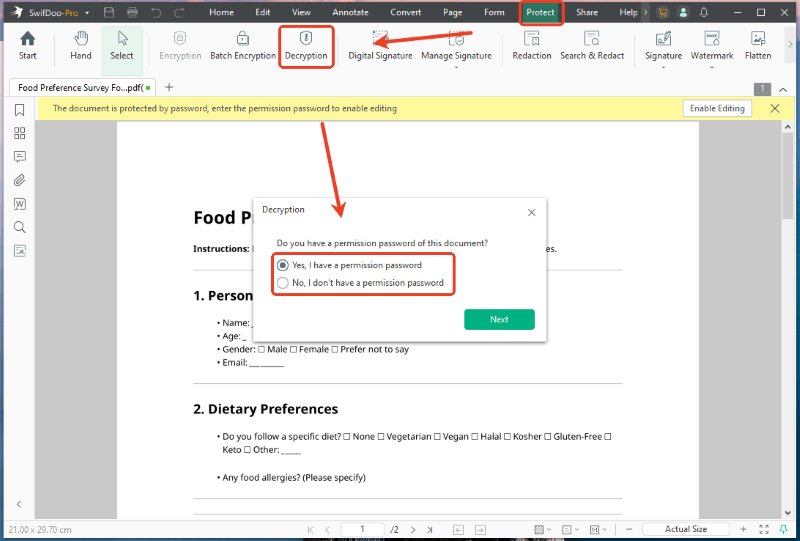
If your document is locked, the text tools will look grey, and you will not be able to click them. You must unlock a PDF for editing before you can do anything.
The easiest way to fix this is to ask the sender for the password or request an unlocked copy of the file. Tell them the file is locked and you cannot type in it.
If you cannot reach the sender, you can try SwifDoo PDF to remove the permission without a password. SwifDoo PDF has special tools that can clear away simple reading blocks so you can finally start typing your answers.
Part 3. Quick Fixes for Fillable PDF Not Working After Saving
Sometimes you can type in the form just fine, but all your hard work disappears as soon as you save it and close the file. Here are the quick reasons and solutions for this problem.
Reason 1: You saved it in a web browser
Having a fillable PDF not working in Chrome or other browsers is very common. Browsers often just download a fresh, empty copy of the file instead of saving your typed words.
Solution: Do not click the normal download button. Instead, click "Print". Change the printer name to "Save as PDF" or "Print to PDF". This takes a permanent picture of your words and saves it as a new file.
Reason 2: You used the Mac Preview app
If you use an Apple Mac computer, it opens files in a program called Preview. This program is famous for breaking forms.
Solution: Do not use the Apple Preview app. Download a dedicated tool like SwifDoo PDF, open the blank file there, type your answers, and save it safely.
Reason 3: You overwrote the file incorrectly
Sometimes, just clicking the "Save" button confuses the computer, and it fails to save your new words.
Solution: When you are done typing, click "File" and then choose "Save As". Give the document a slightly new name and save it to your desktop.
Conclusion
That’s all about how to fix a fillable PDF not working. The key to solving the problem lies in checking the document's format and using a professional PDF editor, such as SwifDoo PDF. This tool can help you easily fill out a normal or flat form. Download SwifDoo PDF and give it a try!



