


Part 1. How to Edit a Fillable PDF
Before we start, you should know what you want to do. Editing a form usually means one of two things.
- First, you might just want to type your information into the blank spaces.
- Second, you might want to change the form's design, such as adding new boxes or deleting old ones.
Let us look at how to do both.
Way 1. Use SwifDoo PDF to Fill Out an Existing Form
If you just need to type your answers into a document, SwifDoo PDF is one of the best and easiest tools you can use.
SwifDoo PDF is a professional tool that can help you fill out a PDF on Windows. When you open a form, it will automatically highlight all the form fields. You do not have to guess where your answers belong.
Here is how to edit a fillable PDF with SwifDoo PDF:
- First, download the software to your computer. Follow the easy instructions to install and open it.
- Click the Open button, then find the PDF form you want to fill out on your computer.
- Move your computer mouse to a highlighted box, click it, and start typing your name, address, or whatever the form asks for.

- When you are done answering all the questions, go to the top left corner of the screen and click Save. Now your answers are saved in the document!
SwifDoo PDF is not just for form-filling. It provides many other great features. You can use it to make PDF files smaller, combine two PDFs into one, or even turn a PDF into a Word document.
If you want a tool that makes PDF work easy, SwifDoo PDF is exactly what you need. Try it today!
Way 2. Use Adobe Acrobat to Modify the Form Layout
To change the actual structure of the document, you have to learn how to edit fillable fields in a PDF. The most popular tool for this job is Adobe Acrobat. This program lets you change the page's hidden layout.
Here is how you can use Adobe Acrobat to edit form fields in PDF documents:
- Open your PDF in Adobe Acrobat Pro. Go to Tools and select the Prepare Form option.
- Now the document will enter a special editing mode. If you want to delete a box, just click on it and press the "Delete" key on your keyboard. If you want to move it, click on it, hold your mouse button down, and drag it to a new spot.
- Look at the top menu. You will see small icons for text boxes, check boxes, and radio buttons. Click on one of these icons, then click on the page where you want the new box to go.

- When the design looks perfect, save the changes by clicking the Save button.
Part 2. How to Edit a Fillable PDF After Saving
What happens if you fill out a form, save it, and then realize you made a mistake? The way you fix it depends entirely on how you saved it the first time. Let us look at the three most common situations.
Situation 1: You Used the Normal "Save" Button
If you finished typing and just clicked "Save" or "Save As," you are in luck. Your document is still interactive. All you have to do is open the file again using SwifDoo PDF.
Click inside the box where you made the mistake, delete the wrong words using your keyboard, and type the right ones. Save it again, and you are finished.
Situation 2: You Used "Print to PDF" Option
Print to PDF will flatten the document, and the typing boxes will be gone. The PDF is just like a screenshot of the PDF. You can no longer click inside the boxes to change your answers. If this happens, you will need to add text box to PDF pages manually.
To do this, open your document in a PDF editor, such as SwifDoo PDF. Look for a tool called Insert Text. Now, you can drop a brand-new text box directly over the white square and type your new answer.

Situation 3: You Digitally Signed the Document
If you used a special tool to add a formal digital signature, the software automatically locks the file. It does this to protect you. It ensures no one can change the contract after you sign it.
If you need to fix a mistake, you must remove the signature. Once the signature is gone, the boxes will unlock. If someone else signed it, you cannot change it. You must ask them for a blank copy to start over.
Part 3. Why Can’t I Edit a Fillable PDF?
It is very frustrating when you look at a form, but the computer will not let you type. Many people ask us: why can't I fill in a PDF form?
There is always a logical reason. Here are the four most common reasons why your document is acting stubbornly, and how to fix them using simple steps.
1. You Are Viewing It in Your Email
If someone emails you a form and you click on it, it will open inside your email window. This is just a "preview." Email previews only let you look at the paper; they do not let you type on it.
The Fix: You must download the file. Look for a small downward arrow or a "Download" button. Save the file to your computer's Desktop. Then, open that saved file in SwifDoo PDF to fill it out.
2. The PDF is Flattened
As we learned in Part 2, a flattened PDF is just a picture of a form. The creator might have saved it the wrong way before they sent it to you. The boxes are not real; they are just ink on a digital page.
The Fix: You cannot click the lines. You must use a PDF editor's "Add Text" button to manually place your words floating above the blank lines.
3. The Document is Locked or Protected
The person who made the form may not want anyone to mess with it. So, they will lock the document with a secret password. This stops people from changing the layout or copying the text.
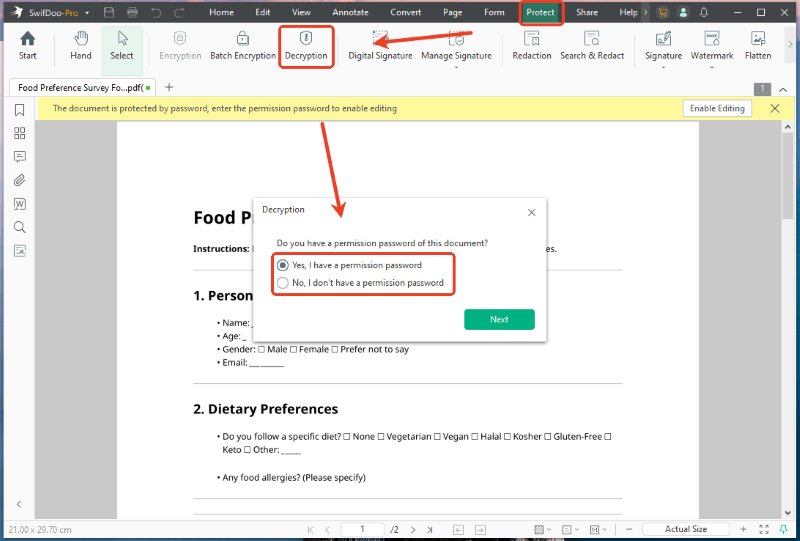
The Fix: Look at the top of your screen. Do you see a small picture of a padlock? If yes, the file is protected. You contact the person who made it and ask them for the password. Plus, you can use SwifDoo PDF to remove the permission.
4. Your Software Does Not Understand Forms
Not all computer programs are smart enough to read interactive boxes. If you are using an old computer or if you just tap the file on a basic cell phone, the default viewer might treat it like a simple picture.
The Fix: Use a modern web browser like Google Chrome to open it, or download a real PDF program like SwifDoo PDF. These smarter programs know exactly how to read the hidden boxes.
Conclusion
That’s all about how to edit a fillable PDF. SwifDoo PDF will highlight the boxes and make typing very easy. It also allows you to input information into PDF files that are not fillable. If you need to change the design, Adobe Acrobat is exactly what you need. With the right tools, managing your PDF forms is quick and easy! Hope this guide is helpful.



