


Part 1. How to Use Fill and Sign in Adobe Acrobat
Maybe you have received a digital form and need to enter information. Don’t worry, let’s learn how to use fill and sign in Adobe Acrobat. Luckily, it is a free feature that is available in Adobe Reader.
Fill Out an Interactive PDF Form
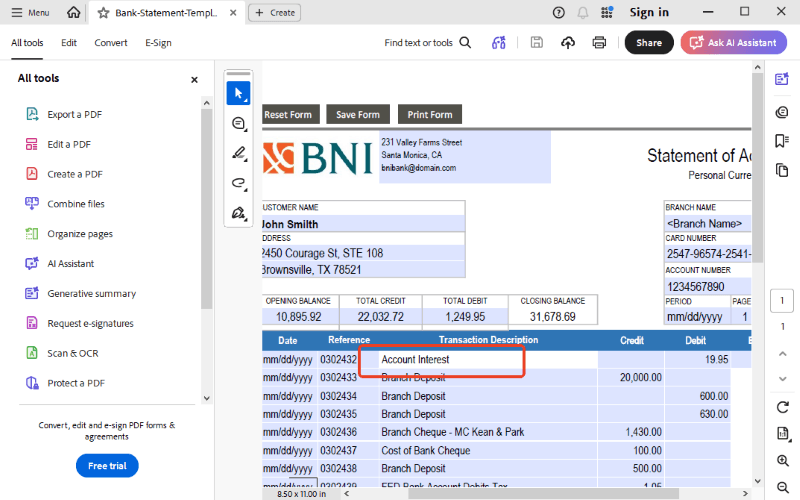
Sometimes, the person who made the file did a great job. They created an "interactive" form. This means the document has special boxes already built into it. It makes it easy to edit form fields in a PDF. When you hover your mouse over these boxes, they are ready for you to type in.
- Open your document in Adobe Acrobat Reader.
- By default, Acrobat will read the document and recognize all fillable boxes.
- Just to click on any of the blue highlighted boxes. A typing cursor will appear. You can now type your name, date, or address.
- If there are little checkboxes or circles to select, you just click them with your mouse to check them off.
Fill Out a Flat PDF Form
You might get a "flat" document that is just like a picture of a form. It has blank lines printed on it, but when you click them, nothing happens. Do not worry. You can still fill out a PDF form that is not fillable. Follow the steps below.
- Open the document and click the Fill & Sign tool on the right side.
- Find and click the Fill in form fields.
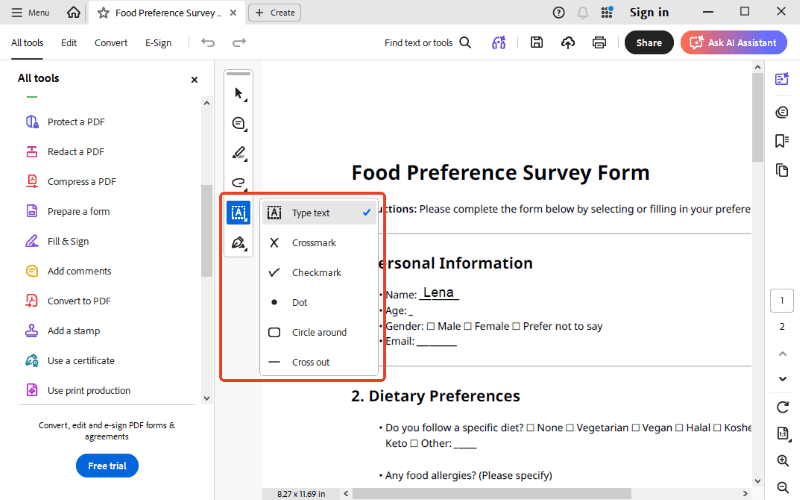
- Now, move your mouse down to a blank printed line on your form and click.
- A small box will appear right there. You can type your words into this box.
- If your words are floating too high or too low, just click the edge of the box and drag it so it sits perfectly on the line.
Add Signature
After you finish typing everything, you usually need to sign your name at the bottom. Adobe makes this very simple.
- Go to Fill & Sign and click the Add Signature button.
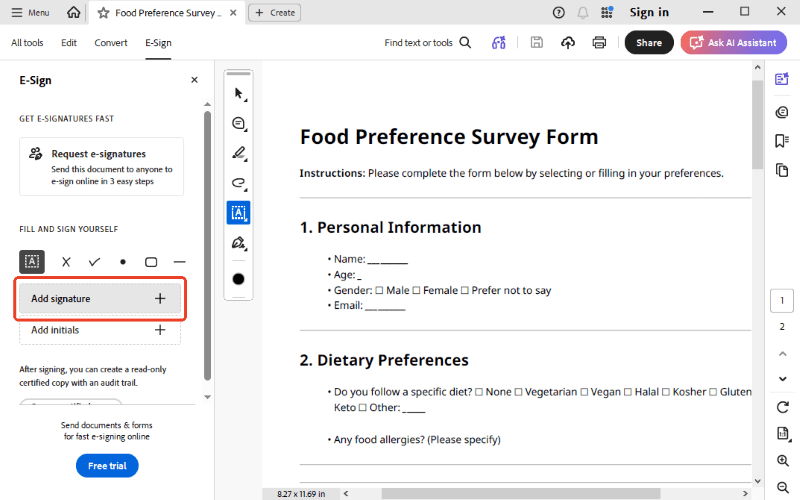
- A new window will pop up. Adobe gives you three easy ways to make your signature. You can type, draw, or upload a signature image.
- When you are happy with how it looks, click the Apply button.
- Now, your signature is stuck to your mouse pointer.
- Move your mouse to the signature line on the form and click once. Your signature will stamp exactly where you clicked.
Part 2. Troubleshooting: Why Can't I Fill and Sign a PDF in Adobe?
Even with a good guide, things can sometimes go wrong. You might be staring at your screen asking, "why can't I fill in a PDF form?" Here are the most common reasons why this happens and how to fix them.
The person who created the file might have put a lock on it. They do this to stop people from changing important words. But this lock also stops you from typing in the blank spaces.
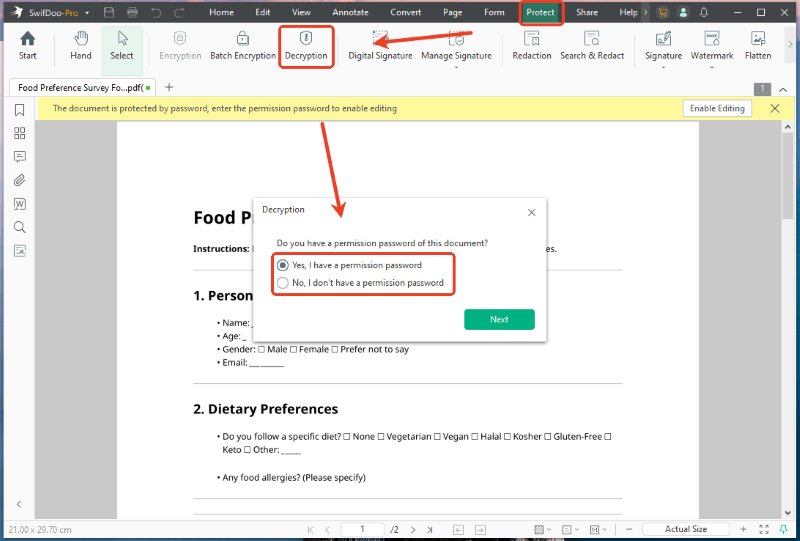
If the Fill & Sign button is grey and you cannot click it, the file is locked. You will need to ask the owner to send you an unlocked version. Or, you can use a special PDF editor, such as SwifDoo PDF, to remove the password protection.
❌ Adobe Functionality Limitations
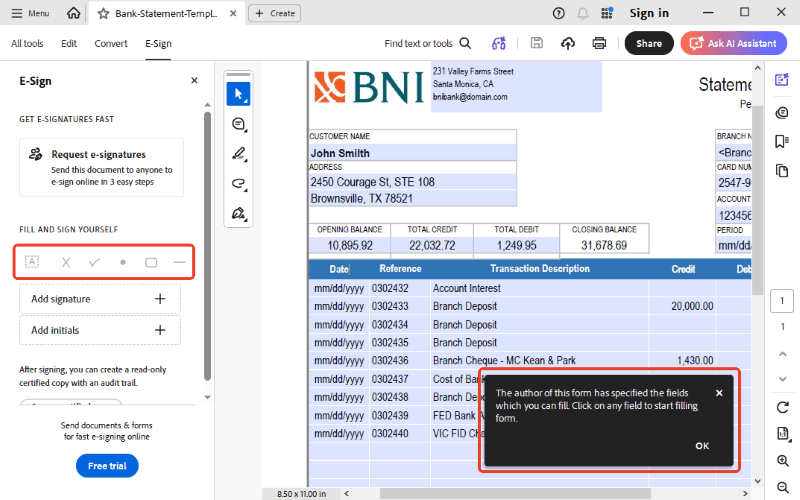
The truth is that if Adobe detects that the PDF contains interactive tables, it will not allow you to add text manually. You can only fill in the existing fields, and the filling tool will turn gray and become unclickable.
❌ Digital Signatures Locking the File
If someone else has already put a secure digital signature on the document before sending it to you, it locks the whole file. It will block anyone else from adding more text.
Part 3. Bonus Tip: Another Easy Way to Fill and Sign a PDF
Adobe Acrobat is a very famous program, but it can be a little confusing for beginners. The menus have lots of buttons, and it can feel overwhelming. If you want a simpler tool, you can try SwifDoo PDF.
SwifDoo PDF is a fantastic alternative to Adobe Acrobat that is much easier to use.
✅ If you get a flat document without real boxes, SwifDoo PDF is still ready to help. Just like Adobe, it lets you add text boxes and start typing.
✅ It also offers simple ways to help users add signatures. You can type, draw, or upload your signature in seconds, and stamp it anywhere on the page.
Let’s see how to use SwifDoo PDF to fill and sign a PDF:
- Download, install, and launch the program on your computer.
- Open your document inside SwifDoo PDF.
- For a fillable PDF, simply click the box and enter your information.

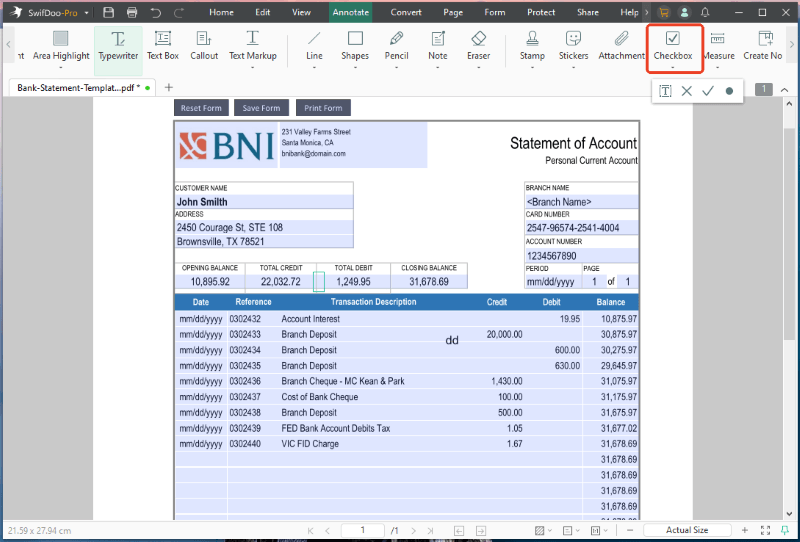
- For an unfillable PDF, go to Annotate > Checkbox. Then, you can add text boxes, check marks, cross marks, and dots.
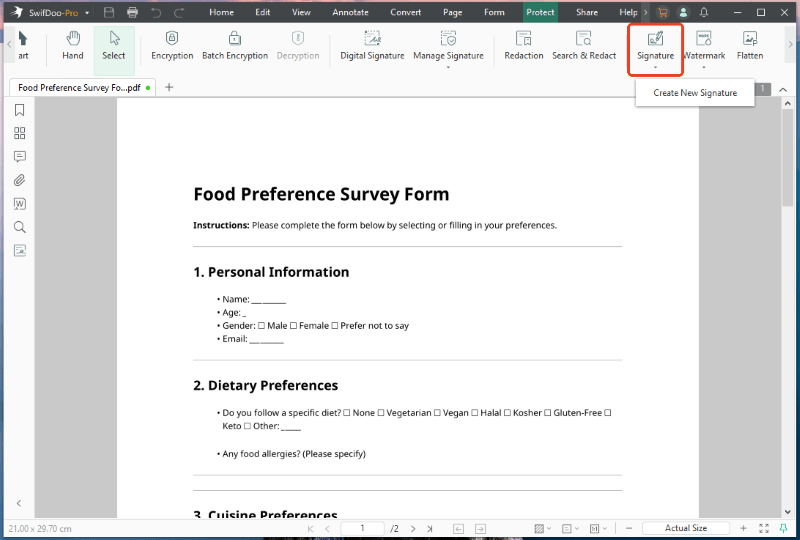
- If needed, go to Protect > Signature to draw your name and stamp it at the end.
- Save the finished file.
Compared with Adobe Acrobat, SwifDoo PDF offers the same rich set of functions, but it is simpler and cheaper. It is a fast, lightweight, and very friendly choice for handling your digital paperwork.
Conclusion
That’s all about how to use fill and sign in Adobe Acrobat. You can easily fill in an interactive form or add fillable text boxes. However, if you want a PDF form filler that is even simpler to understand, SwifDoo PDF is a good choice! Pick the software that feels best for you, and say goodbye to printing forms forever!



