


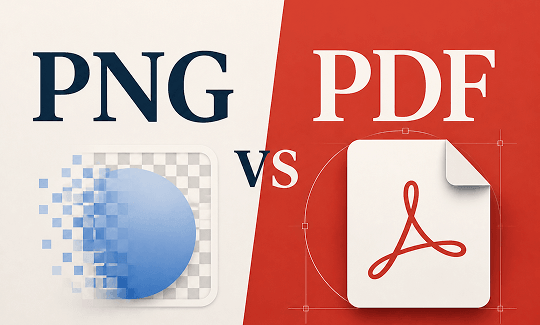
What Is a PNG File? (Best for Web Graphics and Logos)
PNG stands for Portable Network Graphics. You see this format everywhere on the internet. It's a big difference in PDF vs PNG.
A PNG file stores images as a grid of tiny dots called pixels. The compression method it uses keeps all the image details intact. Nothing gets thrown away to make the file smaller. This means the image looks exactly the same whether you open it today or ten years from now.
PNG files shine in these situations:
-
Company logos that need a clean look
-
Icons and buttons for websites
-
Graphics that include text or numbers
-
Images that sit on top of colored backgrounds
The transparency feature is what makes PNG special. You can have an image with a see-through background. This lets you place a logo on any color background without a white box around it. The main drawback is that PNG files can be quite large.
JPEG vs PDF: What is the Difference & Which to Use (2026)
Wonder about the differences in the JPEG vs PDF debate? Discover which file format is best for printing, scanning, and keeping your storage sizes small.
READ MORE >What Is a PDF File? (Best for Documents and Printing)
PDF stands for Portable Document Format. Adobe created it to solve a problem. People were sending documents that looked different on different computers. PDF fixed that.
A PDF file acts like a digital container. You can put text, pictures, fonts, and even interactive elements inside. One PDF can hold many pages. This makes PDF vs PNG an important comparison when you are working with multi-page content.
PDF files work great for:
-
Business agreements and legal papers
-
Reports that need a professional look
-
Books and instruction manuals
The biggest strength of PDF is reliability. What you create is what the other person sees. The layout stays the same. Fonts do not change. Images stay where you put them. The file can become large if you add many high-resolution images, but the consistency is worth it for many users.
7 Key Differences Between PNG and PDF
To understand the difference between PNG and PDF, we need to look at how each one handles content. The table below compares the 7 main features of PDF vs PNG. This will also help you see the difference between PDF and PNG.
|
Feature |
PNG |
|
|---|---|---|
|
Purpose |
Stores images only |
Stores documents with text, images, and structure |
|
Compression |
Lossless (keeps all data) |
Flexible (varies by content) |
|
Image Quality |
Sharp and clear, no quality loss |
Sharp text and images, preserves original quality |
|
File Size |
Often large |
Varies; text-only is small, image-heavy can be large |
|
Transparency |
Excellent support |
Limited support |
|
Pages |
Single image only |
Multiple pages |
|
Editing |
Pixel-level editing in image software |
Text, image, and layout editing in PDF software |
Summary of the PNG vs PDF Differences
When you look at the difference between PDF and PNG, the main things to remember are these. PNG is built for single images. It keeps every detail and supports transparent backgrounds. This makes it great for web graphics, logos, and icons.
PDF is built for documents. It can hold many pages and keeps the layout consistent across devices. It is the better choice for reports, contracts, and anything you need to print.
In short, if you are working with a single image and transparency matters, choose PNG. If you are working with a document, multiple pages, or something you will print, choose PDF. Understanding what is a PNG file vs PDF helps you make the right call every time.
PNG vs PDF for Printing: Which Option Delivers Better Quality?
Is PNG same as PDF in printing? The answer depends on what you are printing. Many people assume PDF vs PNG for printing is a close call, but they are quite different for print jobs.
PDF is better for most printing needs. Here is why it tends to work better.
-
Scaling: PDF can contain vector elements that scale up or down without losing quality. PNG is pixel-based. If you need to enlarge it, the image can become blurry.
-
Page layout: PDF keeps your page design exactly as you set it. Margins, spacing, and page breaks stay consistent. PNG is just an image. You cannot control page layout.
-
Color handling: PDF supports CMYK color, which is what professional printers use. PNG uses RGB color, which is designed for screens.
-
Multi-page documents: PDF lets you print a complete report in one job. PNG requires you to print one page at a time.
That said, you can print a PNG if it is the right size and resolution. For simple graphics or photos, PNG can work. But for anything with text or multiple pages, PDF is the safer choice. The difference between PDF and PNG for printing is significant.
How to Print Multiple Pictures on One Page from Phone/Windows/Mac
Do you wonder how to print multiple pictures on one page? Here are the best ways to do so effortlessly and clearly from a phone, Windows, Mac, or online.
READ MORE >PDF vs PNG for Web Use: Which Is Better for Online Content?
For online content, the PDF vs PNG choice often leans toward PNG. Here is why web designers prefer PNG for images.
-
File size: PNG files are usually smaller than PDFs for a single image. This means faster loading times on websites.
-
Transparency: PNG supports transparent backgrounds. This is essential for logos and icons that need to blend into different page designs.
-
Browser support: PNG opens directly in every web browser. No extra software or plugin is needed.
-
Ease of use: PNG images can be easily edited, resized, or cropped using basic image tools.
PDF has its place on the web too. It works well for downloadable forms, product guides, and white papers. But for images that are part of a web page, PNG is usually the better option.
PDF vs PNG vs JPG: How Do They Compare?
In your daily office routine, you will constantly see these three file types. Balancing PDF vs PNG vs jpg features depends entirely on your specific workflow goals. You may wonder how these formats are used for different situations. Here is a simple breakdown.
-
JPG: Designed to keep rich scenery photos small by compressing complex colors.
-
PNG: Better for clean icons with clear backgrounds.
-
PDF: Meant for multi-page text documents.
Reviewing these PDF vs PNG vs jpg traits makes it simple to pick the right file extension for your current project.
PNG:
-
What it is good for: Web graphics, logos, icons, images with text.
-
How it compresses: Keeps all data (lossless).
-
Transparency: Yes, supports it well.
-
File size: Can be large.
JPG:
-
What it is good for: Photos, images with many colors, web images.
-
How it compresses: Removes some data to shrink size (lossy).
-
Transparency: No.
-
File size: Small, good for sharing.
PDF:
-
What it is good for: Documents, reports, forms, printing.
-
How it compresses: Varies, can balance quality and size.
-
Transparency: Limited support.
-
File size: Varies widely.
Think of it this way. Photos go to JPG. Web graphics and logos go to PNG. Documents, forms, and things you print go to PDF. The difference in PDF vs PNG vs jpg is clear when you think about what you are creating.
How to Convert Between PNG and PDF Easily
You do not have to struggle with the PNG vs PDF choice when organizing your archives. If you want to know what is a PNG file vs PDF conversion trick that works, using a professional PDF converter is best.
Why PDF to JPG Conversion Can Be Useful for You
Here are reasons why PDF to JPG conversion is useful for your business to help you optimize your digital content.
READ MORE >SwifDoo PDF acts as a safe PDF editor for all your PDF vs PNG needs. It handles your file conversions smoothly, allows you to crop messy borders, and lets you compress heavy assets without ruining your clear layouts. It simplifies your daily tasks by ensuring you never have to worry about whether a photo or a document is better for your team.
Steps to Convert PDF to PNG with SwifDoo PDF:
Step 1: Download, install, and launch SwifDoo PDF.
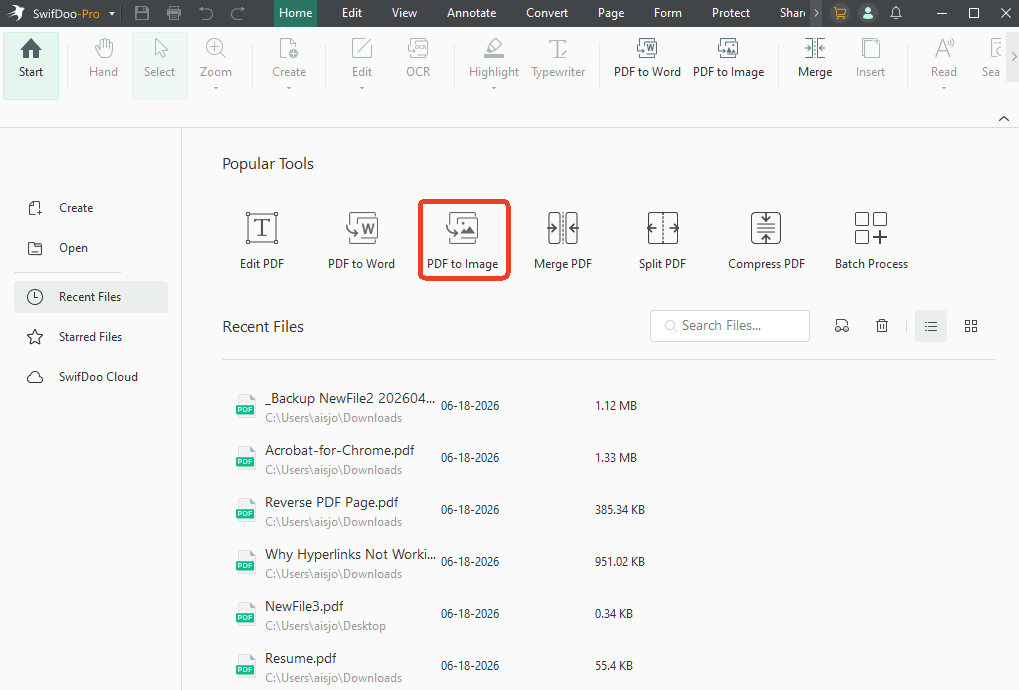
Step 2: Choose PDF to Image in the Popular Tools section.
Step 3: Drag you PDF file to the window and configure the PDF to PNG conversion settings. Notice that you should set the Format option as PNG.
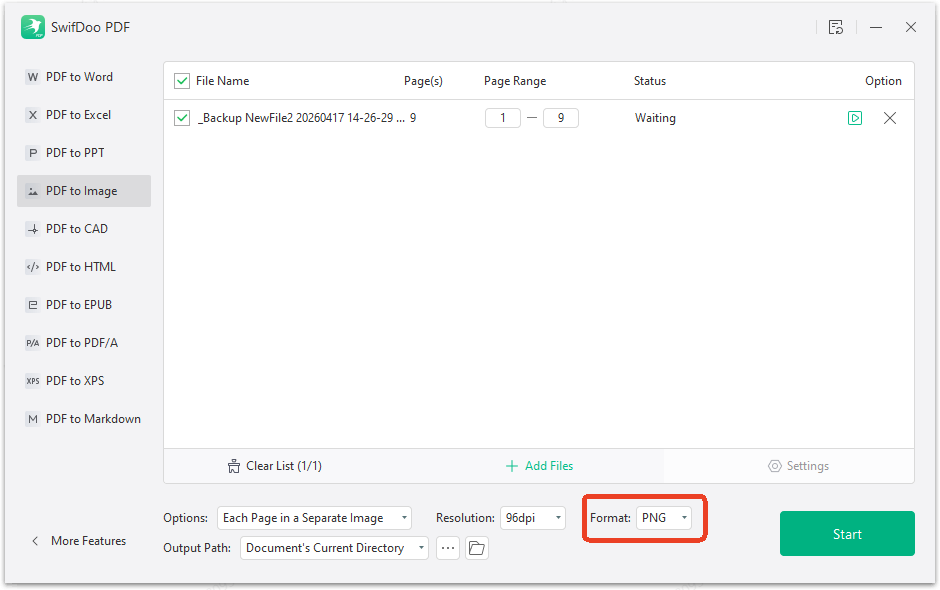
Step 4: Click Start to convert PDF to PNG.
Steps to Convert PNG to PDF with SwifDoo PDF:
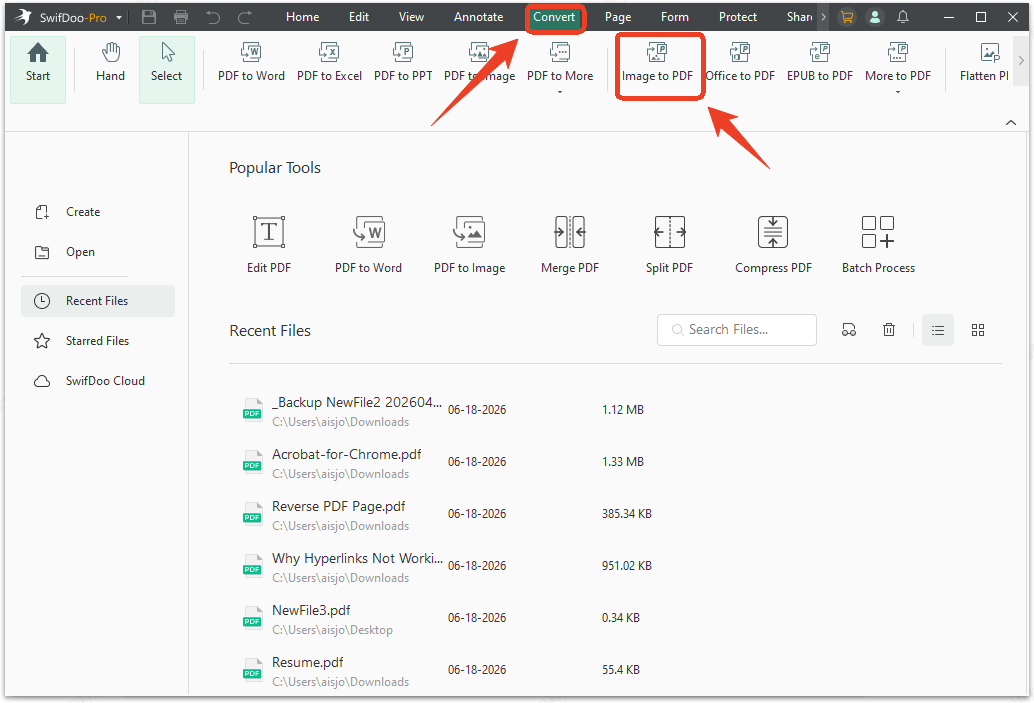
Step 1: Go to the Convert tab from the top menu and choose Image to PDF.
Step 2: Upload your PNG file and configure the image to PDF options, page size, and output path.
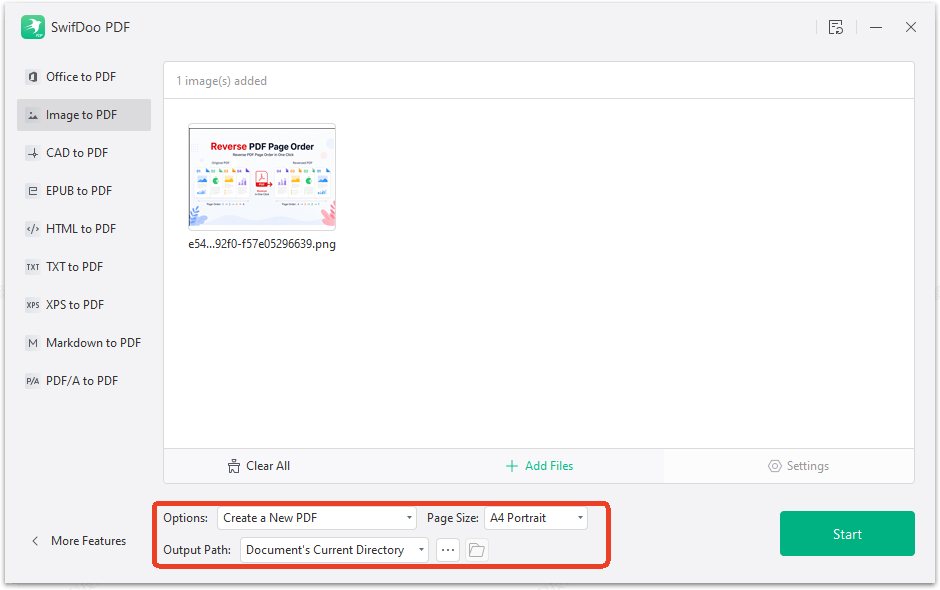
Step 3: Click Start to convert PNG to PDF.
A Note About SwifDoo PDF for Your Document Needs
We have covered the main differences between PNG and PDF. You might have a better sense of what's the difference between PDF and PNG and which format fits your project. You might also want a tool to work with both formats.
SwifDoo PDF can help with that. It is a PDF editor and converter available for Windows, Mac, iOS, and Android. It handles conversions between PDF and PNG, along with many other formats.
Features of SwifDoo PDF:
-
Conversion: Switch between PNG and PDF quickly.
-
Editing: Change text, images, and page order in PDFs.
-
OCR: Make scanned documents searchable and editable.
-
Compression: Reduce file sizes while keeping quality.
-
Cross-platform: Use it on desktop or mobile devices.
SwifDoo PDF is one of many tools for these tasks. It is worth considering if you work with PDFs regularly. You can try a free version to see if it suits your needs.
Final Thoughts
Picking the right file style keeps your business communications clear and saves valuable hard drive space. While PNG graphics are fantastic for transparent web icons and digital art, PDFs remain the global standard for multi-page reports, invoices, and signed forms. We hope this deep dive into the PNG vs PDF comparison helps you pick the perfect file style with complete confidence!


