


What Is HWP and Why Does Converting PDF to HWP Matter?
HWP is the native file format of Hangul Word Processor, developed by Hancom. It's the standard document format in Korean government agencies, schools, and many businesses. If you're working with Korean institutions, HWP is expected. Here, we’ll introduce some distinctions between several important file types.
#1. HWP vs PDF
The HWP file format is fundamentally different from PDF.
- PDF is a fixed-layout format: what you see is what you get, and editing is limited.
- HWP is a flowing, editable document format, like Word.
Can you open HWP in Word? No, not natively. Word doesn't support HWP, which is why conversion is necessary.
#2. HWP vs HWPX
HWPX is the newer XML-based format, which is more compatible with modern systems and easier to process programmatically, and Hancom Office supports both. Most conversion tools output HWP, but if you're working with newer Korean systems, check whether HWPX is required.
Method 1: Convert PDF to HWP with Hancom Office
Hancom Office is the only tool that converts PDF to HWP using the format's own native engine. If you have access to it, this is the path with the best chance of preserving layout. The converter handles OCR, layout options, and table-specific settings that third-party tools don't offer.
- Native engine
- Best layout preservation
- OCR support, batch conversion
- Requires a Hancom Office license
- Windows-focused
- Still not perfect for complex layouts
Step 1: Download and install Hancom Office from its official site.
Step 2: Open Hancom Office (Hanword) and select Convert to HWP in the Tools menu.
Step 3: Add your PDF file to this PDF-to-HWP converter. You can choose to batch process multiple PDFs.
Step 4: Configure the conversion options:
- OCR: Enable this if your PDF is a scanned image. Select Korean as the recognition language.
- Layout preservation: Choose "Original" to keep the visual layout, or "Word format" to prioritize editability.
- Convert only Table: If your document is mostly tabular data, this option can reduce formatting errors.
Step 5: When you finish the configuration, click Convert and wait for processing.
Step 6: Open the resulting HWP file and check for font, table, and layout issues.
Method 2: Use Online Converters (Quick, But Limited)
Online converters are the easiest option when you don't have Hancom Office installed. You upload a PDF, choose HWP as the output, and download the result. You don’t need to install and set up anything.
However, these PDF to HWP converters also come with limitations:
- Most online tools to convert PDF to HWP handle simple text documents reasonably well and struggle with anything more complex, like tables, columns, Korean fonts, or scanned pages.
- Most have file size limits, and free tiers are often ad-supported.
- Uploading sensitive documents to an unknown server carries privacy risk.
If you can accept these limitations, we found some examples to help you convert PDF to HWP online.
Tool 1: Allinpdf HWP converter: A general-purpose online converter with a PDF to HWP option. The interface is simple: upload, select output format, download.
Tool 2: ConvertHelper: Another online converter that lists HWP among its output formats. It supports batch uploads but has file size limits on the free tier.
We’ll take Allinpdf HWP converter as an example to teach you how to convert PDF to HWP online for free.
Step 1: Go to the official Allinpdf HWP converter site and upload your PDF.
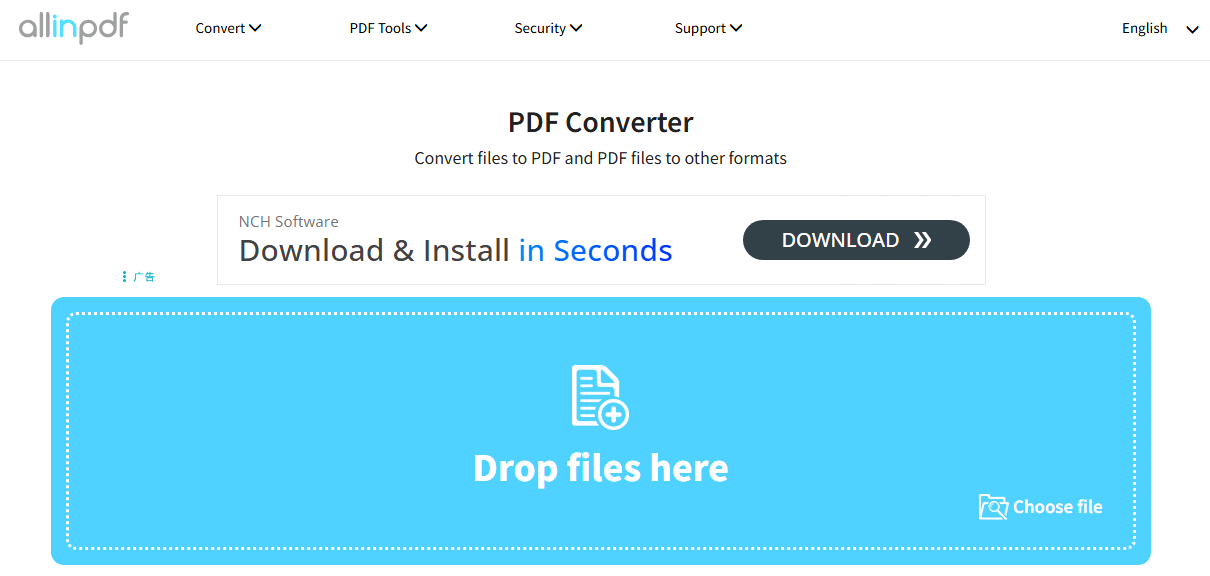
Step 2: Choose the target file format as hwp and click OK.
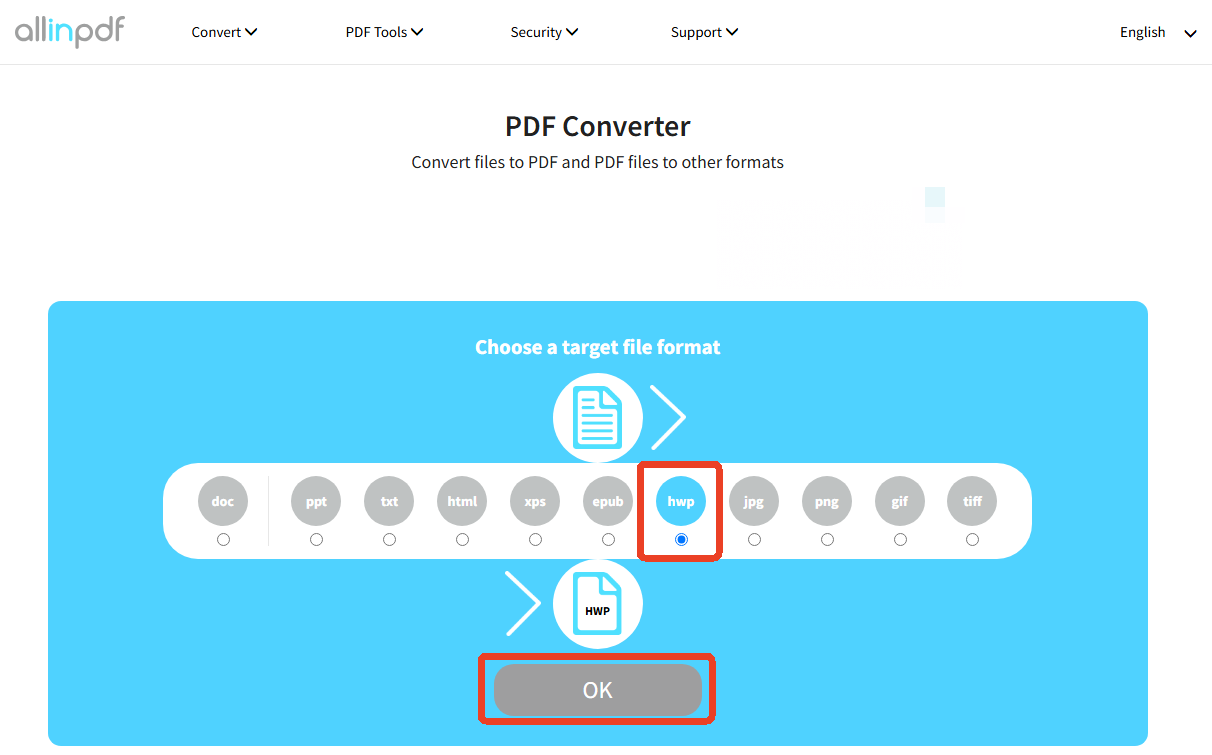
Step 3: Wait for processing and download the resulting HWP file.
Step 4: Then you can open it in Hancom Office and check for formatting issues.
Common Problems After Converting PDF to HWP and How to Fix Them
Since the HWP file is less commonly used, most PDF to HWP converters are not that perfect to do the job. You may run into some unexpected issues when you handle PDF to HWP conversion, and we list some common issues below, including the fixes.
- Garbled Korean text: This is usually a font issue. Install the correct Korean fonts in Hancom Office or convert to HWPX if the target system supports it.
- Broken tables: Try converting to DOCX first, then opening in Hancom Office and saving as HWP. This two-step process sometimes preserves table structure better than direct conversion.
- Scanned PDF fails to convert: Enable OCR. If the tool doesn't support Korean OCR, pre-process the PDF with an OCR tool before conversion.
- Online converter times out: Switch to a desktop tool or reduce the file size before retrying.
Conclusion
How to convert PDF to HWP? You can choose to use official Hancom Office for the best shot at preserving layout or choose a reliable online PDF to HWP converter. The results are unpredictable, but you can control the preparation and cleanup. Use SwifDoo PDF to clean your PDF before conversion and to fix common problems afterward.
Download SwifDoo PDF Free and prepare your PDFs for conversion.


