


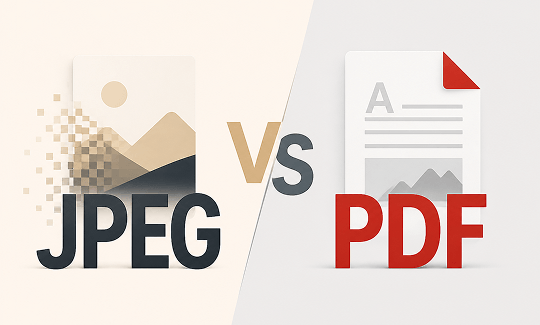
What Is a JPEG File? (Best for Photos and Web)
JPEG stands for Joint Photographic Experts Group. It is one of the most common image formats. You have probably seen files ending in .jpg or .jpeg.
A JPEG file is designed for single images. It uses something called lossy compression. That means it shrinks the file size by removing some image data. The more you compress, the smaller the file, but you might lose some quality.
JPEGs are great for:
-
Photos and photographs
-
Web images and social media posts
-
Sharing images quickly via email
-
Previewing or thumbnails
The main strength of a JPEG is its small file size. This makes it easy to share and store. But the trade-off is that it is not ideal for documents or text-heavy content.
What Is a PDF File? (Best for Documents and Printing)
PDF stands for Portable Document Format. It was created by Adobe to share documents consistently across different devices.
A PDF file is more like a container. It can hold text, images, fonts, and even interactive elements like forms and hyperlinks. Unlike a JPEG, a PDF can have multiple pages.
PDFs are great for:
-
Contracts and official documents
-
Reports and academic papers
-
Multi-page documents
-
Printing and archiving
The main strength of a PDF is that it keeps everything in place. The layout, fonts, and images look the same on any screen. But that often means the file is larger than a JPEG.
SwifDoo PDF vs Adobe Acrobat: A Side-by-Side Comparison
Wondering which software is best for your PDF handling needs? Here, we have thoroughly compared SwifDoo PDF vs Adobe Acrobat to help you choose the best one.
READ MORE >Is JPEG the Same as PDF? The Basic File Differences Explained
Is JPEG the same as PDF? The simple answer is no, because they handle data in completely unique ways. Understanding the difference between JPEG and PDF structures helps you avoid blurry images and messy text rows when sharing work.
A JPEG is a flat image file that compresses color pixels, making it an excellent choice for rich digital photographs. On the flip side, a PDF is a secure document container that keeps text lines, hyperlinks, and layout elements intact. When you look closely at what's the difference between a JPEG and a PDF, it comes down to flexibility and editing options.
A PDF lets you search for specific keywords and select text strings, while a JPEG locks everything into a single picture layer. Knowing the major difference between PDF and JPEG features helps you choose the right presentation mode for your files.
6 Key Differences Between JPEG and PDF
To understand the difference between PDF and JPEG, it helps to look at specific areas. Here is a breakdown of the main differences.
File Structure
-
A JPEG has a simple structure. It stores a single image.
-
A PDF has a complex structure. It can store text, images, fonts, and multiple pages. Each part is an object that the PDF keeps track of.
Compression
-
JPEG uses lossy compression. It discards data to make the file smaller. Every time you save a JPEG, you lose a little quality.
-
PDF can use different types of compression. It can store images without losing quality. It preserves the original content.
Image Quality
-
JPEG quality depends on compression. High compression means lower quality. You might see blurring or artifacts.
-
PDF preserves the quality of images and text. It displays them exactly as they were created.
Compress Large PDF Files Without Losing Quality: 6 Proven Methods
Learn how to compress large PDF files without losing quality. Discover top offline methods, native Windows/Mac tricks, and how SwifDoo PDF shrinks files.
READ MORE >Text Selectability
-
In a JPEG, text is just part of the image. You cannot select, copy, or search it.
Multi-Page Support
-
A JPEG only supports one page or one image.
-
A PDF can have multiple pages. This is why PDFs are great for documents and reports.
Editing
-
Editing a JPEG is easy in image software. But every time you save, quality may drop.
-
Editing a PDF requires a PDF editor. But you can change text, add images, and reorganize pages without losing quality.
JPEG vs PDF File Size: Which One Takes Up Less Space?
JPEG vs PDF file size is a practical concern. Generally, JPEGs are smaller. But there is more to it than that.
-
JPEG: Uses lossy compression to keep file sizes small. Good for sharing quickly or saving storage space.
-
PDF: Often larger because it stores text, fonts, and images precisely. However, you can compress a PDF to reduce its size.
The size difference matters depending on what you are doing. For email attachments or web uploads, a JPEG might be easier. For archiving high-quality documents, a larger PDF is worth the space.
If you bundle twenty pages together, the PDF vs JPEG approach becomes much more different. A PDF can store multiple pages of crisp text rows without expanding your overall storage needs. If you try to save twenty separate pictures instead, your storage folders will quickly fill up and become difficult to manage.
PDF vs JPEG Scan: Which Format Is Better for Digitizing Documents?
If you are scanning documents, you might wonder about PDF vs JPEG scan.
For scanning, we strongly recommend PDF. Here is why:
-
Multi-page: You can scan a whole document into one PDF file. A JPEG only gives you one page at a time.
-
Searchable Text: PDFs can include OCR (Optical Character Recognition). This turns scanned images into searchable text.
-
Consistency: PDFs keep the document layout and order intact. It is easier to share a single PDF than a folder of JPEGs.
-
Archiving: PDFs are better for long-term storage. They are an official format for many organizations.
If you set your machine to a JPEG layout, you will generate a flat picture file for every page you scan. This makes reviewing a long, multi-page agreement very clumsy. On the other hand, a PDF scanner mode bundles all your pages into one file and supports text search tools. A typical JPEG vs PDF comparison shows that PDFs let you copy text lines easily, while a scanner image forces you to type everything out manually.
JPEG vs PDF for Printing: Which One Should You Choose?
When it comes to JPEG vs PDF for printing, there is a clear winner. PDFs are generally better for printing.
Here is why:
-
Resolution: PDFs can contain high-resolution images and vector graphics. These scale without losing quality. JPEGs have a fixed resolution based on their pixels.
-
Layout: PDFs preserve the exact layout of your document. What you see on screen is what you get on paper. JPEGs may shift or crop differently.
-
Color Profiles: PDFs support professional color profiles for accurate printing. JPEGs use RGB color which is not ideal for all printers.
When you are stuck deciding between a JPEG or PDF format for physical marketing items, a PDF guarantees that your text stays crisp at any size. Using the right JPEG or PDF option prevents blurry printouts and saves expensive printer ink.
How to Convert Between JPEG and PDF Easily?
You do not always have to choose just one format for your creative or clerical tasks. Using SwifDoo PDF allows you to merge the best features of both worlds right on your local computer. This lightweight desktop PDF editor application simplifies your document routine through several practical features:
-
Instant Photo-to-PDF Conversion: Drag a messy folder of loose pictures and combine them into a single, searchable PDF document package with one click.
-
Clean Graphic Extraction: Save specific document pages as high-resolution images for easy web sharing on social platforms.
-
Smart File Compression: Shrink massive document sizes down easily without making your text rows look blurry.
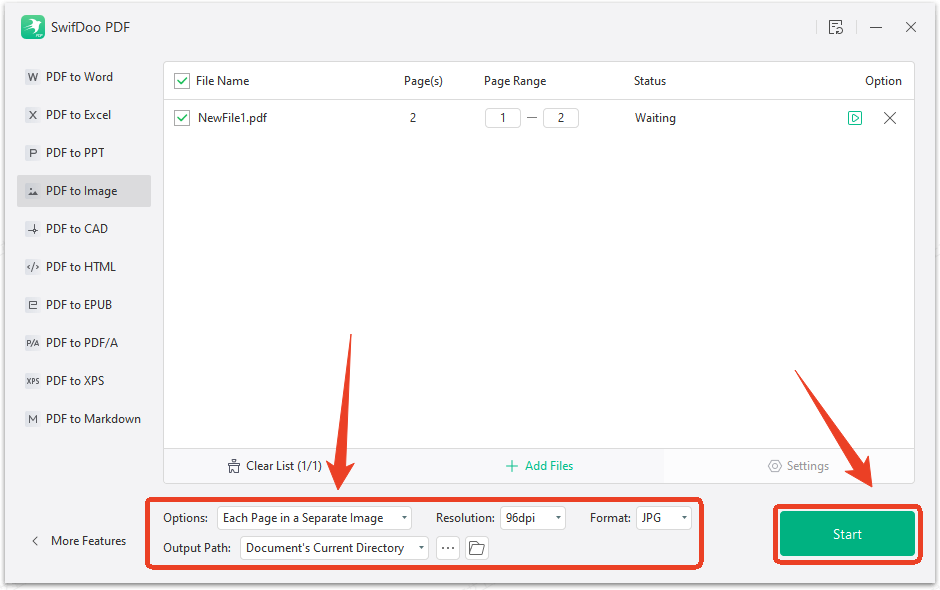
Step 1: Download and install SwifDoo PDF and open it.
Step 2: Choose PDF to Image in the Popular Tools section and upload your PDF file.
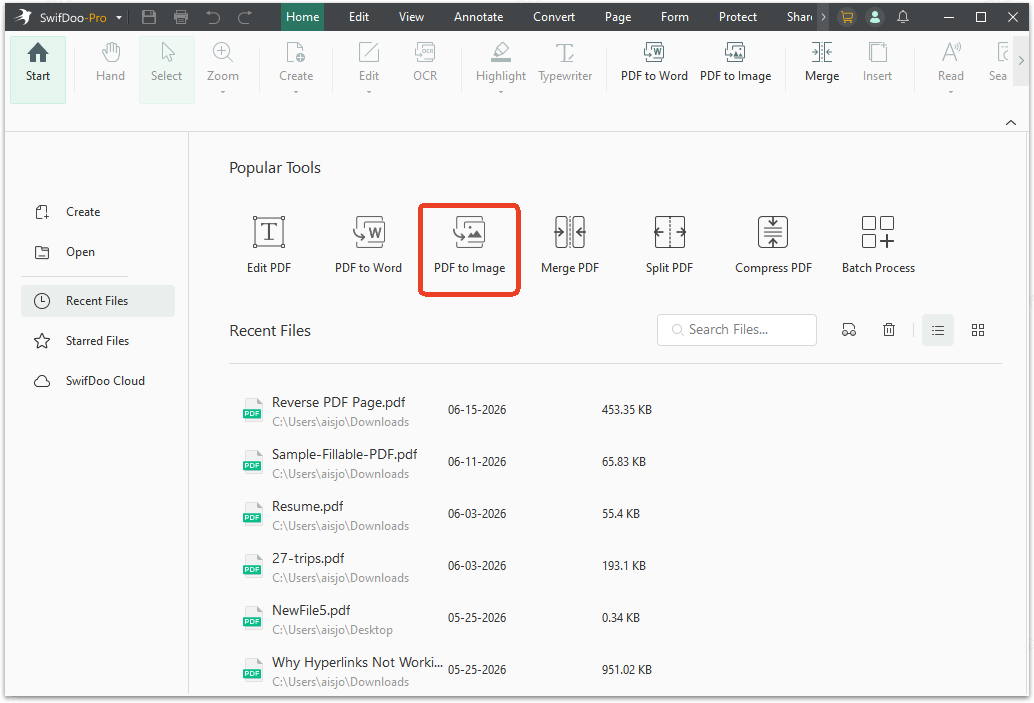
Step 3: Configure the PDF to JPEG or JPG output settings and click Start.
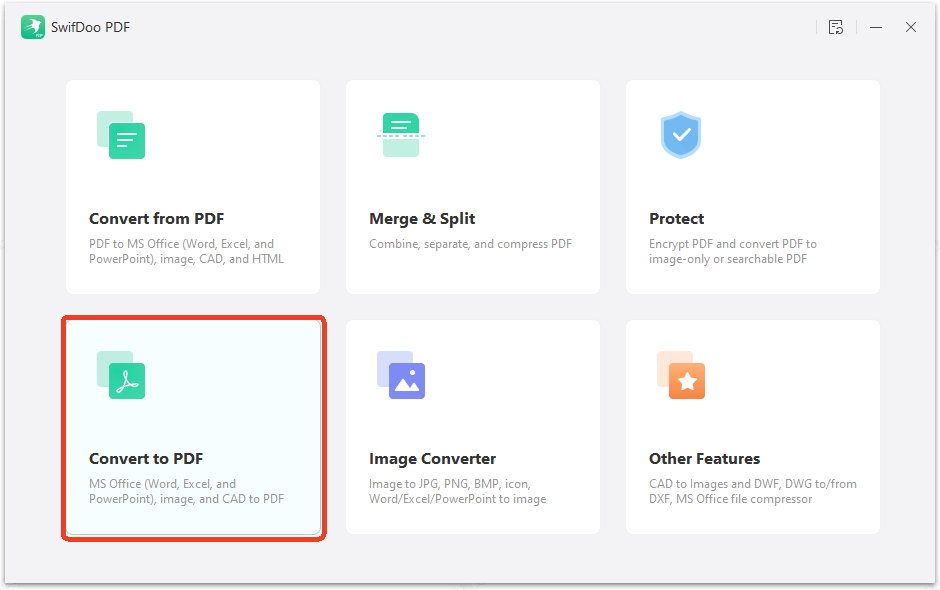
If you want to convert JPEG to PDF, follow the next steps.
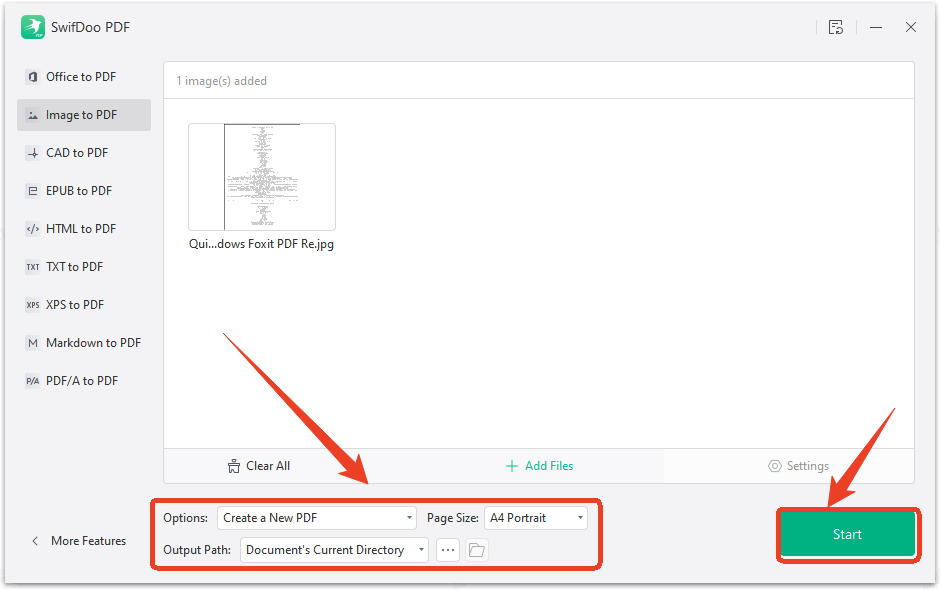
Step 1: Choose Batch Process > Convert to PDF and upload your image file.
Step 2: Configure the JPEG or JPG to PDF output settings and click Start.
PDF vs JPEG vs PNG: How Does JPEG Compare to Other Formats?
To help you resolve the PDF vs JPEG vs PNG puzzle whenever you save a new file layout, review this quick comparison table:
|
Document & Media Property |
JPEG Format |
PDF Document |
PNG File Style |
|---|---|---|---|
|
Primary Design Purpose |
Sharing digital photographs |
Storing official multi-page files |
Web graphics with transparency |
|
Text Editing & Search |
Impossible (Locked as pixels) |
Excellent (Searchable text rows) |
Impossible (Flat graphic layer) |
|
Multi-Page Support |
No (Single frame only) |
Yes (Holds thousands of pages) |
No (Single image view only) |
|
Best Everyday Use Case |
Social media uploads |
Invoices, resumes, and reports |
Website logos and icons |
JPEG:
-
Best for photos and realistic images.
-
Small file size.
-
Lossy compression (quality loss).
-
No transparency support.
PNG:
-
Best for web graphics and images with text.
-
Larger file size.
-
Lossless compression (no quality loss).
-
Supports transparency.
PDF:
-
Best for documents, reports, and printing.
-
Can contain text, images, and multiple pages.
-
Preserves layout and formatting.
-
Supports interactive elements.
Evaluating PDF vs JPEG vs PNG features makes it simple to pick the right style for your target audience. If you are working with images for a website, JPEG or PNG are good. If you are working with documents, PDF is the way to go.
A Note About SwifDoo PDF for Your Document Needs
We have talked about the differences between JPEG and PDF. You might now have a better idea of which format to use. But you might also need a tool to help you manage both formats.
SwifDoo PDF is a tool that can help. It is a PDF editor and converter. It works on Windows, Mac, iOS, and Android. It is useful for converting JPEGs to PDFs and PDFs to JPEGs.
Why SwifDoo PDF is helpful:
-
Convert easily: Change between JPEG and PDF in a few clicks.
-
Edit PDFs: Change text, images, and pages in your PDFs.
-
OCR: Turn scanned documents into searchable text.
-
Compress: Reduce the size of your PDFs.
-
Free trial: You can try it to see if it works for you.
We are not saying SwifDoo PDF is the only tool. There are many options. But if you regularly work with PDFs and images, it is a convenient tool to have. You can download it from the SwifDoo PDF website and see if it fits your workflow.
Conclusion
So, JPEG vs PDF – which one is better? The answer depends on what you are doing.
-
Use JPEG for photos, web images, and quick sharing.
-
Use PDF for documents, printing, scanning, and archiving.
Now you know the difference between PDF and JPEG. You can pick the right format with confidence. And when you need to switch between them, a tool like SwifDoo PDF can help you do it quickly and easily.
We hope this guide has been helpful. Next time you need to choose JPEG or PDF, you will know exactly what to do.


