


How to Delete Pages From PDF Using iLovePDF?
iLovePDF, as an online PDF tools, works well for basic page deletion. Its workflow is straightforward, requiring no technical expertise or software installation. You can also delete pages from PDF online without creating an account, though free users face restrictions.
Some newbies may face some troubles in using this all-in-one toolkit and don't know how to access the "iLovePDF delete pages" page. Now, let's check how to delete pages from PDF using iLovePDF.
Step 1: Open your browser and go to ilovePDF.com.
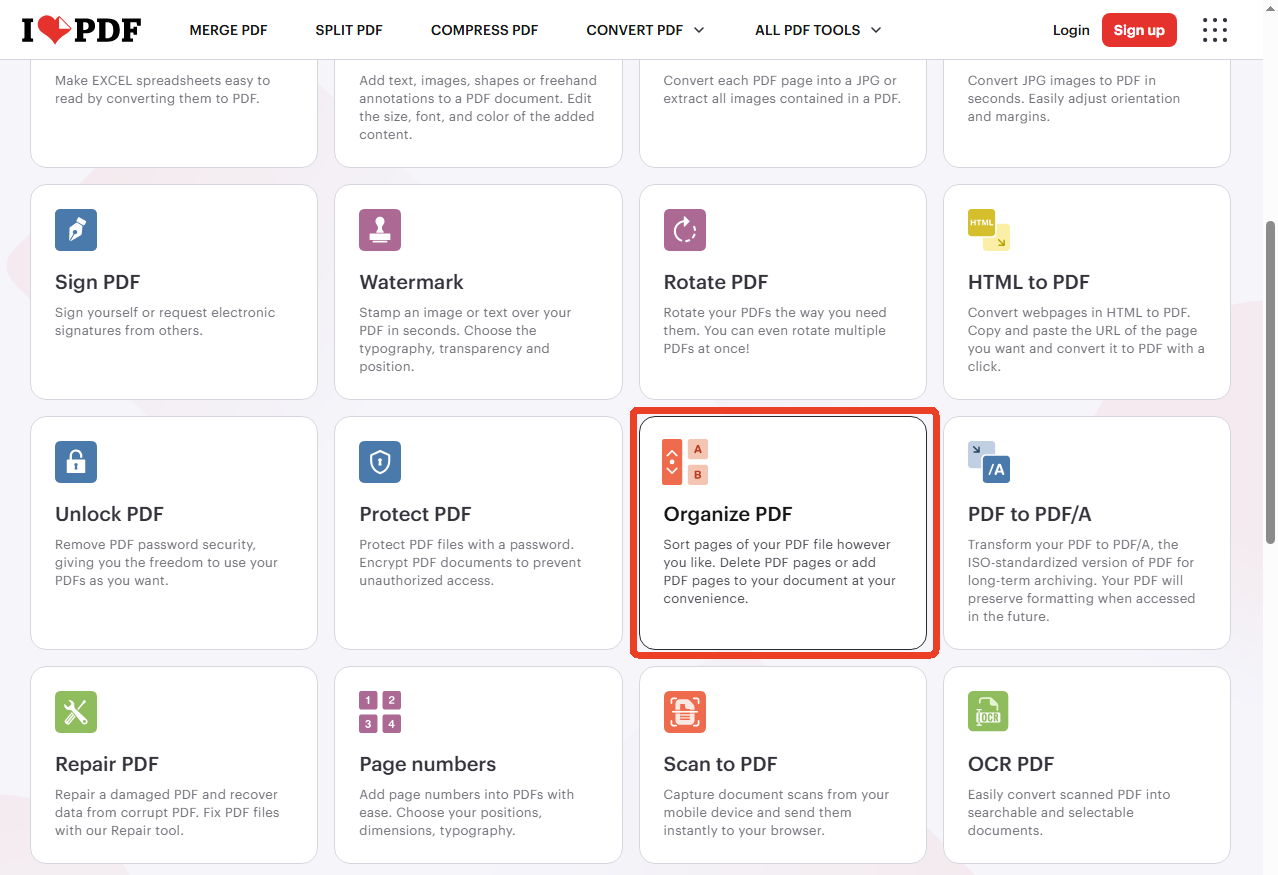
Step 2: On the home page where all the PDF features are listed, scroll down to choose Organize PDF.
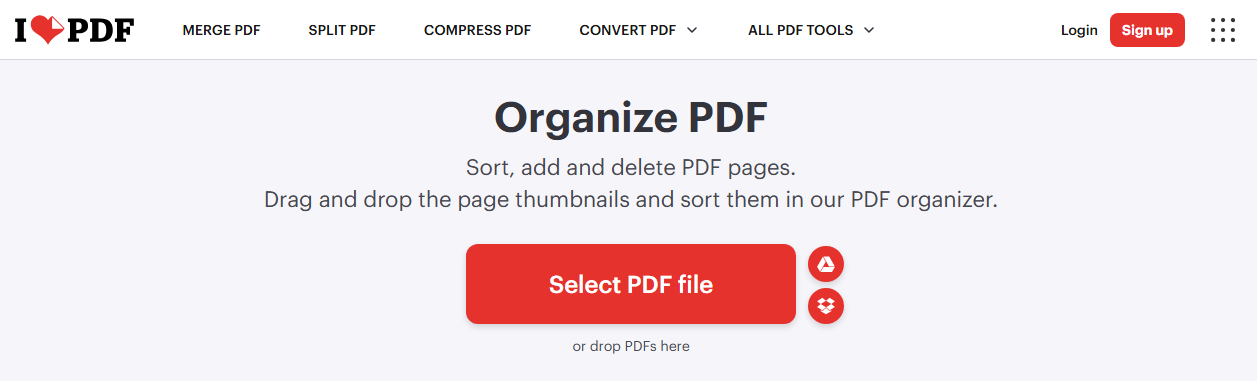
Step 3: Upload your PDF by clicking Select PDF file. Here you can also choose your file from Google Drive and Dropbox.
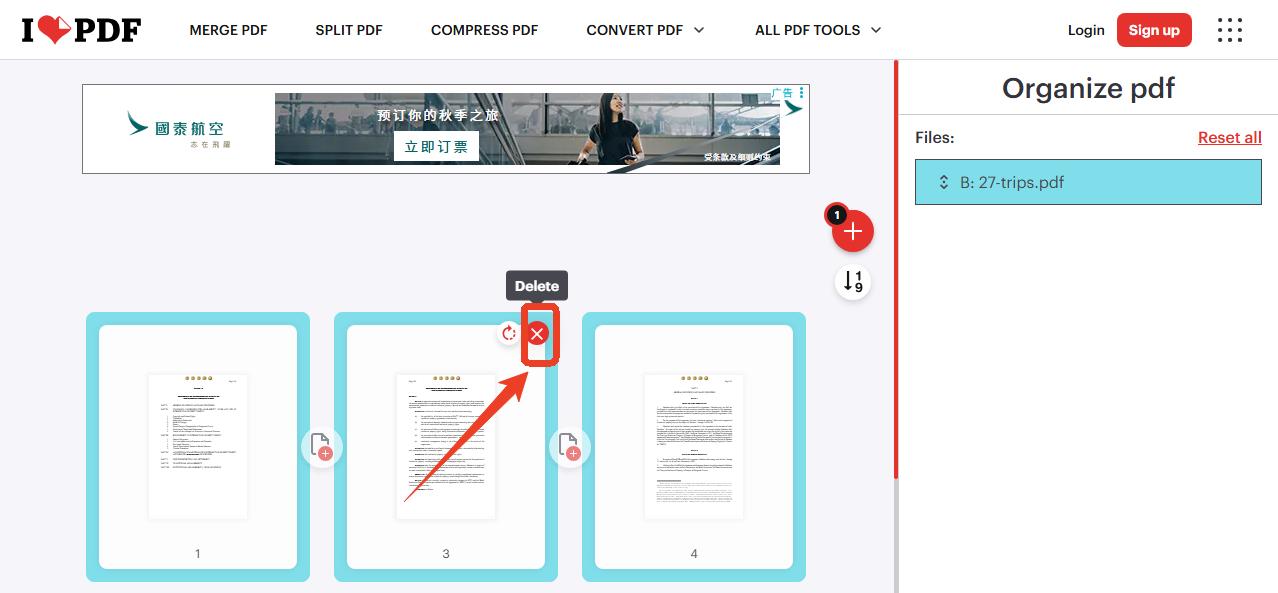
Once your file is uploaded, iLovePDF displays a thumbnail preview of every page. You can hover over any page to see a trash icon and a rotation icon appear.
Step 4: Click the trash icon on each PDF page you want to remove.
Step 5: After you delete all the PDF pages with iLovePDF online, click Organize and iLovePDF will automatically download the organized PDF.
How to Translate a PDF to Different Languages | iLovePDF Translate PDF
Learn how to use iLovePDF translate PDF tool online with AI. A comprehensive review to PDF translate AI and better iLovePDF alternative here.
READ MORE >Limitations of iLovePDF Delete Pages
The ilovePDF delete pages feature is convenient, but it's far from perfect. There are some limitations that you may face when removing PDF pages with iLovePDF.
-
File Size and Daily Caps: The free users of iLovePDF delete PDF pages tool face hard limits. iLovePDF restricts the file size you can upload and the number of operations you can perform per day.
-
Privacy Risks with Cloud Upload: For confidential contracts, legal filings, or medical records, it's a serious concern.
-
Internet Dependency: Online tools require a stable connection. If you're working remotely, traveling, or experiencing an outage, you simply cannot delete pages from PDF online.
-
No Batch Processing: iLovePDF can't remove pages from multiple PDFs simultaneously.
-
Limited Undo Capability: If you accidentally removed the wrong page and didn't keep a backup, you're out of luck. A desktop tool with local editing history provides more safety.
Better Alternative to iLovePDF Delete Pages Tool
Want to find a better alternative to iLovePDF Delete Pages tool? SwifDoo PDF is the answer. This desktop PDF page remover handles page deletion and much more, all without the compromises inherent in cloud-based services.
SwifDoo PDF is a full-featured PDF editor that includes robust page management tools. Whether you need to delete pages from PDF, extract specific pages, rotate orientations, or split large documents, SwifDoo handles it all locally on your computer.
Plus, SwifDoo allows you to delete multiple pages from PDF files in a single operation. It's a good choice for professionals who manage large document libraries. Besides, SwifDoo doesn't cap file sizes or daily operations. You can delete pages from PDF offline as many times as you need, on files of any size.
Just like iLovePDF, SwifDoo isn't just a page remover — it's a complete PDF suite. After deleting pages, you can edit text, add annotations, compress files, convert formats, and more, all within the same application. SwifDoo PDF also provides a broader page management toolkit that includes:
-
Page extraction: Save specific pages as a new PDF
-
Page insertion: Add blank pages or content from other files
-
Page splitting: Divide large PDFs into smaller chunks
-
Page merging: Combine multiple documents
How to Delete Pages with iLovePDF Alternative?
Follow the next steps to delete pages from PDF offline:
Step 1: Download and Install SwifDoo PDF.
Step 2: Launch SwifDoo PDF and click Open File from the home screen.
Step 3: Navigate to the Page tab in the top toolbar and click on individual page thumbnails to select them.
Step 4: Click the Delete button in the toolbar.
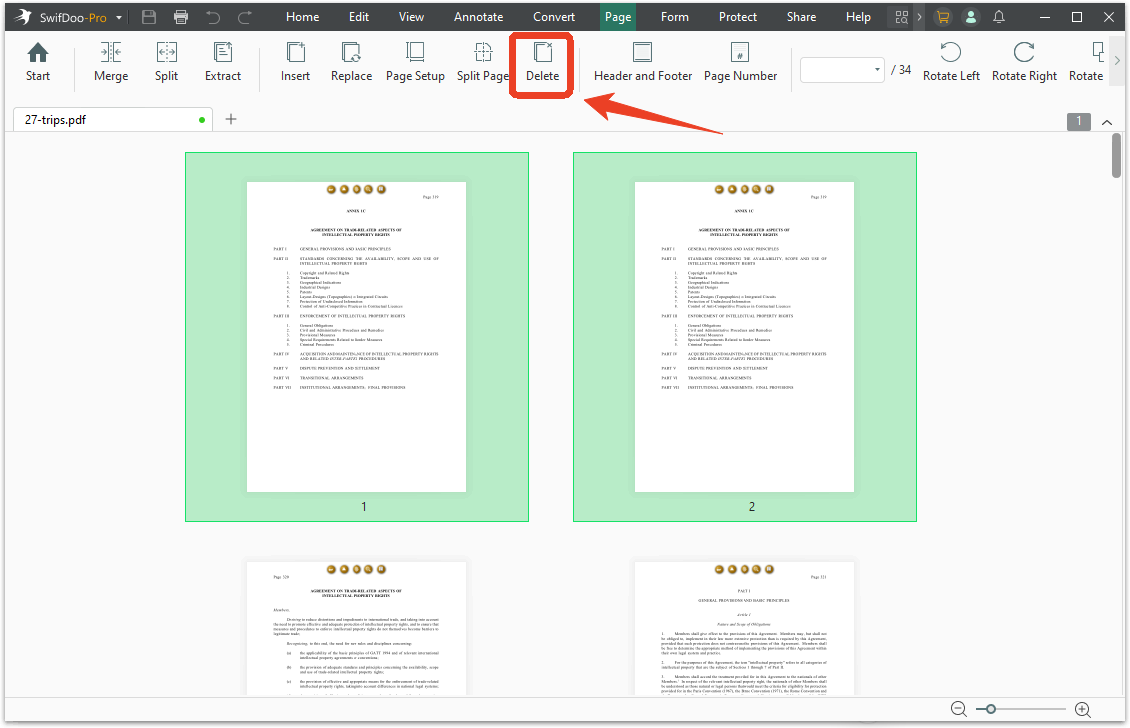
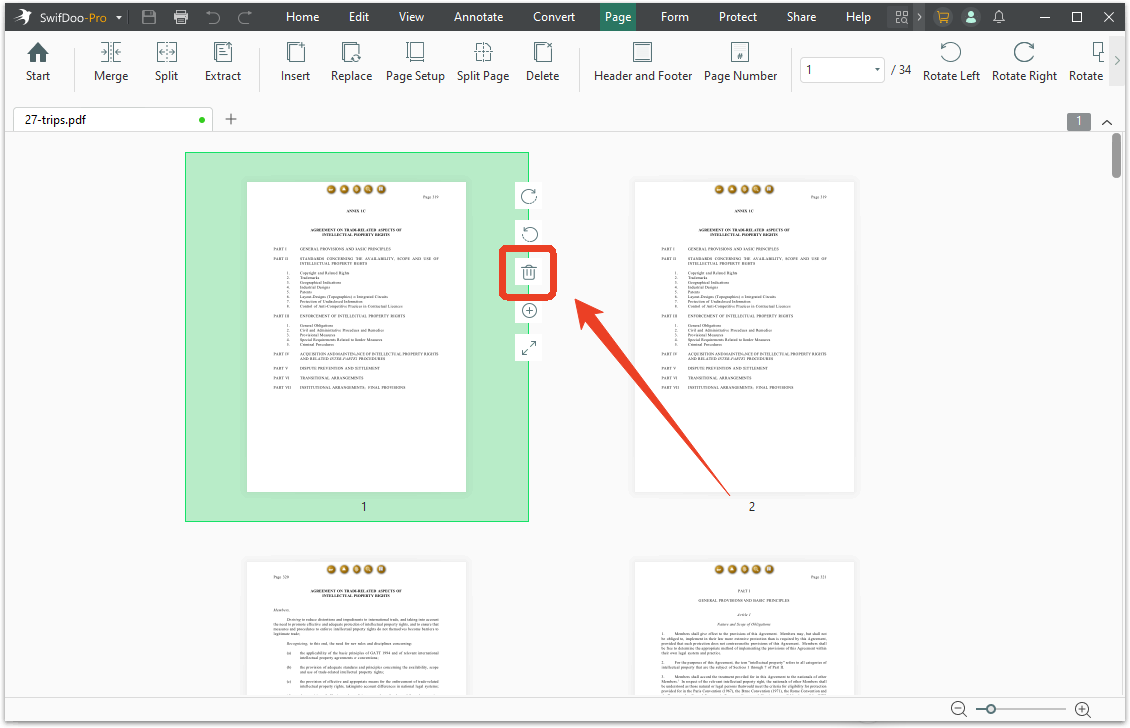
Alternatively, you can select one page thumbnail and click on the trash icon to remove the page.
Pro Tips for Efficient Page Deletion:
-
Use keyboard shortcuts: After selecting pages, press the Delete key for faster removal.
-
Keep backups: Use Save As to preserve the original document before making changes.
-
Batch process: Open multiple PDFs in SwifDoo and apply the same page deletion across all files.
-
Preview before saving: SwifDoo's thumbnail view makes it easy to verify your selections before committing.
Conclusion
The ilovePDF delete pages feature serves a purpose for quick, non-sensitive page deletions. It's free, accessible from any browser. For many casual users, that's enough. When you need to delete pages from PDF reliably, securely, and at scale, SwifDoo PDF is the clear winner. Hope this post is useful for you.


