


Part 1: Can Google Docs Make a Fillable PDF?
Can Google Docs create a fillable PDF? No. Google Docs does not have native form field tools. You cannot insert interactive form fields like text fields, checkboxes, or dropdown menus in Google Docs. What you can do is design the layout and export it as a static PDF.
However, a static PDF looks like a form but has no digital fields. A fillable PDF has fields you can click and type into. Google Docs produces the first, not the second. If you do really need to create a fillable PDF with Google Docs, there is another workaround – a Google Docs add-on.
Part 2: How to Make a Fillable PDF in Google Docs
If you want to stay inside Google Docs, add-ons are the only path. You need to install a Google Docs add-on, mark input areas with placeholders like {{Name}} or {{Date}}, and the add-on generates a version with form fields. Then you export Google Docs as a PDF.
The most cited option is Fillable Document, which is available in the Google Workspace Marketplace. It supports basic field types and can output a PDF with fillable elements. Let’s see how to work with it.
Step 1: Open your document in Google Docs and go to Extensions > Add-ons > Get add-ons.
Step 2: Search for "Fillable Document" and install it.
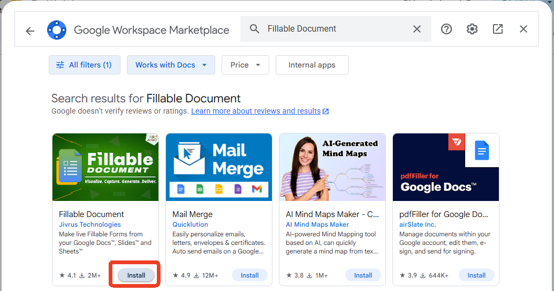
Step 3: Open the add-on and insert placeholders for each field.
Step 4: Assign field types (text, checkbox, dropdown) and generate the fillable form.
Step 5: Download or export as PDF.
How to Rotate Text in Google Docs: Easy Methods That Actually Work
Learn how to rotate text in Google Docs with step-by-step methods using the Drawing tool and flipping options. Plus, edit rotated text in PDFs with SwifDoo PDF.
READ MORE >Part 3: How to Build the Form Layout in Google Docs
Even without native form fields, Google Docs can produce a usable template. Here's how to set a PDF form up before exporting or converting.
#1. Use Tables for Structure
Tables are the cleanest way to organize a form layout:
- Insert a table with the number of rows and columns you need.
- Type labels in one column and leave blank cells for answers.
- Adjust borders to create visual text fields.
#2. Create Visual Input Areas
For simple forms, visual cues are enough. Here are the exact steps for each type of input area.
- Create a Text Line for Short Answers. To create a text line in Google Docs, hold Shift and press the underscore key (_) repeatedly to create a line. Aim for 15–25 underscores, depending on how much space you need.
The result looks like: Name: _______________________
- Insert a Checkbox or Dropdown for Multiple-Choice Options.
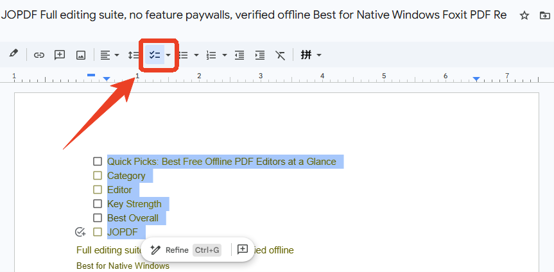
Click the Checklist icon on the top bar and type the first option next to the checkbox.
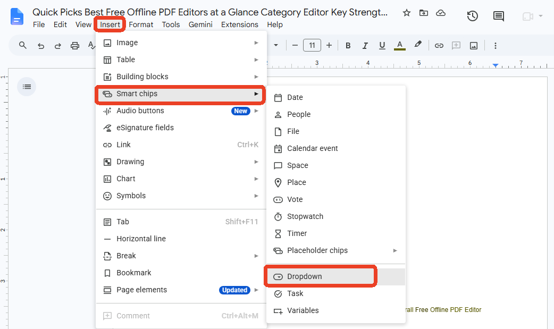
Alternatively, click Insert > Smart chips > Dropdown and type the options.
3. Once the layout is ready, go to File > Download > PDF Document (.pdf). Note that the result is a static PDF; there are no interactive form fields.
How to Download a Google Doc on iPhone (2026 Easy Guide)
How to download a Google Doc on iPhone? Discover simple export steps to save files as PDFs or move them directly to your local iOS storage app.
READ MORE >Part 4: Limitations of Fillable PDFs in Google Docs
As you can see, there are some limits to creating true interactive form fields because Google Docs wasn't built for form creation. For example,
- Unlike dedicated PDF form creation software, Google Docs cannot add interactive form fields.
- You must rely on third-party Google Docs extensions. Add-on reliability varies; some are abandoned, some break with Google updates, and some add watermarks.
- The exported PDF may not preserve fillable PDF functionality. Formatting can shift during conversion.
If you want a genuine fillable PDF from Google Docs, the next step is to open the exported file in SwifDoo PDF and add text fields, checkboxes, and dropdown menus there.
Part 5: How to Create Fillable PDFs with SwifDoo PDF
Instead of relying on add-ons to simulate form fields, SwifDoo PDF builds all the form functions natively — text fields, checkboxes that actually work when someone opens the file.
Key Form Features in SwifDoo PDF
- Text fields for names, dates, and short answers
- Checkboxes for multiple-choice selections
- Form field detection for existing PDFs that already have fields
- Flatten after filling to lock responses and prevent changes
- Cross-platform support: Windows, Mac, Linux, iOS, Android
- Offline processing: no uploads, no account, no watermarks
Step 1: Download and install SwifDoo PDF on your device.
Step 2: Open the PDF you exported from Google Docs or start with a blank document.
Step 3: In the Edit tab, click Insert Text to add a text box or edit the original text.
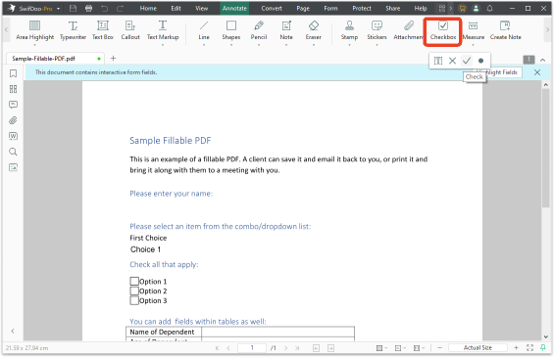
Step 4: In the Annotate tab, click Checkbox on the top menu to add a dropdown menu.
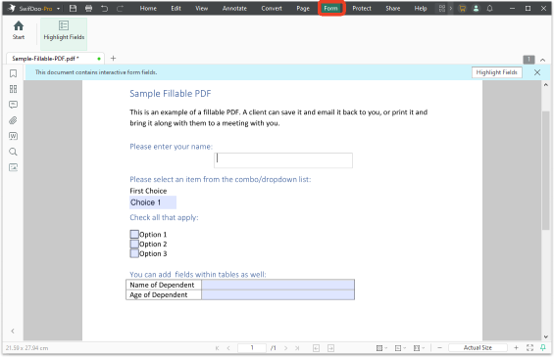
Step 5: In the Form tab, highlight the active fields and click or type on the form.
Conclusion
How to create a fillable PDF in Google Docs? The Google Docs add-on workaround can help create a PDF form, but it comes with limited form field support and offers no control over field properties.
To create a fillable PDF, SwifDoo PDF is a better choice. With this PDF filler, you can get text fields, checkboxes, and dropdown menus that work as real interactive elements. Ready to create a real fillable PDF? Download SwifDoo PDF for free and build your next form properly.


