


Why Scan Documents to PDF
Why choose PDF for scanned documents? Here are some primary reasons for scanning to PDF.
- PDF can maintain the original layout regardless of device or software.
- It supports OCR for searchable text.
- It enables compression without heavy quality loss.
- It can be secured with password protection and digital signatures.
Compared to images, PDFs are smaller for multi-page scans and more professional. How to scan to PDF on both PCs and phones? Let’s explore the following content.
How to Scan Documents to PDF on iPhone
If you are an iPhone or iPad user, you can scan to PDF without additional software. Apple devices have excellent built-in scanning via the Notes or Files app.
If you need additional advanced features for PDF files, you can also try third-party applications. The following PDF scanners can be your choice:
- SwifDoo PDF for iPhone
- Adobe Scan
- Microsoft Office Lens
If you only have the need to scan a document to a PDF file, the built-in features are enough. How to scan to PDF on iPhone? Here, I take the Notes app to show you the exact steps.
Step 1. Open the Notes app on your iPhone and tap Create to create a new note. Alternatively, you can open an existing note.
Step 2. Tap the paper clip icon in the toolbar and select the Scan Documents option from the list.
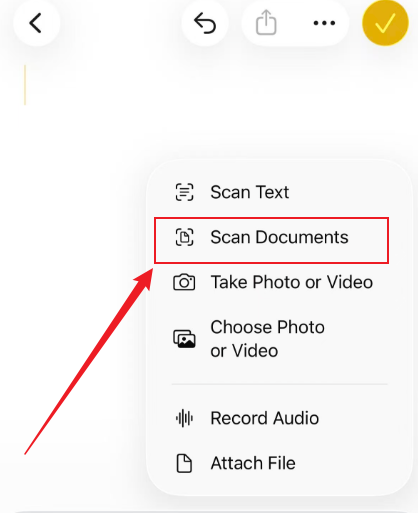
Step 3. Next, you can place the document on a flat and well-lit surface. Position the camera so the entire page fits in the viewfinder. In the Auto mode, the Notes app can automatically detect edges and scans. For manual control, hit the shutter button.
Step 4. Repeat the scanning process if you need to add more pages. Once you have scanned the whole document, tap the Save option to save the scanned file.
How to Scan to PDF on Android
How can you scan documents to PDF on Android? You can use the free Google Drive app for quick scans. For most Android users, Google Drive is pre-installed on their devices. You can use it to scan and upload paper documents via your device’s camera. Additionally, the Google Drive app enables you to view and edit PDFs, Office files, videos, and more.
In addition to Google Drive, other tools, like Adobe Scan, Microsoft Lens, CamScanner, and SwifDoo PDF for Android, can help you scan documents on Android.
Taking the Google Drive app as an example, let’s learn how to scan to PDF on Android.
Step 1. Launch the Google Drive app. If you don’t have this app installed, go to the Google Play Store to download and install it.
Step 2. Hit the plus icon in the lower right and tap the Scan icon.
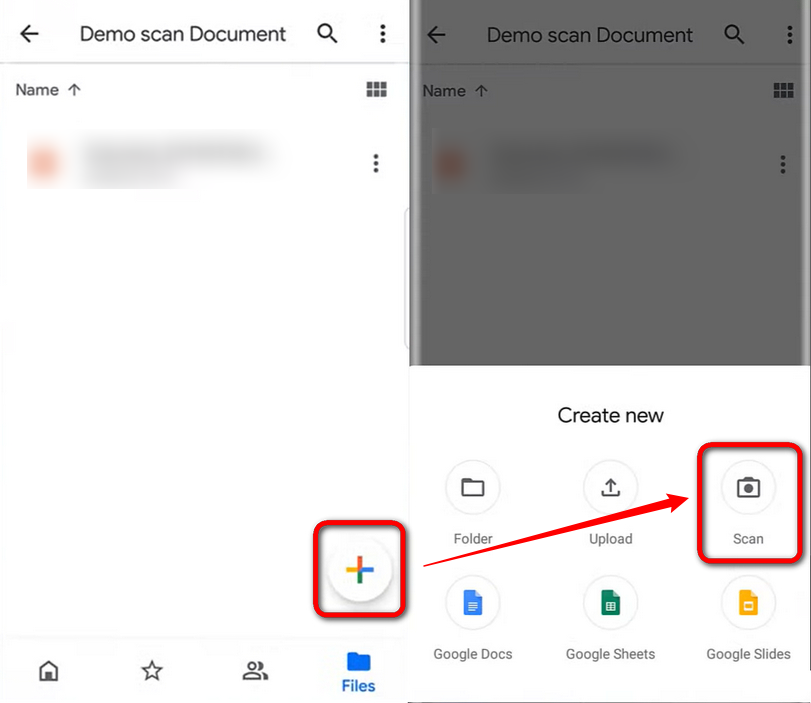
Step 3. Point your camera at the document and tap the shutter to capture. Optionally, you can crop or rotate the scanned page and apply filters.
Step 4. Tap the plus icon to add more pages. Once finished, tap the checkmark icon, give the file a name, and tap Save.
How to Scan Documents to PDF on Windows
For desktop users on Windows or Mac, you need a physical scanner or printer. Then, you can use Windows built-in tools or third-party PDF scanners. If your physical scanner or printer has its own scanning software, you can use it for scanning. For instance, you can use Canon IJ Scan Utility to scan from a Canon printer to a computer. Here, let’s learn how to scan to PDF on Windows PC.
Option 1. Use SwifDoo PDF
SwifDoo PDF is a full-featured PDF editor with a wide range of features. You can use it to create a PDF from a scanner, image, or file. In other words, you can use it to scan documents to PDF files. In addition, SwifDoo PDF has the OCR technology, which can make a scanned PDF searchable and editable. Refer to the steps below to scan a document to a PDF on Windows using SwifDoo PDF.
Step 1. Download and install this PDF scanner on your Windows PC.
Step 2. Launch SwifDoo PDF, click Create, and select From Scanner.
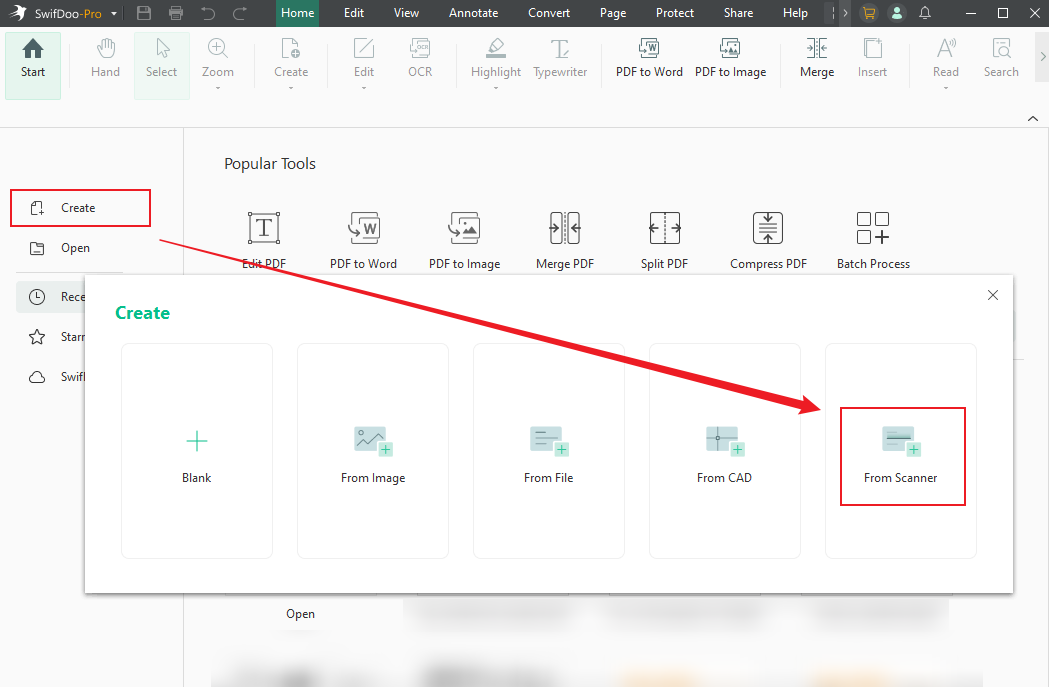
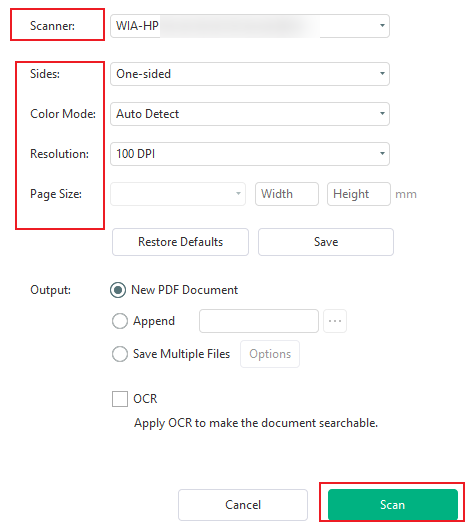
Step 3. Open the Scanner list and choose your physical scanner device, set the resolution/page size/sides, and customize other settings. Meanwhile, you can tick the OCR checkbox to make the document searchable. Then, click Scan to start scanning the file.
Option 2: Use Windows Built-in Tools
If you want to scan documents to PDF without installing software on Windows, the built-in tools, Windows Fax and Scan or Windows Scan, can be your choice. Below are the exact steps for your reference.
Step 1. In the Start search box, type in Windows Fax and Scan to find it.
Step 2. Then, click Open to run this program and click the New Scan option.
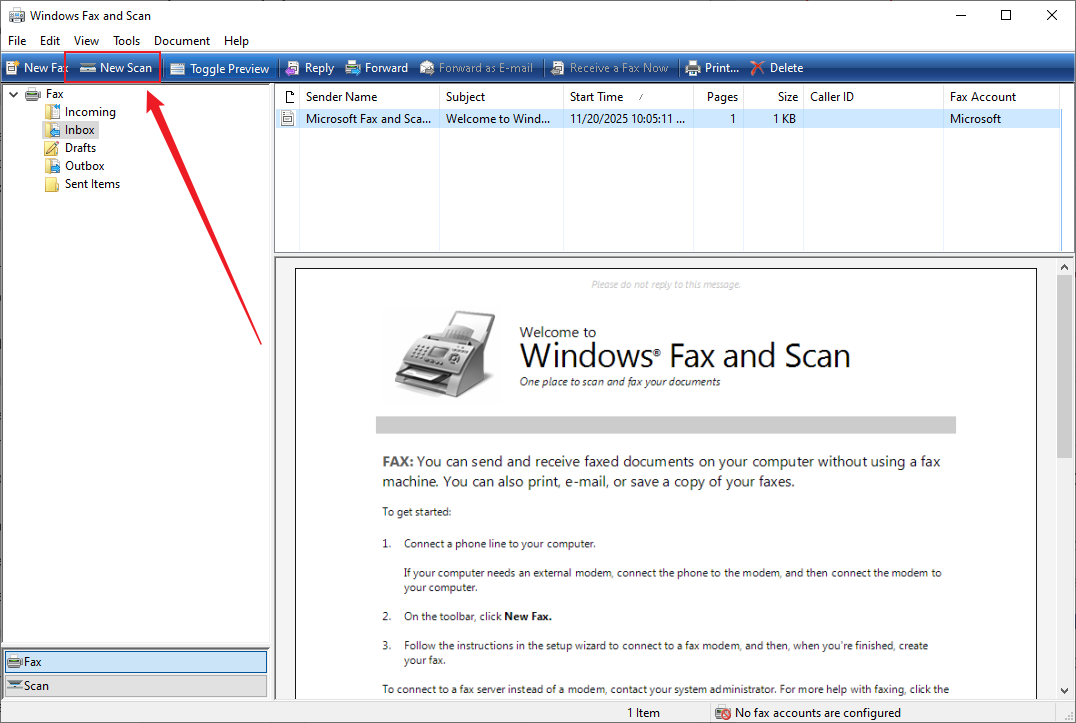
Step 3. Select your scanner, choose the document type, set the resolution, and file format to PDF.
Step 4. Next, click Preview to check alignment and adjust other settings if needed. At last, click Scan.
How to Scan Documents to PDF on Mac
How can you scan a document to a PDF on Mac? The built-in program, Preview, can help you complete the task. You can refer to the following step-by-step guide on how to scan to PDF on Mac with Preview.
Step 1. Launch Preview on your Mac. Meanwhile, make sure that the scanner is connected to your Mac.
Step 2. Click File and select the Import from Scanner option. Choose your scanner.
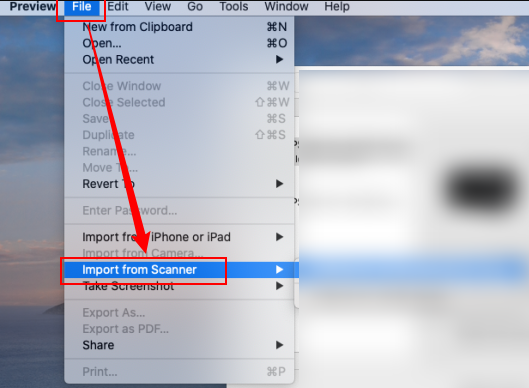
Step 3. Set format to PDF, choose the desired resolution, and adjust other settings.
Step 4. Finally, click Scan and save the document as a PDF.
Best Practices and Tips for High-Quality PDF Scans
To make your scanned PDFs look professional, I have summed up several tips for you.
- Use good lighting and keep documents flat.
- Adjust resolution: use 300 DPI for text with standard quality or 600 DPI for high-quality scans.
- Use OCR to make text searchable and editable.
If you want to share the scanned PDF via email, you can compress it to reduce the file size. Also, you can add passwords or redact sensitive information to secure the scanned PDF.
Conclusion
How to scan documents to PDF? Whether on iPhone, Android, Windows, or Mac, scanning documents to PDF is straightforward with built-in tools. For iPhone users, the Files and Notes apps are your options. Also, Android users can use the Google Drive app. In addition, third-party tools such as SwifDoo PDF for Android and iPhone and Adobe Scan are available.
For Windows users, you can use SwifDoo PDF to scan documents to PDF with OCR and use its editing features to modify the scanned PDF. If you are a Mac user, give Preview a try. Hopefully, this article can be helpful to you.



