



Why Is Adobe Acrobat Not Displaying Fillable Form Data
Adobe Acrobat may fail to display fillable form data for several reasons, such as incorrect field appearance settings, saving issues, PDF compatibility limitations, or problems with the form itself. Identifying the causes can help you choose the right fix. In this section, let’s explore and understand the potential causes.
- Incorrect form field appearance settings: A field may contain a value, but its text color, font size, background, or visibility settings make the value difficult or impossible to see.
- PDF form data not saved properly: The entered information may not have been saved to the file, or a saving problem may have prevented the latest changes from being retained.
- Outdated or incompatible Acrobat software: If your Adobe Acrobat or Adobe Acrobat Reader is outdated, it may prevent you from handling certain PDF features as expected.
- Problems with the PDF structure: A damaged file or missing form appearance information may prevent field values from rendering correctly.
What’s more, if you fill out a PDF form in an unsupported application, such as Apple Preview or MS Reader. You’d better use Adobe Acrobat or a reliable PDF form filler like SwifDoo PDF to fill out PDF forms.
Hence, you need to check whether the data is missing or simply invisible. If the values were never saved, changing their appearance will not restore them. If the values still exist but are not being rendered, adjusting the field settings or opening the document in a compatible viewer may resolve the problem.
Fix “PDF Fillable Form Not Displaying Field Data”
Fortunately, there are several solutions to resolve the problem before recreating the form. What you need to do first is to preserve the original PDF so that you don’t accidentally overwrite the only copy containing your form entries. If the fields remain blank, check the field properties, update your PDF software, and investigate whether the document uses a form technology that your PDF viewer doesn’t fully support. In the following content, let’s learn the 7 practical fixes one by one.
Fix 1. Save the PDF and Reopen It in Acrobat
If your PDF form fields appear blank after you fill them out, first determine whether the entered data was actually saved.
- Open the fillable PDF in Adobe Acrobat or Adobe Acrobat Reader.
- Enter information into a few test fields. Then select Save > Save As and save a separate copy under a new filename.
- Next, close the PDF completely and reopen the newly saved copy in Acrobat.
- Now, check whether the previously entered values are still visible.
If the values remain visible, the problem may have involved unsaved changes or the original file. If they disappear again, the PDF may have a form-saving, appearance, or compatibility problem.
Fix 2. Update Adobe Acrobat
An outdated PDF viewer may encounter problems with certain form features or document structures. In that case, updating Adobe Acrobat or Adobe Acrobat Reader is a reasonable troubleshooting step.
- Run Adobe Acrobat or Adobe Acrobat Reader.
- Select Menu > Help > Check for updates.
- Then it will check for updates. Next, follow the on-screen instructions to install any available updates.
- Restart Acrobat after the update, reopen the affected PDF, and check whether the form values appear.

Fix 3. Check Form Field Properties and Appearance Settings
If Adobe Acrobat contains the field values but displays them as blank, you need to inspect the field appearance settings. This fix is especially useful when you can click a field, select its content, or otherwise interact with it even though the text is not visible.
Note: Generally, editing field properties requires Adobe Acrobat Pro. Adobe Acrobat Reader, the free version of Acrobat, does not provide the same full form-editing tools.
Follow the steps below to inspect a field in Adobe Acrobat Pro:
- Open the target PDF form in Adobe Acrobat Pro.
- Click All tools and select Prepare a form.
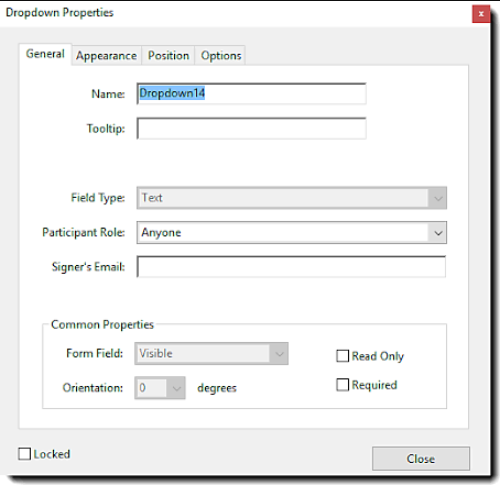
- Click the affected form field to select it and double-click it to open Properties. Go to the Appearance tab and check the text color, font size, and other appearance options. For instance, white text on a white field background can make a saved value appear missing.
- Next, go to the General tab and check the settings related to visibility and read-only behavior.
- Make only necessary changes, and then save a separate copy and reopen it to test the result.
Fix 4. Test the Fillable PDF in Another PDF Reader
A PDF form may work in one PDF viewer but fail in another because the applications do not support every interactive form feature in the same way. This is particularly relevant when a form contains dynamic content, scripts, or specialized field behavior. Then follow the instructions below to test whether Adobe Acrobat is responsible:
- First, you need to save the original PDF and create a backup copy.
- Then open the same PDF form in another reputable PDF reader that supports the form’s features. For instance, SwifDoo PDF is a good choice.
- Once you have imported the affected PDF in SwifDoo PDF, compare the affected fields and check whether the values appear. If the values appear, it means the PDF has no error. You need to return to Adobe Acrobat to investigate software compatibility, form appearance, and the document’s structure.
Fix 5. Re-enter the Data and Save a New Copy
If the PDF form data was never saved, you need to enter it again. This fix is appropriate when the fields are editable, but the previous entries are no longer present.
- Open the PDF and check whether the affected fields can still be edited. If the original entries are missing, look for another saved copy before re-entering everything.
- Then enter the missing information again.
- Next, click Save > Save As to save a new copy to your local folder. Finally, close the PDF, reopen the saved copy, and confirm that the values remain visible in the relevant fields.
If the values disappear immediately after saving, repeated data entry is unlikely to solve the underlying issue. Instead, you’d better investigate field properties, document compatibility, or possible file damage.
Fix 6. Print the PDF to Check Whether the Field Values Appear
Sometimes, PDF form data is visible on screen but missing from the printed document. This can indicate a printing configuration problem or a field appearance issue rather than missing data. Below are the exact steps to investigate:
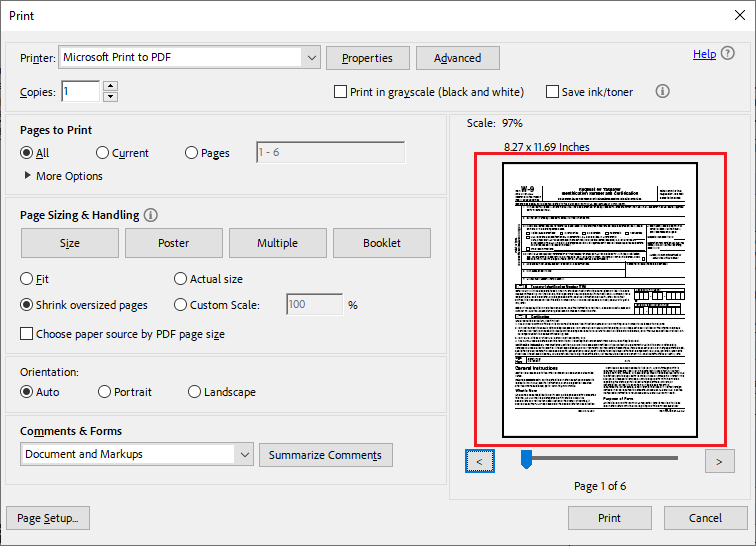
- Open the completed PDF form in Adobe Acrobat and press Ctrl + P to open the print dialog.
- Here, review the print preview and check whether the entered values are visible.
- If the preview shows the values but the printed pages do not, check the printer settings, print driver, and whether the problem occurs with another printer.
- If the values are already missing from the preview, return to the field appearance and compatibility checks.
Fix 7. Repair the PDF or Request a Fresh Copy
If none of the previous fixes work, the PDF may be damaged. You need to repair the PDF or request a fresh copy. Here, you can try the following options:
- Download the PDF again: If the PDF form came from a website or email, obtain another copy from the original source.
- Ask the form creator for a replacement: Request a fresh copy from the form creator. Meanwhile, he may be able to provide a corrected form.
- Use an appropriate PDF editing tool: A compatible PDF editor can help inspect the PDF form and correct supported form properties.
- Re-create the PDF form if you own it: If the form structure is broken and the values cannot be recovered, rebuilding the affected fields is necessary. You can use Adobe Acrobat Pro or another PDF form creator to create a fillable PDF again.
How to Fix Specific PDF Form Displaying Problems in Adobe Acrobat
Additionally, the appropriate solution also depends on when the form data disappears. The following cases can help you narrow down the troubleshooting process.
Adobe Acrobat Shows Blank Fields After Saving
If the fields display values while you are filling out the form but become blank after saving, first reopen the file and determine whether the entries were retained. If the values are missing, check for an earlier saved copy and investigate whether the saving process completed successfully. If the values remain stored but are invisible, inspect the field appearance settings and test the document in a compatible viewer.
PDF Form Data Is Visible on Screen but Missing When Printed
If values appear on the screen but disappear on paper, check the print preview first. If the preview is correct, investigate printer settings or the print driver. If the preview is also missing the values, inspect the form's field appearance and print settings.
Adobe Acrobat Displays Some Form Fields but Not Others
When only certain fields appear blank, the problem may be limited to those fields rather than the entire PDF. Check whether the affected fields have different text colors, font sizes, visibility settings, calculations, or JavaScript behavior. If you have Acrobat Pro, inspect the individual field properties through Prepare a form.
Final Words
Several factors can cause Adobe Acrobat to not display fillable field data. How to resolve the problem? When an Adobe Acrobat fillable form is not displaying field data, first determine whether the values were never saved or are simply invisible. Then update Adobe Acrobat if necessary and inspect the field appearance settings. In this article, I provide you with 7 practical fixes. Now, try them and resolve this problem.


