


Can You Change Paper Size in Canva Without Pro?
Yes, you can work around Canva's paid resizing feature, although the exact process depends on whether you are starting a new design or changing an existing one.
Canva's Resize feature lets eligible paid plans change a design's dimensions or create a resized copy. According to Canva's Help Center, access to this feature depends on your plan. If you use Canva Free, the Resize button may be unavailable or prompt you to upgrade. Canva's official resizing guide explains the feature and its plan requirements.
Even so, you can still adjust paper size in Canva for free. We have outlined methods for different situations.
How to Change Paper Size in Canva Without Pro
If you already have a Canva design and want to change its paper size for free, the simplest workaround is to create a new canvas with the desired dimensions and transfer your content.
Note that creating a new canvas is not the same as automatically resizing an existing design. When you move content to a different canvas, you may need to adjust text, images, spacing, and alignment manually.
Step 1: Open Canva and sign in to your account.
Step 2: Click Create in the left sidebar and click Custom size in the Create a design window.
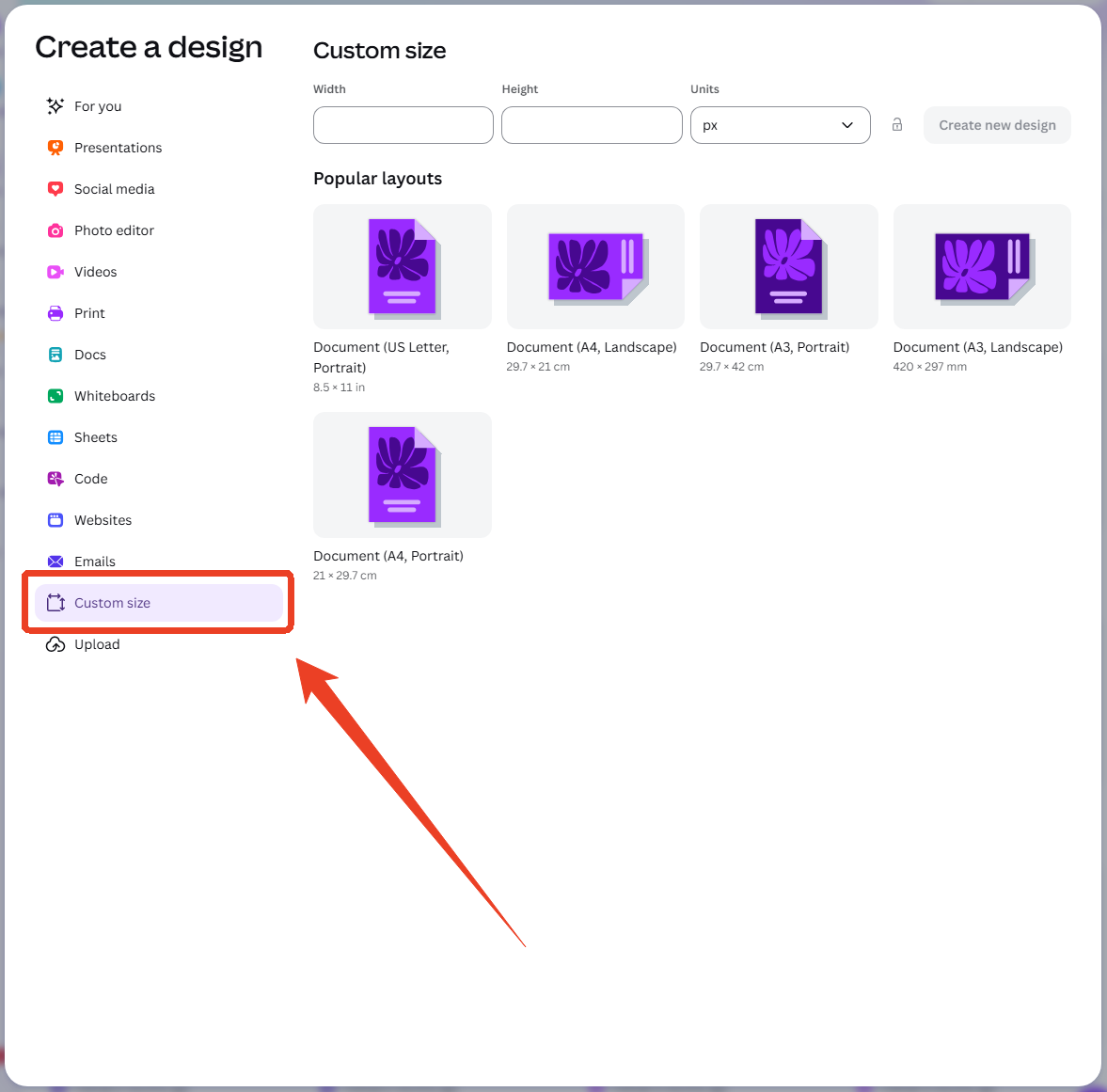
Step 3: Choose the unit you need, such as inches, millimeters, or pixels, if available, and enter the required width and height.
Step 4: Click Create new design and start adding your text, images, graphics, and other elements.

Step 5: Return to the original Canva project and copy and paste the elements you want to keep into the new design.
Step 6: A new canvas may have a different aspect ratio, so your original design might not fit perfectly. Review the following elements before exporting:
- Text: Resize text boxes and adjust font sizes if lines wrap differently.
- Images: Resize and reposition images without stretching them out of proportion.
- Spacing and margins: Keep the layout balanced and leave enough space around important content.
Step 7: When the layout looks right, click Share > Download.
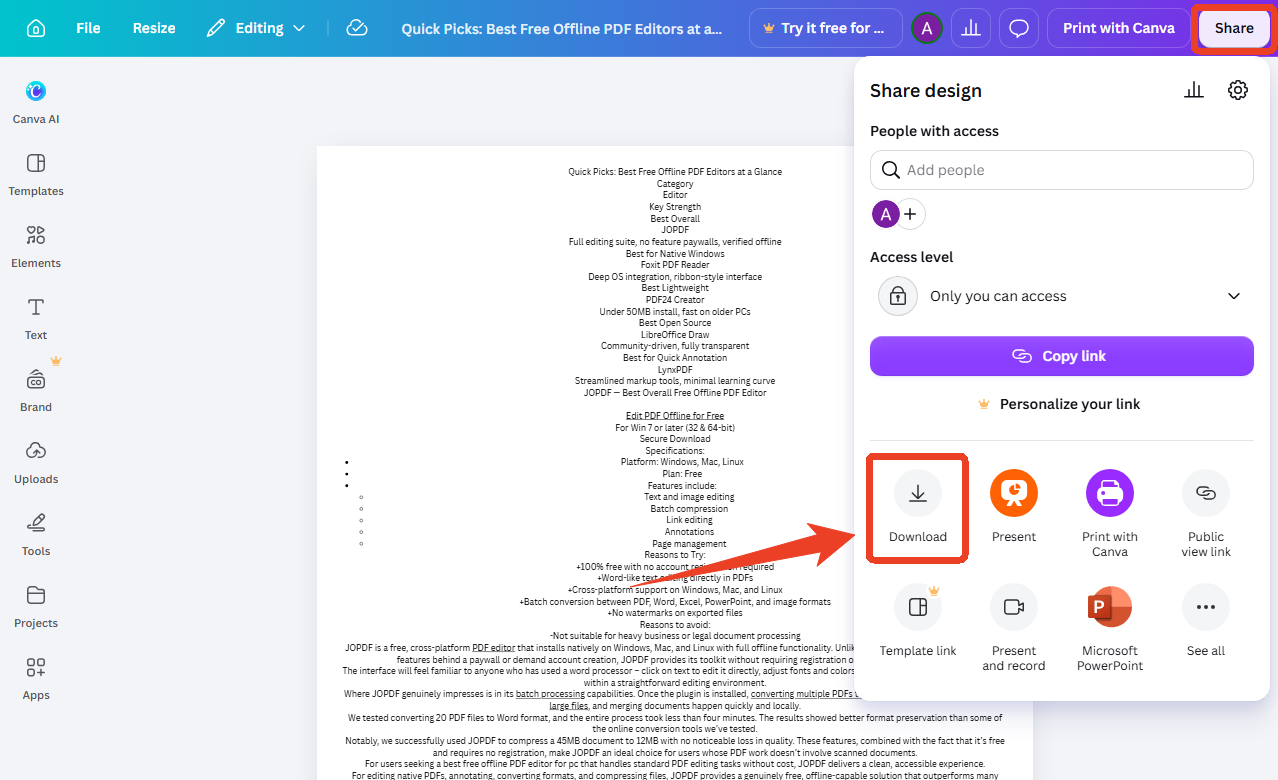
Step 8: For print-oriented documents, PDF Print is generally a useful choice when available. PDF Standard is often sufficient for digital sharing.
How to Change Canva PDF Paper Size After Downloading
If you have already downloaded your Canva design, you may not need to return to Canva and rebuild it. A PDF editor can help you adjust page dimensions or prepare the document for printing.
The right approach depends on what you need to change:
- Page dimensions: Change the PDF's actual page size to A4, Letter, or a custom size.
- Content placement: Crop unwanted edges or adjust the visible page area.
- Print output: Scale the content to fit the paper loaded in your printer.
Use SwifDoo PDF to Change PDF Page Size
SwifDoo PDF offers page-related editing and printing tools that can help you work with a PDF exported from Canva. If you need to change the document's page dimensions, see SwifDoo's guide to changing PDF page size.
Method 1: Use the PDF Crop Tool
Step 1: Open SwifDoo PDF and open the PDF in it.
Step 2: In the Edit tab, choose the Crop option.
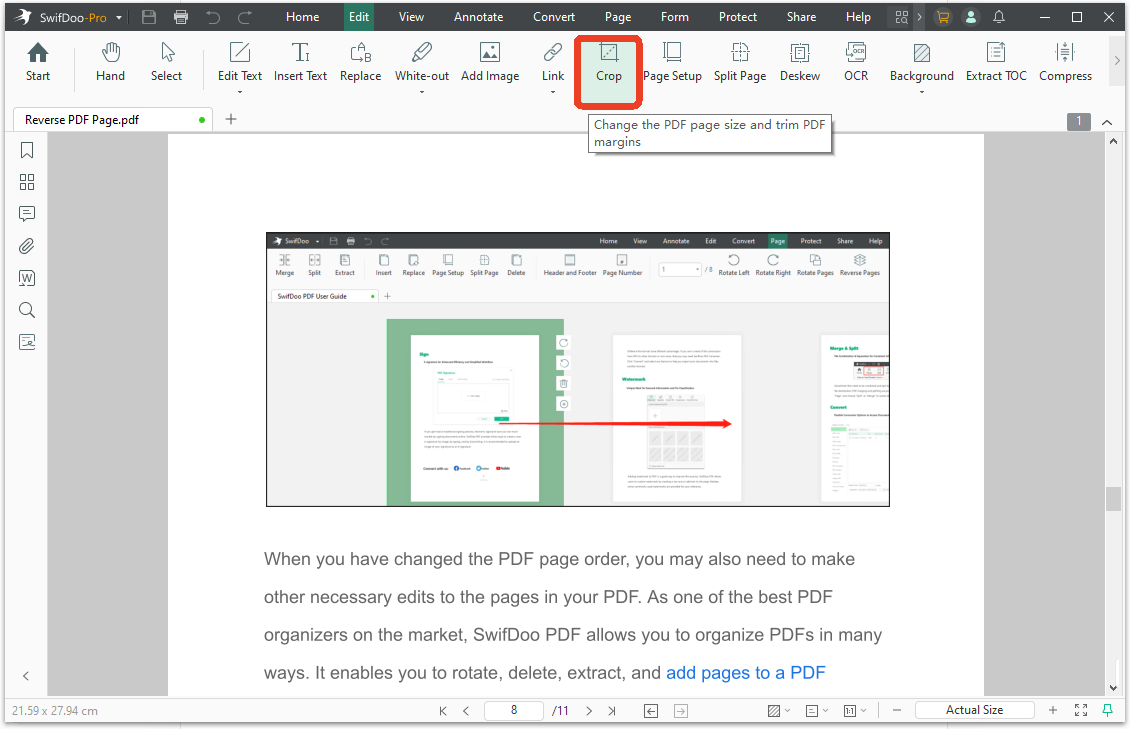
Step 3: You can drag the edges of the box to adjust the PDF page size; if you know the specific ratio size, click the Adjustments option and set the units and margins.
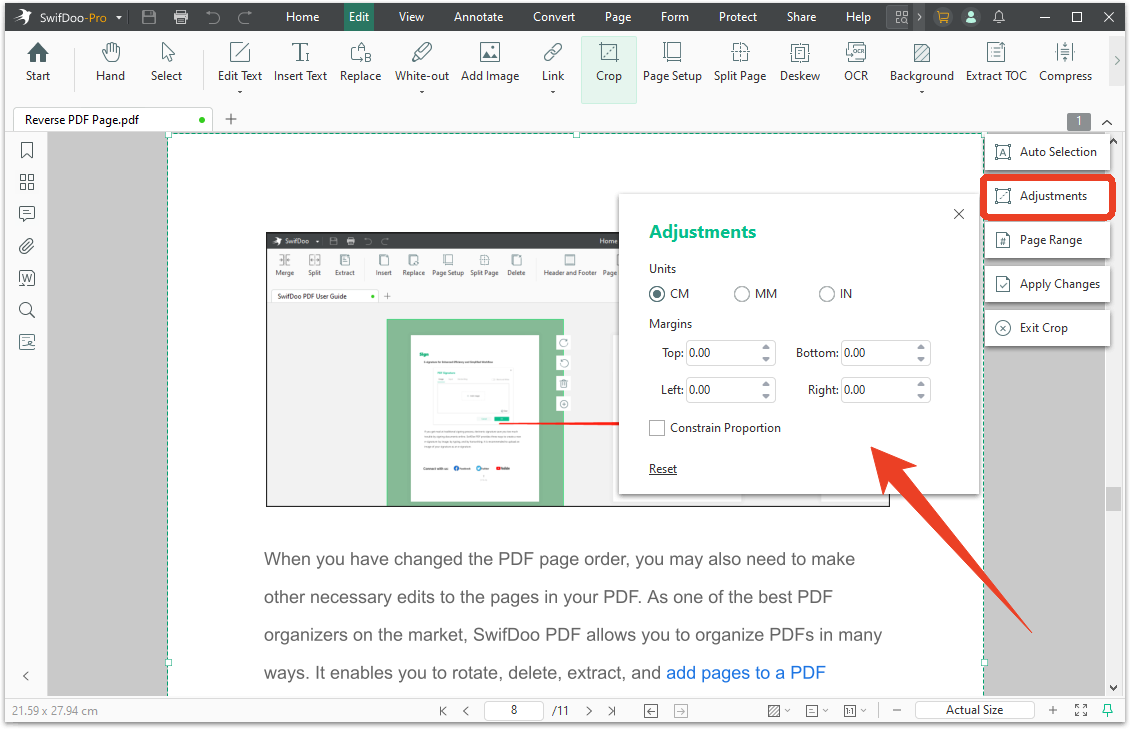
Step 4: Apply the changes to the required pages and save the file.
Method 2: Use the Page Setup Tool
Step 1: Open the PDF in SwifDoo PDF and go to the Page tab.
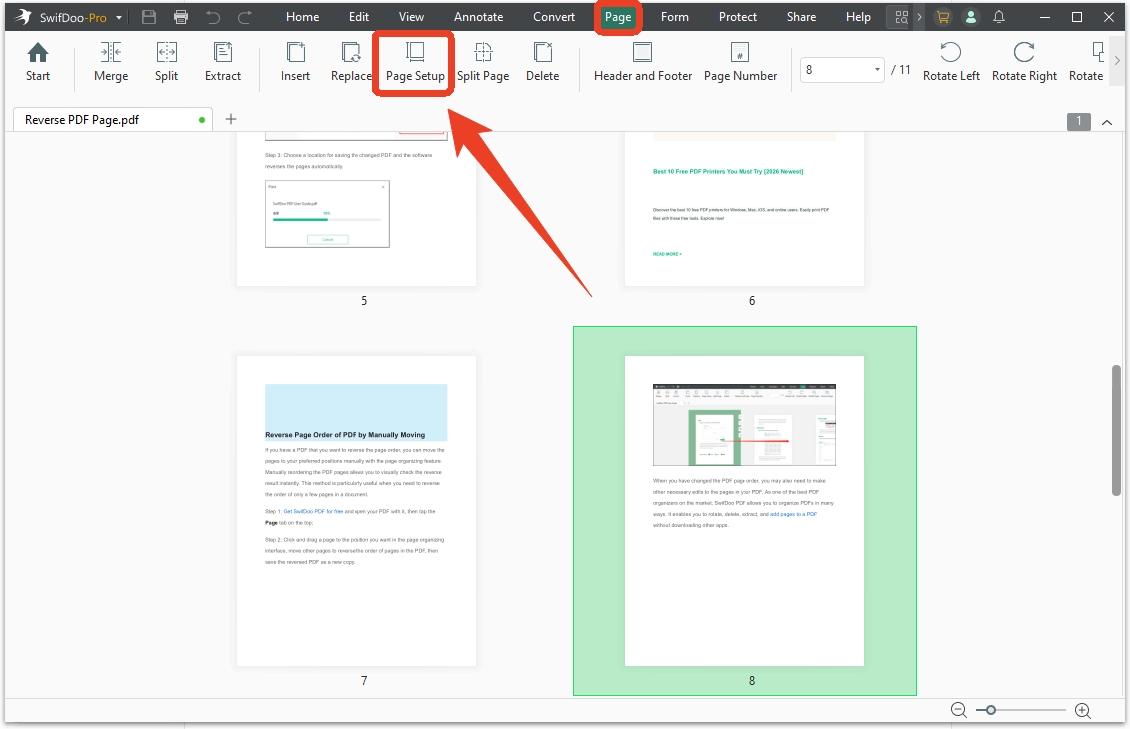
Step 2: Choose the Page Setup option and choose from the Standard Size options or set the custom page size. Click OK to apply it.
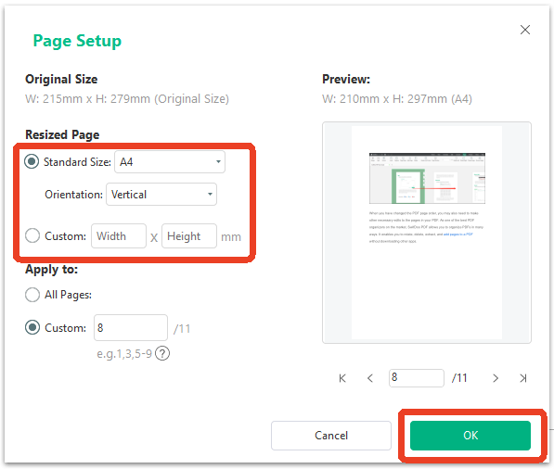
Method 3: Adjust PDF Paper Size for Printing
Step 1: Open the PDF and click the Print icon from the top menu bar.
Step 2: In the Print page, choose the paper size under Paper Sizing and Orientation.
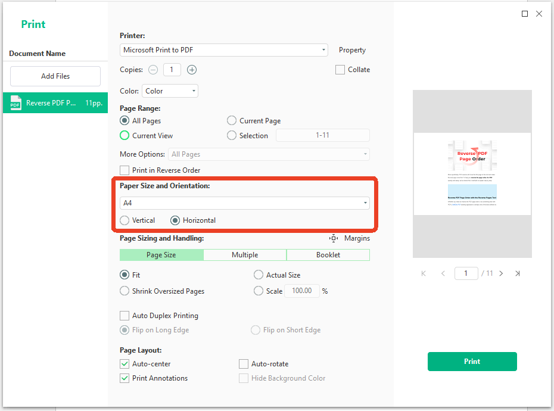
Step 3: Choose Microsoft Print to PDF as the printer device and click Print.
Final Words
You do not necessarily need Canva Pro to adjust the paper size in Canva. Here are two major methods: For a new project, create a canvas with custom dimensions when available. For an existing design, copy its elements into a new canvas and adjust the layout manually.
If you have already downloaded the file, a PDF editor such as SwifDoo PDF can help you adjust page dimensions, crop unwanted edges, or prepare the document for printing. Choosing the correct paper size early and checking the exported PDF before printing can save time and prevent unnecessary rework.


