


How to Rotate Text in Google Docs Using the Drawing Tool
The Drawing tool is the most versatile way to help Google Docs rotate text. It lets you rotate text to any angle, format it completely, and place it anywhere on your page. This method also lets Google Docs rotate text box, since the Drawing tool creates a movable, rotatable container for your words.
Best for: Rotating text to any angle, creating design elements, making text overlap with images, and any scenario where you need precise rotation control. If you need to angle text in Google Docs at custom degrees, this is your only built-in option.
Limitations: The rotated text becomes a drawing object rather than regular document text. Other collaborators can't edit it directly in the document body; they need to double-click to open the Drawing editor. The Google Docs text rotation approach works best for small amounts of text like titles, labels, and design accents.
Step 1: Open the Drawing Tool
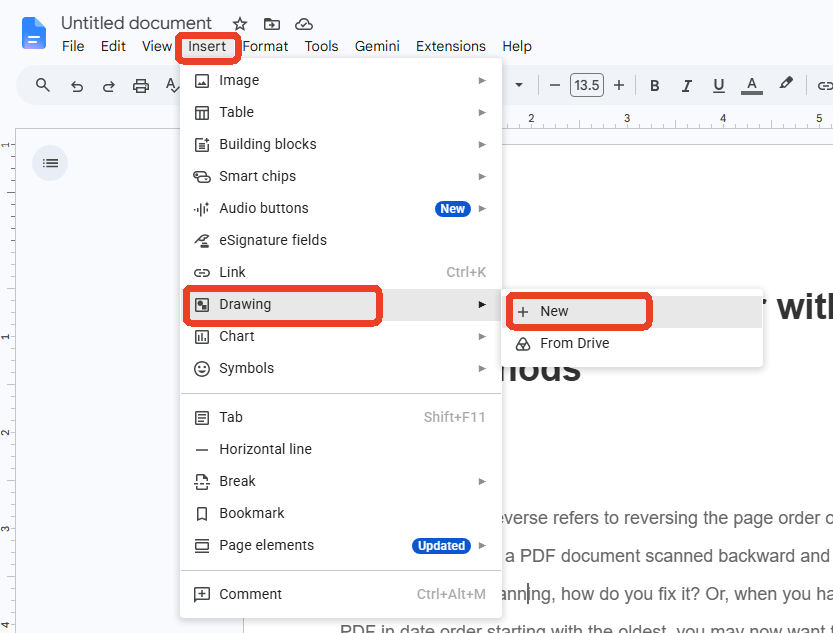
Click Insert in the top menu bar, hover over Drawing, and select + New. A drawing canvas window pops up over your document.
Step 2: Create a Text Box
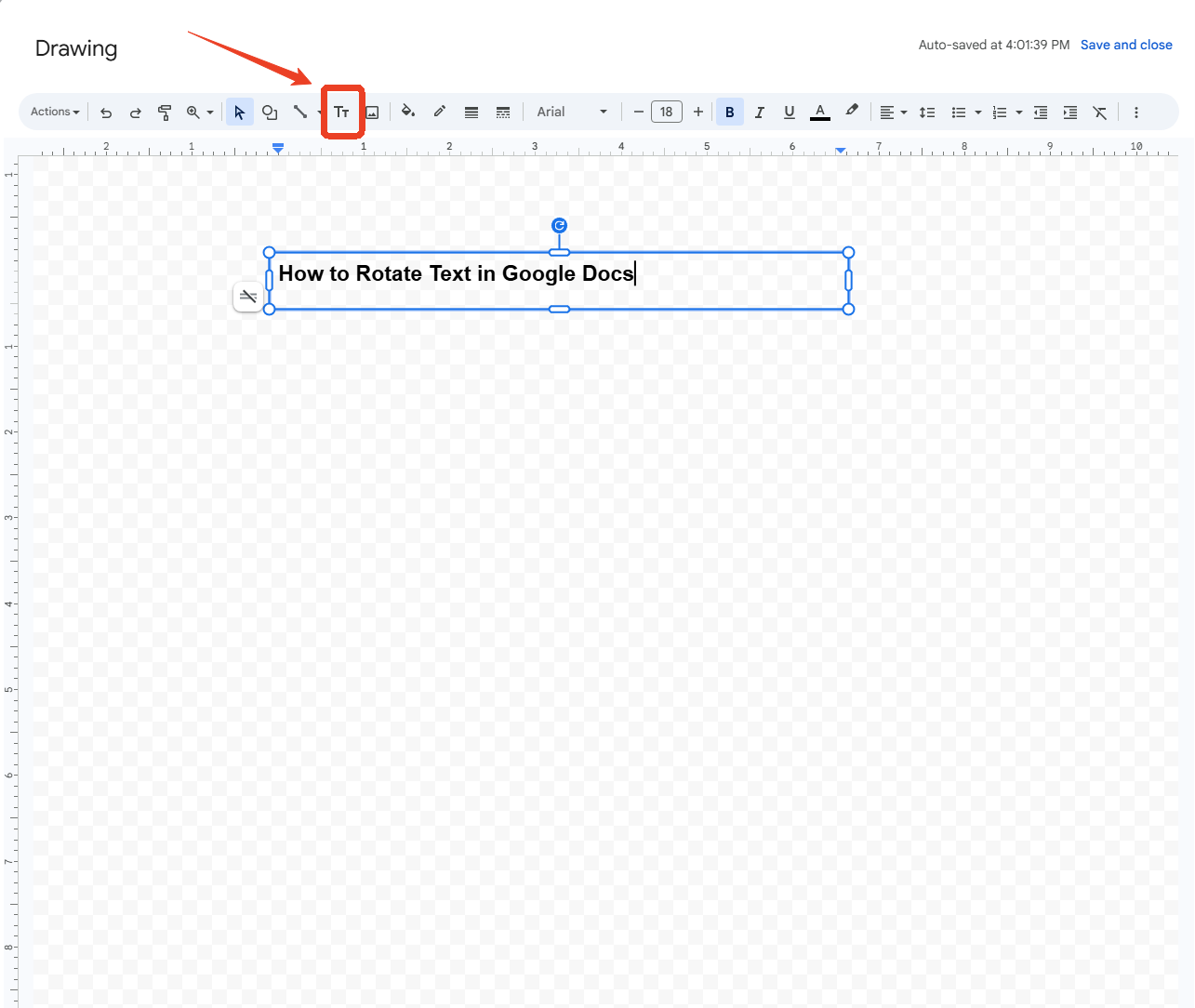
In the Drawing toolbar, click the text box icon; it looks like a T inside a square. Click and drag on the canvas to draw a text box. Type the text you want to rotate into the box.
Step 3: Rotate the Text Box
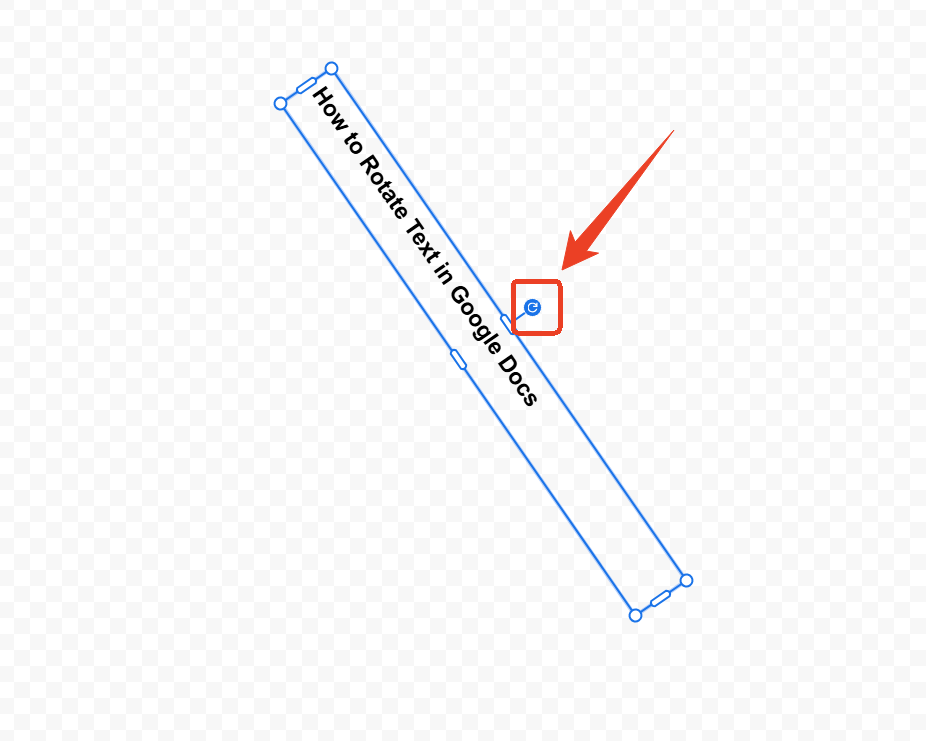
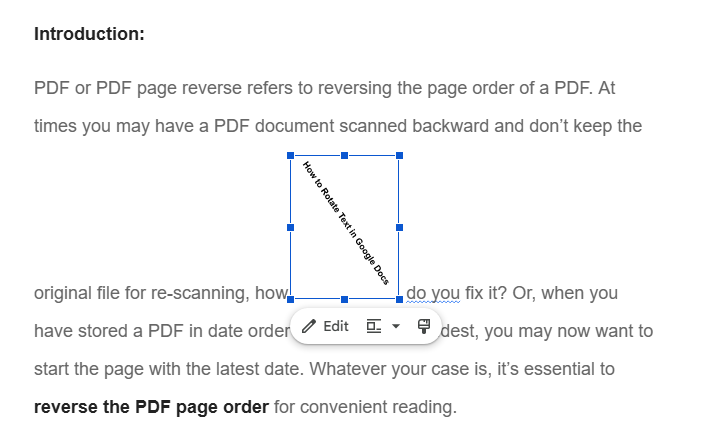
Click on the text box's border so the blue resize handles appear. Look for the small circle at the top center of the box. Click and drag to rotate the text to any angle you want. Hold the Shift key while dragging to snap to 15-degree increments, which is useful for precise horizontal or vertical alignment. This is the core of how to rotate text in Google Docs using the Drawing method.
Step 4: Save and Insert
Click the blue "Save and Close" button in the upper-right corner. The rotated text appears in your document as an image-like element. You can click and drag it to reposition, or use the resize handles to adjust its size.
More techniques about how to use Google Docs show in these articles:
When Google Docs Text Rotation Isn't Enough – Try SwifDoo PDF
Google Docs handles text rotation for online documents well enough. The Drawing tool rotates to any angle. Tables stack text vertically. But the moment your document becomes a PDF, Google Docs loses all ability to edit text orientation.
SwifDoo PDF is a Windows desktop PDF editor that picks up where Google Docs leaves off. It handles page rotation directly inside PDF files and allows you to edit PDF text content.
Step 1: Download and install SwifDoo PDF and launch it.
Step 2: Open your file from SwifDoo PDF and locate the page you want to rotate.
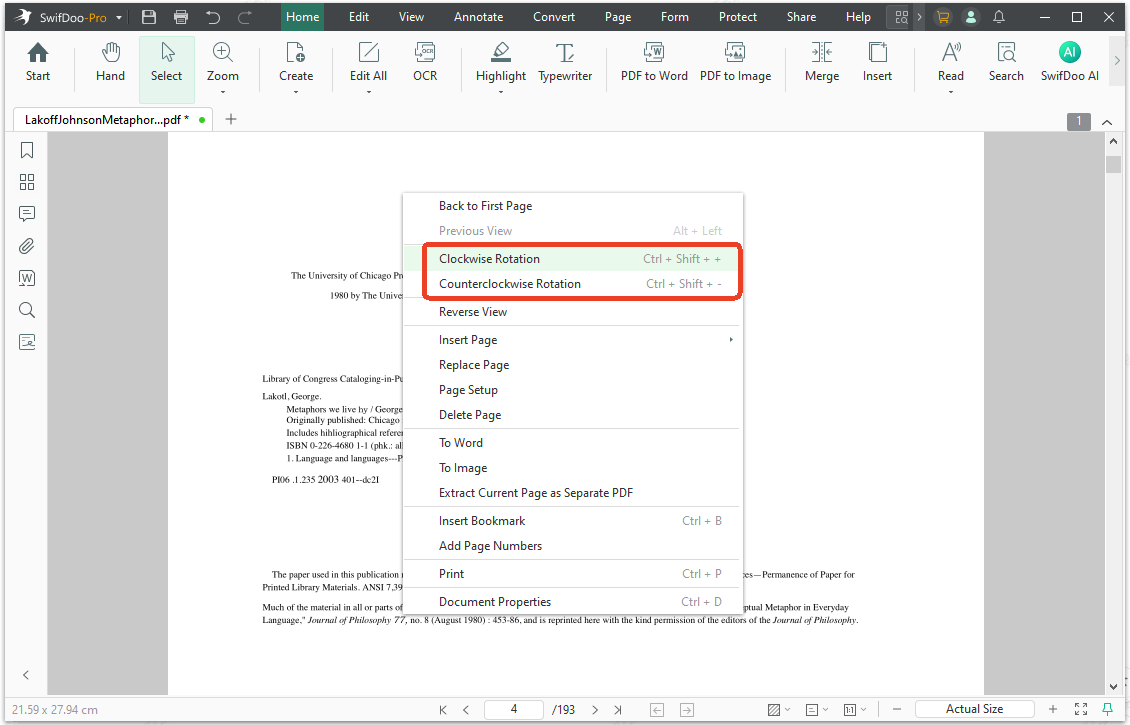
Step 3: Right-click on it and choose Clockwise Rotation or Counterclockwise Rotation from the drop-down menu.
-
OCR for scanned documents: SwifDoo PDF's OCR engine recognizes text in multiple languages and converts it into real, editable characters. Once OCR processes the scan, you can select the text and rotate it freely.
-
Complete PDF text editing: Beyond rotation, SwifDoo PDF serves as a full PDF text editor. Change fonts, sizes, and colors. Adjust line spacing and alignment. Add new text anywhere on a page. Delete unwanted text entirely.
![[FREE] How to Rotate a PDF in Google Drive in 2026](https://img.swifdoo.com/image/1496443455243558912.png)
[FREE] How to Rotate a PDF in Google Drive in 2026
If you are looking for how to rotate a PDF in Google Drive for free, this post is the right one. Click to learn how to change the orientation of a PDF easily.
READ MORE >Final Verdict
How to rotate text in Google Docs? As we introduced above, the Drawing tool gives you complete controll - rotate to any angle, format precisely, and place text anywhere on the page. The limitations only appear when your document leaves Google Docs. PDFs with rotated text need a PDF editor. SwifDoo PDF can rotate PDF seamlessly.
Start your document in Google Docs with the rotation methods above. When it needs to become a polished, editable PDF, SwifDoo PDF finishes the job.


