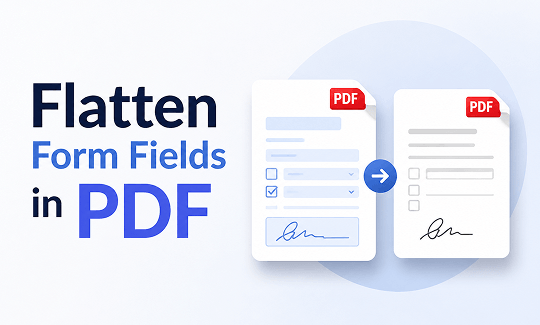
1. Flatten Form Fields in PDF with SwifDoo PDF
If you want a safe and easy way to handle your documents, SwifDoo PDF is a great choice. Many people consider it the best PDF editor for Windows because it is very simple to use, even if you have no technical skills.
SwifDoo PDF allows you to lock your forms in just a few clicks. You can also use this software to easily print PDFs right after you finish working on them.
Here is how to use it step by step:
- First, download and open SwifDoo PDF on your computer. Then, open the PDF form that you have already filled out.
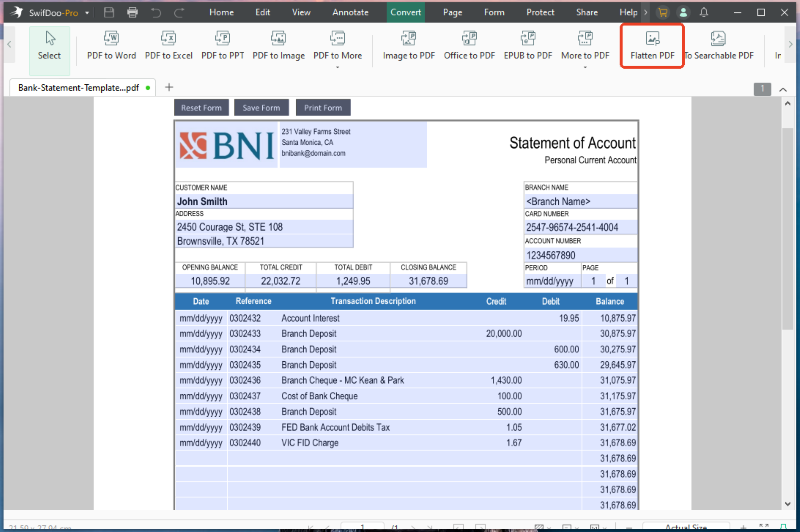
- Look at the menu bar at the top of the screen. Find the Flatten PDF option and click on it.
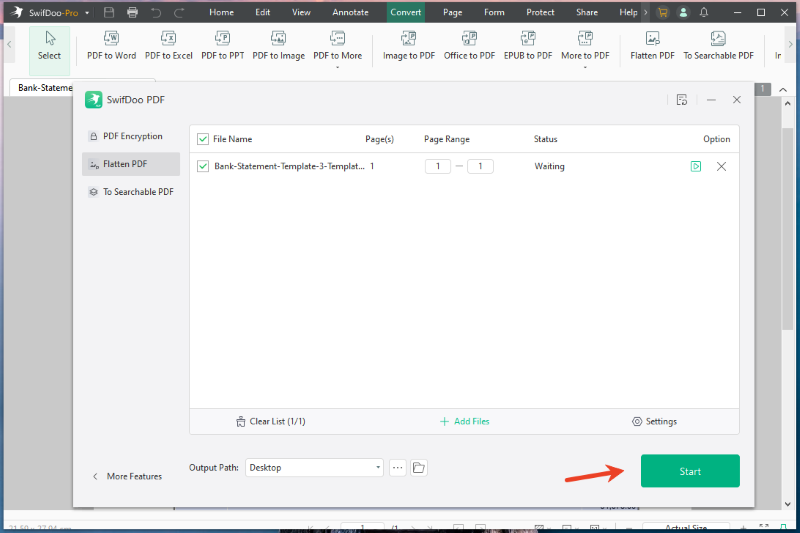
- A new window might pop up. Please select an output path and click Start. The software will instantly merge your typed words into the page background.
SwifDoo PDF is not just for locking forms. It offers many other amazing PDF editing features. You can use it to edit text, add new pictures, or combine multiple pages together. If you want a tool that does everything, you should definitely download SwifDoo PDF and try it for free today.
2. Flatten Form Fields in PDF with Online Tool
Sometimes you might be in a hurry. You might be using a public computer or a device where you cannot install new software. In this case, you can use a website to do the work for you. Smallpdf is a very popular website that lets you flatten a PDF online without downloading anything.
Here is how to use this online tool:
- Open your web browser and go to the Smallpdf website. Look for their tool designed to edit or flatten PDFs.
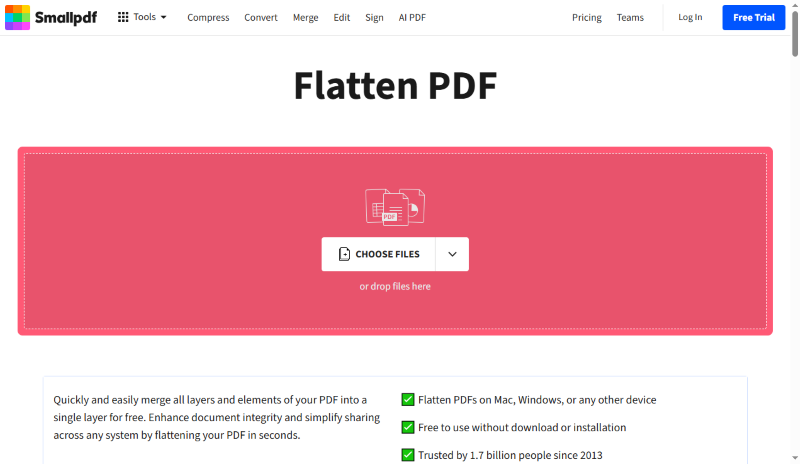
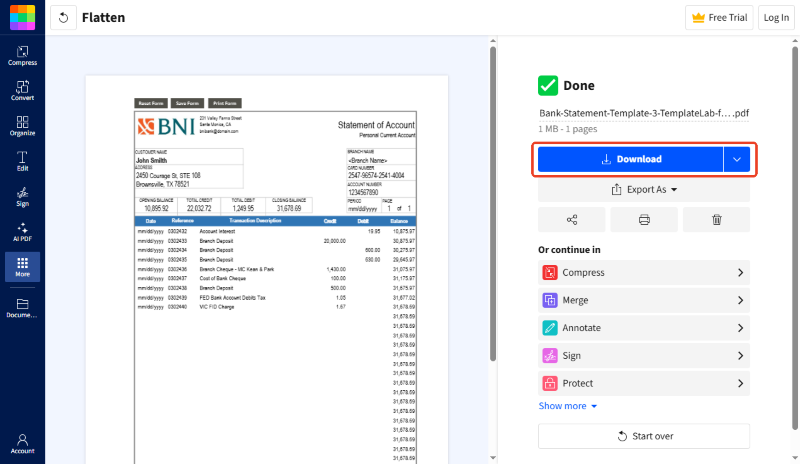
- You will see a big box on the screen. You can click it to choose your filled PDF file, or you can just drag your file and drop it into the box.
- Wait for a while and download the locked file directly to your computer.
3. Flatten Form Fields in PDF with Print Feature
There is a clever trick you can use if you do not want to use any special tools or websites. You can use the printing tool that is already built into your computer. Many people ask how to flatten form fields in PDF so that they will print properly on real paper. This built-in trick actually solves both problems at once.
When you use the "Print to PDF" trick, your computer pretends to print the file, but it actually saves a new, locked copy instead.
Here are the simple steps to do this:
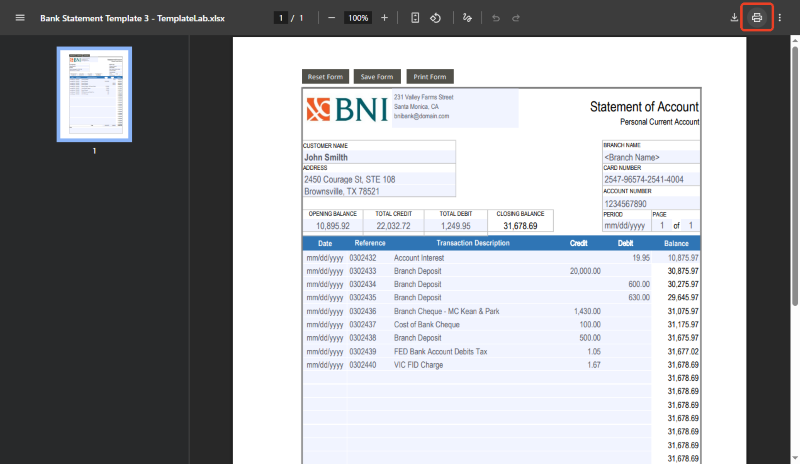
- Find your filled PDF form on your computer. Right-click on it and choose to open it with your normal web browser, like Google Chrome or Microsoft Edge.
- Look for the small printer icon on the screen and click it. You can also press Ctrl and P on your keyboard at the same time (or Cmd and P if you use a Mac).
- A print menu will pop up. Look for the box that shows the name of your real home printer. Click that box and change it to "Save as PDF" or "Microsoft Print to PDF".
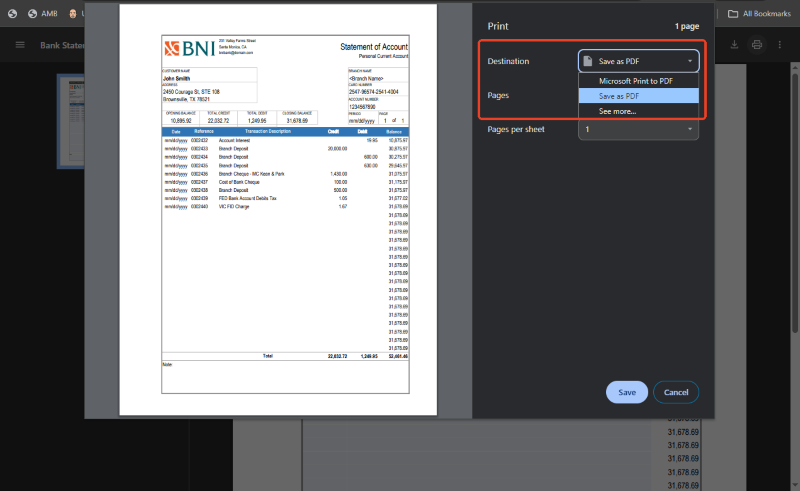
- Click the Save or Print button at the bottom. Your computer will ask you where you want to save the new file. Choose a folder, and you are done!
Conclusion
That’s all about how to flatten form fields in PDF. Locking your forms is a very smart way to keep your personal information safe. Once a file is flattened, nobody can accidentally delete or change your typed answers.
While you can use a website or the clever print trick on your computer, a professional program like SwifDoo PDF is often the safest and most reliable choice. It gives you all the tools you need in one place. Try these simple methods today to keep your documents secure.