


Core Solution Summary for Google Docs Download
Because the mobile Google Docs app does not feature a simple "Download" button, saving Google Doc files locally on an iOS device requires using the built-in export menu:
-
To download a Google Doc on iPhone: Open your document, tap the three dots icon (...), select Share & export, choose Send a copy, select the PDF or Word (.docx) format, and tap Save to Files.
-
The Mobile Editing Tip: Once you transfer your files to your phone, iOS cannot natively modify or sign a PDF. You can open your freshly downloaded document inside the mobile SwifDoo PDF app to edit text, fill out forms, or insert a secure electronic signature completely offline.
How to Convert PDF to Google Docs | 3 Simple Methods
Converting your PDF to Google Docs is conducive to online collaboration. Follow our guide to figure out how to convert PDF to Google Docs with ease.
READ MORE >How to Download a Google Doc to Files on iPhone (PDF or Word)
Method 1: Save Google Docs to Word Files on iPhone
If you want a copy of your document that you can move, share, or open in other apps, you need to download a Google Doc to files on your iPhone. This method works for saving your document as a Word file (.docx).
Steps to save Google Docs to files on iPhone:
Step 1: Open the Google Docs app on your iPhone and locate the Google Doc you want to download.
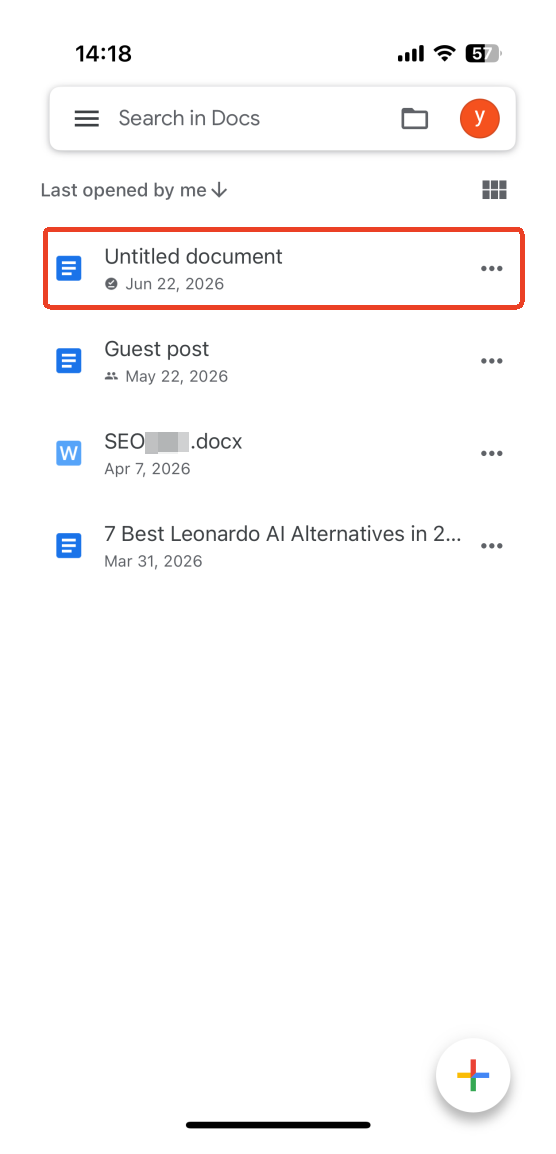
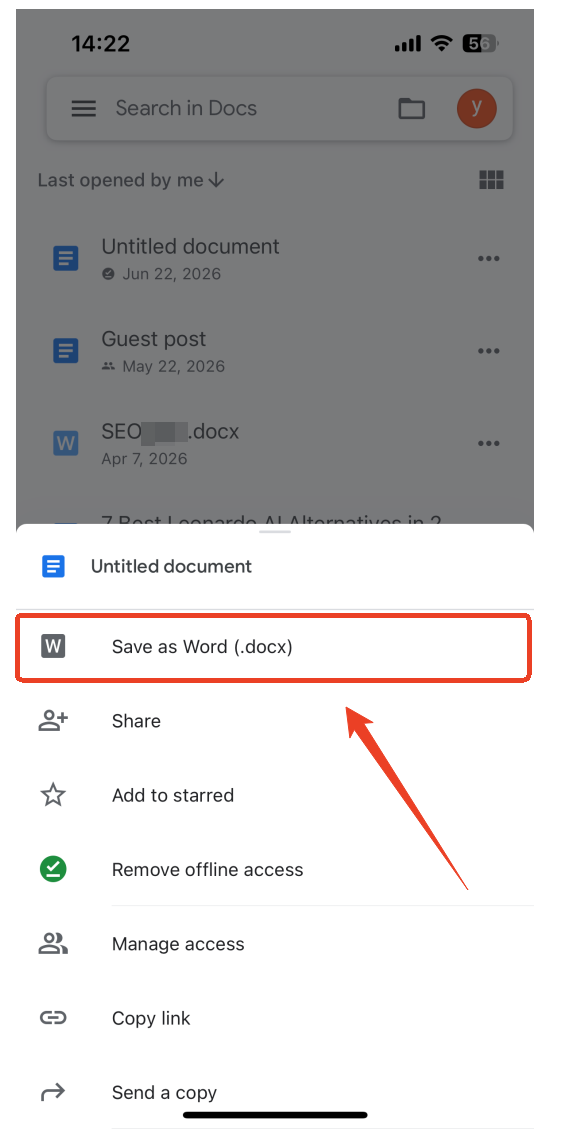
Step 2: Tap the three-dot button next to the Google Doc document.
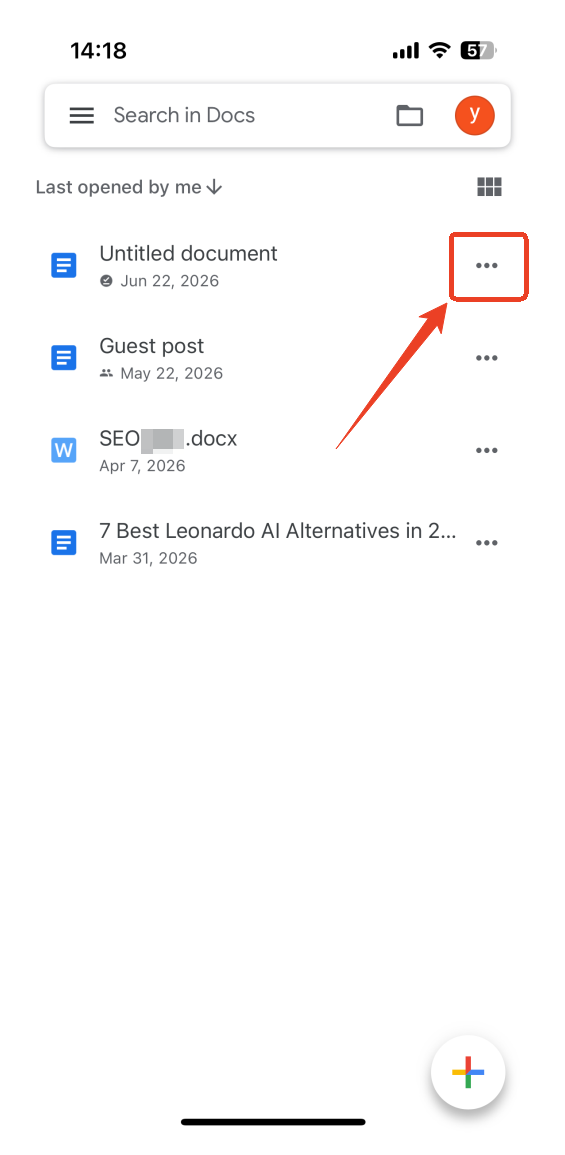
Step 3: Choose Save as Word (.docx) from the pop-up list.
How to Open a PDF in Google Docs with Two Quick Methods
Sometimes you may need to open PDF files in Google Docs to edit them. This post focuses on how to open a PDF in Google Docs straightforwardly and by conversion.
READ MORE >Method 2: Download a Google Doc as a PDF on iPhone
Sometimes you need to share a presentation layout that cannot be easily modified by the recipient. Knowing how to download a Google Doc as a PDF on iphone tablets is ideal for emailing official contracts or assignment sheets. Here is how to download a Google Doc on iPhone devices as a PDF.
Step 1: Locate the Google Doc on your iPhone and tap the three-dot icon next to the document.
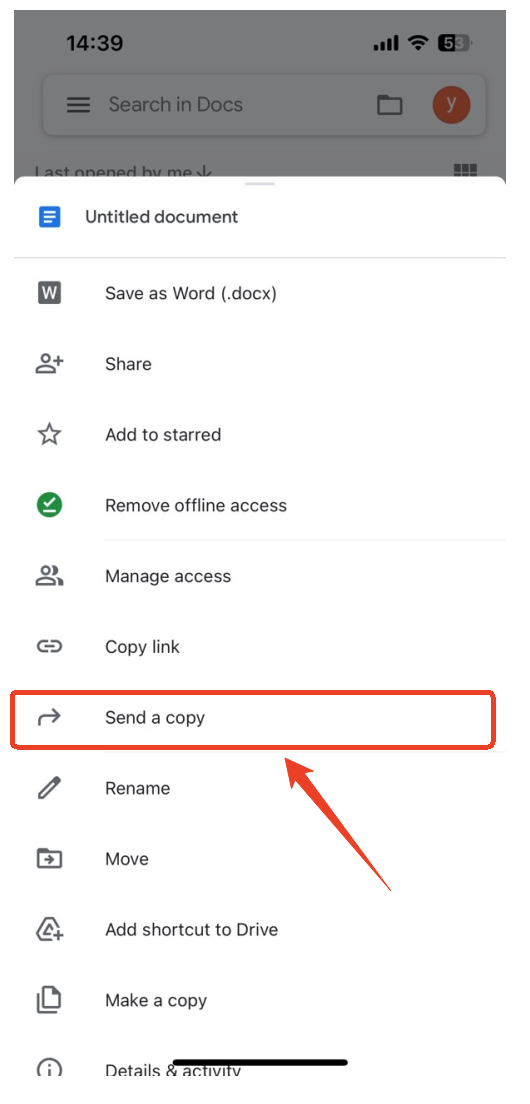
Step 2: Scroll down the pop-up menu to choose Send a copy.
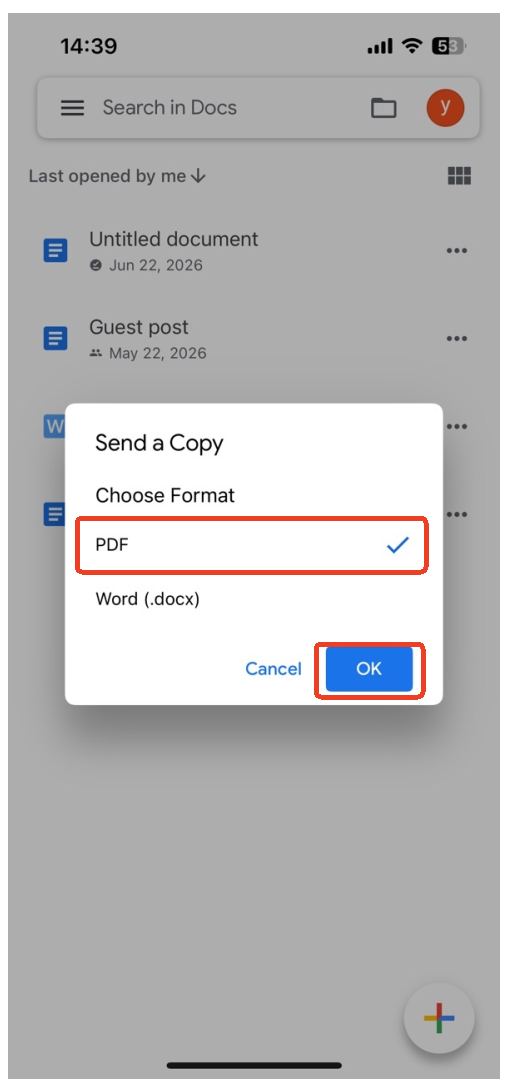
Step 3: Choose PDF from the new window and click OK.
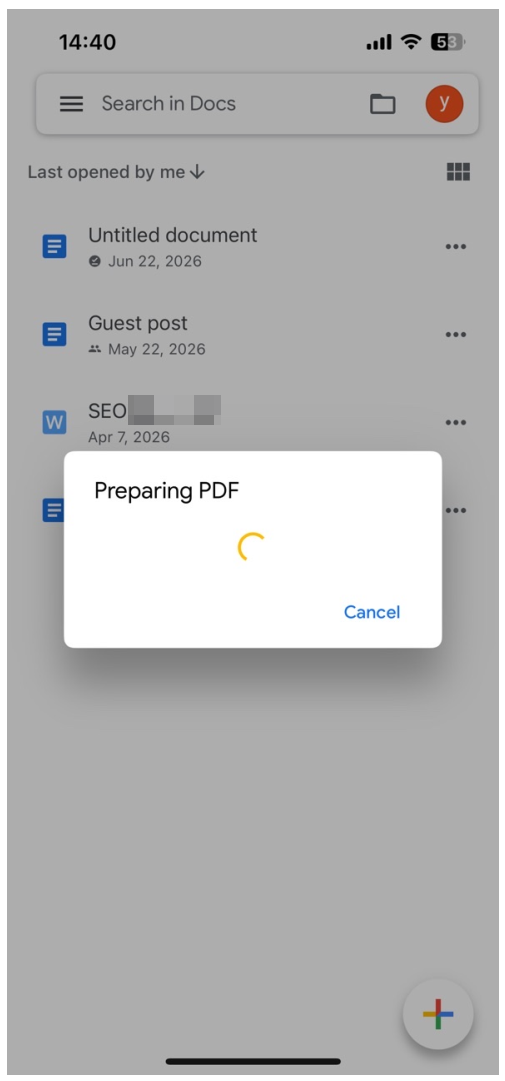
Step 4: It will start preparing the PDF file, and then a new sharing interface will pop up.
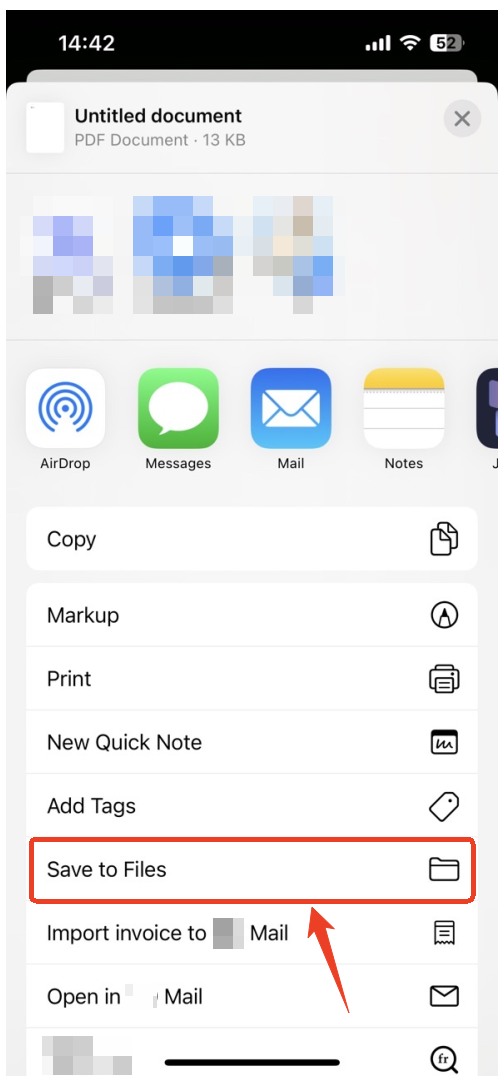
Step 5: Scroll down to choose Save to Files.
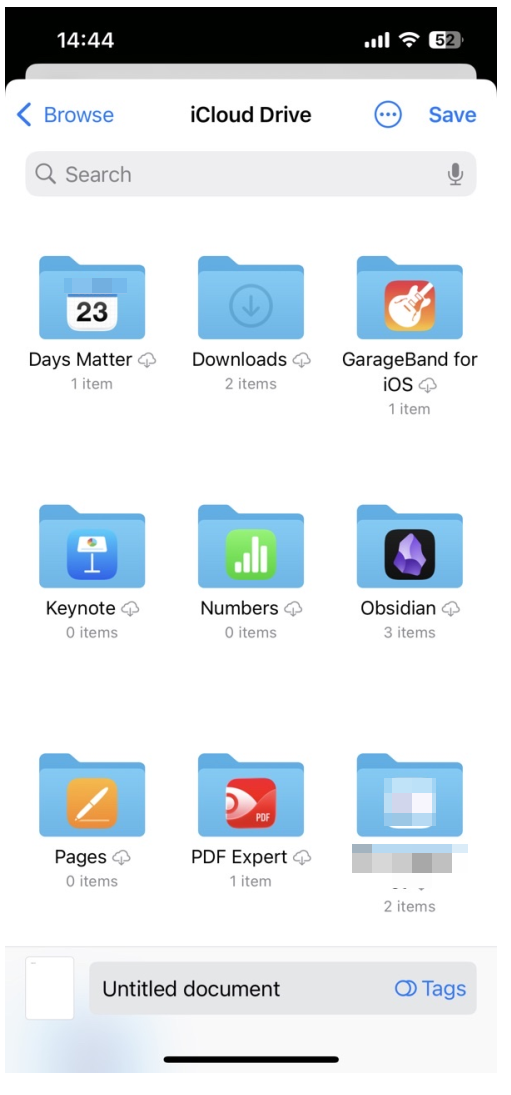
Step 6: Your iPhone device will show you your iCloud Drive and you can choose a folder to save Google Docs to files on iphone.
That is it. You have now learned how to download a Google Doc as a PDF on an iPhone or as a Word file. The document will be available in the Files app.
How to Insert PDF into Google Doc in 3 Ways
Read this post to learn how to insert PDF into Google Doc in 3 ways. You can insert a PDF file into your Google Doc as a link, image, or editable content.
READ MORE >How to Make a Google Doc Available Offline on iPhone
If you only want to view and edit your document within the Google Docs app when you are not connected to the internet, you can use the "Available offline" feature. This is a good option if you do not need a separate file copy.
Steps to make a doc a file on iPhone that you can access offline:
Step 1: Open the Google Docs app on your iPhone and find the document you want to access offline.
Step 2: Tap the three-dot menu (•••) next to the document name.
Step 3: Select Make Available Offline from the menu. You might see a toggle switch instead, which you can turn on.
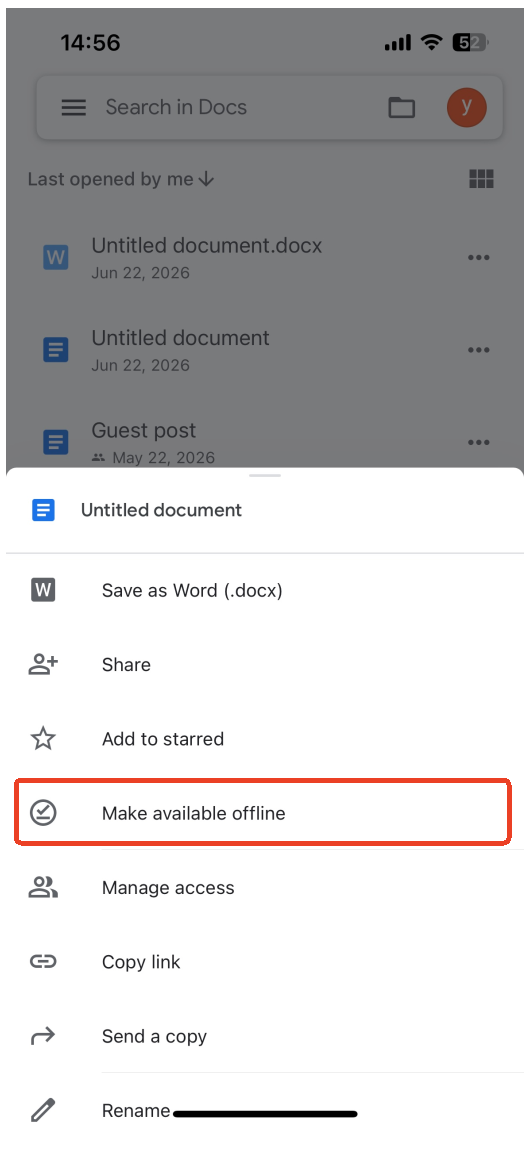
Step 4: Then it will show you information that tells you the file is available offline.
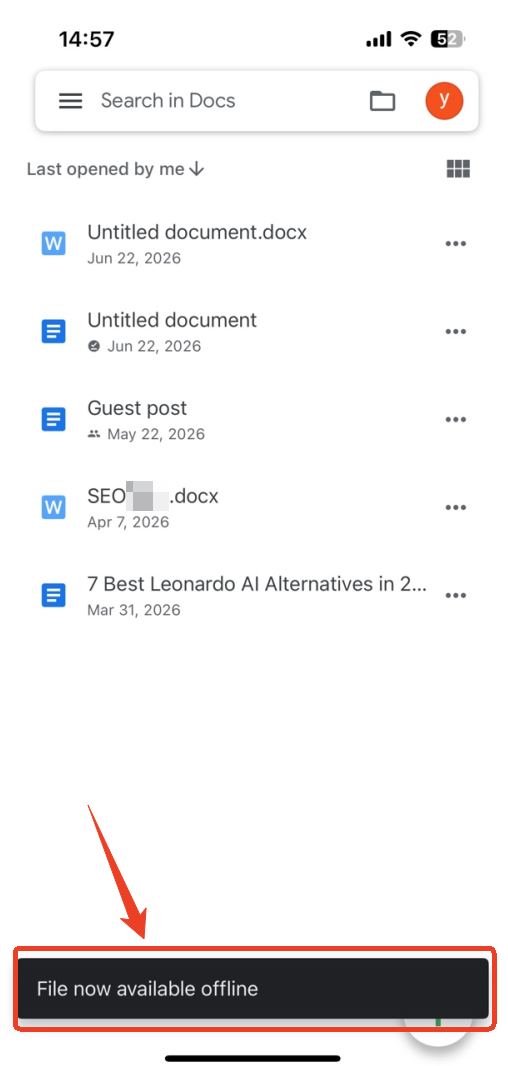
Now, your document is saved to your iPhone for offline use within the Google Docs app. You can open it anytime, even without WiFi or cellular data. Any changes you make will sync automatically when you go back online.
![Easy Steps to Edit PDF in Google Docs [Best for Newbies]](https://img.swifdoo.com/image/edit-pdf-in-google-docs.png)
Easy Steps to Edit PDF in Google Docs [Best for Newbies]
This post walks you through the easy way to edit PDF in Google Docs. New users can learn the full guide and how Google Docs features support editing.
READ MORE >How to Manage Your Downloaded PDFs via SwifDoo PDF?
After you download your Google Doc to your iPhone using Method 2, you will have a PDF or Word file in your Files app. You might want to do more with that file. Maybe you need to annotate it, sign it, or combine it with other documents.
SwifDoo PDF for iOS is a tool that can help you with these tasks. It is a PDF editor available for iPhone and iPad. You can use it to manage the PDF files you save from Google Docs.
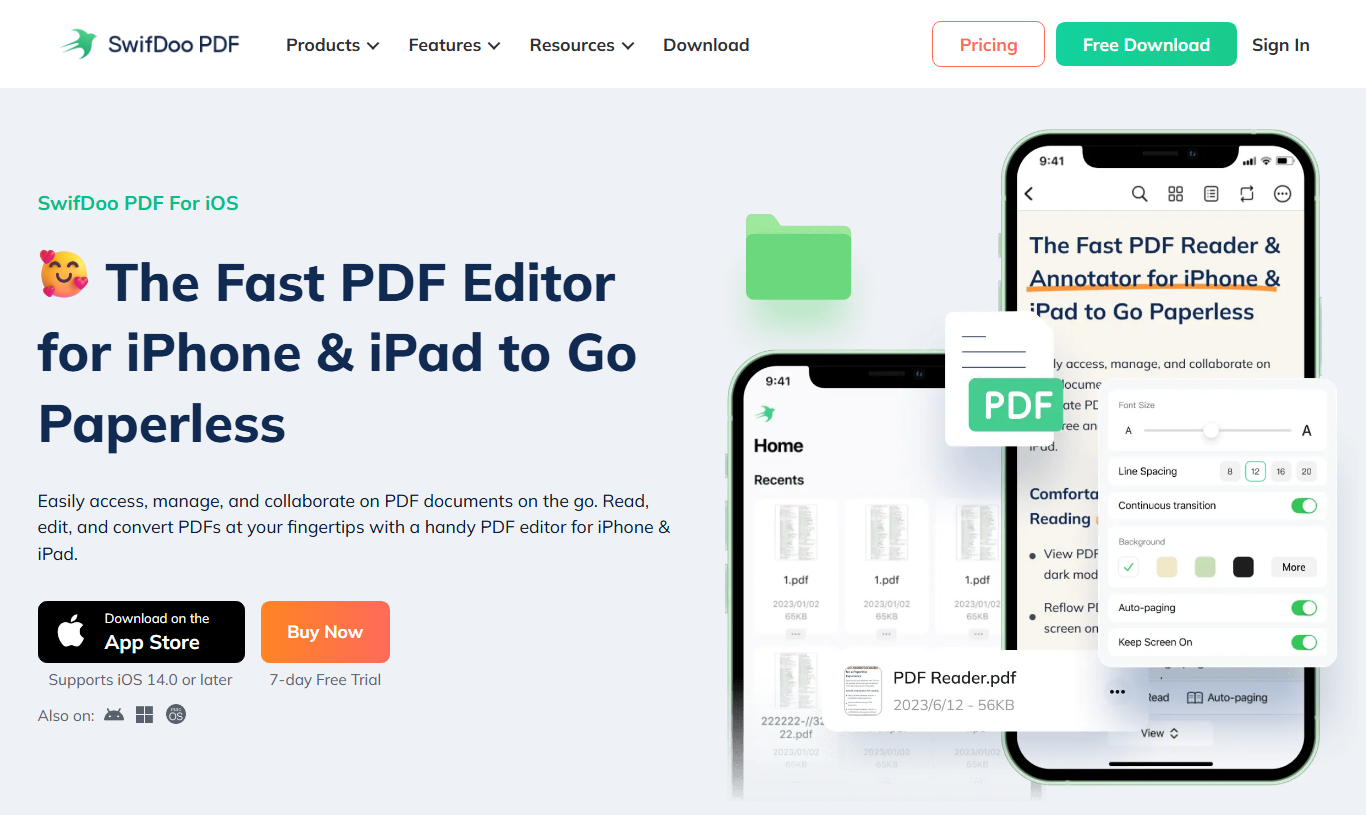
What SwifDoo PDF for iOS offers:
-
Reading: You can open PDFs and adapt the PDF layout to fit your iPhone screen for easier reading.
-
Annotating: You can highlight text, underline, add sticky notes, and draw on PDFs. This is useful for reviewing documents you have downloaded.
-
Organizing: You can merge multiple PDFs into one file or split a large PDF into smaller ones.
SwifDoo PDF is not the only tool for these tasks. But if you regularly work with PDFs on your iPhone, it is a convenient option. You can download it from the App Store.
Final Thoughts
Learning how to download a Google Doc on an iPhone is simple once you know the steps. You can download a Google Doc to files on an iPhone as a PDF or Word file for sharing and offline use in other apps. Or you can make it available offline within the Google Docs app for seamless editing without the internet.
After you download your document, you might want to manage it further. For example, if you saved it as a PDF, you could use a tool like SwifDoo PDF to annotate, organize, or convert it on your iPhone.
We hope this guide has answered your question about how to download Google Docs on an iPhone. Try these methods and see which one works best for your needs.


