


What Are PDF Layers
Known as optional content groups, PDF layers help structure various elements of a document into distinct sections in a single file. These layers can be toggled on or off, letting you control which content is visible without altering the original document. Layered PDF files make it easier to manage complex documents by organizing text, images, graphics, annotations, and design elements into separate layers.
In fields like design, architecture, and engineering, this feature helps manage numerous visual elements with ease. Professional software like Adobe Illustrator, Adobe InDesign, or AutoCAD is often used to create layered PDF files. By exporting as optional content groups PDF, these tools enable users to adjust visibility, edit individual elements, or simplify the document.
Method 1. Remove Layers from PDF Using Adobe Acrobat
Recognized as one of the best PDF editors, Adobe Acrobat delivers advanced tools for editing, viewing, and managing PDF files. It also enables users to edit layered PDFs and control optional content groups in a document. Using the advanced features, you can easily remove layers from PDF in Adobe Acrobat to simplify the document and keep only the necessary content.
Let us learn how to remove individual layers from a PDF in Adobe Acrobat in just a handful of clicks.
Step 1. Download and launch Adobe Acrobat on your computer. Once you open the layered PDF in Adobe Acrobat, go to All Tools and click Print Production. Or, search for Preflight in the Tools search bar.

Step 2. In Preflight, go to the Profiles tab or choose a profile set such as Acrobat Pro DC Profiles from the dropdown menu. Then, search for Layer or expand the Layers category.
Select Remove layer with specified name (or a similar fixup like Remove all layers if available). After that, tap the Properties option to open the properties context window
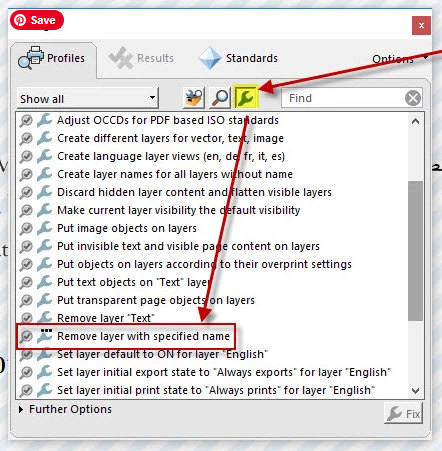
Step 3. Click the Edit button (pencil icon) to customize if needed. And enter the exact layer name to remove.
Note. If removing multiple, temporarily rename unwanted layers to the same name first via the Layers panel Options > Properties.
Step 4. Click Fix or Analyze and Fix, and then apply it to the document. Once done, save the updated PDF.
Method 2. Flatten PDF to Remove All Layers
Flattening is another fast method to remove all layers from a PDF at once by combining every element into one layer. When you flatten a PDF, all optional content groups are combined permanently, simplifying the file and easing sharing.
Take a look at these powerful offline tools designed to flatten PDF layers.
- Adobe Acrobat Pro
- SwifDoo PDF
- Foxit PDF Editor
- PDF-XChange Editor
Among the tools above, SwifDoo PDF is a lightweight and powerful Adobe Acrobat alternative for those seeking efficient PDF editing without complicated software. The tool allows you to flatten a PDF without Adobe Acrobat, making it simple to remove layers and streamline documents quickly. The software can also reduce PDF file size, which improves performance and makes documents easier to store or share.
Let us learn how to flatten a PDF to remove all layers from the document with SwifDoo PDF in just a handful of clicks.
Step 1. Get SwifDoo PDF and install it on your Windows PC.
Step 2. Once launched, move the cursor over the Protect tab in the main menu. Then, select the Flatten option in the secondary menu bar.

Step 3. Tap +Add Files at the bottom to import the target PDF file you wish to flatten.
Step 4. Select the Output Path to choose a folder to save the flattened PDF. Next, press Start to begin flattening the PDF.
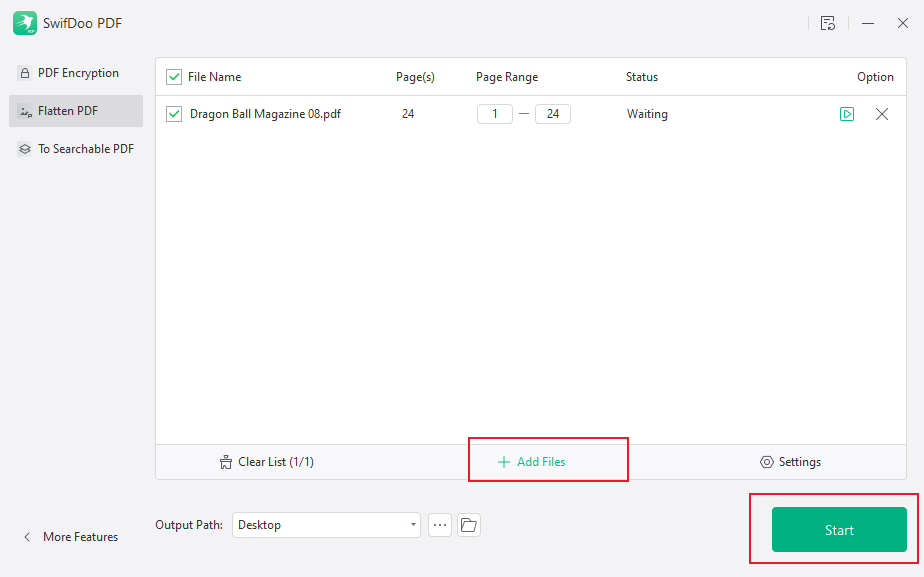
Wait for the process to complete. After the process finishes, the flattened PDF file is saved automatically to the chosen path.
Method 3. Remove PDF Layers Online
If you prefer not to install software, removing layers online is a convenient alternative. A variety of online tools can work with layered PDF files and help simplify them instantly in your browser.
Below is a list of the online tools you can use.
- PDFQ
- pdfFiller
- Sejda PDF
- iLovePDF
PDFQ is a straightforward web-based tool for managing and optimizing PDF documents without software installation. It offers a simple way to handle layered PDFs online, making it convenient for quickly simplifying files and removing extra elements.
Let us see how to remove PDF layers online with PDFQ in a few clicks.
Step 1. Access PDFQ on your web browser. Go to Tools and choose Edit PDF. Alternatively, go directly to the Remove Layers from PDF tool to delete unwanted layers from your PDFs.
Step 2. Click +Select files to choose the layered PDFs you intend to remove layers from.
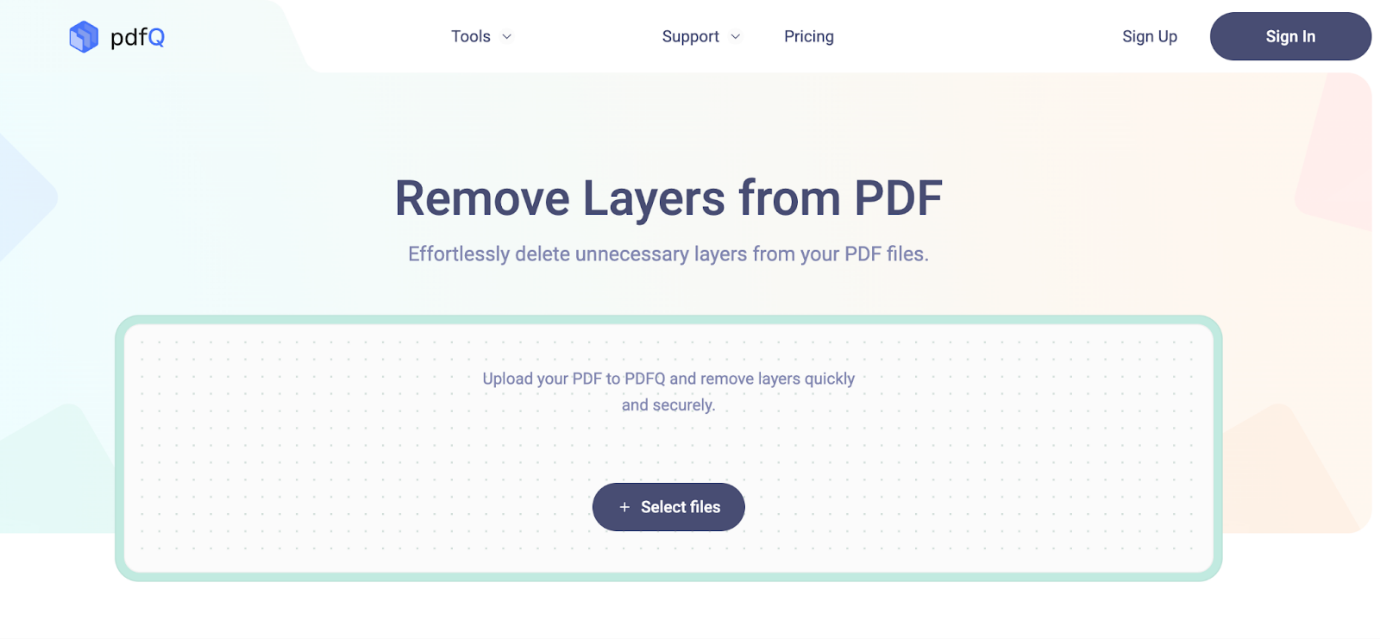
Step 3. After the file uploads, select the layer to show, then press the Delete key to remove unnecessary layers.
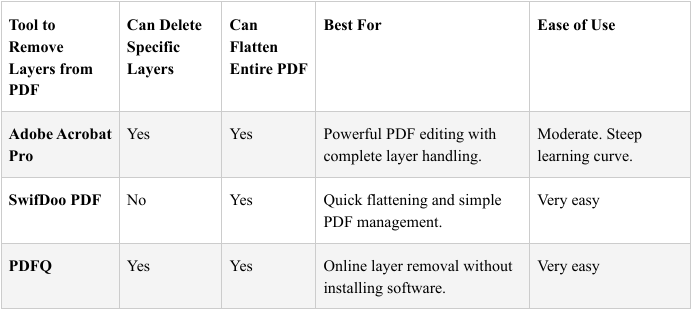
Best Method to Remove Layers from PDF (Quick Comparison)
Selecting the best tool depends on whether you want to remove individual layers or flatten the entire PDF. Take a look at this quick comparison of popular tools to make your choice easier.
Final Wrap Up
Getting rid of unneeded layers makes your documents simpler, safer, and easier to share. Whether you need to edit specific layers, flatten the whole PDF, or use an online tool, multiple effective options are available. Choosing the right method depends on your needs and workflow. The techniques covered in this guide let you remove layers from PDF files and keep your documents streamlined and professional.



