


Professional Way to Compress PDF Offline on Windows
For Windows users, professional desktop software is the most dependable way to compress PDF offline while maintaining quality and efficient file size reduction. Among desktop options, SwifDoo PDF stands out as a powerful yet easy-to-use offline PDF editor, offering strong features at a more affordable cost than premium tools.
Why Choose SwifDoo PDF App As the Best Offline PDF Compressor
✅ Compression technology: Users can choose from multiple compression levels to reduce file size while maintaining clear images and readable content. This approach is typical of professional PDF optimization tools.
✅ Offline and security features: SwifDoo PDF works entirely offline, processing files locally to protect data privacy and keep sensitive documents secure. It also includes security features like password protection and encryption.
✅ Efficiency: SwifDoo PDF includes features like batch compress PDF, allowing users to process multiple files at once and save significant time when managing large document collections. This feature is ideal for offices, students, and freelancers who frequently handle large numbers of PDF files.
Step-by-step guide to reducing PDF size with SwifDoo PDF
Step 1: Download, install, and open SwifDoo PDF on your computer.
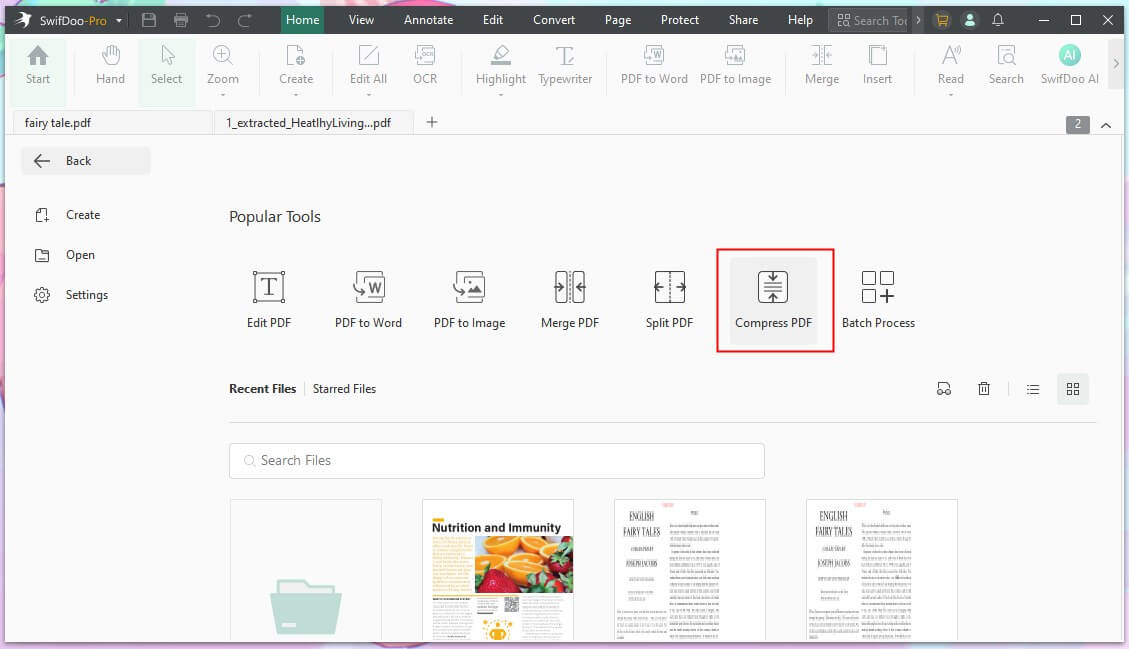
Step 2: Open SwifDoo PDF, then choose Compress PDF to begin reducing your file size.
Step 3: Click the Add Files button to import as many PDF files as you need. After that, select the compression level you prefer: Low, Medium, or High.
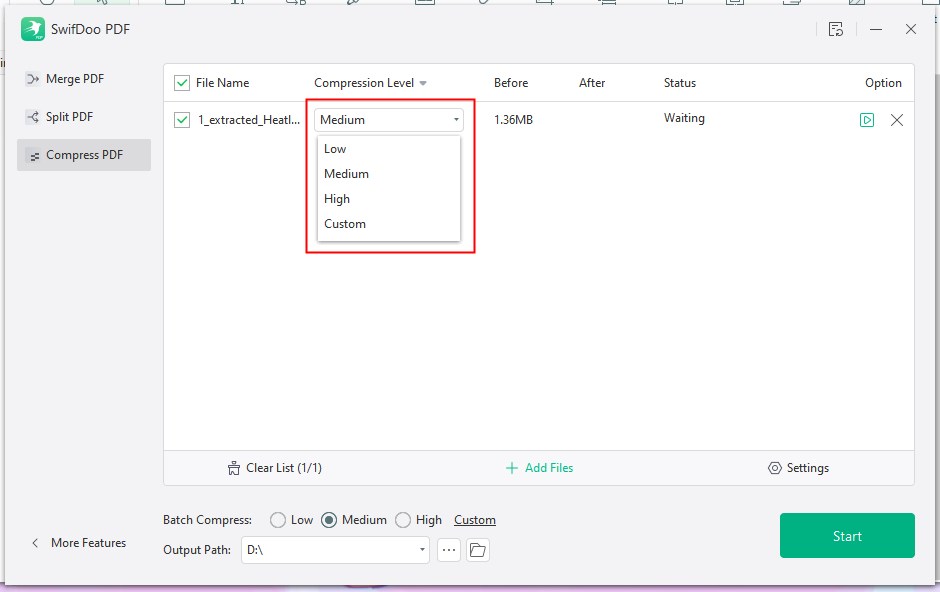
Step 4: Press the Start button. Once the PDF files are compressed, you can download them onto your computer.
SwifDoo PDF not only enables you to compress PDF files on Windows 10/11 systems, but also offers a variety of other functions such as editing, annotation, merging, splitting, signing, and more. If you need a comprehensive PDF tool, SwifDoo PDF is a great choice. Give it a try now!
Compress PDF Offline with Adobe Acrobat
Known for its PDF expertise, Adobe Acrobat offers a reliable offline compression solution for Windows and Mac users. It provides advanced optimization settings that allow users to control how images, fonts, and embedded elements are handled during compression.
Steps to Compress PDF Offline With Adobe Acrobat:
This is a step-by-step look at ways to reduce PDF file size without losing quality with Adobe Acrobat on your computer:
Step 1: Launch Adobe Acrobat Pro directly, or in Finder, right-click your PDF, choose Open With, and select Adobe Acrobat Pro.
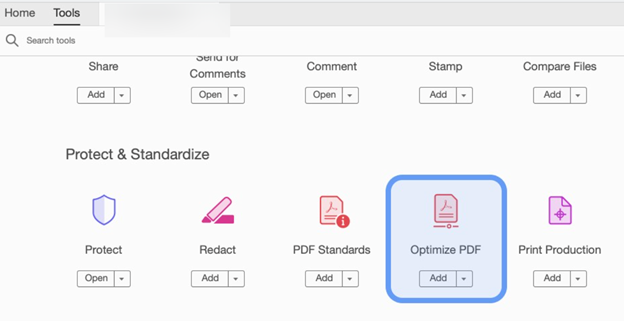
Step 2: Go to the Tools tab at the top-left of the Acrobat interface.
Step 3: Move down the list to locate Optimize PDF and select Open.
Step 4: Click Reduce File Size in the top toolbar.

Step 5: From the dialog box, select your preferred file version compatibility—usually Retain Existing—and click OK.
Step 6: Select where you want to save the file, name the PDF, and click Save to finish compressing it.
Compress PDF Offline for Free on Mac [Free]
For straightforward PDF jobs, Preview enables exporting at a lower image quality. Fast and free with no additional software required, this method offers limited control and may not handle large or image-heavy PDFs well. Let's learn how to compress a PDF on Mac.
Steps to Compress PDF Offline on Mac in Preview:
Step 1: Launch Preview and open the PDF file you want to make smaller.
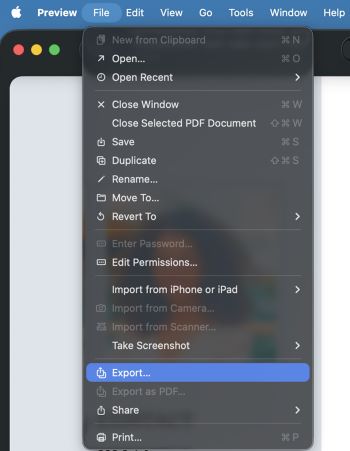
Step 2: Click File in the menu bar and select Export to proceed.
Step 3: In the Export window, give the file a new name and select a save location for the compressed PDF.
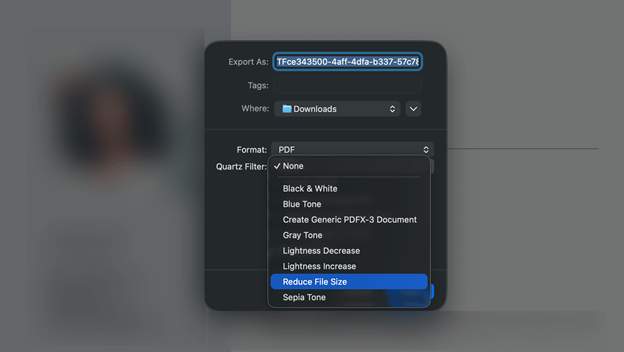
Step 4: In the Export window, locate Quartz Filter and click the drop-down menu next to it.
Step 5: Click Reduce File Size to make the PDF smaller using Preview.
Step 6: Press Save to keep the newly compressed PDF file.
Conclusion
Users who value security and reliability will benefit most from offline PDF compression tools, as keeping files on their computers reduces the risk of uploading them online. You can choose the method based on your system. Anyhow, a professional PDF compressor, like SwifDoo PDF, is a good choice if you care about quality. Hope this guide is helpful.



