


Quick Start
Scanned PDF files are essentially images of the original document, rather than text-based documents. Therefore, we can’t select text in PDF, let alone highlight it. A common method for highlighting scanned PDFs is to convert them to an editable format first. Obviously, this is time-consuming.
Luckily, to quickly highlight text in a scanned PDF, you can use a highlighter that supports area highlighting, such as SwifDoo PDF. It lets you select and highlight any area of the PDF, including the text. Click the button to get SwifDoo PDF and start!
Way 1. How to Highlight Scanned PDF with SwifDoo PDF
You can’t highlight text in a PDF because it's an image-based file. In this case, a quick solution is to use a tool that supports area highlighting, such as SwifDoo PDF.
SwifDoo PDF is a powerful yet lightweight PDF tool available on Windows, macOS, iOS, and Android. It offers 10+ PDF annotation tools to help you make the document more attractive and readable. With the “Area Highlight” tool, you can easily highlight a scanned PDF.
The Area Highlight, just like its name suggests, can help you highlight an area in a PDF. You can place a transparent color rectangle over the text, the image, or any part of the PDF. It also lets you change the color, add a note, and set a status for better collaboration.
Here is how to highlight a scanned PDF using SwifDoo PDF:
Step 1. Download, install, and launch SwifDoo PDF. Drag the PDF into the software to open it.
Step 2. Click the Annotate tab and go to Area Highlight. Change highlight color as needed.
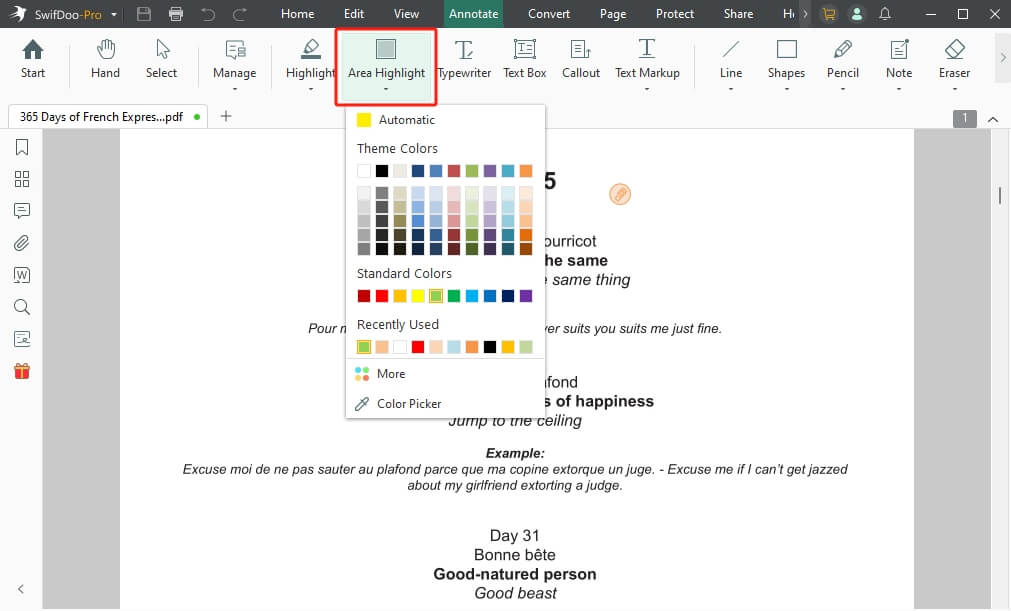
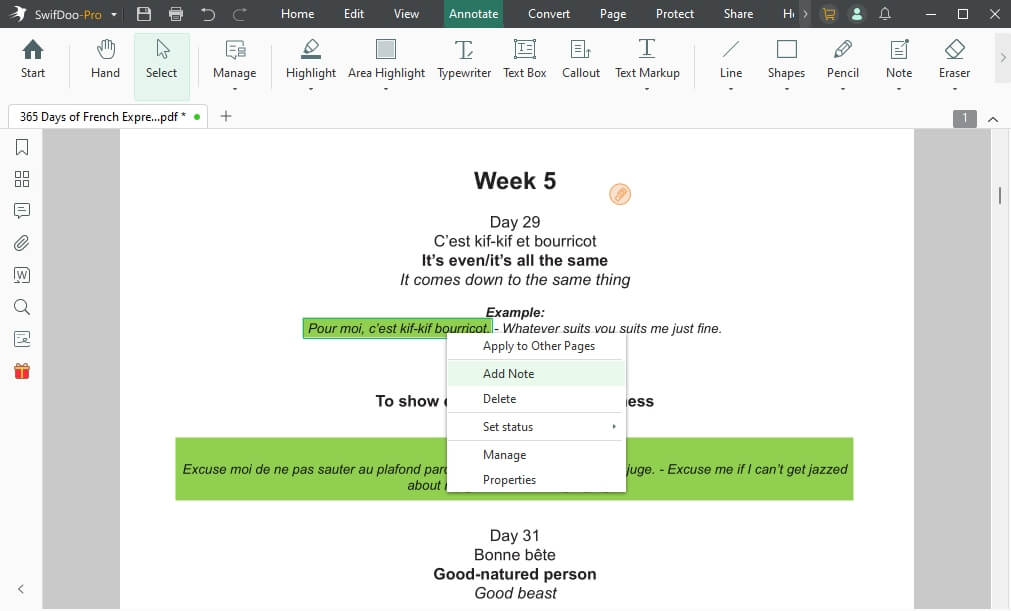
Step 3. Then, drag the cursor to highlight the text. If necessary, you can add a note to provide explanations, suggestions, or other details.
Step 4. Finally, click the Save button to save the highlight.
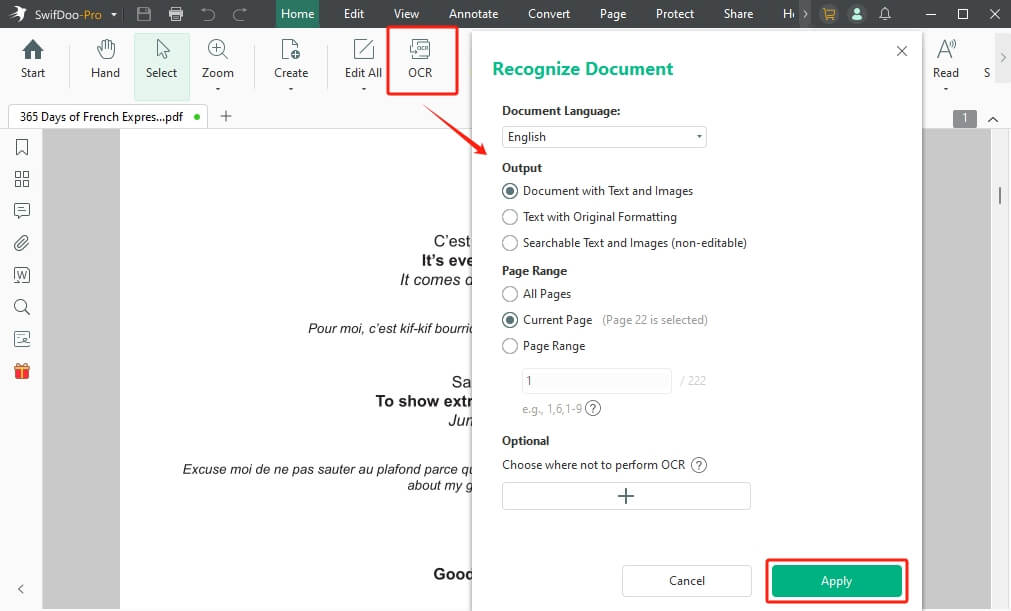
In fact, SwifDoo PDF can OCR PDF. If you want to not only highlight text but also perform text-based operations, follow these steps to make it selectable and editable.
Step 1. Install and launch SwifDoo PDF. Open the document you want to OCR.
Step 2. Click the OCR tool. Then, select the document language and adjust other settings as needed.
Step 3. Click Apply, then wait a while.
When the process is complete, SwifDoo PDF opens the editable page in a new tab. Then, you can go to Annotate > Highlight to highlight the text.
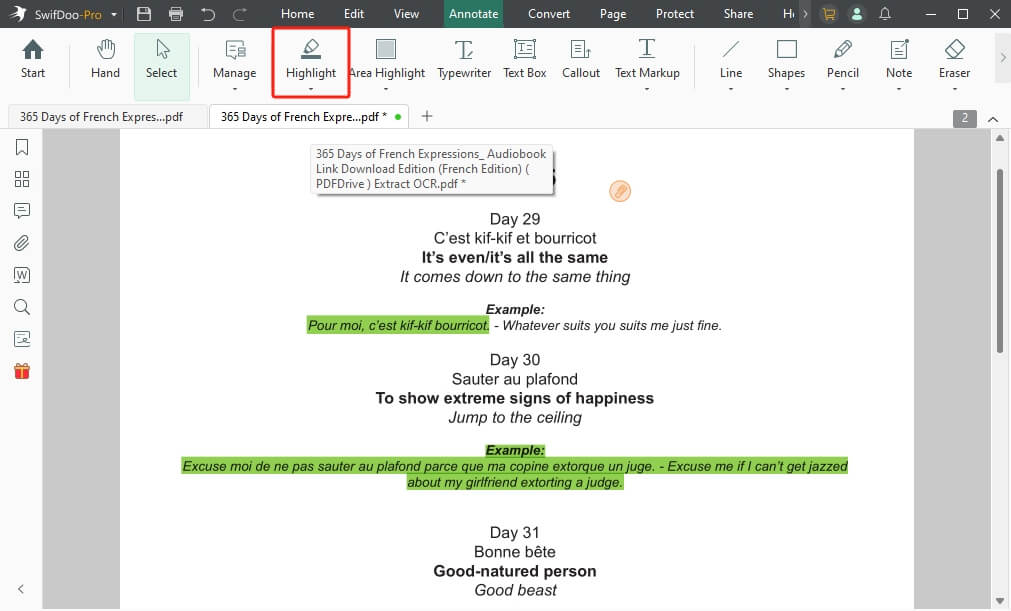
As you can see, SwifDoo PDF has a simple workflow that requires no learning curve. In addition to annotation features, SwifDoo PDF also supports editing, converting, and merging PDF files. Give it a try if you need it.
Way 2. How to Highlight Scanned PDF in Adobe Acrobat
Adobe Acrobat is undoubtedly the most well-known PDF reader available today. So, can it help you highlight scanned PDF files? The answer is Yes! There are two methods to choose from:
- Run OCR to recognize text in PDF and use the Highlight tool to highlight text.
- Draw a Rectangle over the text and fill color to perform visual marking (No OCR Required).
However, the OCR feature is only available in the Pro version. If you really need text-based highlighting, you can consider upgrading. However, if you find the price too high, you can check out the cheaper SwifDoo PDF.
Check to learn how to highlight a scanned PDF in Adobe Acrobat Reader and Pro:
Step 1. Open the PDF in Adobe Acrobat. Click the Draw Freehand tool and select Rectangle.
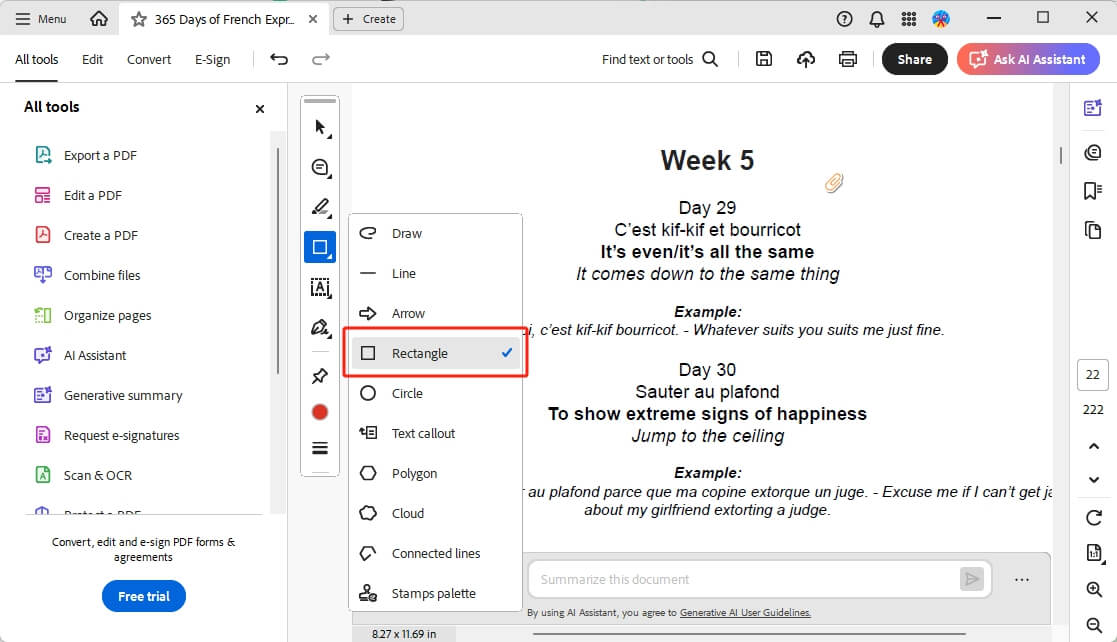
Step 2. Select a color and draw a box over the area you want to highlight. Right-click the box and choose Properties.
Step 3. Adjust the fill color and opacity to mimic a highlight.
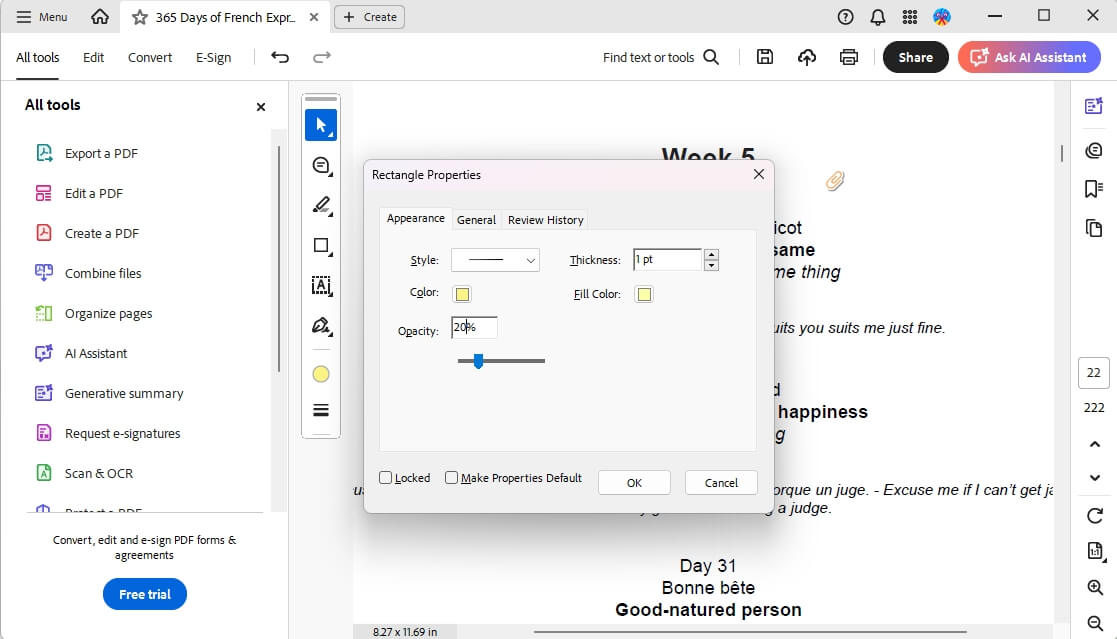
Step 4. Repeat the steps to highlight all and save the changes.
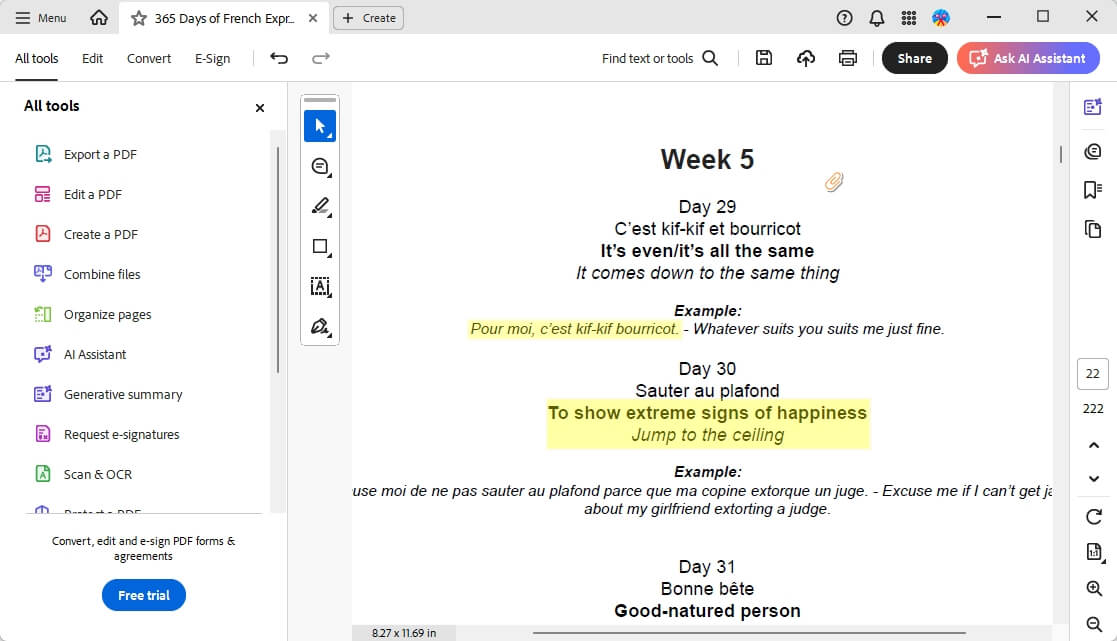
Way 3. How to Highlight Scanned PDF Online
For temporary tasks, downloading software can be a hassle. In this case, you can use an online tool (such as Smallpdf) to help you complete the task. You can use the tool to draw a box around the text and fill it with color to simulate a highlight effect. The steps are as follows.
Step 1. Open a browser and visit Smallpdf online editor (https://smallpdf.com/edit-pdf). Upload the PDF document.
Step 2. Click Shape and choose Rectangle. Change the border color and background color. Then, set the opacity.
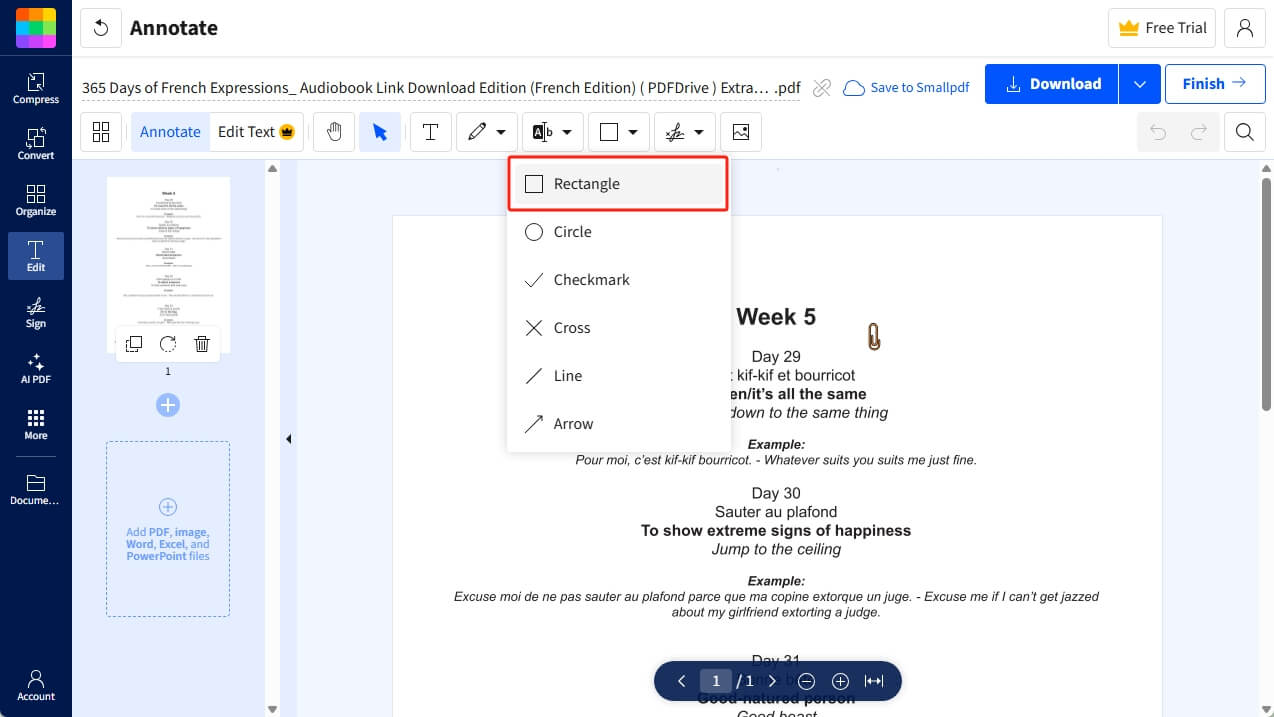
Step 3. Draw the rectangle over the text you want to highlight.
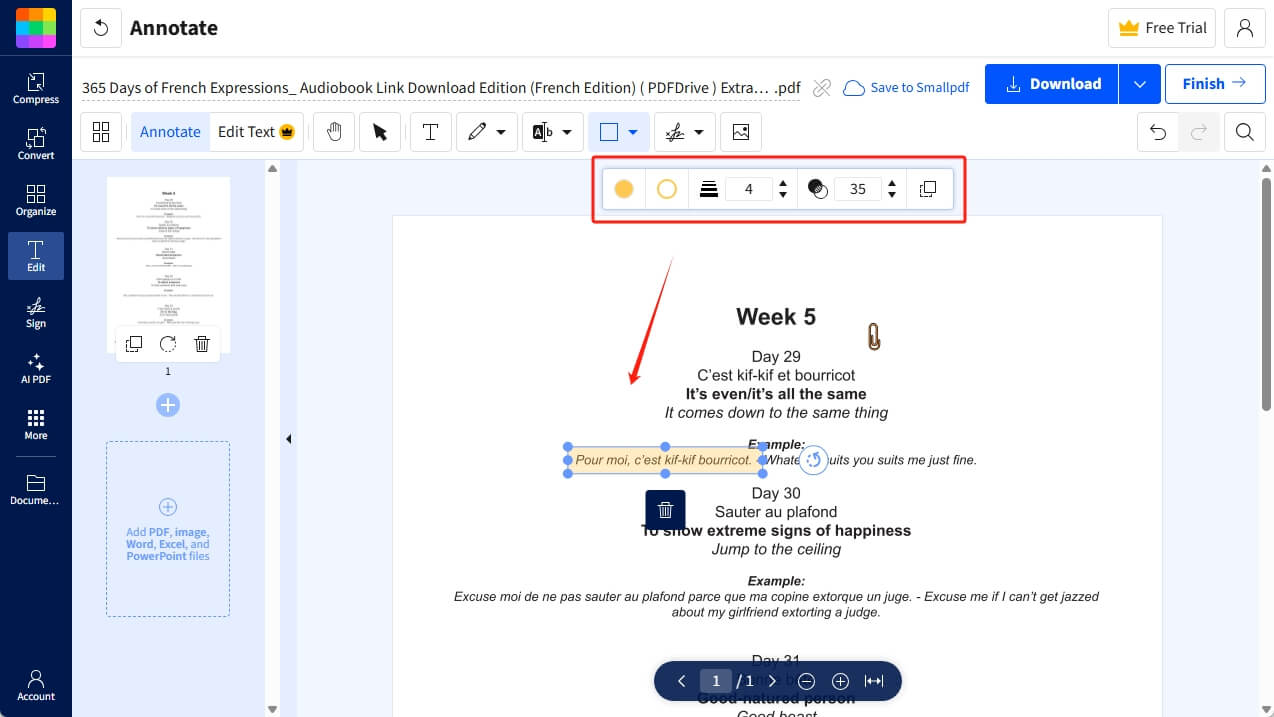
Step 4. When satisfied, click Finish and download the document.
Conclusion
That’s all about how to highlight a scanned PDF. Area highlight is a quick workaround for scanned or image-based PDFs where the text isn’t selectable. You can use SwifDoo PDF to quickly create it. However, if you want to highlight the real text, you should apply OCR first. You can choose according to the specific situation to achieve maximum efficiency.



