


Why Can’t I Highlight a PDF?
To effectively make a PDF highlightable, you first need to know why you can't highlight text in PDF, as the cause affects the solution. This problem occurs frequently and is generally due to the way the PDF was made or secured. In most cases, it happens for one of the following two reasons:
1. It is a scanned PDF.
A scanned PDF is essentially an image of text rather than actual, selectable text. Because the content is treated as an image rather than text, highlighting tools won’t function unless OCR is applied first.
2. It is a protected PDF.
A protected PDF has security restrictions that disable PDF annotation features. Even though the text is selectable, highlighting is blocked until the protection is removed.
In the sections ahead, we’ll discover fruitful ways to make a PDF highlightable in both cases, whether the document is scanned or protected, with ease.
How to Make a Scanned PDF Highlightable
Now that you know the cause, let’s get straight to the solution. SwifDoo PDF helps you make a scanned PDF highlightable in two effective ways. You can use the Area Highlight feature to highlight area in PDF and mark key sections directly on a scanned page, or run OCR to turn images into selectable text for normal highlighting and annotations.
Let’s learn how to make a PDF highlightable (scanned) with SwifDoo PDF.
1. Use the Area Highlight Feature
Step 1. Head over to the official SwifDoo PDF website to get the software. Next, follow the on-screen instructions to complete the installation on your PC.
After that, tap Open to import a PDF file in which you wish to highlight a selected area.
Step 2. Press the Annotate menu in the top address bar and pick the Area Highlight option in the secondary menu.
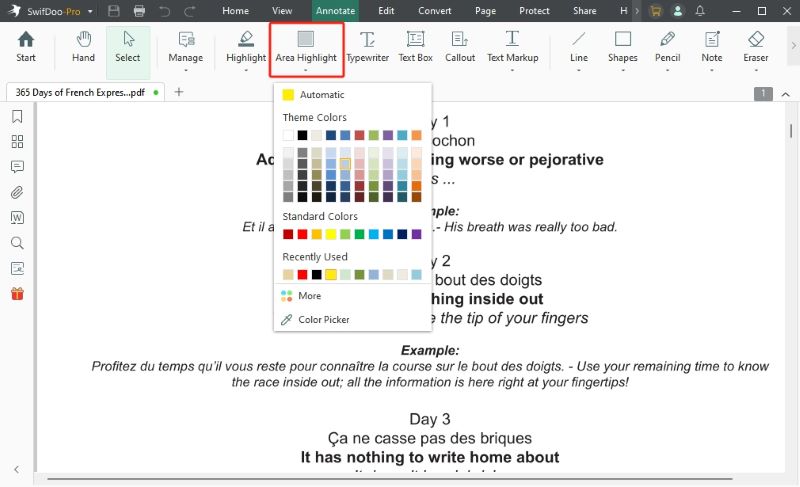
Step 3. Click the dropdown arrow under the option to choose a color from Theme Colors, Standard Colors, or Recently Used. You can also tap More or Color Picker to customize the PDF highlight color.
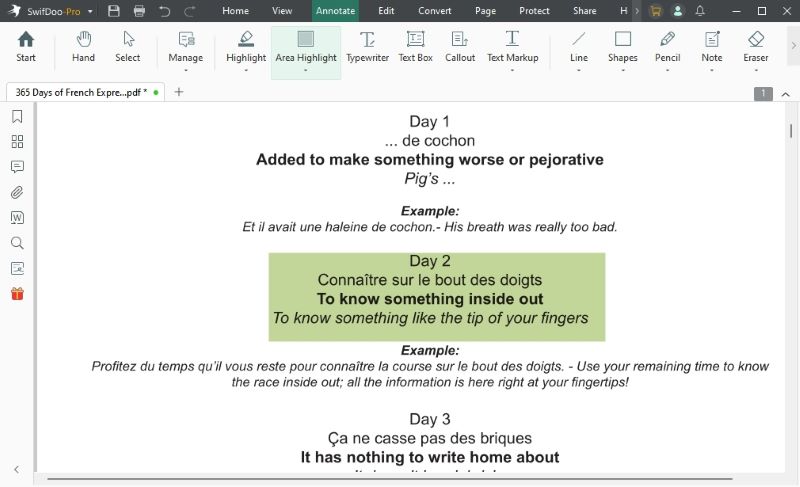
Step 4. Next, drag the cursor to draw a rectangle over the area containing the required PDF text. Once done, go back to the SwifDoo logo at the top-left corner. Then, click it and tap Save as to save the changes.
2. OCR the PDF to Make it Highlightable
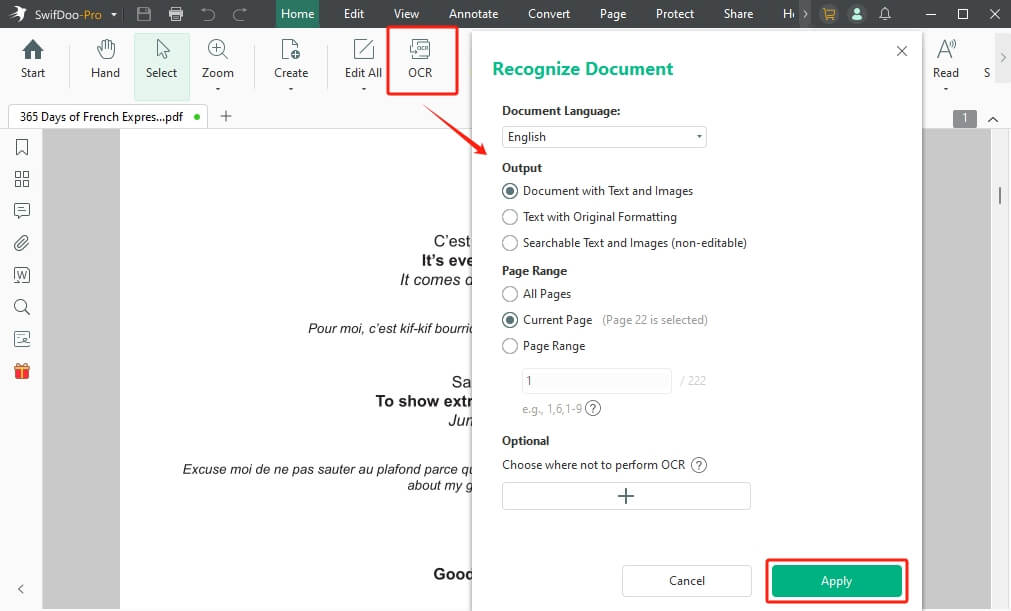
Step 1. Launch SwifDoo PDF on your PC. Then, move to the Edit tab at the top and select OCR in the secondary menu.
Step 2. In the Recognize Document window that opens, select the settings you want to use to OCR a PDF.
Step 3. You must confirm the document language, output, page range, and other settings. Then click Apply to convert the scanned PDF to an editable document.
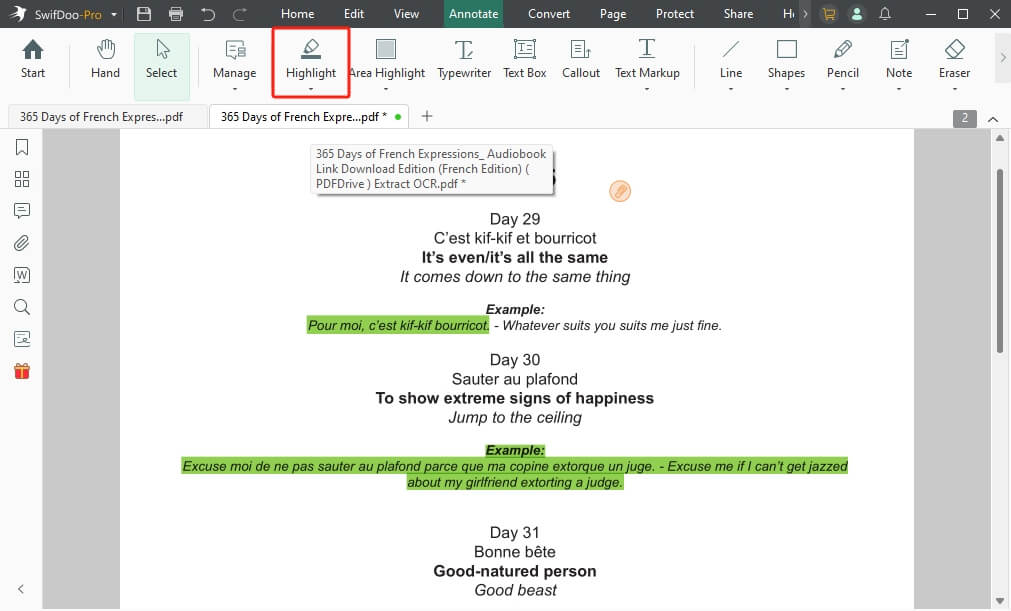
Step 4. When done, SwifDoo PDF will open the editable PDF in a new tab. Tap Highlight and move the cursor to highlight the desired text.
How to Make a Protected PDF Highlightable
Protected PDFs often prevent users from highlighting or annotating important content, which can be frustrating when reviewing or studying a document. To highlight a protected PDF, you must first remove its editing restrictions.
SwifDoo PDF helps you do this easily. If you know the password, you can unlock the file for editing in seconds. Even when the password is unknown, SwifDoo PDF can lift restrictions and allow normal highlighting of the PDF.
Here’s a guide to both ways on how to make a PDF highlightable after unlocking it with SwifDoo PDF.
When You Know the Password:
To highlight a password-protected PDF, first remove the password to remove editing restrictions. All you need to do is follow the steps below.
Step 1. Begin by downloading, installing, and opening SwifDoo PDF on your Windows PC. Next, hit Open to browse your PC and select the protected PDF file.
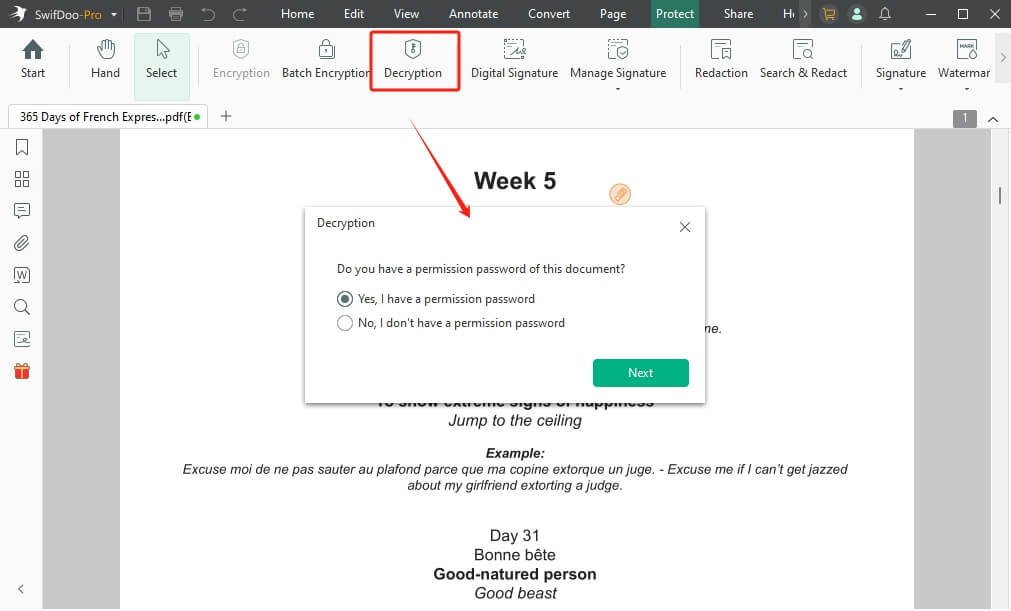
Step 2. Go to the Protect tab in the top menu and select Decryption in the secondary menu. Next, select “Yes, I have a permission password” and click Next.
Step 3. Now, enter the correct password and click Continue. Uncheck Permission Password and click Apply.
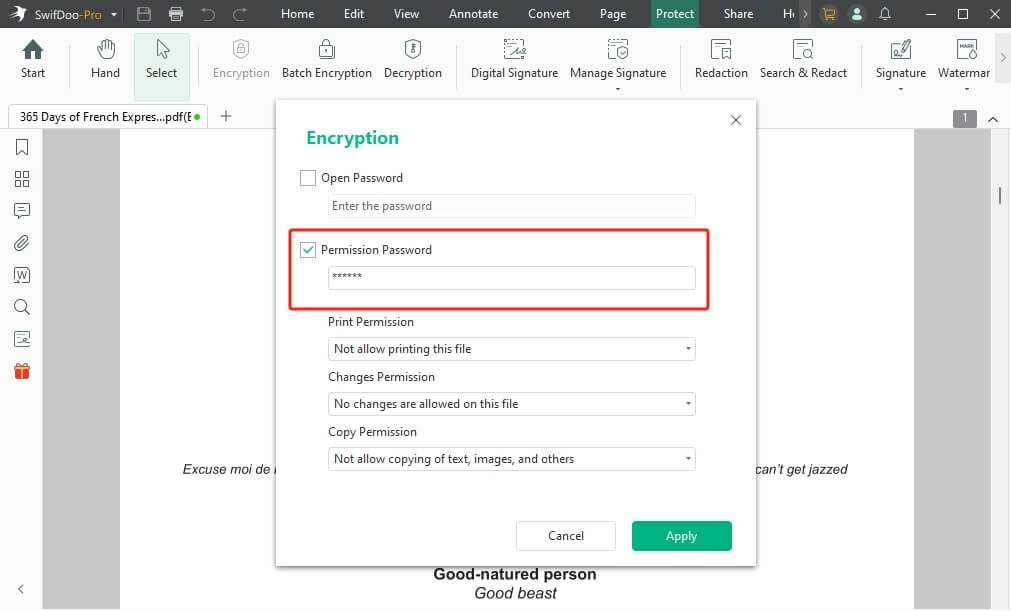
In this way, the protected PDF will become a normal PDF. Once editing permissions have been removed, use the PDF annotation tool to highlight text, an image, or any area.
Step 4. Move to the page you want to highlight. Then, click Annotate and choose Highlight.
Step 5. Change the highlight color as needed. Then, drag the cursor to highlight the text. Once everything is done, click the Save button to save the changes.
When You Do Not Know the Password:
SwifDoo PDF can be your savior even if you do not know the password of a PDF file. Just follow these steps.
Step 1. Open the protected PDF in SwifDoo PDF. Then, click Protect and select Decryption.
Step 2. After that, click “No, I don’t have a permission password” and tap Next.
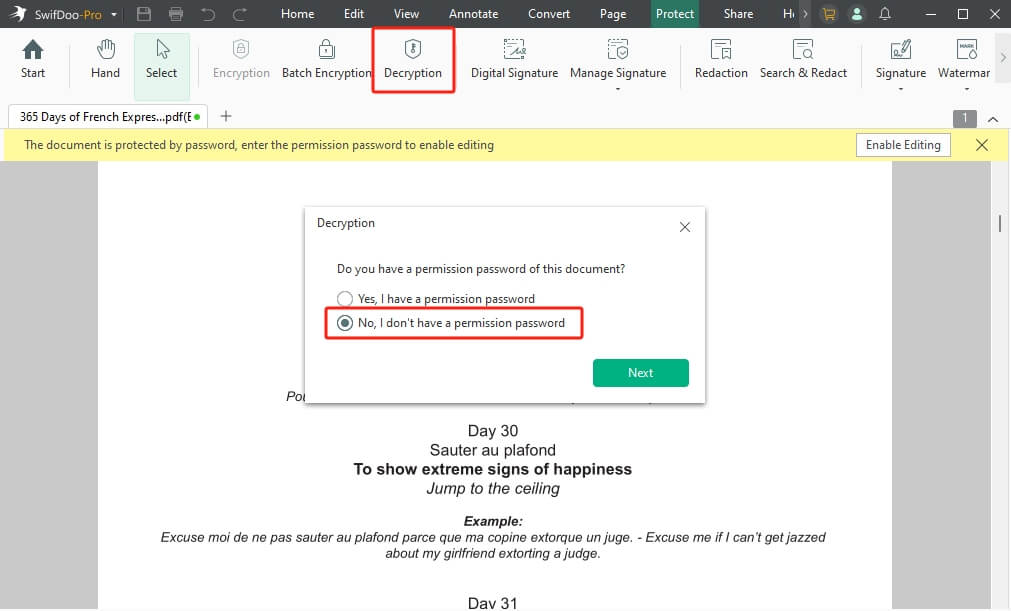
Step 3. Click Remove and select a location to save the new version.
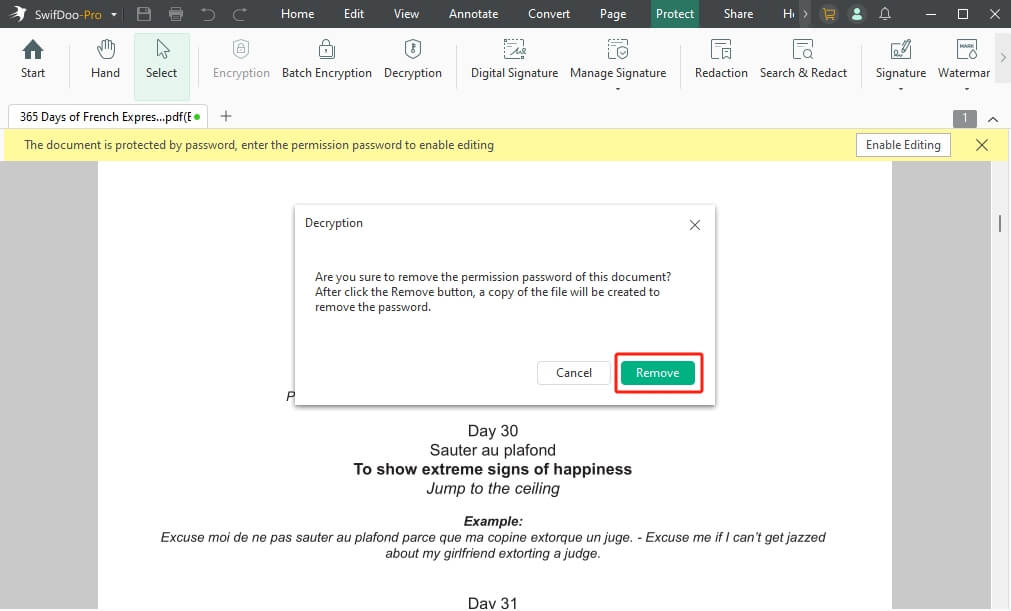
Step 4. Now, move to the Annotate tab, pick the Highlight tool, and highlight any content in the PDF.
Final Wrap Up
Highlighting PDFs can save time and make studying, reviewing, and editing much easier. Understanding how to make a PDF highlightable allows you to work more efficiently with documents, whether they are scanned or protected.
By identifying the root cause and applying the right solution, highlighting becomes quick and hassle-free. Tools like SwifDoo PDF let you remove restrictions, recognize text, and highlight critical content effortlessly, improving productivity in document review, analysis, and collaboration. Try it now!



