Why Can’t I Paste Without Formatting in Google Docs
When discussing potential causes, several factors can prevent Paste without formatting from working as expected. Before trying solutions, let’s check these common causes.
#You’re Using the Wrong Keyboard Shortcut
Firstly, you should make sure that you’re using the right keyboard shortcut. The shortcut for pasting without formatting depends on the operating system. On Windows and ChromeOS, press Ctrl + Shift + V. To paste without formatting on Mac, press Command + Shift + V.
Unlike the “Paste without formatting” shortcut, the regular Ctrl + V or Command + V shortcut pastes content normally and may preserve the source formatting. Hence, if you accidentally use the standard paste shortcut, text copied from Microsoft or another application may retain its original formatting.
#A Browser Extension Is Interfering
Sometimes, browser extensions can interfere with keyboard shortcuts or clipboard operations. Generally, this may occur with extensions that manage clipboard content, keyboard shortcuts, text editing, or web page modifications.
How to check whether the problem is caused by a browser extension? It can be easy. If Ctrl + Shift + V doesn’t work in Google Docs but works elsewhere, an extension could be part of the problem.
#The Copied Content Contains Unusual Formatting
Generally, not all copied text is equally simple. When you copy content from a PDF, website, email, or another rich-text editor, the clipboard may contain formatting information along with the text. For instance, the copied content can include font style, hyperlinks, text colors, or paragraph spacing.
What can you do if you want to copy text from a secured PDF? You can open the secured PDF in SwifDoo PDF and use its Decryption feature to remove the password from the PDF. Serving as a PDF editor and converter, SwifDoo PDF enables you to edit and convert PDFs effectively.
#Another Application Is Intercepting the Shortcut
Sometimes, keyboard shortcuts can be captured by another application or utility. For example, a keyboard customization tool or other software may assign a different function to Ctrl + Shift + V.
#Google Docs or Your Browser Has a Temporary Problem
Sometimes the feature simply doesn't respond correctly because of a temporary browser or Google Docs issue. Refreshing the document, reopening the browser, or testing the document in another browser can help determine whether this is the cause.
Why Can’t I Copy and Paste in Google Docs? 9 Solutions to Fix It
Why can’t I copy and paste in Google Docs? How to fix copy and paste not working in Google Docs? Let’s explore 9 workable fixes in this article.
READ MORE >How to Paste Without Formatting in Google Docs
In this section, let’s learn effective ways to paste text into Google Docs without carrying over the original formatting.
Method 1: Use the Paste Without Formatting Shortcut
The quickest method is to use Google Docs’ keyboard shortcut.
#On Windows or ChromeOS: Open your Google Docs document after copying the text you want to use. Click where you want to insert the text. Then press Ctrl + Shift + V
#On Mac: After copying the text, press Command + Shift + V to paste plain text into Google Docs without manually removing formatting afterward.
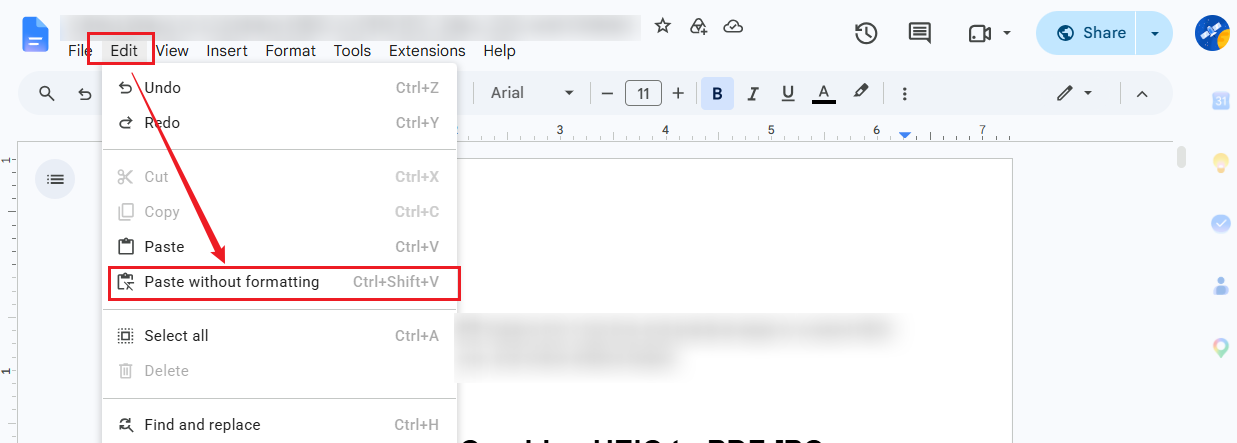
Method 2: Use Google Docs’ Edit Menu
If the keyboard shortcut doesn’t work, use Google Docs’ menu instead.
- Click where you want to paste the copied text.
- Click Edit in the top menu.
- Select “Paste without formatting”.
Method 3: Paste the Text Through a Plain-Text Editor
In addition to pasting without formatting directly in Google Docs, you can remove formatting before pasting the content into Google Docs. On Windows, you can use Notepad. On Mac, you can use TextEdit in plain-text mode.
Because the intermediate editor works with plain text, much of the original rich formatting is removed before the content reaches Google Docs.
Method 4: Remove Formatting After Pasting
If you've already pasted the text with unwanted formatting, you can remove the formatting afterward. Select the pasted text in Google Docs and use Google Docs’ Clear formatting option.
What to Do If Ctrl + Shift + V Doesn’t Work in Google Docs
If Google Docs Ctrl + Shift + V isn't working, you can also try the following solutions in order.
- Check the shortcut on another website or application.
- Use Edit > Paste without formatting.
- Open Google Docs in an Incognito or Private window.
- Disable browser extensions temporarily.
- Open the same Google Docs document in another browser and test Paste without formatting.
- Reload the Google Docs document.
- Paste through a plain-text editor.
How to Paste Plain Text into Google Docs Without Formatting
If your primary goal is simply to insert plain text, you have several options displayed as follows:
|
Method |
Removes source formatting? |
Keeps original rich formatting? |
Best for |
|
Ctrl/Command + Shift + V |
Yes |
No |
Quick everyday pasting |
|
Edit → Paste without formatting |
Yes |
No |
When the keyboard shortcut doesn't work |
|
Plain-text editor |
Yes |
No |
When paste options aren't working |
|
Clear formatting |
Removes formatting after pasting |
No |
Text already pasted with unwanted formatting |
Final Takeaway
Why can’t you paste without formatting in Google Docs? It can be caused by many factors. Fortunately, it is not difficult to paste without formatting in Google Docs. You can start with the correct shortcut: Ctrl + Shift + V on Windows or ChromeOS and Command + Shift + V on Mac. If the shortcut doesn’t work, use Edit > Paste without formatting and other methods mentioned in this article. Hopefully, this article is helpful to you.