Before getting into the step-by-step guidance, I’d like to put the quick answer at the beginning. On macOS, press Option + Shift + Command + V to use Paste and Match Style. This makes the pasted content match the font, color, size, and other style of the surrounding content. Additionally, you can select Edit > Paste and Match Style from the menu bar. Meanwhile, I will show you how to paste without formatting in Google Docs, Microsoft Word, and other Mac apps. Now, let’s get started!
How to copy and paste text from a PDF? You can use SwiftDoo PDF, a dedicated PDF editor, to open PDF files, and then copy and paste text from the PDF just as you do in Word. When you fail to copy and paste from PDFs for some reason, SwifDoo PDF can give you a hand.
How to Paste Without Formatting on Mac
How can you paste plain text without formatting on Mac? In this section, I will introduce you to several ways to paste text without formatting along with the original formatting. Here, let’s check them one by one.
Method 1: Use the Mac Paste Without Formatting Shortcut
Fortunately, to paste without formatting, macOS provides a native Paste and Match Style command. Below are the exact steps:
- Select the text you want to copy.
- Press Command + C to copy the selected text.
- Place the cursor where you want to paste the text and press Option + Shift + Command + V.
- Then, you can find that the pasted text will match the style of the surrounding content.
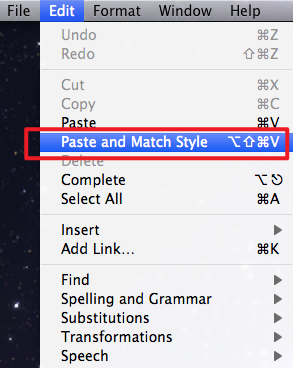
Method 2: Use Edit > Paste and Match Style
If you don’t want to memorize the keyboard shortcut, you can use the menu bar. Below is how:
- Select the target text and press Command + C to copy the text.
- Click where you want to insert the copied text.
- Click Edit from the menu bar and select Paste and Match Style.
- Then, this option performs the same basic operation as Option + Shift + Command + V.
Method 3: Use the App’s Own Paste Without Formatting Option
Generally, not all Mac applications handle paste commands in exactly the same way. Some of them have their own options to paste plain text, such as “Paste without formatting”, “Paste as plain text”, or “Keep Text Only”. If the standard Mac shortcut doesn’t work, open the application’s Edit or Paste menu and look for an option that can remove or ignore the source formatting.
How to Paste Without Formatting in Different Mac Apps
What’s more, the shortcut for pasting without formatting isn’t necessarily universal. In this section, I will offer you step-by-step guidance to paste plain text in Google Docs, Microsoft Word, Pages, Notes, and Mail.
#Google Docs
Unlike the native Paste and Match Style command on Mac, Google Docs has its own Paste without formatting command. The current keyboard shortcut for pasting in Google Docs is Command + Shift + V. How to paste without formatting in Google Docs? Here’s how:
- Select the text you want to copy and press Command + C.
- Open your Google Docs document and place the cursor where you want the text to appear.
- Press Command + Shift + V to paste without formatting for Mac.
If this shortcut doesn’t work in your particular setup, check the Edit menu for the available paste options. Some Google Docs users have also reported situations in which the shortcut behaves differently, so the menu command can be a useful fallback.
Why Can’t I Copy and Paste in Google Docs? 9 Solutions to Fix It
Why can’t I copy and paste in Google Docs? How to fix copy and paste not working in Google Docs? Let’s explore 9 workable fixes in this article.
READ MORE >#Microsoft Word
Microsoft Word provides several paste formatting options, including Keep Source Formatting, Merge Formatting, and Keep Text Only. To remove source formatting when pasting into Word, use the available Keep Text Only option from Word’s paste option.
This Keep Text Only option is especially useful when copying text from PDFs, websites, emails, and other Word documents. Here’s how to paste plain text in Microsoft Word.
- Select and press Command + C to copy text from a website, PDF, or another document.
- Place the cursor where you want the text to appear.
- Right-click and select the Keep Text Only
#Pages
Apple’s Pages supports the macOS Paste and Match Style command. Hence, you can copy your content, place the cursor in Pages, and press Option + Shift + Command + V. Alternatively, choose Edit > Paste and Match Style.
All in all, this is quite useful when you want copied text to adopt the typography and formatting of the Pages document rather than retain the appearance of the original source.
#Notes
When pasting content into Apple Notes, you can use the available paste options to prevent unwanted source styling from dominating your note. Here, try Option + Shift + Command + V first. If the behavior varies by content or Notes version, check the Edit menu for available paste commands.
When you are composing an email on your Mac, the copied text can sometimes bring formatting from the source. If you want the pasted text to blend into the surrounding email, try Option + Shift + Command + V. If the application doesn’t provide the expected result, check its Edit menu for an appropriate paste option.
How to Make Command + V Paste Without Formatting on Mac
If you frequently need to paste unformatted text on a Mac, you may wonder whether you can change Command + V so it always pastes without formatting.
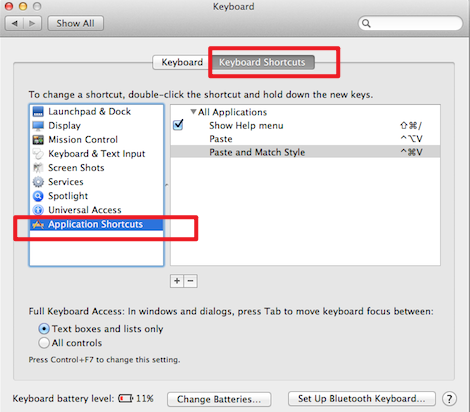
Fortunately, macOS allows you to create custom keyboard shortcuts for application menu commands. This can be useful when an application has a menu item such as Paste and Match Style, and you want a different shortcut for it. Here are the steps to paste without formatting using Command + V on Mac.
- Open System Settings and go to Keyboard.
- Then open Keyboard Shortcuts and select App Shortcuts.
- Now, add a shortcut for the relevant application or menu command.
- Next, enter the exact name of the menu command, such as Paste and Match Style.
- Finally, assign the keyboard shortcut you want to use.
How to Paste Plain Text Without Formatting on Mac
If your goal is to get clean, plain text rather than simply matching the destination’s style, try the following available options.
- Use Paste and Match Style: For many everyday situations, Option + Shift + Command + V is the easiest solution. Moreover, it is quite convenient when you are copying text from a webpage, document, or email.
- Use the App’s Plain-Text Paste Option: Some applications provide a dedicated option such as Paste without formatting, Keep Text Only, and Paste as Plain Text.
- Use a Plain-Text Editor as an Intermediate Step: If an application doesn't offer a suitable paste command, you can use a plain-text editor as an intermediate step.
Final Thoughts
How to paste without formatting on Mac? Simply start with Option + Shift + Command + V, which uses Apple’s Paste and Match Style command and makes the pasted content follow the surrounding formatting. What’s more, I also show you how to paste without formatting in Google Docs and other Mac applications. At last, I hope this article can be helpful to you.