



Does ChatGPT Automatically Save Conversations
Yes, ChatGPT generally stores your conversations automatically in your chat history whenever you’re signed into your account. Past conversations are accessible in the sidebar, allowing you to continue the discussion whenever required. Still, many people may want to export or save chats themselves to keep a backup or use them offline.
Where Are ChatGPT Conversations Stored?
If you want to know where ChatGPT conversations are stored, they are maintained on cloud servers associated with your ChatGPT account. This allows you to access them from the sidebar at any time when logged in.
- Chat history sidebar. Your previous conversations appear in the sidebar of your account, where they are automatically listed and can be reopened at any time.
- Cloud-based storage. Conversations are saved on secure cloud servers rather than on your local device, allowing access from multiple devices.
- Account login requirement. Chats are connected to your account, so you must be logged in to view or continue your saved conversations.
When Can Conversations Disappear?
Your ChatGPT chat history can disappear if you use the platform while logged out, manually delete chats, switch to a different account, or use temporary chat modes that do not save messages.
- Logged-out usage. If you use ChatGPT without signing in, the conversation may not be saved once the session ends.
- Deleted chats. When you manually delete a conversation, it is permanently removed from your chat list.
- Temporary chats. Temporary chat sessions are designed not to store conversations after you close the session.
- Account switching. If you switch to another account, the chats from your previous account will not appear.
Does ChatGPT Save Conversations Forever?
One frequent query is “Does ChatGPT save your chats?” and whether deleted conversations can be recovered. Usually, conversations remain in your account history until you delete them, though storage and retention may depend on platform policies and settings.
- Data retention overview. Chat history is retained in your account by default, and only removed when you delete it.
- Privacy considerations. Many users export or delete chats to keep their personal information private and under control.
How to Download Your Entire ChatGPT Chat History
If you want to keep a permanent record of your AI interactions, downloading your data is a reliable way to backup ChatGPT chats and store them safely. By exporting your ChatGPT data, you ensure important chats are safely backed up for future use. To maintain a complete record of your chats, you can export ChatGPT conversation history for easier review or organization.
Let's learn how to download ChatGPT chat history (entire conversation) using the Export Data feature.
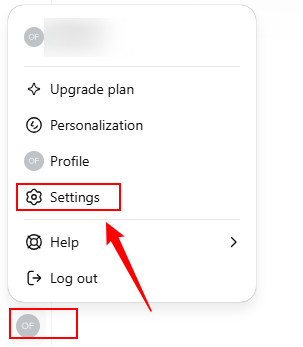
Step 1. Launch the ChatGPT website and sign in with your account. Then click your profile icon in the bottom-left corner. And select Settings.
Step 2. Inside the Settings, open Data Controls and select Export under Export Data.
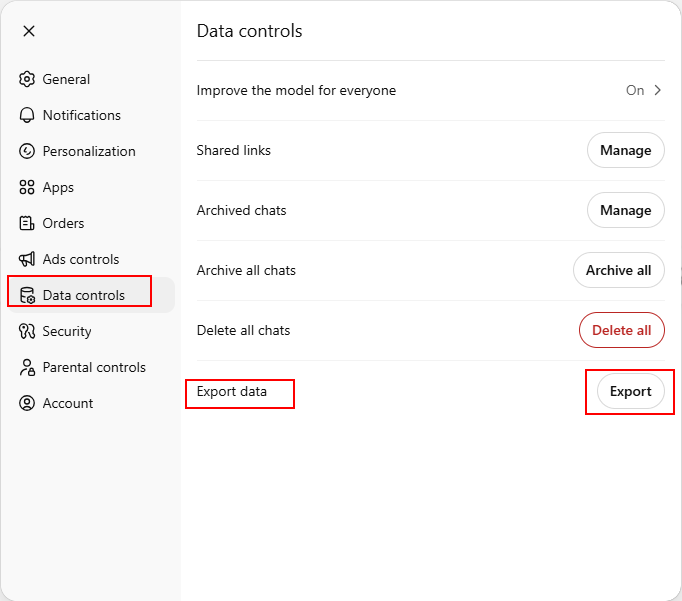
Note. This option allows you to request a download of all your ChatGPT data.
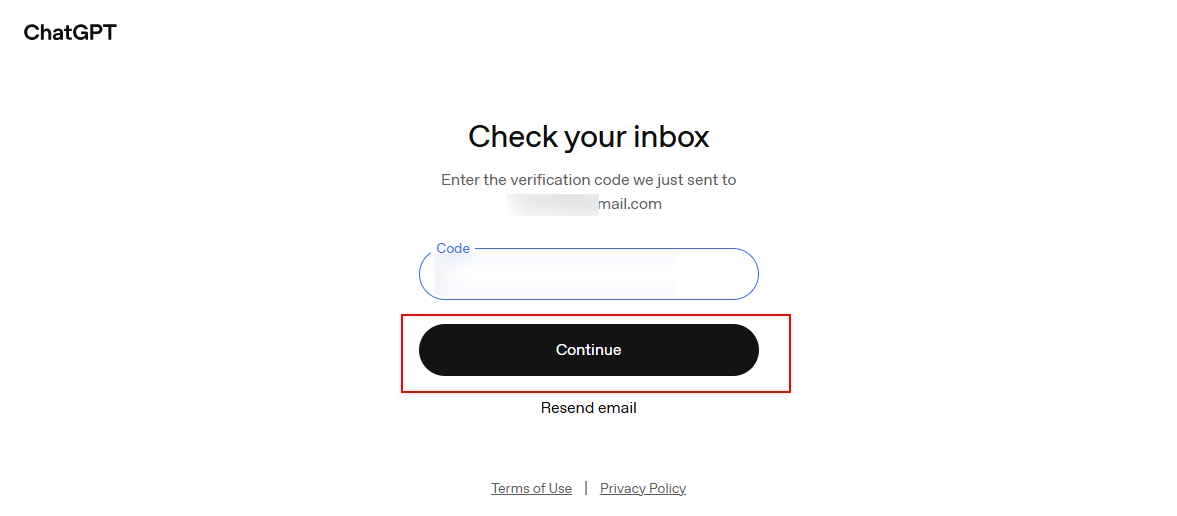
Step 3. Click Continue to confirm your email ID in the screen that pops up. Within a few minutes, you’ll receive a 6-digit code from OpenAI at the registered ID.
Enter the code on the screen and click Continue.
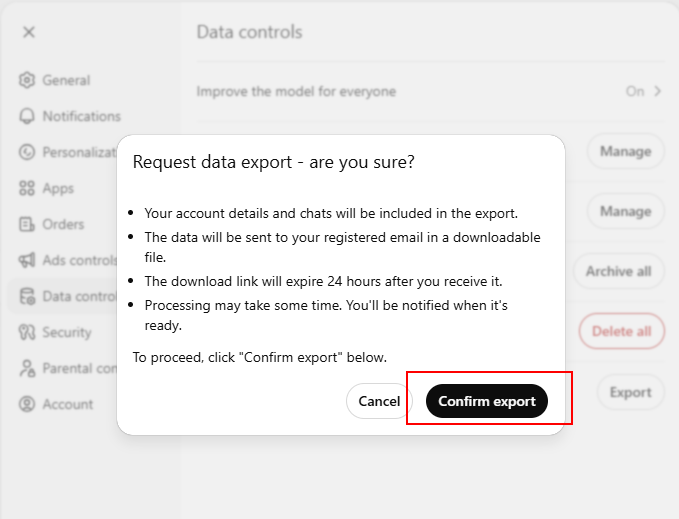
Step 4. Now, click Export and tap Confirm export for confirmation.
Step 5. At some time (maybe a few minutes, hours, or up to 7 days), you’ll receive an email with the download links.
Download the ZIP file. Inside the archive, you’ll typically find:
- Chat.html. Your full chat history in a readable format.
- JSON files. Structured conversation (raw data of all chats).
- Other account-related data.
Note. The conversations are saved in HTML format.
To convert exported chats into PDF:
After saving your chats in HTML, use tools to convert HTML to PDF for a well-formatted document. Fortunately, SwifDoo PDF makes the conversion seamless, producing a clean, organized, and portable document. Plus, you can also use SwifDoo AI to summarize content, refine text, or extract key insights from your chats. This method ensures your chats are neatly formatted and ready for offline access or sharing.
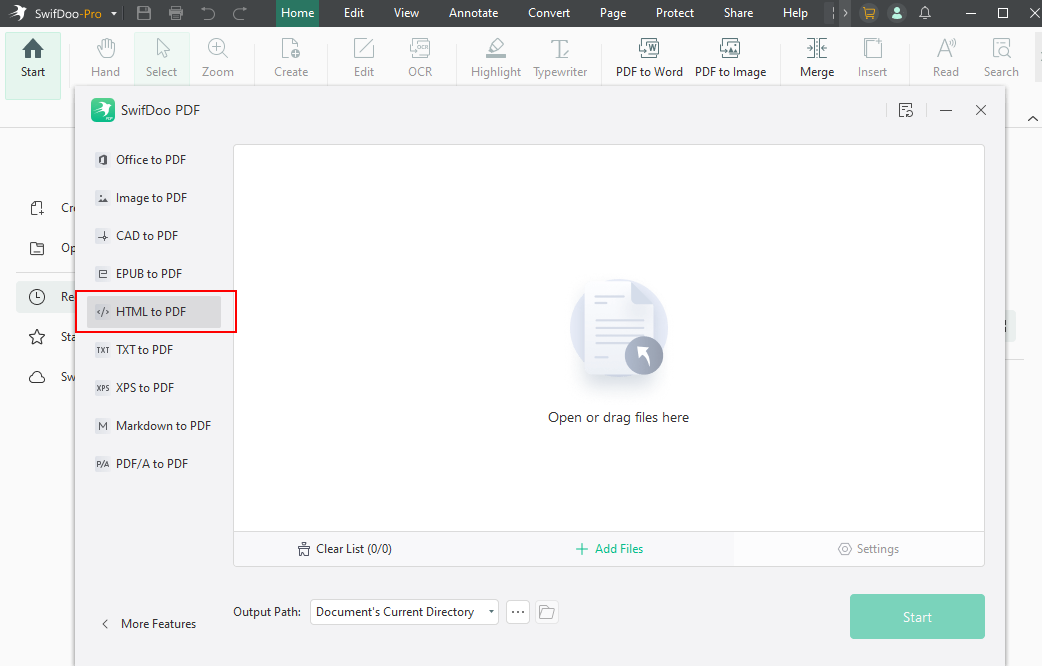
Downloading your entire ChatGPT chat history provides lasting value by enabling you to create long-term backups, archive years of conversations, and securely store your chats in the cloud. This helps preserve valuable insights, ideas, and information for future reference, making it simpler to organize, access, and manage your AI interactions whenever necessary.
How to Save a ChatGPT Conversation as a PDF
Saving a ChatGPT conversation as a PDF lets you preserve important chats in a convenient, shareable format. This approach allows you to keep discussions offline and organize them for future reference efficiently.
Method 1. Use the Built-in Print Feature
The print function in ChatGPT provides a simple and efficient way to save ChatGPT chat as PDF, keeping your conversations accessible. This method lets you easily print ChatGPT conversations directly to a PDF file, making them accessible offline and simple to share.
Let us find out how to export ChatGPT conversation as PDFs using ChatGPT’s built-in Print feature.
Step 1. Access the ChatGPT website. And navigate to the left sidebar to select the conversation you wish to save.
Step 2. Press Ctrl + P (Windows) once the chat is loaded to bring up the print dialog. Alternatively, use Cmd + P on Mac to open the print menu.
Step 3. In the Print window, choose “Save as PDF” as your destination or printer option.
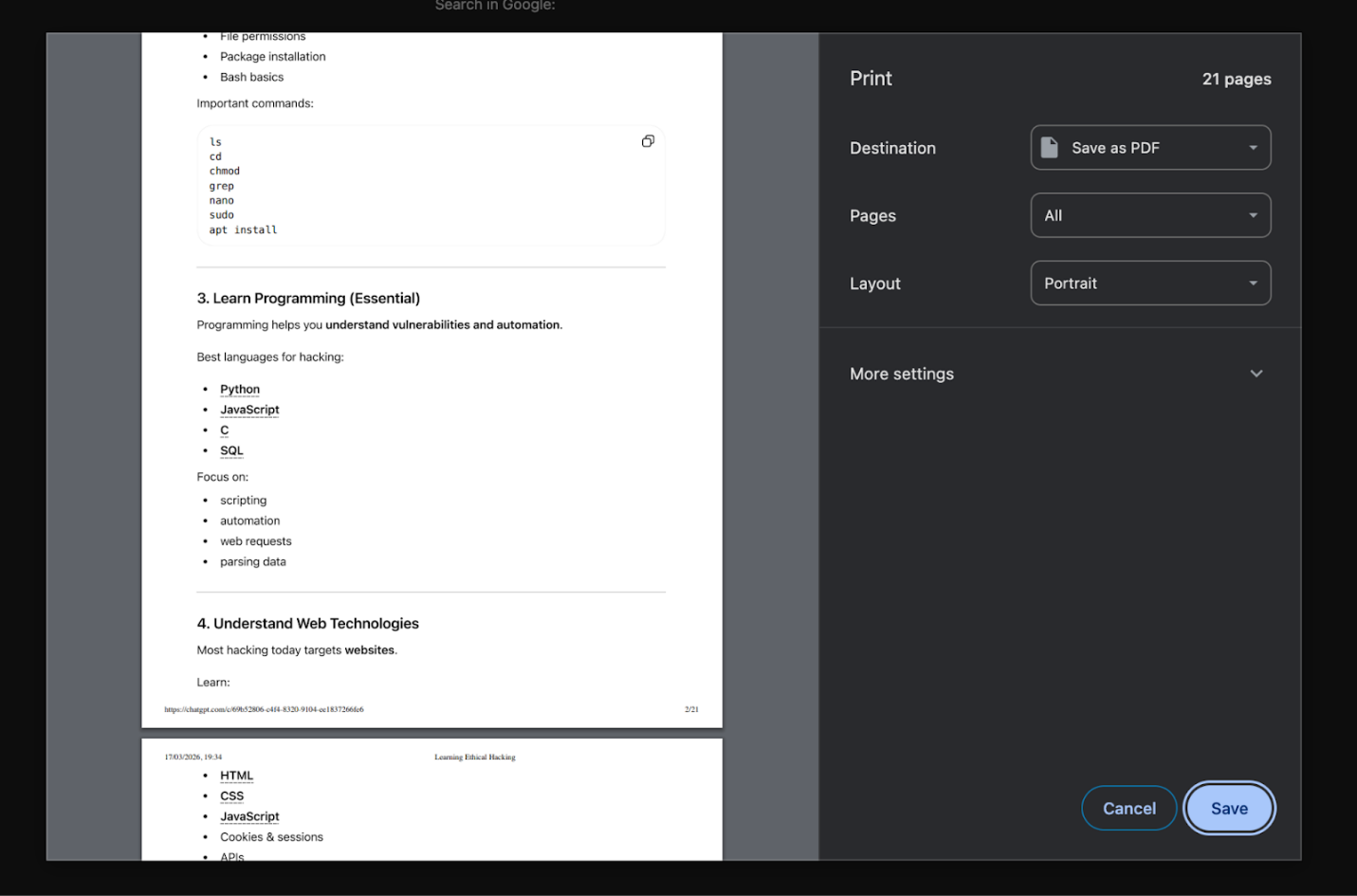
Also, adjust the Pages and Layout options. And then, click More Settings to adjust additional parameters.
Step 4. When your settings are ready, hit the Save button. Give your file a name and click Save again.
Method 2. Use ChatGPT’s Built-in Export Data Feature
Using the built-in export tool, you can conveniently download all your important chats at once, making it simple to maintain a complete record. This method suits users who wish to maintain a complete record of their chats for backup purposes.
Here’s a simple method to save your ChatGPT conversation as a PDF using Export Data.
Step 1. Go to the ChatGPT website and move to Settings.
Step 2. Within Data Controls, click on Export in the Export Data section to proceed.
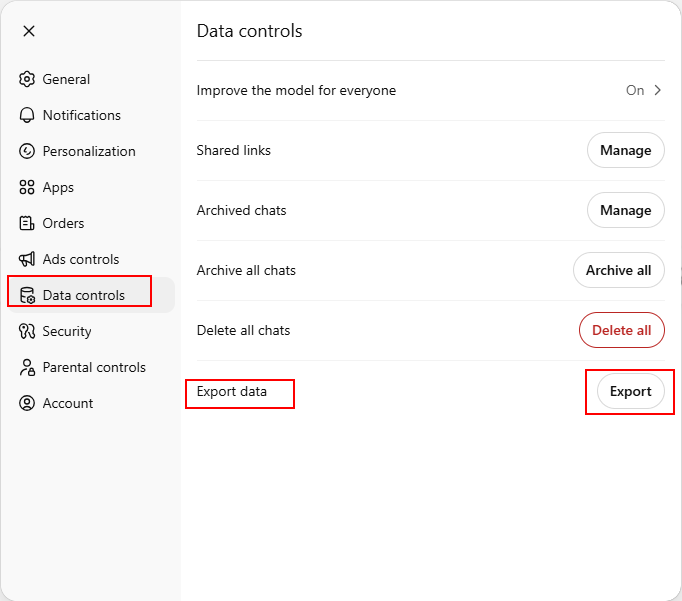
Step 3. After confirming the request, keep an eye on your email for the link to download your data.
Step 4. Transfer the exported HTML file to your device for later use.
Once the files are downloaded, use SwifDoo PDF to turn them into PDFs for easier access, sharing, and secure backup. It helps maintain proper formatting while turning HTML or text files into clean, readable documents. It also allows editing, merging several chats into one file, and securely storing them for future access or cloud backup.
Method 3. Copy and Paste the Entire Conversation
Another easy method to preserve your chats is to copy ChatGPT conversation and paste it into a Word processor or similar editor. For easier access, save ChatGPT chat to Word, Google Docs, etc., and then create a PDF for sharing. This method is useful when you want more control over formatting, layout, or content selection. It enables you to refine and structure the conversation before exporting it as a neat PDF.
Let us see how to copy and paste the entire conversation from ChatGPT into a document.
Step 1. Launch ChatGPT and go to the chat you plan to save.
Step 2. Highlight the full conversation by dragging your cursor from start to finish. Alternatively, press Ctrl + A for Windows or Cmd + A for Mac to select the whole conversation.
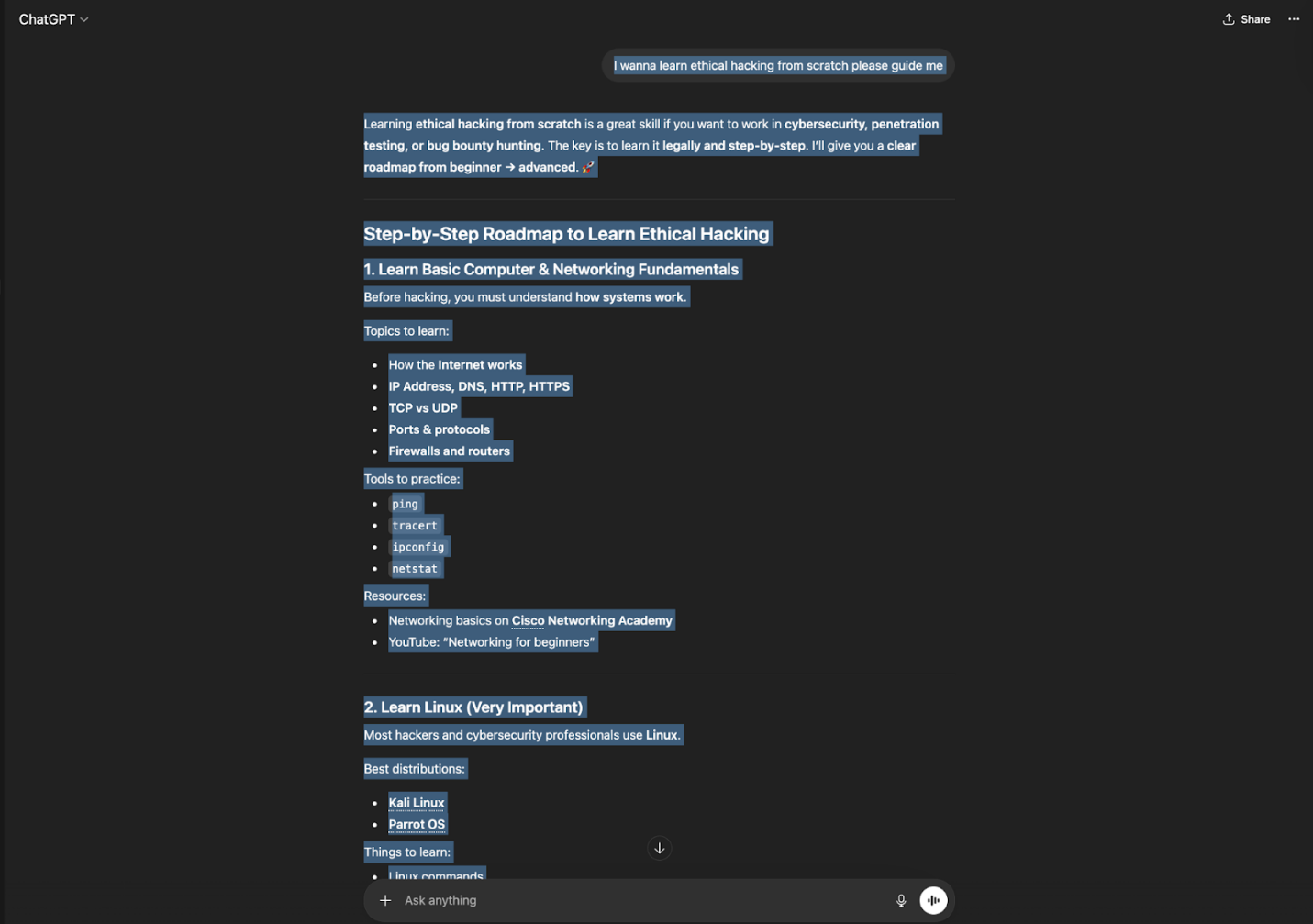
Step 3. Use Ctrl + C (Windows) or Cmd + C (Mac) to copy the selected text.
Next, use a document editor— Microsoft Word or Google Docs works well.
Paste the copied text using Ctrl + V (Windows) or Cmd + V (Mac).
Step 4. Adjust the content’s formatting, including headings, spacing, and any images.
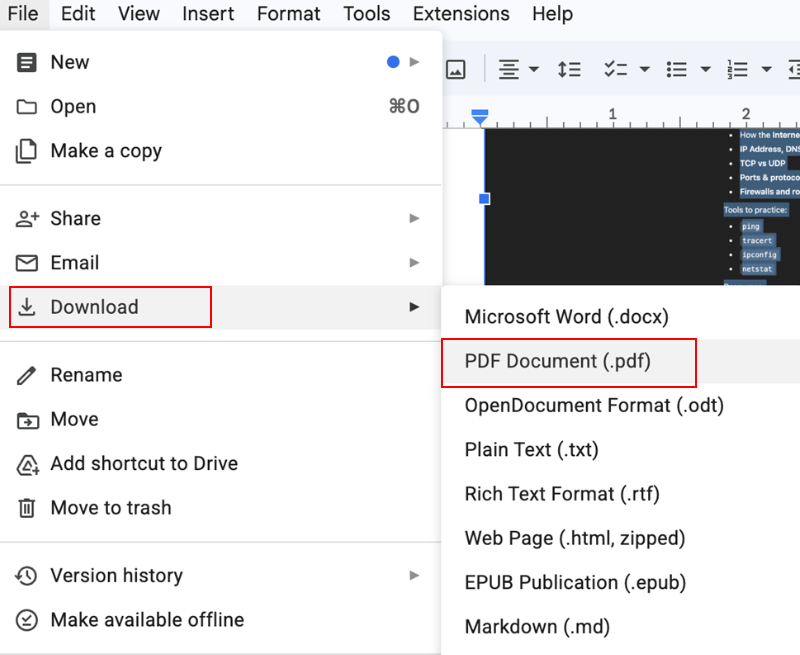
Then, move to File and click Save As or Download. And pick PDF as the file format.
How to Save ChatGPT Conversation on Mobile (iPhone & Android)
Saving ChatGPT conversations on mobile devices is simple and convenient, whether you’re using an iPhone or an Android. You can preserve important chats for offline access, sharing, or long-term reference directly from your device.
These are the different ways to save ChatGPT conversations on iPhone and Android.
Save ChatGPT Conversation on iPhone
Option 1. Copy & Paste.
Open the ChatGPT conversation.
Tap and hold to select the text, then drag to highlight the entire chat.
Tap Copy. And open Notes, Word, or any document app and paste the text.
Save or export the document as needed.
Option 2. Share > Print > Save as PDF.
Open the conversation and tap the Share icon.
Select Print from the menu.
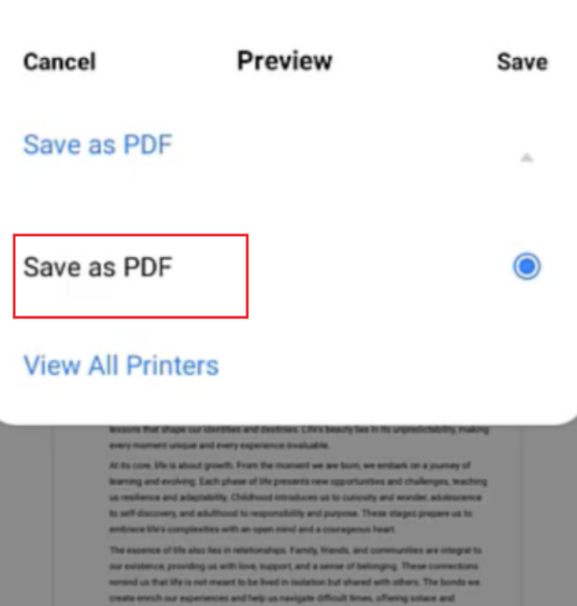
Pinch outward in the print preview to convert it to a PDF.
Tap Share again to save the PDF to Files or another app.
Option 3. Screenshot
Scroll through your conversation on ChatGPT.
Capture screenshots of each section by pressing the Side button + Volume Up on iPhones with Face ID.
Save the screenshots in Photos or combine them into a PDF using a third-party app.
Summary:
All three methods work for saving conversations on iPhone.
- Copy & Paste is best for editable, clean documents.
- Share > Print > Save as PDF is ideal for preserving formatting.
- Screenshots are quick but less organized.
For long-term storage and sharing, Share > Print > Save as PDF is generally the most efficient option.
Save ChatGPT Conversation on Android
Option 1. Use Chrome Print.
Open the ChatGPT conversation in Chrome.
Tap the three-dot menu in the top-right corner and select Print.
Choose Save as PDF as the printer option.
Tap Save and choose a folder on your device to store the PDF.
Option 2. Copy to Google Docs.
Open the conversation and long-press to select text, then drag to highlight the entire chat.
Tap Copy. And open Google Docs and create a new document.
Paste the conversation into your document and make any needed formatting changes.
Save the document or export it as a PDF for sharing or backup.
Summary:
Both methods work well on Android.
- Chrome Print is faster and preserves formatting.
- Copy to Google Docs allows editing and customization.
For clean PDFs ready to share or archive, Chrome Print is usually the best choice.
How to Share a ChatGPT Conversation with Others
Sharing your ChatGPT conversations makes it easy to collaborate with others or show your insights. Generating a shareable link lets you distribute full conversations without the hassle of exporting.
Follow these steps to understand how to share ChatGPT conversation link quickly.
Step 1. Go to ChatGPT. And open the conversation you wish to share.
Step 2. In the chat window, press the Share button at the top-right corner.
Step 3. Select Copy Link in the context menu to copy the chat link.
Step 4. Share the link by pasting it into an email, message, or other platform.
Best Ways to Organize and Backup ChatGPT Conversations
Organizing and storing your ChatGPT chats protects your data while keeping it readily available. Learn how to backup ChatGPT chats quickly and securely with these 3 approaches.
Save to Cloud Storage
Upload your exported chats or PDFs to a cloud storage service to ensure they remain secure. Using this approach, you can store ChatGPT responses safely and retrieve them from any device whenever needed. This approach ensures you can share chats or migrate them to other devices safely and easily.
- Google Drive
- Dropbox
- OneDrive
Save to Note-Taking Apps
Leverage a note-taking app to store your chats by pasting or importing them. They make managing, categorizing, and searching your conversations straightforward and efficient. You can add tags, headings, and links to related notes to create a well-organized system for all your saved chats. Additionally, many apps provide cloud syncing, allowing your notes to be accessed across devices anytime.
- Notion
- Evernote
- Obsidian
Create a Personal AI Knowledge Base
Combine and organize your saved chats into a structured knowledge base. This helps you organize ChatGPT conversations for quick reference, research, or project use. You can also link related topics, add tags, and create a searchable system to make it easier to retrieve important insights.
- Folder structure
- Naming system
- Tagging system
Final Wrap Up
Mastering how to save a ChatGPT conversation allows you to secure important information for future use. Whether you choose to export chats, convert them to PDFs, or copy them into documents, these methods make it easy to organize and access your conversations at any time. Backing up chats to cloud storage, note-taking apps, or a personal knowledge base keeps them secure and easy to search. These steps allow you to effectively manage and safeguard your valuable ChatGPT interactions.



