Why Can’t I Copy and Paste in Google Docs?
There are several reasons why copy and paste may not work in Google Docs. In this section, let’s explore the most common reasons below:
- Your browser is restricting clipboard access.
- The Google Docs Offline extension is missing or disabled in Chrome.
- Google Docs may be interfered with by other browser extensions.
- Your browser cache or cookies are causing a problem.
- Your browser is outdated.
- You only have Viewer or Commenter access to the document.
- Google Docs has not loaded or synced correctly.
- Your Internet connection is unstable.
- The selected content is too large or causing a temporary problem.
- Google Docs or your browser is experiencing a temporary glitch.
In addition to the factors above, you can also get a clue from a specific symptom. For instance, the problem may involve your browser or keyboard if Ctrl + C and Ctrl + V don’t work. Also, if keyboard shortcuts work but the Edit > Copy or Edit > Paste commands do not, browser clipboard restrictions may be involved. How to fix copy and paste not working in Google Docs? Please read on!
How to Fix Copy and Paste Not Working in Google Docs
Now that we have understood the potential causes, it’s time to learn workable solutions to fix the problem. Let’s try the following solutions in order.
1. Try the Keyboard Shortcuts
The quickest solution is to use the standard keyboard shortcuts instead of the Google Docs toolbar or right-click menu. Additionally, Google strongly recommends keyboard shortcuts for copying and pasting, as browsers can restrict web applications from accessing the system keyboard via menus.
On Windows or ChromeOS:
- Ctrl + C for copying
- Ctrl + X for cutting
- Ctrl + V for pasting
On Mac:
- Command + C for copying
- Command + X for cutting
- Command + V for pasting
2. Install or Enable the Google Docs Offline Extension
If you are using Google Docs in Chrome and the Copy or Paste commands in the Google Docs menu are not working, check whether the Google Docs Offline extension is installed and enabled. According to Google, the Docs Offline extension is required to use the copy and paste menu options in Chrome. Hence, if Google Docs copy-paste shortcuts are not working, try installing or enabling the Google Docs Offline extension.
- Open Chrome.
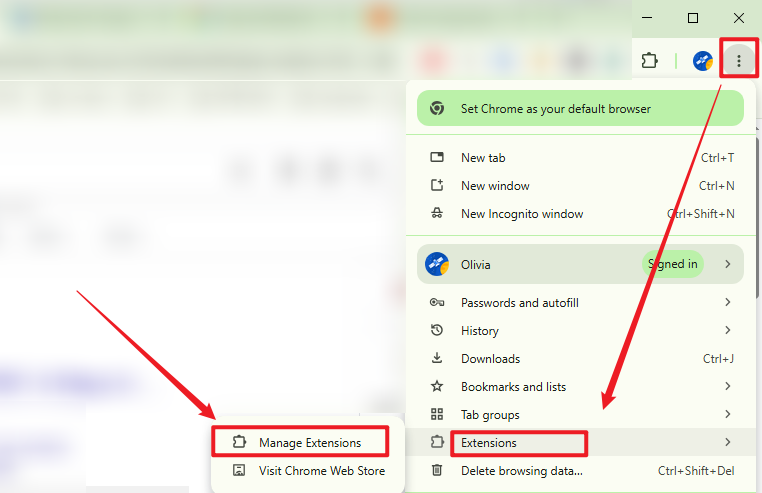
- Go to Menu > Extensions, select Manage Extensions, and look for Google Docs Offline.
- Here, make sure the extension is enabled.
- Next, go back to Google Docs, reload the document, and try copying and pasting again.
3. Try Incognito/Private Mode
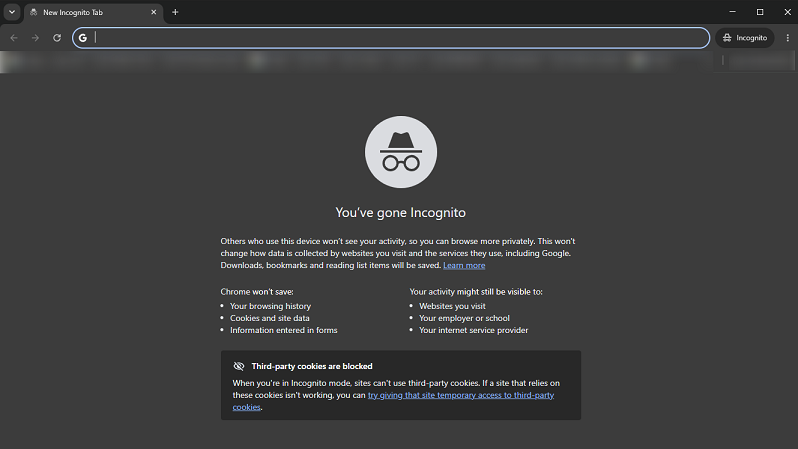
If you use extensions that can modify webpages, manage clipboards, change page formatting, or others, they may interfere with Google Docs and prevent certain editing functions from working correctly. In that case, you can try Incognito or Private mode in Chrome.
- Press Ctrl + Shift + N (Windows) or Cmd + Shift + N (Mac) to enable Incognito mode.
- Open the same Google Docs file and try copying and pasting.
4. Disable Browser Extensions
If you can copy and paste into Google Docs in a private window, the problem is likely caused by an extension. Hence, you can disable your extensions one at a time. Below is how to disable your extensions in Chrome.
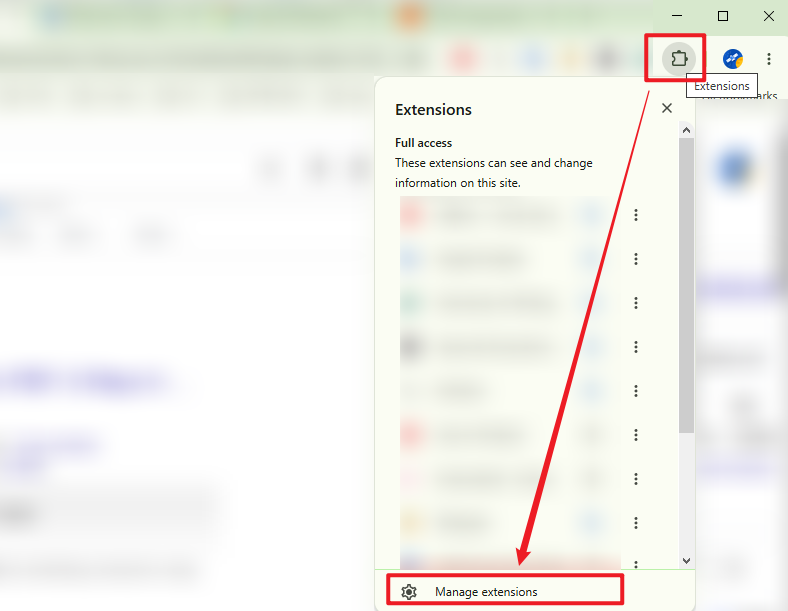
- Open your Chrome browser, click Extensions, and select Manage extensions.
- Toggle off all extension options.
- Then return to Google Docs and test copy and paste.
Also, you can try this solution when you meet similar problems in Google Sheets, Slides, or other Workspace editors.
5. Clear Your Browser Cache and Cookies
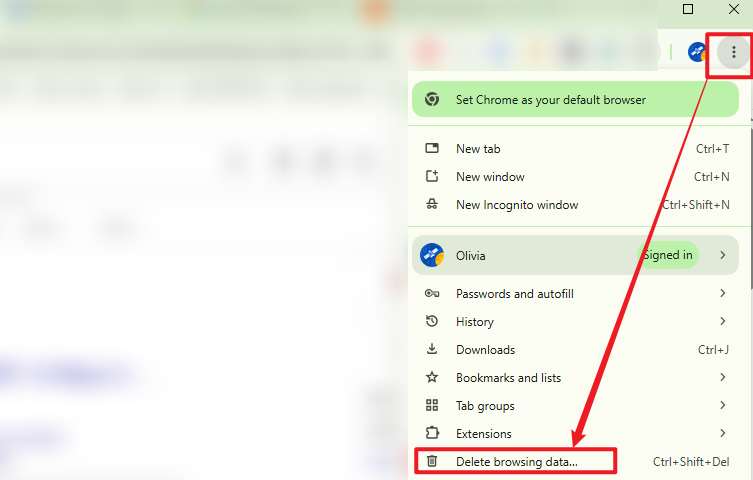
Sometimes, outdated or corrupted data can also cause Google Docs to behave unexpectedly. You’d better clear your browser’s cache and cookies to refresh the stored website data and resolve problems with Google Docs. Below is how:
- Click More in the top-right corner.
- Select Delete browsing data from the list.
- Then, select the appropriate time range and choose cached files and cookies.
- Finally, click Delete data and restart Chrome.
6. Update Your Browser
In addition, an outdated browser may cause compatibility or functionality problems with Google Docs. Hence, you need to check whether your browser has an available update and install it if necessary. Then restart your browser and reopen the Google Docs file to copy and paste.
7. Check Your Google Docs Editing Permission
If you cannot paste content into a document, make sure you actually have permission to edit it. In Google Docs, here are 3 common access levels:
|
Access level |
Can edit document content? |
|
Viewer |
No |
|
Commenter |
No |
|
Editor |
Yes |
8. Check Your Internet Connection and Reload Google Docs
Google Docs requires an active internet connection for many online editing tasks. If the document is stuck loading, not syncing, or displaying an error, copy and paste may also stop working as expected. In that case, you need to check your Internet connection, reload the page, or reopen the document.
9. Try a Different Browser or Device
What’s more, trying another browser is one of the easiest ways to determine whether the problem is caused by your current browser. For example, if copy and paste fails in Chrome but works normally in Edge, the Google Doc itself may not be the problem. The issue could be related to Chrome settings, extensions, cached data, or another browser-specific configuration.
Hence, you can try opening the document in another supported browser and test the same text.
How to Copy and Paste in Google Docs
Once you've fixed the problem, you can use several methods to copy and paste content in Google Docs.
Copy and Paste with Keyboard Shortcuts
Select the text, image, or other content you want to copy, and then use Ctrl + C and press Ctrl + V to copy and paste on Windows. Or press Command + C and Command + V to copy and paste on Mac.
Copy and Paste Using the Google Docs Menu
In addition to using keyboard shortcuts, you can also use the Docs toolbar menu. Select the content and then choose Edit > Copy, move the cursor to the destination, and select Edit > Paste.
Copy and Paste Using Right-Click
Another option is to select the content and right-click it. Depending on your browser and configuration, you may see "Copy" or "Paste" in the context menu.
Final Thoughts
Why can’t I copy and paste in Google Docs? It could be related to your browser, extensions, document permissions, cache, or a temporary Google Docs issue. Fortunately, this problem is easy to fix. You can use the keyboard shortcuts, reload the document, check your edit permission, and other solutions mentioned in the content above. At last, I hope this article can be helpful to you.