


Way 1. Encrypt Gmail with Confidential Mode
Confidential Mode in Gmail is a quick way to add additional protection for sending private or sensitive emails. While it isn’t true end-to-end encryption like certain dedicated secure mail services—but it still limits recipient actions.
You can stop forwarding, copying, printing, and downloading, define an expiration date, and require a passcode to open the email—ensuring an additional layer of protection and privacy.
Let’s see how to encrypt email in Gmail via Confidential Mode in a few clicks.
Step 1. Open Gmail and tap the Compose button.
Step 2. In the New Message window that opens, tap the padlock icon in the bottom-right corner.
Step 3. In the Confidential Mode window, set the email's expiry period under Set Expiry.
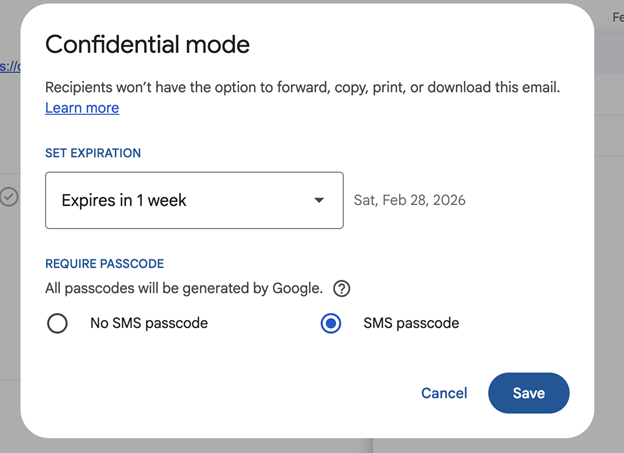
Step 4. In the Require Passcode section, choose No SMS passcode or SMS passcode (to make your email more secure).
Way 2. Encrypt Gmail with Client-Side Encryption
Client-Side Encryption (CSE) in Gmail lets you encrypt the content of your emails in your browser before it’s transmitted to Google’s servers, giving you stronger control over sensitive message data.
Enabling CSE ensures the email body and attachments are encrypted so only the recipient can decrypt and read them — meaning Google itself cannot view the encrypted message content.
Learn how to send a secure email in Gmail with Client-Side Encryption in just a few clicks.
Step 1. Launch Gmail and click the Compose button to start.
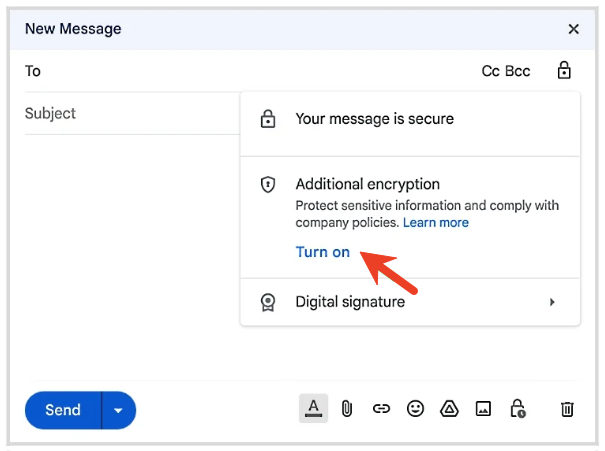
Step 2. Click Message security located in the top-right corner of the message.
Step 3. Under "Additional encryption," tap Turn on.
Step 4. Then add your recipients, subject line, and message content. And press Send. When asked, access your account through your identity provider.
Way 3. Send a Secure Email Using Extension (Virtru or Proton)
Even with Gmail’s encryption, if greater security and control over your messages are required, you can turn to a third-party extension like Virtru or a secure email service such as Proton.
By connecting with Gmail, these tools offer end-to-end encryption so that only you and the recipient can access the email — excellent for sending sensitive or highly confidential information safely.
Learn how to encrypt Gmail email using a reliable Chrome extension in a handful of clicks.
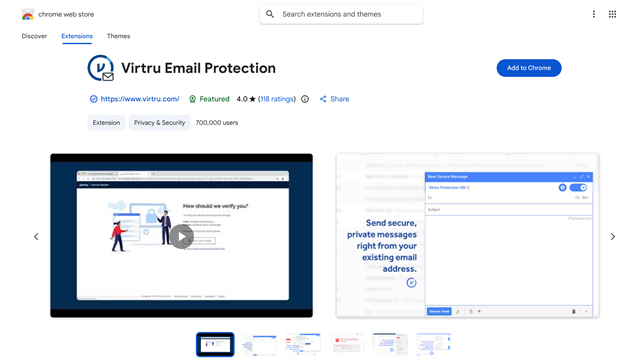
Step 1. Locate and install the Virtru extension in Chrome.
Step 2. Open Gmail and hit Compose.
Step 3. Turn on Virtru by tapping the toggle switch at the top-right of the compose window (blue).
Step 4. Hit the gear icon to set the expiration date, disable forwarding, and add a watermark. After configuring the settings, press Secure Send.
![Full Guide on How to Create a Signature in Gmail [PC/Phone]](https://img.swifdoo.com/image/how-to-create-a-signature-in-gmail.png)
Full Guide on How to Create a Signature in Gmail [PC/Phone]
How to create a signature in Gmail on its desktop version and mobile app? All you need is this comprehensive post guide. Click here to find the answers now!
READ MORE >Bonus Tip: How to Password-Protect a PDF Attachment for Gmail
Now that you’ve seen three useful approaches on how to secure email in Gmail, remember that securing just the message may not fully protect sensitive information. Sometimes, it becomes important to encrypt a PDF for email before including it as an attachment. It offers an additional safeguard for important documents like contracts, invoices, and professional reports. Here’s how SwifDoo PDF can assist.
SwifDoo PDF is a handy tool that helps you password-protect your PDFs before emailing them. You can establish a user password to limit access and set permission passwords to regulate editing, copying, or printing. This ensures that only authorized recipients can access or alter content.
Learn how to encrypt email attachments in Gmail using SwifDoo PDF in just a few clicks.
Step 1. Download and launch SwifDoo PDF on computer. Then, open the PDF file you need to encrypt.
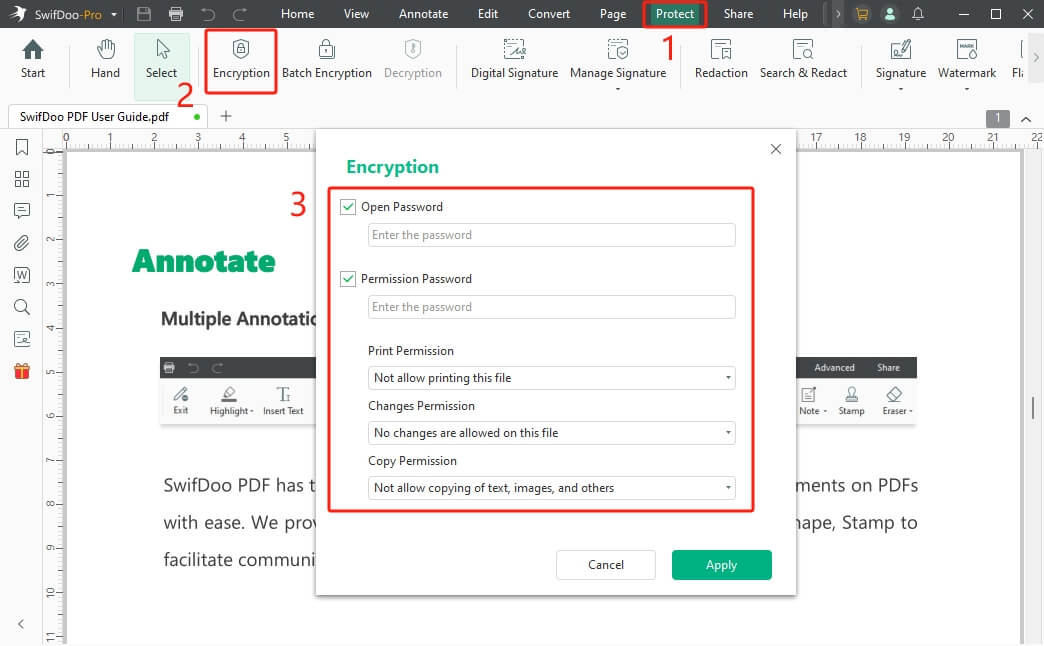
Step 2. From the top navigation bar, select the Protect tab. Then, select Encryption.
Step 3. Choose the type of password you wish to apply: Open Password or Permission Password. Then enter a password.
Step 4. After completing all settings, select OK to confirm and save your changes.
In addition to password protection, you can also compress a PDF to reduce its file size before attaching it. Large attachments often exceed email limits, making it difficult to send large files via email. By compressing a PDF, you can easily send large files via email.
With SwifDoo PDF, you can protect sensitive information and optimize file sizes in just a few clicks. Use SwifDoo PDF now to enhance your document protection and streamline your email security workflow today!
A Quick Wrap Up
Becoming familiar with how to encrypt email in Gmail is important for safeguarding private information in today’s online world. Whether you prefer Confidential Mode, Client-Side Encryption, or a secure extension, each solution enhances your email protection.
For maximum security, encrypting and compressing attachments helps your documents stay protected and easy to deliver. By following these methods, you can confidently secure your communications and strengthen control over email privacy. Hope this guide is helpful!



