


What Can You Download from iStock?
Before learning about the iStock downloader tools, it’s worth understanding what iStock offers and what's downloadable.
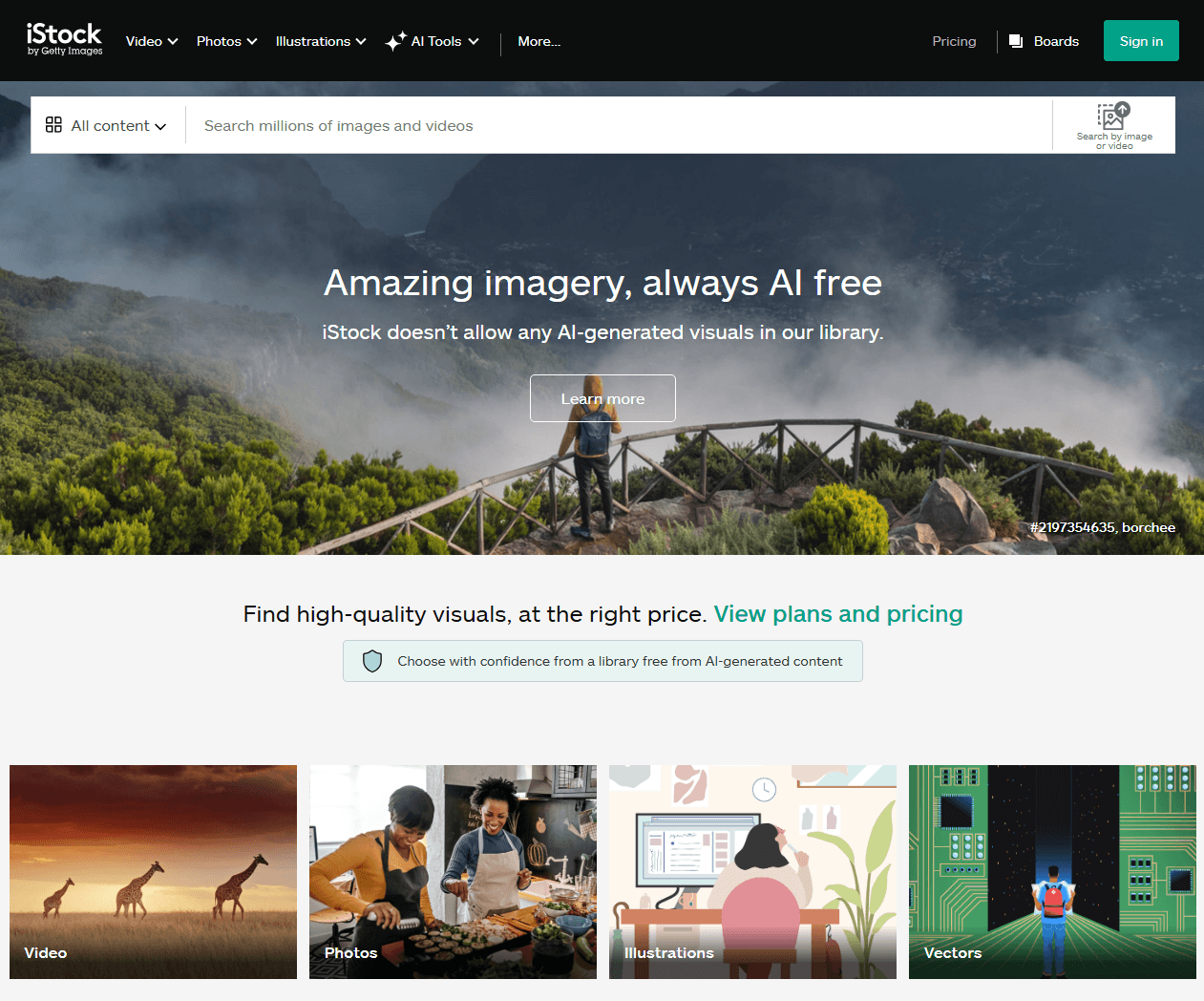
- Free previews. Every iStock photo you see on a public page is a watermarked, low-resolution comp image. It's designed for layout testing, not publication. Some iStock image downloaders that claim to provide free, watermark-free, 4K images usually deliver the same preview already visible on the page.
- Licensed downloads. After purchasing credits or a subscription, you can download the unwatermarked iStock photos and videos from your account. The resolution depends on the license type.
- AI-generated iStock images. iStock's Unlimited AI plan lets you generate and download unwatermarked Medium or 4K images. These aren't existing stock photos; they're generated to your prompt.
- Weekly free file. iStock offers one free Premium image per week with a full license. It's the only official free option for an iStock images free download without watermark.
To know more about stock media downloading methods, SwifDoo PDF provides a dedicated section for all the popular stock image platforms:
- Alamy Photo Downloader – Download Alamy Images Without Watermarks
- Storyblocks Downloader: Download Storyblocks Video & Image Without Watermark
The 5 iStock Downloaders We Tested
To compare these five iStock downloader tools fairly, we used the same iStock image URL across all five and recorded what each one returned, like resolution, watermark status, and any extra steps required. Results may vary depending on the specific link, your region, and server load, so treat the table as a general guide rather than a definitive ranking.
| Tool | Output Type | Price | Speed |
User Base |
Trustworthiness |
Best For |
|---|---|---|---|---|---|---|
| Steptodown | Image | Free | Fast (seconds) | Low (niche site, no public stats) | Limited data; no independent trust score found | Quick reference images, layout drafts |
| BeatSnoop |
Image | Free | Fast | Low (low Tranco rank) | ScamAdviser Trust Score 0; hidden WHOIS owner; flagged for low traffic and iframe embedding | Testing with specific links, non-critical use |
| FliFlik |
Image & Video | Free (online version caps at 720p) | Fast | High (claims 200M+ satisfied clients globally) | Recognized brand with desktop and online products; online version is a separate, more limited product | Users wanting a browser-based tool for both images and clips |
| Downpic |
Image | Free | Fast | Low (no public stats) | No independent trust score found; FAQ makes commercial-use claims that conflict with iStock terms | Internal reference only; not for published work |
| Fetchpik |
Video | Free | Moderate (captcha adds step) | Low (niche site) | Scam Detector gives 66.7 (medium risk, "Known. Vetted. Low Risk") | Reviewing clips offline, testing in an editing timeline |
How to Unblur Chegg Answers: Homeworkify alternatives & Safer Methods
Learn how to unblur Chegg with easy steps. Find Homeworkify alternatives to see Chegg answers free and explore safe methods to download Chegg to PDFs.
READ MORE >Tool 1: Steptodown iStock Downloader
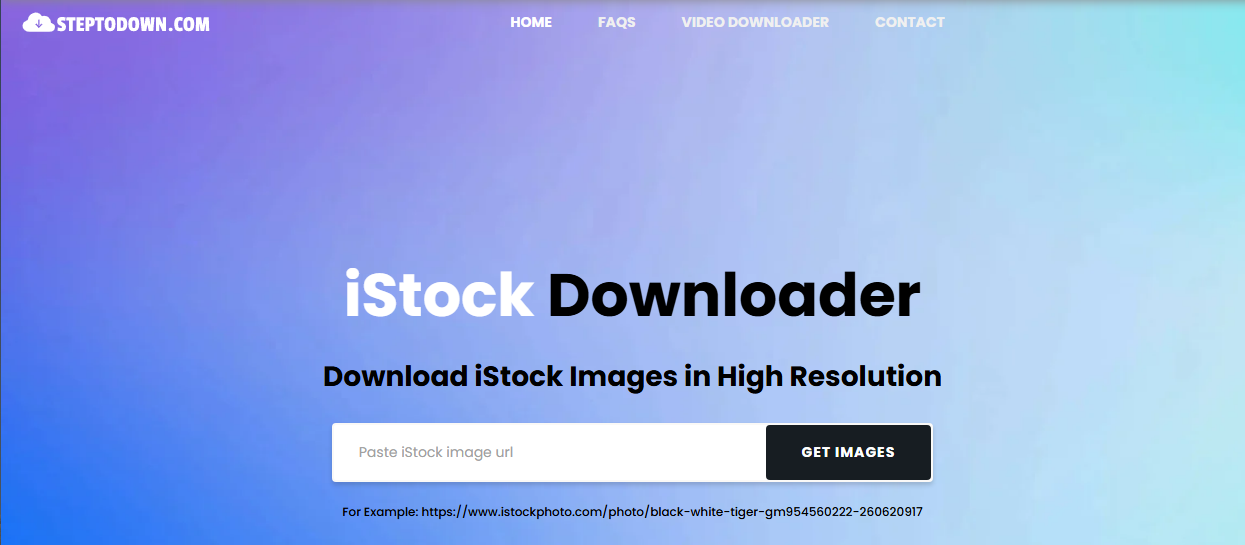
From its main page, we can see Steptodown position itself as a lightweight online iStock downloader that accepts image URLs and returns a downloadable file with minimal fuss. This tool only supports iStock photo downloads, and if you want to find an iStock downloader video tool, it’s not the right one.
What we experienced after we tested:
We gave this iStock photo downloader a test. We pasted the iStock image link into it. The tool processed the link quickly and returned an iStock image file that matched the public preview resolution, with the watermark still visible. Since we just tested one link, your results may differ depending on the specific asset – some links may return higher-quality output, while others may not.
- Simple interface with no learning curve
- No signup or registration
- Fast processing
- Output is typically preview-quality
- Watermark often remains
- No option to request higher resolution
If you need a reference image for a layout draft and the preview quality is enough, Steptodown works fine. But if you need a clean iStock image download for a client deliverable, you may need to license it.
Tool 2: BeatSnoop iStock Downloader
BeatSnoop presents itself as a free online iStock photo downloader that lets you save "premium and HD quality images from iStockphoto without any watermarks." The page provides many decisive words for the free iStock image download experience, such as “no limits on stock photo downloads”.
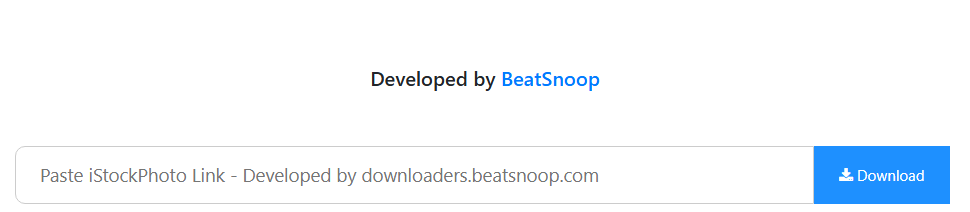
What the page claims for its iStock download advantages (Note that the following claimed features are uncertain):
- Completely free with unlimited downloads
- No registration required
- No software installation
- Ultra-fast downloading speed
- Safe and secure
- Support for all leading browsers and platforms
What we tested and found when using this iStock downloader 4K tool:
When we pasted an iStock image URL, the tool processed it and returned a downloadable file. The output was consistent with what iStock's public page displays – a watermarked preview. That said, iStock download results can vary by link type, and some users report successful downloads of HD iStock image files depending on the asset.
So, if you're evaluating iStock downloader HD options, BeatSnoop is worth testing with your specific link, but don't assume the "no watermark" claim holds for every download.
Tool 3: FliFlik iStock Downloader
FliFlik markets itself as an online iStock downloader supporting both images and videos, with claims of HD/4K quality and no watermarks. It targets creators, editors, and designers, and highlights three selling points: no signup required, completely free, and HD/4K quality.
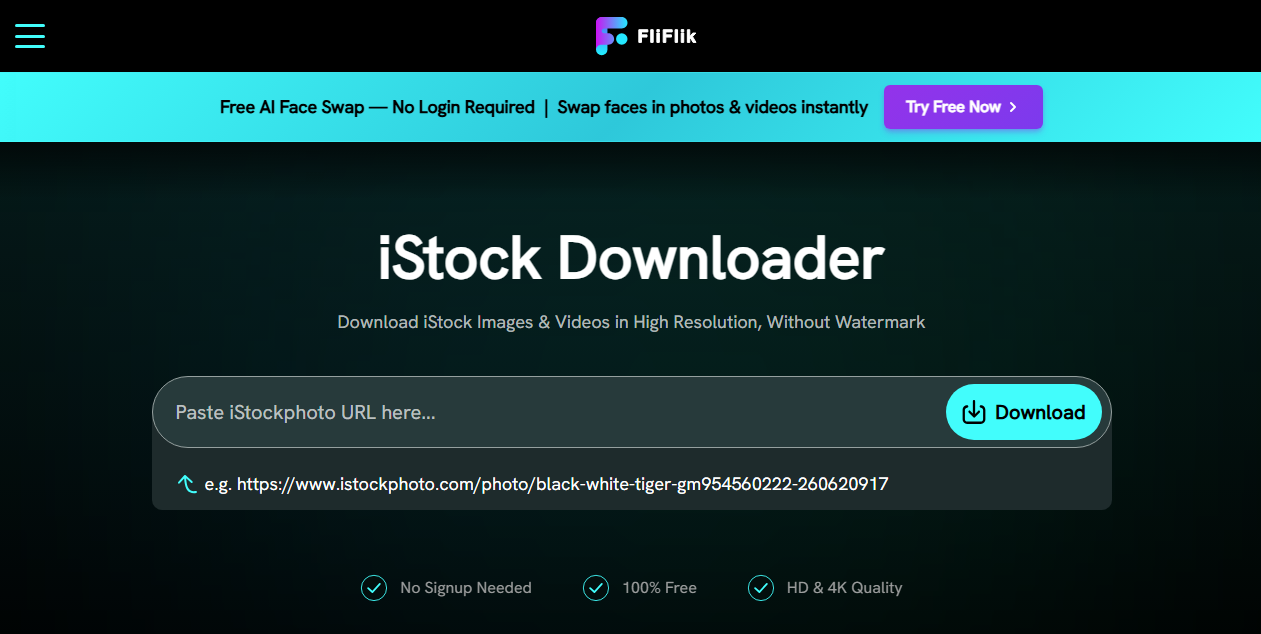
The claimed iStock downloader HD no watermark tool splits its offering into two functions.
- For images, it works as an iStock image downloader that can save individual pictures or entire collections.
- For video, it acts as an iStock downloader video tool that outputs MP4 clips at the best available resolution, including HD and 4K.
The bigger question is how FliFlik obtains 4K, watermark-free files. iStock's public pages serve watermarked previews, not 4K originals, so if the tool delivers on its 4K claim, it's doing something beyond simple URL extraction.
The page doesn't explain that mechanism, and the testimonials don't offer technical detail. Results may vary depending on the asset and the tool's current configuration, so it's worth testing with your own link before relying on it.
What we experienced after we tested:
We tested the image function, and the output matched the preview quality we saw with other tools. We didn't complete a video test because the iStock downloader video workflow requires a different process, and the page provides limited technical detail.
How to use the iStock downloader 4K tool? Copy the full URL from any public iStock asset page, paste it into the input box, click Download, and wait for the link to generate.
- Covers both images and video
- No signup or registration
- Clean interface with step-by-step instructions
- Claims unlimited free downloads
- 4K and no-watermark claims aren't technically explained
- Testimonials appear to be marketing copy rather than verified reviews
- Video capability not independently confirmed
- No information on how files are sourced
Tool 4: Downpic iStockPhoto Downloader
Downpic describes itself as an online iStock image downloader that provides high-resolution, watermark-free images. Its FAQ goes further, stating that downloaded images "can be used for commercial purposes without any restrictions." That claim is problematic because iStock's license terms don't permit commercial use of unlicensed preview images.
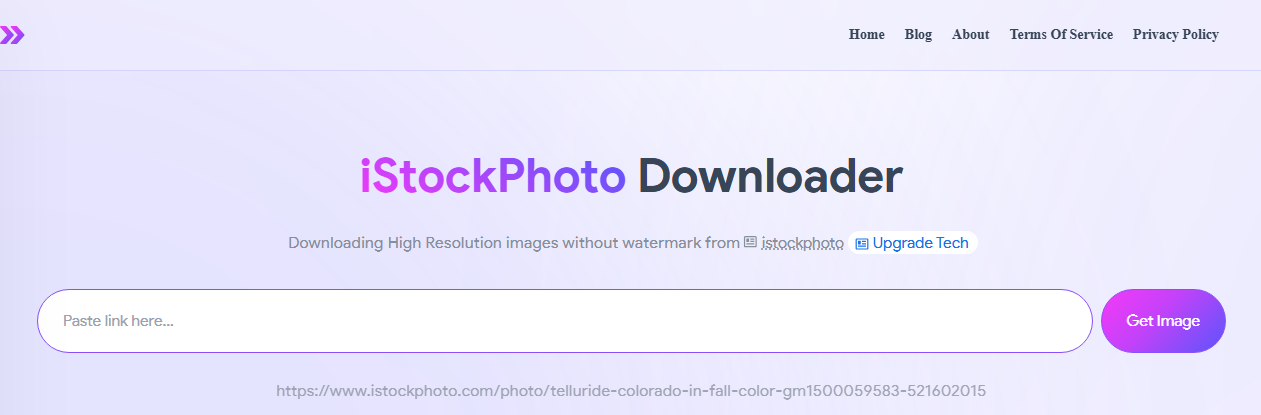
For grabbing a reference image for internal use, a mood board, or a layout draft, Downpic does the job and the risk is manageable. But if you're planning to publish the image, the commercial-use claim should be ignored entirely.
The iStock image download process is simple: copy an iStock image URL, paste it into Downpic, click "get Image," and the tool handles the rest.
What we experienced after we tested:
We’ve tried this iStock photo downloader with two to five different iStock image links. Sometimes, the processing speed is quick, and you can get the downloadable file with no watermark, but we’ve run into some failures also – the page is stuck, and you get nothing, which means the iStock images free download without watermark varies by asset, and the results can differ depending on the link you use.
Just treat any download as unpredictable until you check it yourself. You can't predict whether a given link will return a clean file or a low-quality one.
- Simple three-step process
- No signup or subscription required
- Clear interface with an example URL
- Free to use
- Commercial-use claim conflicts with iStock's licensing
- Contradictory messaging between the FAQ and the page's own note
- No explanation of how watermark removal or resolution works
- Results may vary by asset
Tool 5: Fetchpik iStock Video Downloader
If you prefer an honest iStock video downloader, Fetchpik is a good choice. Different from the above iStock downloader with 4K and no watermark claimed, the Fetchpik iStock video downloader page explicitly states that it downloads the "preview clip" and notes that "stock footage is licensed content – always buy or hold the correct licence before using a clip in a published project."
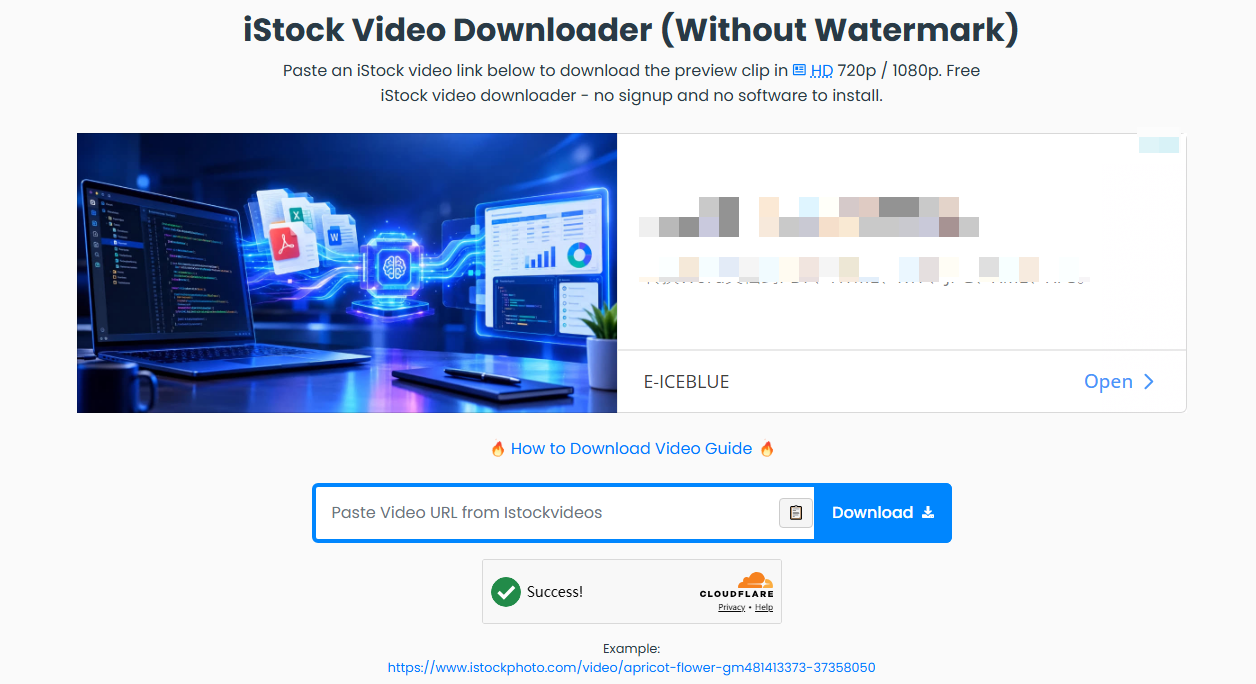
This tool focuses only on video and is upfront about what it delivers: the preview clip in HD 720p/1080p, with a watermark. If you accept the iStock video download, follow this workflow:
Open an iStock video page, copy the URL, paste it into Fetchpik's input box, complete a captcha, and click Download.
What we experienced after we tested:
We tested Fetchpik’s iStock downloader video tool with a public iStock video page. After pasting the link and completing the captcha, the downloader took a few seconds to load the preview. The clip played in a small player, and a download button appeared below it. The file saved as an MP4. The resolution matched HD preview quality – 720p in our case – and the watermark was visible throughout.
We also tried a second link from a different iStock category. That one failed to load after the captcha. The page stayed on the loading state, and no preview appeared. Reloading the page and pasting the link again didn't help.
Fetchpik's FAQ anticipates this: it suggests checking that the URL is from a public iStock video page and waiting for the preview to load, and if it keeps failing, reloading or trying another clip. In our case, the second link simply didn't work, and we moved on.
- Transparent about what it delivers
- HD preview quality (720p/1080p)
- Works on mobile and desktop
- No signup required
- Clear instructions and FAQ
- Output is a watermarked preview
- Captcha required
- Some links fail to load
- Not a licensed download
How-to Solutions: Embed Video in PDF with 4 Easy Ways
Wondering how to embed a video in a PDF? Read this post to get four ways to add videos as hyperlinks, attachments, or objects.
READ MORE >How to Download iStock Images Without Watermark (Official & Reliable Paths)
If you need a clean, high-resolution iStock image for publication, the reliable paths are official. Here are four options, each with its own steps and trade-offs.
Method 1: License and Download from iStock
This is the only way to get a true iStock download without watermark – by downloading what you've licensed. Besides, the iStock image resolution depends on the license type you purchase.
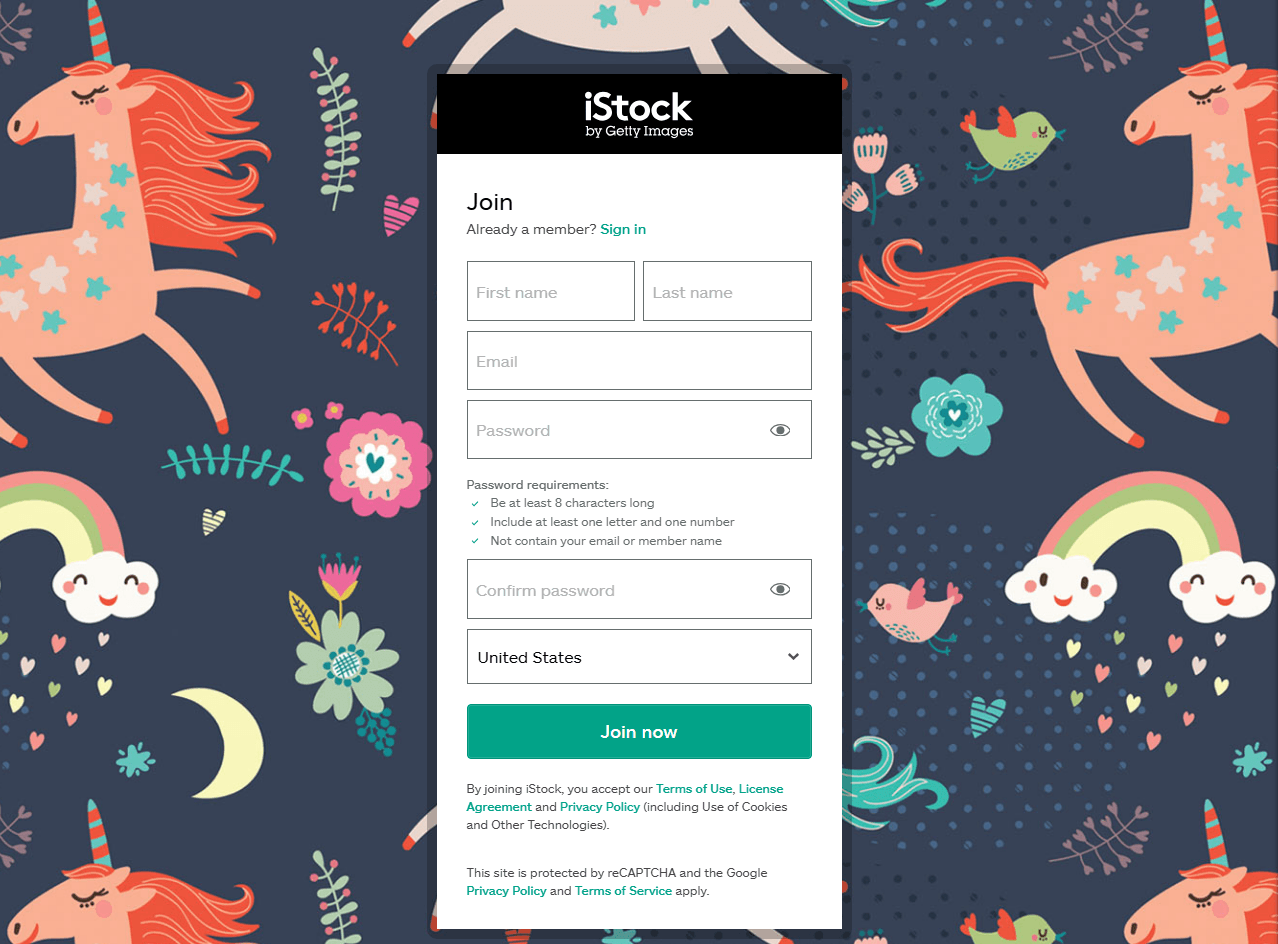
Step 1: Create an iStock account and sign in.
Step 2: Search for the image you need and note its pricing (credits or subscription). Then purchase the required credits or start a subscription plan.
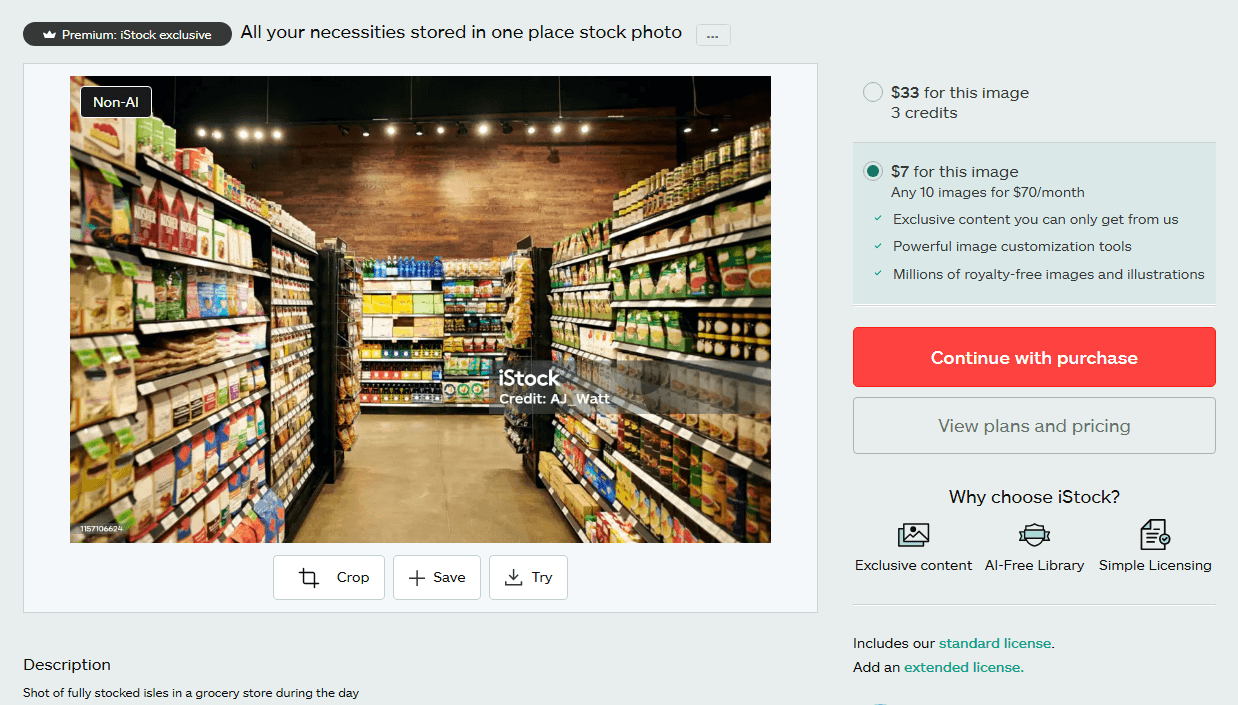
Step 3: Return to the image page and click Download. Choose the resolution available under your license (size options vary by asset and license type).
Step 4: Then save the HD iStock image without watermark to your device.
Method 2: Use iStock Unlimited AI for 4K Images
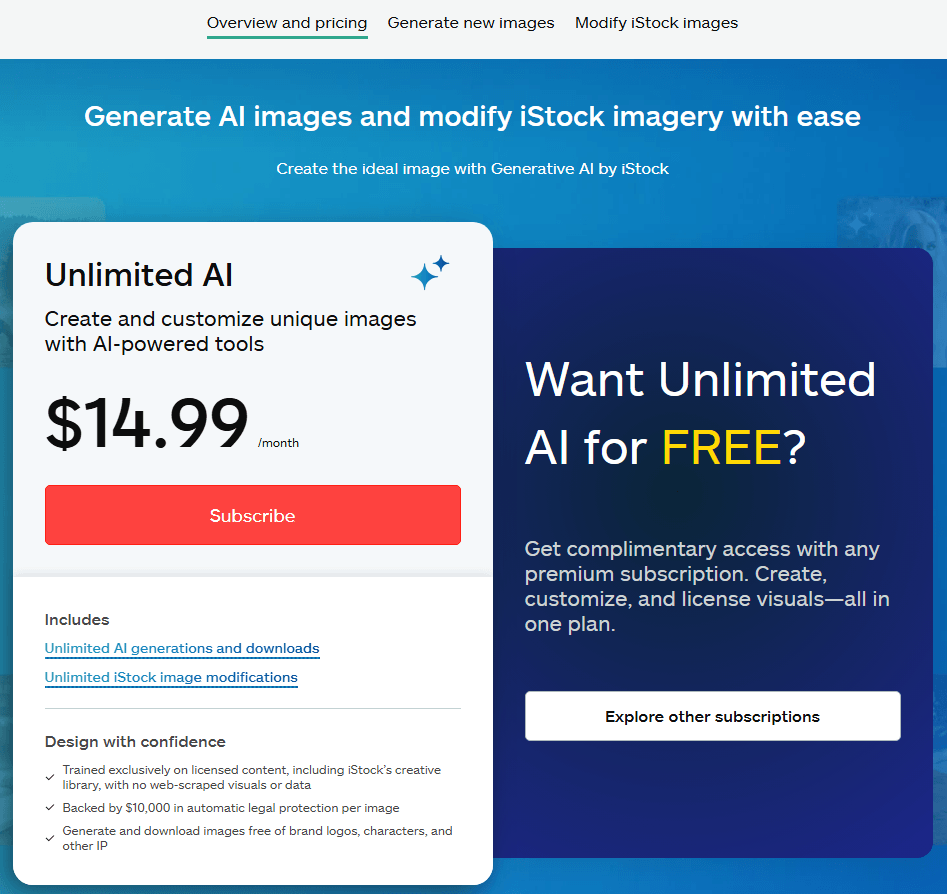
iStock's Unlimited AI plan includes unlimited generation and download of unwatermarked Medium or 4K images, with legal indemnification. This is the official route to 4K-quality images without watermarks, though the images are AI-generated rather than existing stock photos.
Step 1: Subscribe to the iStock Unlimited AI plan.
Step 2: Open the AI image generator in your iStock account and enter a prompt describing the image you need.
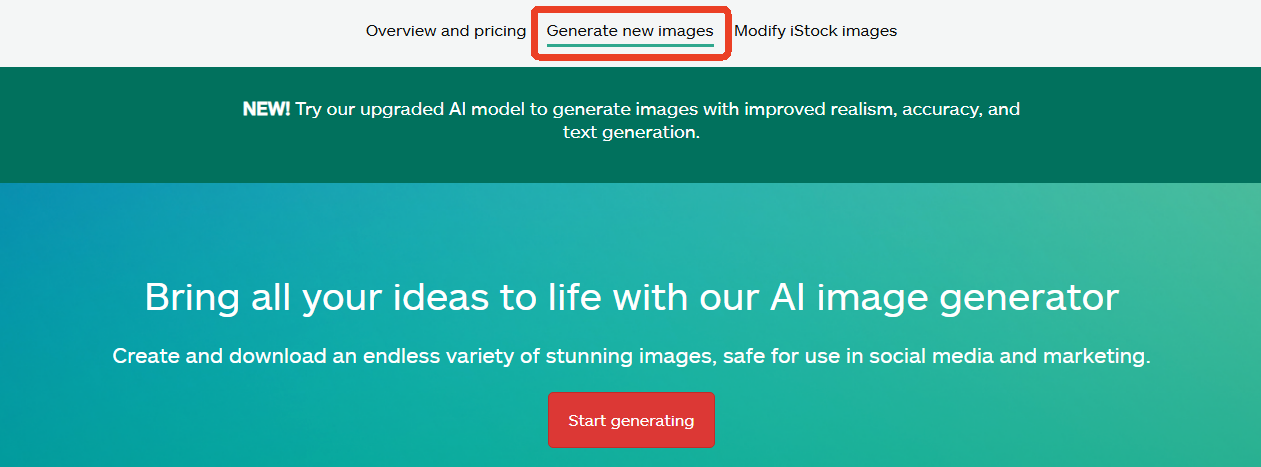
Step 3: Generate the image and review the results.
Step 4: Download the unwatermarked Medium or 4K version. Then, you can use the image under the plan's licensing terms.
Method 3: Download the Weekly Free iStock Premium File
iStock offers one free Premium image per week with a full license. It's not always 4K, but it's free and legal. For users seeking iStock images free download without watermark, this is the only official free option.
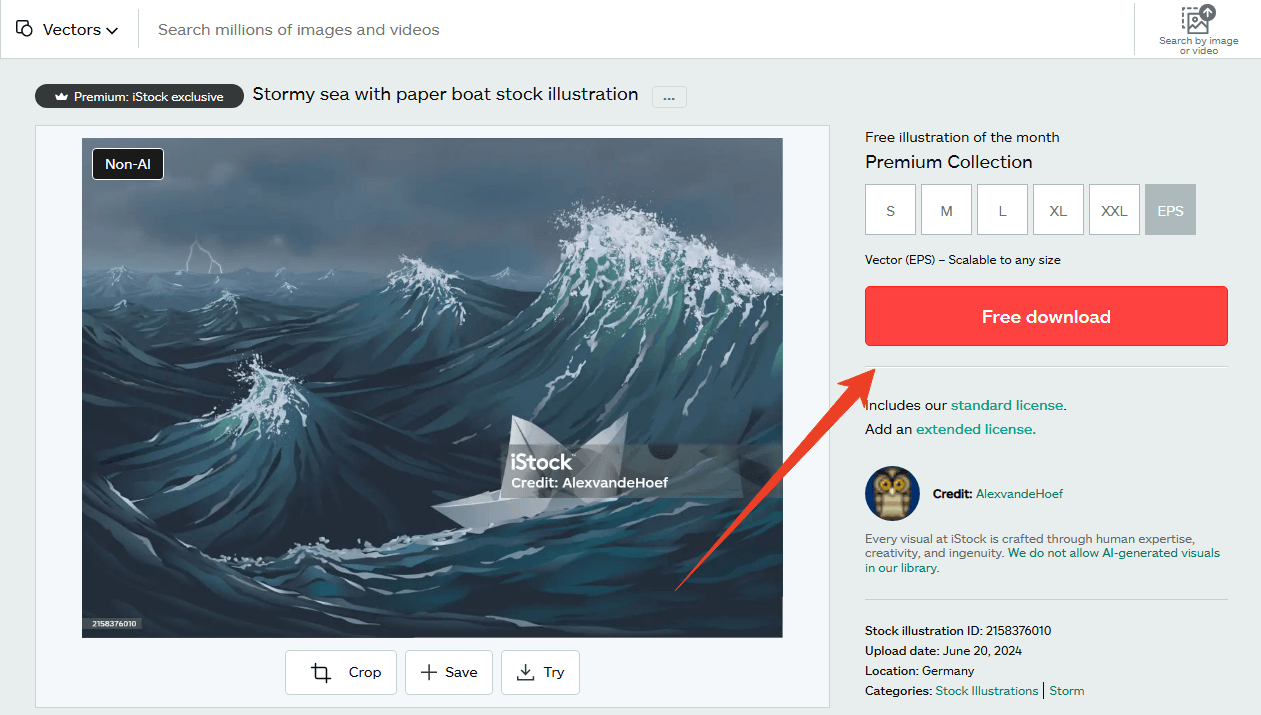
Step 1: Sign in to your iStock account and navigate to the Free photo of the week page, the Free video clip of the month page, or the Free illustration of the month page.
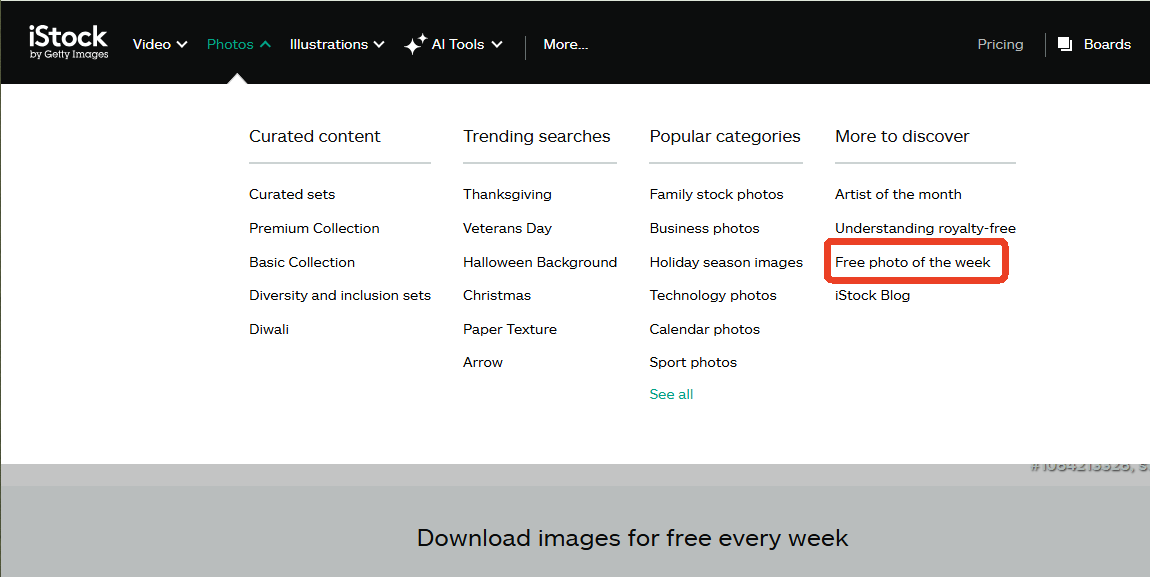
Step 2: Click the current week's free image or video and click Free download.
Method 4: Use Free iStock Alternatives
If you want to download stock images without licensing headaches, these free stock libraries are the practical alternative to chasing iStock previews.
- Unsplash is a library of over 2 million high-resolution photos that you can download and use for free, with no attribution required. It's the go-to for clean, modern photography.
- Pexels offers a massive collection of free photos and videos that you can download under a license that allows commercial use and modification without attribution.
- Pixabay hosts over 5.9 million assets—photos, vectors, videos, and music—all released under the Pixabay License, which means you can download and use them commercially without asking permission.
- StockSnap provides a curated selection of CC0-licensed images, making them safe to download for commercial projects with zero attribution requirements.
Is iStock Downloader Safe? Risks and Practical Tips
We need to be straightforward with you here: the biggest risk of using an iStock downloader isn't technical; it's legal and financial. If you use an unlicensed iStock preview in a published project, you could face claims from the rights holder.
How SwifDoo PDF Helps After You’ve Downloaded From iStock
Once you've legally obtained iStock images or PDFs, or downloaded free alternatives, SwifDoo PDF handles the processing that comes next.
- Compress large image-heavy PDFs. If you've compiled downloaded images into a client deck or report, SwifDoo's compression tool shrinks the file by adjusting image quality, making it easier to email or upload.
- OCR scanned documents. If you've downloaded a scanned PDF or an image-based file, SwifDoo's OCR recognizes the text and turns it into searchable, editable content, and can export it to Word while preserving the layout.
- Merge and organize. Combine multiple downloaded files into one document or split a large PDF into separate files for easier sharing.
- Edit directly. Add or change text, insert or adjust images, and annotate sections without converting to another format first.
Conclusion
This article has displayed all the details of some iStock downloader 4K tools listed on the iStock search results. Fetchpik is honest about this. The others make claims that don't hold up in testing. If you need a preview for reference, any of these iStock downloader tools can help. However, if you need a clean, high-resolution iStock image download for publication, the official paths – licensing, Unlimited AI, or the weekly free file – are the reliable routes.


