Different Types of Excel Password Protection
Before removing a password, it’s important that we identify the type of protection your Excel file uses. Each protection type is designed for a different purpose. Now, let’s have a look:
|
Protection Type |
What It Does |
Can You Remove It? |
|
Password to Open |
Prevents anyone from opening the workbook without entering the correct password. |
Yes, if you know the password. |
|
Worksheet Protection |
Restricts editing of cells, formulas, rows, columns, or formatting within a worksheet. |
Yes, if you know the password. |
|
Workbook Structure Protection |
Prevents users from adding, deleting, renaming, moving, or hiding worksheets. |
Yes, if you know the password. |
|
Read-Only Recommendation/Password |
Encourages or requires users to open the workbook as read-only. |
Yes. |
Once you know which type of protection is applied, follow the corresponding method below.
How to Remove Password from an Excel Workbook
In this section, I will walk you through different ways to unprotect Excel files or sheets, depending on the protection type. Let’s check them one by one.
Method 1: Remove the Password Required to Open an Excel File
If Excel asks you to enter a password every time you open the workbook, the file has been encrypted. How to unprotect Excel files so they can be opened? You need to enter the correct password to open the workbook first. Then, you can remove the password by following the steps below:
Step 1. Open the password-protected Excel workbook.
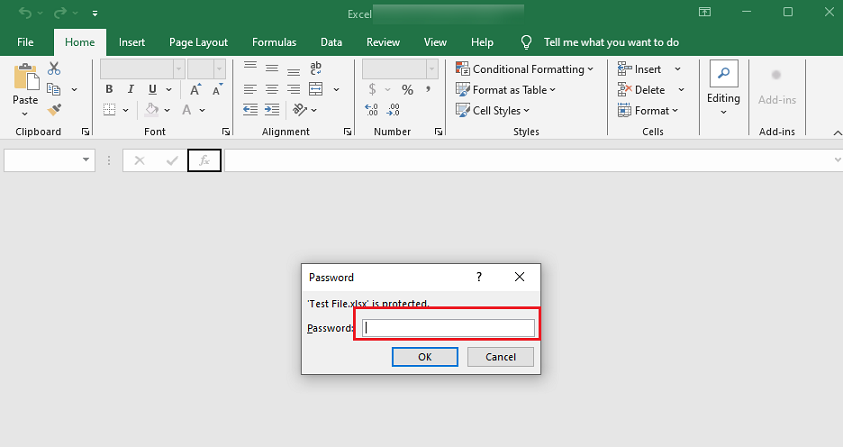
Step 2. A dialog will pop up, and you need to enter the current password to access the file.
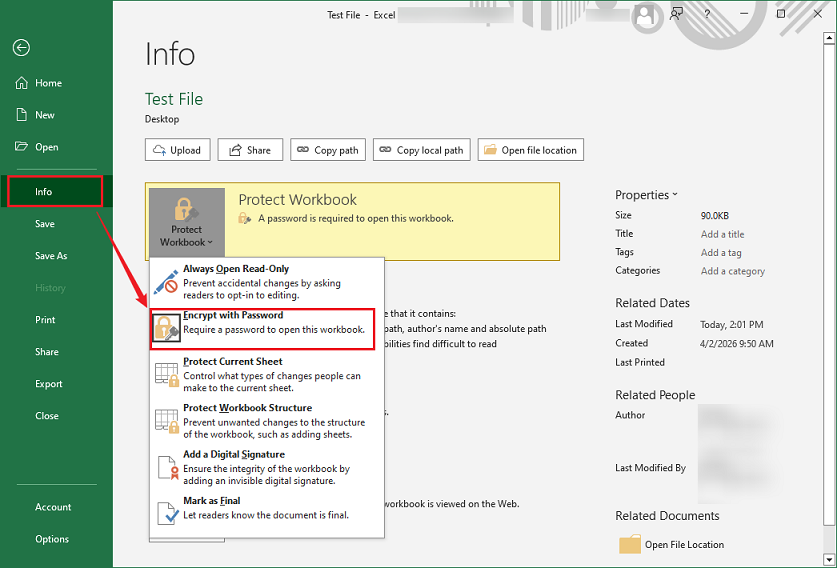
Step 3. Then, click File and hit Info. Next, expand the Protect Workbook dropdown and select Encrypt with Password.
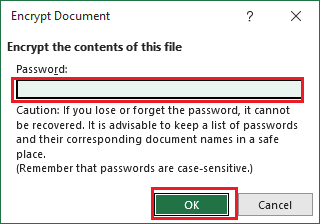
Step 4. In the password box, delete the existing password so the field is blank. Then, click OK to save the changes.
Step 5. Finally, click the Save icon to save the workbook. Then, the next time you open the workbook, Excel will no longer ask for a password.
Method 2: Remove Worksheet Protection
Unlike “Password to Open”, worksheet protection allows you to view data. But it prevents you from editing specific cells, formulas, or formatting. How to unprotect a sheet in Excel? If you know the password, you can remove this restriction quickly. Here’s how:
Step 1. Open the protected workbook and go to the worksheet you want to unprotect.
Step 2. Click the Review tab from the top toolbar and select Unprotect Sheet.
Step 3. Then, enter the worksheet password and click OK. Now, the worksheet is fully workable.
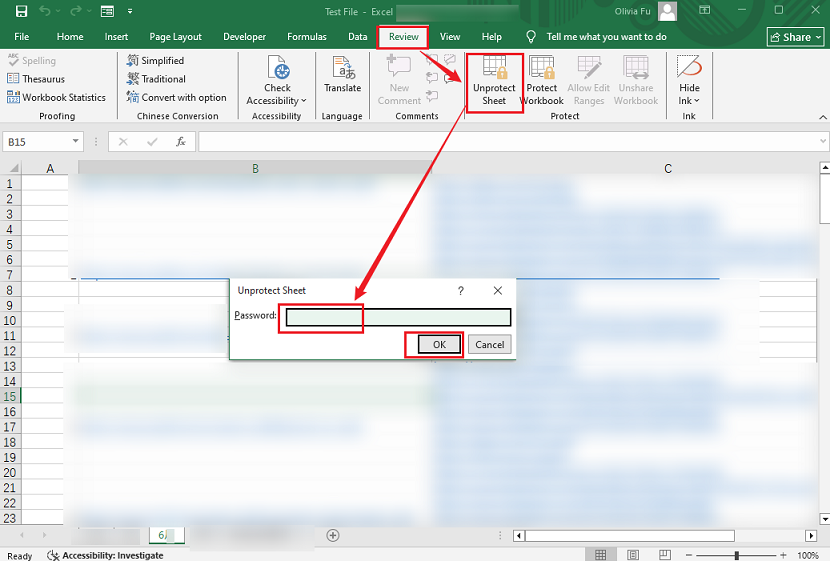
If multiple worksheets are protected separately, you'll need to unprotect each one individually.
Method 3: Remove Workbook Structure Protection
If your workbook has Workbook Structure Protection, you can’t make structural changes to the workbook, such as adding, deleting, renaming, or moving worksheets. How to remove workbook structure protection in Excel? Below are the exact steps:
Step 1. Open the workbook first.
Step 2. Then, switch to the Review tab and click Protect Workbook.
Step 3. Next, the Unprotect Workbook dialog will appear. Enter the password and click OK.
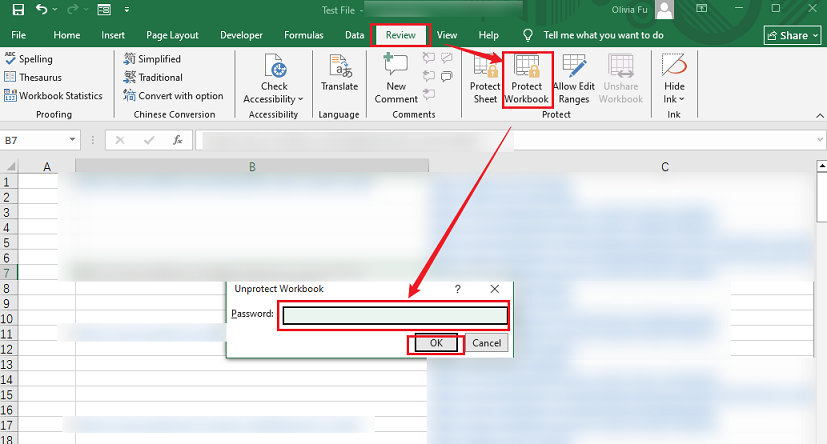
After removing workbook protection, you can freely rename worksheets, insert new sheets, or make other structural changes.
Method 4: Remove a Read-Only Password or Recommendation
Some Excel files don't require a password to open, but prompt you to open the workbook in Read-Only mode. Others require a password to modify the workbook. How to remove this setting? Here’s how:
Step 1. Open the Excel workbook, click File, and select Save As.
Step 2. Select the location where you want to save the workbook. Then, in the Save As dialog, click Tools and select General Options.
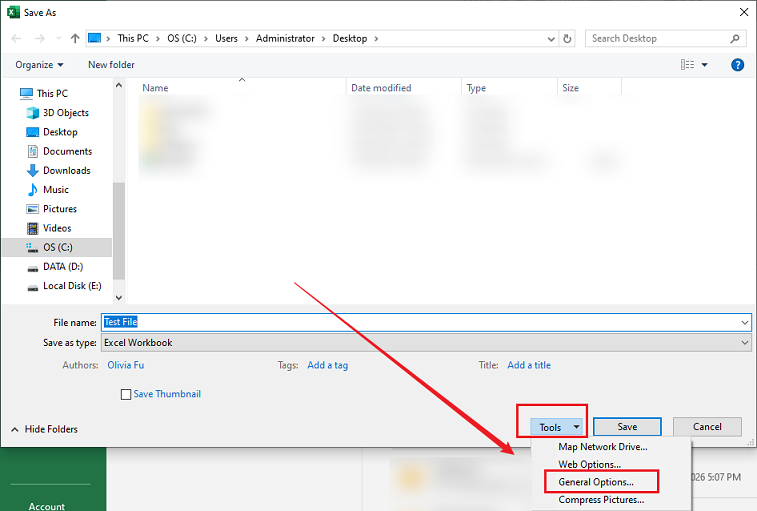
Step 3. Next, remove the password from the Password to modify field and uncheck Read-only recommended.
Step 4. Finally, click OK and save the workbook.
Can You Remove an Excel Password If You Forgot It?
The answer varies based on the type of protection used. Let’s go over it.
#If You Forgot the Password to Open the Workbook
If the workbook is encrypted with a Password to Open, you'll need the correct password to access and remove it. In other words, you can’t open the workbook if you don’t know the correct password.
In that case, you may still be able to regain access by:
- Asking the file owner for the password.
- Restoring an earlier, unprotected version from a backup.
- Checking whether the workbook is stored in a cloud service with version history enabled.
#If You Forgot the Worksheet or Workbook Protection Password
Worksheet protection and workbook structure protection are designed to prevent editing rather than encrypt the workbook. Hence, you can remove an Excel password even if you forgot the password. Here are two available tricks for you to choose from:
- VBA macro: open the Excel file, press Alt + F11 to open the VBA editor, go to Insert > Module, and paste the standard “PasswordBreaker” macro. Finally, press F5 to run it. (This method mainly works for older XLS files and some unencrypted XLSX files)
- ZIP/XML editing: make a backup copy of your workbook and rename the copy from .xlsx to .zip. Then open the .zip with 7-Zip, WinRAR, or Windows Explorer. For sheet protection, go to x1 > worksheets. For workbook protection, find xml. Next, edit the relevant .xml file in Notepad and search for <sheetProtection …> or <workbookProtection …> and delete the entire tag. Finally, save and replace the file in the ZIP. Rename back to .xlsx and open.
Best Excel Password Removal Alternatives
Though Microsoft Excel is a good option for removing password protection when you know the password, some of you don’t have Microsoft Excel installed or need other Excel password removal tools. Here, I’d like to show you several good Excel password removal alternatives. Below is a comparison table to help you choose the right tool for your workflow:
|
Tool |
Remove Known Password |
Remove Worksheet Protection |
Edit Excel Files |
Best For |
|
Microsoft Excel |
Yes |
Yes |
Yes |
Complete Excel editing and password management |
|
Google Sheets |
Import unprotected files |
Limited |
Yes |
Cloud-based collaboration |
|
LibreOffice Calc |
Yes |
Yes |
Yes |
Free desktop spreadsheet editing |
|
WPS Office Spreadsheets |
Yes |
Yes |
Yes |
Microsoft Office alternative |
Which Password Remover Should You Choose?
- Microsoft Excel remains the best choice for removing workbook passwords, worksheet protection, and workbook structure protection.
- Google Sheets is ideal if you want to collaborate online after removing protection.
- LibreOffice Calc is a good free alternative for opening and editing Excel files.
- WPS Office provides a familiar interface for users who don't have Microsoft Office.
BONUS: Best Way to Remove PDF Password Using SwifDoo PDF
While this guide focuses on removing passwords from Excel files, some of you may also need to work with password-protected PDFs. How can you remove a password from a PDF for editing or printing? SwifDoo PDF is a reliable tool to unlock a PDF even if you know or forgot the password.
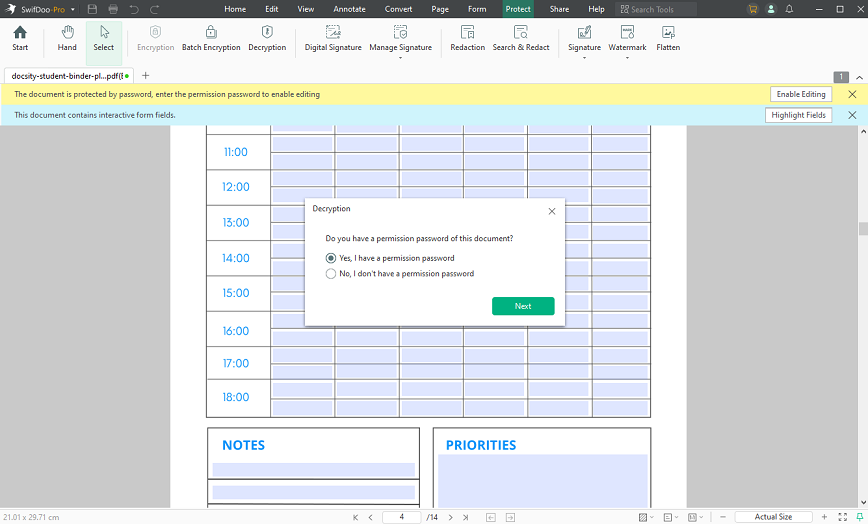
As an excellent PDF editor for Windows, SwifDoo PDF lets you view, edit, convert, annotate, and protect PDFs. You can use it to convert Excel to PDF or turn PDF into Excel.
In addition, SwifDoo PDF offers OCR to recognize text in PDF and convert scanned PDF into editable one. If you need, you can also use it to sign and fill out PDF forms. What’s more, it provides AI PDF tools to analyze, summarize, explain, proofread, rewrite, and translate PDFs.
Conclusion
How to remove password from Excel? The exact method depends on the protection type. Whether you're removing a password required to open the workbook, unprotecting a worksheet, unlocking the workbook structure, or disabling a read-only recommendation, Microsoft Excel provides built-in tools to complete the task quickly as long as you know the correct password. If you need to unlock PDFs, consider SwifDoo PDF.