


Why You May Need to Split Large PDF into Multiple Files?
Large PDFs often create more problems than they solve. While they’re useful for storing complete information, they’re not always practical to work with.
To begin with, file size is one of the biggest issues. Many email platforms limit attachments to 20–50MB. If your file exceeds that, you simply won’t be able to send it unless you split large PDF into multiple files.
Another common issue is efficiency. Opening a large PDF can be slow, especially on older devices. Editing or navigating through hundreds of pages becomes frustrating. In these cases, it’s much easier to split PDF pages and work with smaller, focused documents.
There’s also the need for selective sharing. For example, instead of sending an entire report, you may only need to send a specific section. That's why you need to know how to split a PDF into separate files or extract pages from PDF.
Before you start splitting, there are a few things worth checking:
-
File structure: Make sure you know which pages you need
-
Formatting consistency: Some tools may alter layout
-
File size limits (for online tools): Large PDFs may fail to upload
-
Output format: Ensure the split files remain in PDF
How to Extract Pages from PDF Adobe: Desktop and Online Ways
Do you wish to extract pages from PDF Adobe? Discover the reliable ways of page extraction using desktop and online methods, and powerful alternative ways.
READ MORE >How to Split Large PDF into Multiple Files on a Desktop?
One tool that stands out in this large PDF splitting category is SwifDoo PDF, especially when working with large or complex documents. As a full-featured PDF toolkit designed for users who regularly work with large or complex documents, SwifDoo PDF brings together splitting, merging, editing, compressing, and converting into one streamlined workflow.
When we used SwifDoo PDF to split large PDF into multiple files, the first thing we noticed was how responsive the software felt. There’s no waiting for uploads or worrying about file size limits. You simply open your file locally, and all operations happen instantly. This becomes especially important when dealing with large documents.
For example, after you split a multi-page PDF file into separate files, you might want to compress them for email, convert them into Word for editing, or merge them back in a different order. With SwifDoo, all of these steps can be done without switching tools.
Another strength is how clearly the tool presents your document. SwifDoo displays page thumbnails and allows you to navigate through the file smoothly, which makes selecting pages much easier. Instead of guessing page numbers, you can visually confirm what you’re splitting, which reduces errors when trying to split PDF pages or extract specific sections.
Key strengths we observed:
-
No file size limits when splitting large PDFs
-
Fast local processing (no upload delays)
-
Visual page previews for accurate selection
-
Integrated tools for editing, merging, and converting
-
Stable performance even with 100MB+ files
Method 1: Split a Large PDF by Page Range
Splitting by page range is ideal when you only need specific sections of a document rather than the entire file. You need to know exactly which pages you want and split large PDFs into separate PDFs in seconds without unnecessary steps.
Step 1: Launch SwifDoo PDF and open the large PDF file you want to extract.
Step 2: In the Page tab, choose Extract from the top menu.
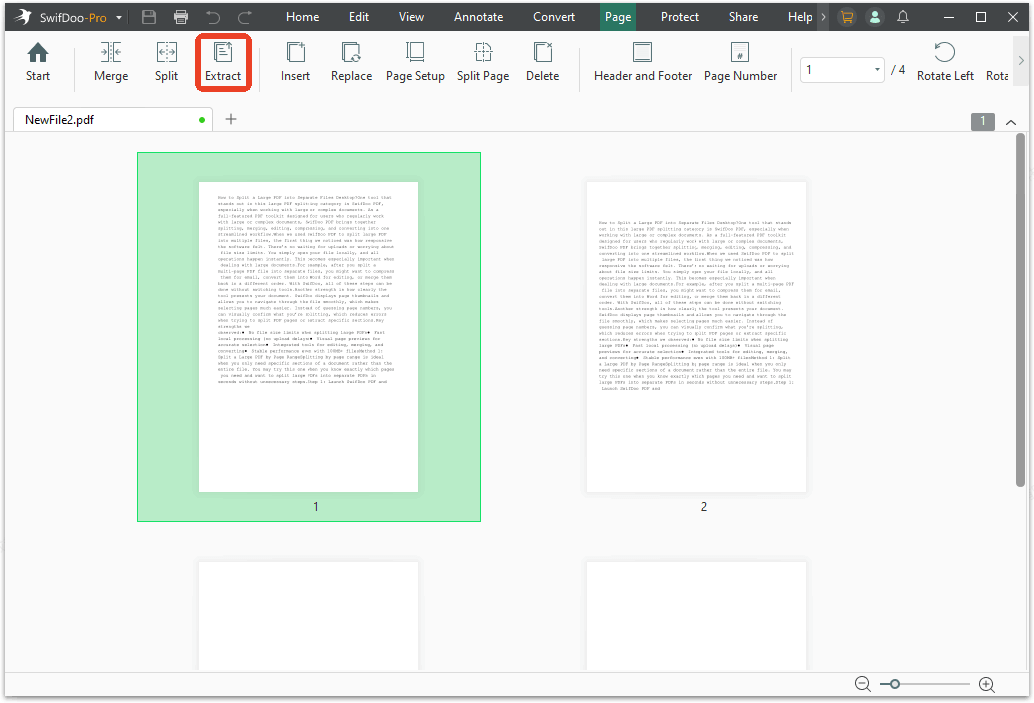
Step 3: A pop-up window appears and you can choose the extraction setting with the page range. This move can help you extract PDF pages as one file for specific sections. Click Extract to split your large file.
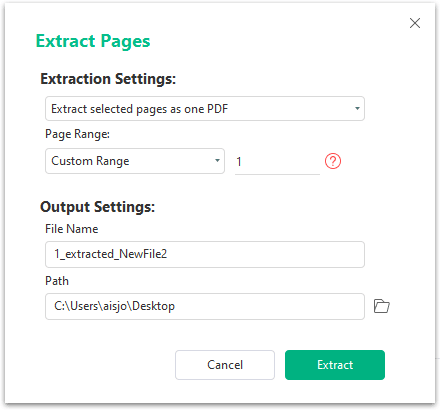
Entering multiple page ranges allowed us to split a long document into organized sections in one go, but that would take much longer with manual extraction.
Method 2: Split Multi-Page PDF into Individual Files
This method is best when you need to split a multi-page PDF file into separate files, with each page becoming its own document. If your goal is to break a document down completely, this is the fastest way to split PDF files for free while keeping everything organized.
Step 1: Launch SwifDoo PDF and open the large PDF file you want to split.
Step 2: Go to the Page tab in the top navigation bar and choose Split.
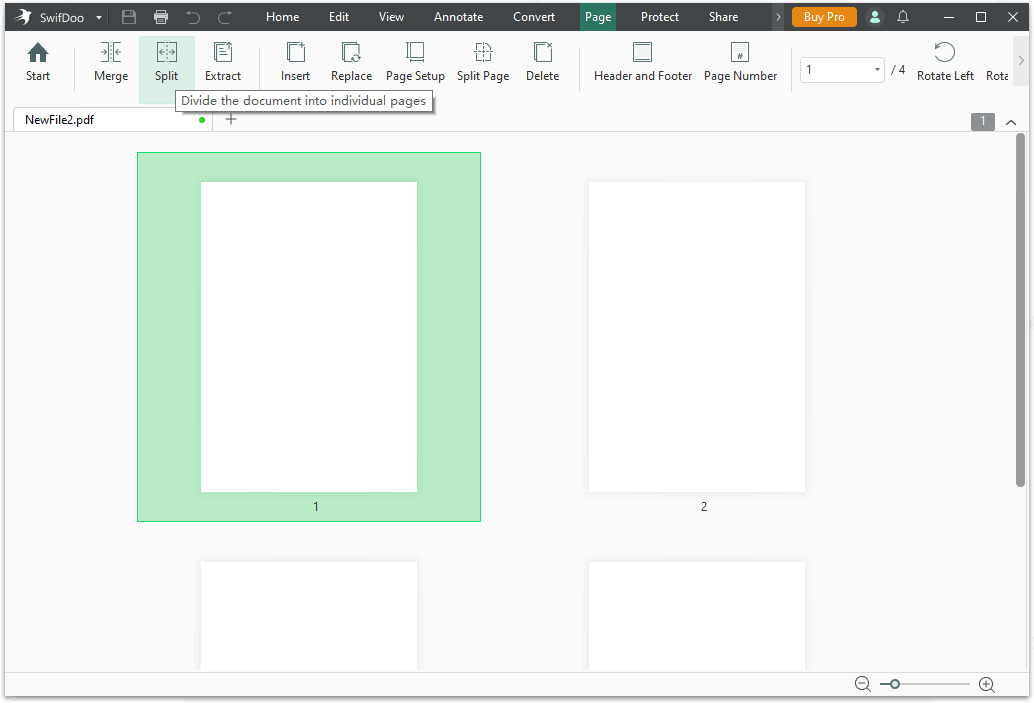
Step 3: Configure the split options, such as Split Evenly, Split Every X Pages, and Custom Splitting. You can also add other wanted files to the section and click Start when finished.
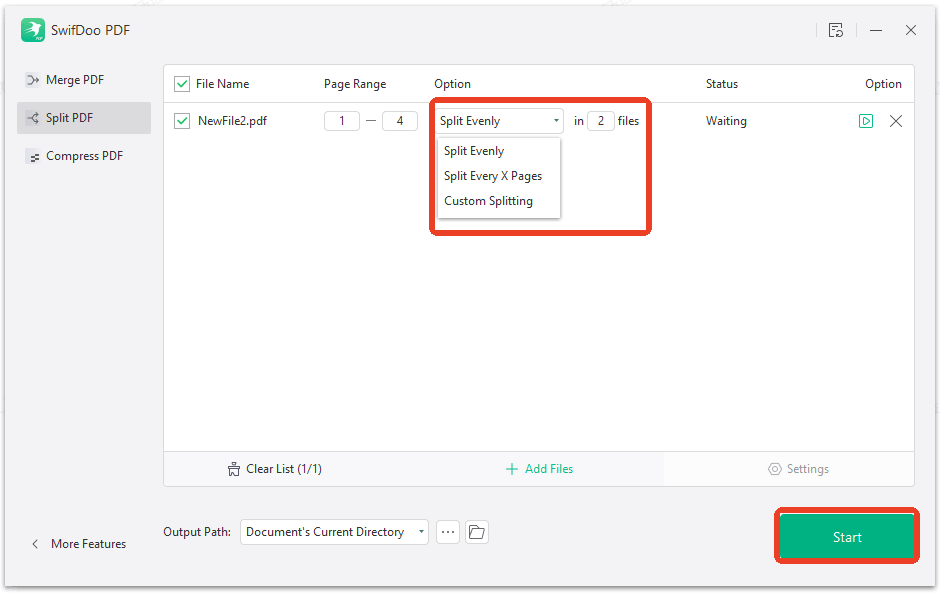
Splitting into individual pages eliminates the need to manually select ranges. It’s fully automated and ensures every page is separated cleanly. This is particularly useful for repetitive tasks or large datasets.
How to Split a Large PDF into Separate Files Online?
Using an online tool is usually the fastest way to get started, especially if you don’t want to install software. Most online PDF mergers for large files also include splitting features. The process is generally simple.
For starters, you need to choose a reliable software that allows splitting PDF online with a supported large file size. Many online tools offer drag-and-drop functionality, which makes the process intuitive even for first-time users.
We'll give you some examples dedicated to split large PDFs into seperate pdfs in seconds, such as PDF24 Tools, MaxAI, and Smallpdf. These online PDF splitters are designed for quick access and ease of use, especially if you don’t want to install software. However, their real performance can vary depending on file size and complexity.
Tool 1: PDF24 Tools
PDF24 Tools is a browser-based platform that offers a wide range of PDF utilities, including the ability to split large PDF into multiple files. You simply upload your document, choose how you want to split it, and download the results.
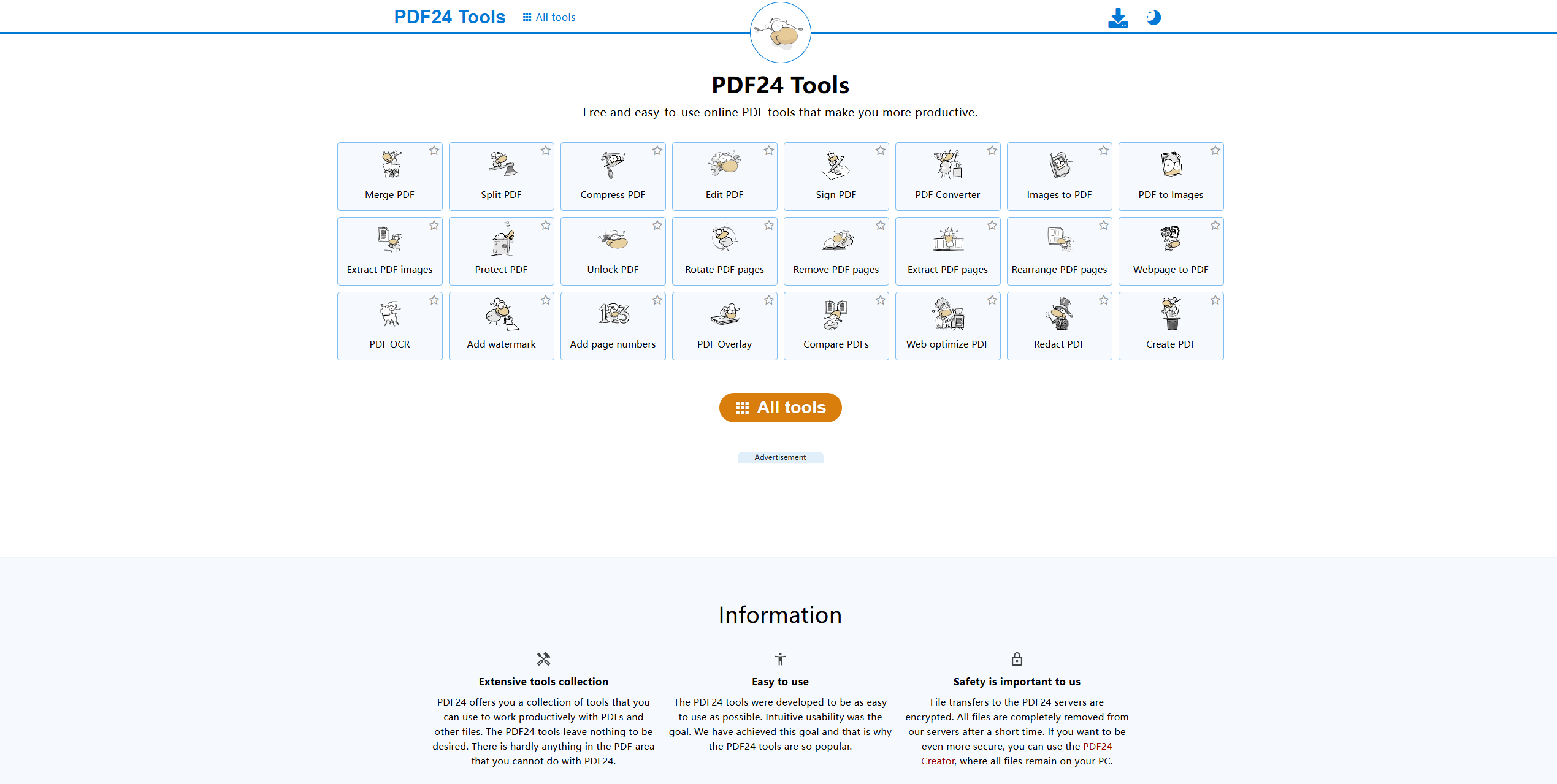
What makes PDF24 stand out is its flexibility. When we tested it, the interface felt straightforward, and the tool provided multiple splitting options without requiring sign-up. It also displays page previews, which helps when selecting exact sections.
However, like many split PDF online tools, performance depends on your internet connection. Larger files take longer to upload, and processing speed can vary.
Tool 2: MaxAI
MaxAI takes a slightly different approach by integrating AI-assisted document handling alongside standard PDF tools. While it supports split PDF files for free, its main focus is on enhancing productivity workflows.
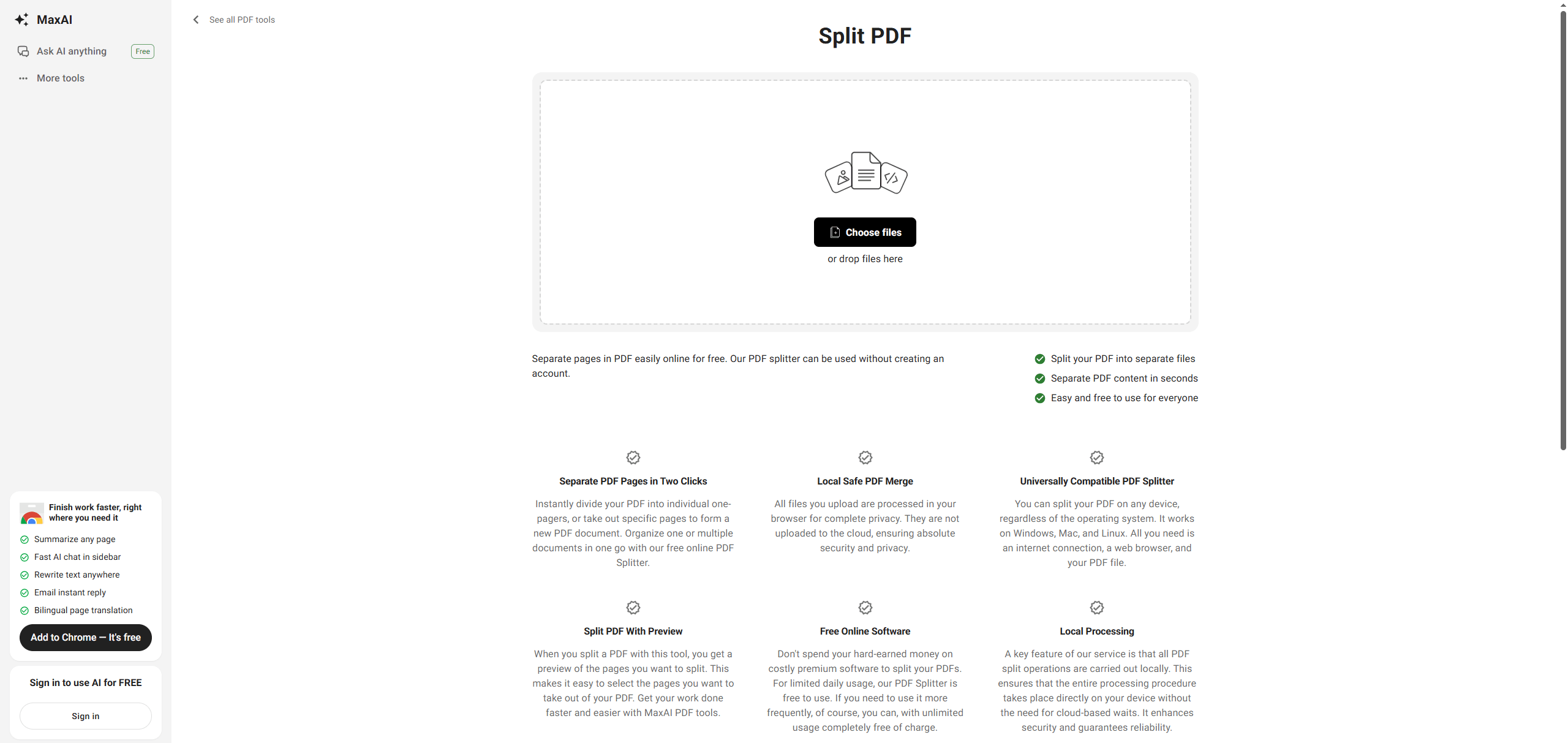
When we tried it, the splitting feature worked similarly to other tools. You upload a file and define how to split it. The interface is modern and clean, and the process is easy to follow. However, compared to dedicated tools, the splitting function feels more like an add-on rather than a core strength.
Tool 3: Smallpdf
Smallpdf is one of the most polished online PDF mergers for large files, and its splitting tool is just as refined. The platform is designed to make document handling simple, even for beginners.
To start, you upload your file using drag-and-drop or cloud storage integration. The system then loads a visual preview of your document, allowing you to select exactly how you want to split a multi-page PDF file into separate files. You can extract specific pages, define page ranges, or split the entire document into individual files.
How to Split a Large PDF into Multiple Files with Smallpdf?
Step 1: Go to the Smallpdf tool site and upload your files.
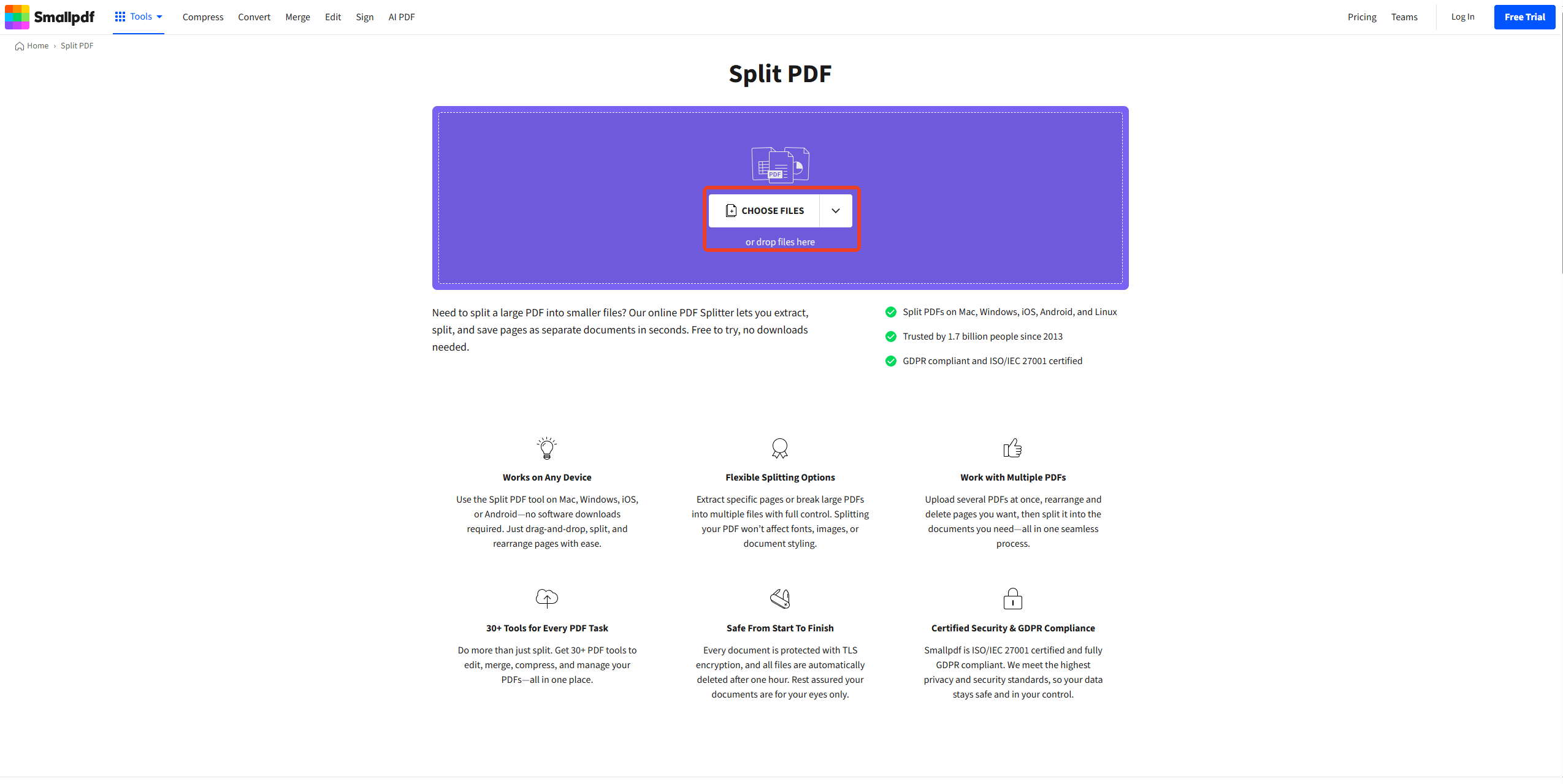
Step 2: Configure the settings based on your demands. You can choose your split method:
-
Extract specific pages
-
Split by page range
-
Split into individual files
After that, click Finish to perform the task.
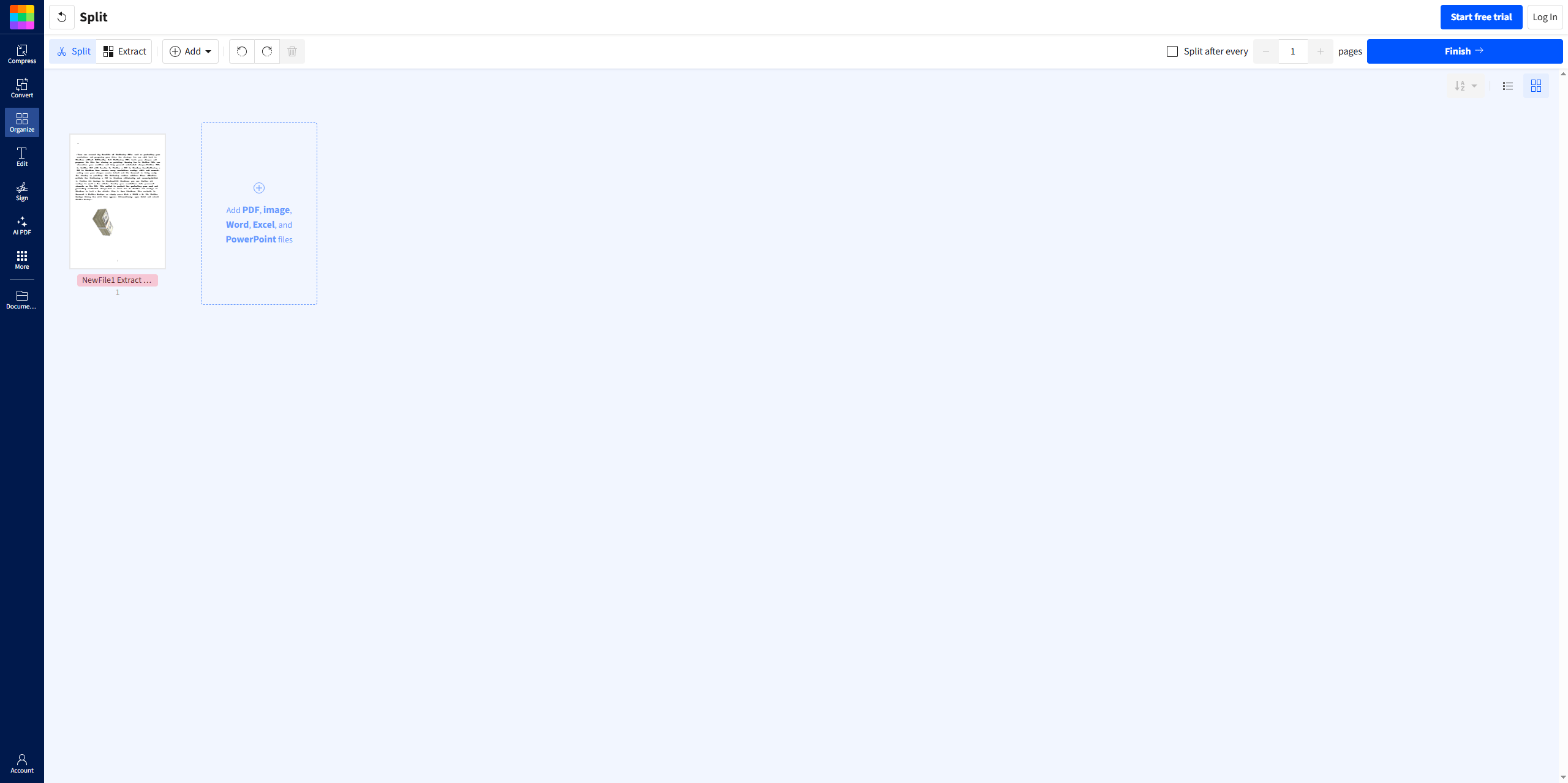
For medium-sized files, the process is quick and smooth. However, once file sizes exceed 100MB, upload time becomes the main bottleneck. In this way, we generally recommend transitioning to a desktop solution if you regularly need to split large PDF into multiple files.
Conclusion
If you only need to occasionally split PDF online, browser-based tools can get the job done. But when you need to split large PDF into multiple files quickly and without losing formatting, desktop tools, like SwifDoo PDF, offer a clear advantage.
Whether you’re trying to split a multi-page PDF file into separate files or organize complex documents, choosing the right tool will save you time.


