


If you have needs for data analysis, spreadsheet editing, or data filtering, CSV format is the ideal choice. How can you convert PDF reports, surveys, or invoices into CSV? Both built-in macOS tools and third-party programs can give you a hand. In the content below, I will walk you through the exact steps to convert PDF to CSV on Mac.
In addition to CSV format, XLSX and XLS are also good formats for data analysis. To convert PDF to XLSX to XLS occasionally, try online converters. SwifDoo PDF Online Converter is a good choice. If you have a Windows PC, you can also try the SwifDoo PDF application, which can perform thousands of conversions and OCR PDFs.
How to Convert PDF to CSV on Mac Using Built-in Tools
On Mac, there are two built-in tools that can help you convert PDF to CSV, including Preview and Automator. In this section, I will provide a comprehensive guide. Let’s delve into.
Option 1. Use Preview and Copy & Paste
For simple tables and short data tables, Preview is enough. Preview is working as a built-in macOS program for viewing, editing, annotating, and printing PDFs and images. Surprisingly, you can use Preview to convert a PDF to CSV on a Mac. Below are the exact steps for your reference.
Step 1. Right-click on the target PDF, right-click, go to Open With, and click Preview. Then the PDF will display in Preview.
Step 2. Select the table or text that you want to convert and press Command + C to copy the selected data.
Step 3. Open Microsoft Excel or Apple Numbers, then press Command + V to paste the selected data.
Step 4. Refine the table, then go to File > Export To and choose CSV.
This method is only suitable for short, simple tables. If the table formatting is complex and the PDF is scanned, this method is useless.
Essential Guide on How to Convert PNG to PDF on Mac
Looking for ways to convert PNG to PDF for archiving, sharing, or protection? How to convert PNG to PDF on Mac for free? Click here to read this article.
READ MORE >Option 2. Extract Text with Automator
Though Automator is not a dedicated PDF-to-CSV converter, it can help you extract raw text from a PDF and save it as a plain text file. Then, you can rename the plain text file to .csv. Alternatively, the plain text file can be imported into spreadsheet applications like Excel or Apple Numbers for further cleanup. Here, let’s learn the exact steps.
Step 1. Open Finder, choose Applications, and select Automator to run it. Then, select Quick Action as the document type.
Step 2. Search “Ask for Finder Items” in the search bar and drag it to the workflow area to choose your PDF.
Step 3. Under the PDFs library, search for “Extract PDF Text” and drag it in. Then, set Plain Text as Output and choose its saving path. Finally, save the workflow.
Step 4. To use it, right-click on your PDF in Finder, select Quick Actions, and choose your workflow. Or, you can directly drag the PDF into Numbers or Excel to adjust columns.
Like Preview, this method can only handle text-based PDFs and simple tables. If you need more consistent outcomes, please read on.
How to Convert PDF to CSV on Mac in Adobe Acrobat Pro
Adobe Acrobat Pro can serve as a professional PDF converter, capable of converting PDFs to Excel, Word, PNG, and more. Can you convert a PDF to CSV in Adobe Acrobat Pro directly? Actually, Adobe Acrobat Pro doesn’t have a direct option for PDF to CSV. However, there are two reliable ways to convert your PDF to CSV in Adobe.
Option 1. Export the PDF to Excel and Then Save as CSV
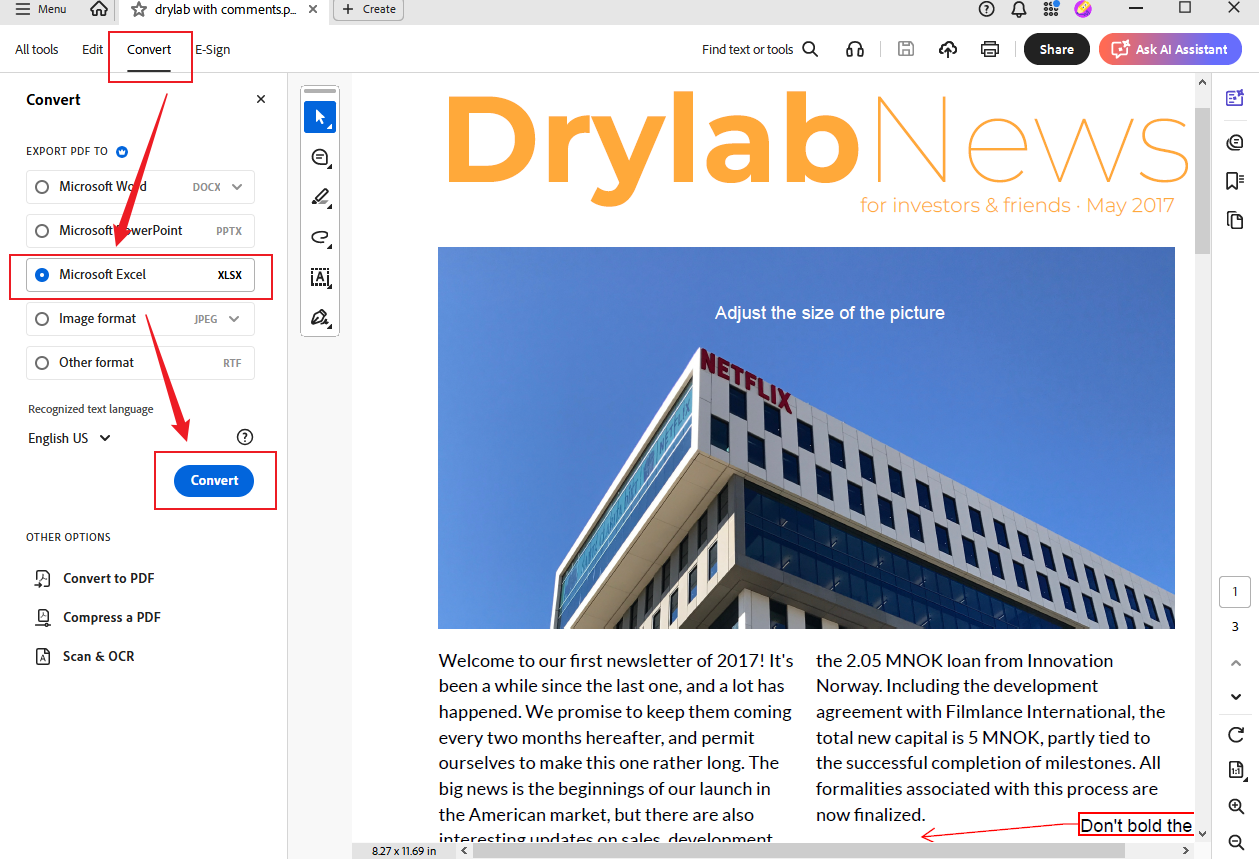
Step 1. Run Adobe Acrobat Pro on your Mac and open your target PDF in it.
Step 2. Click the Convert tab in the top menu bar, select the Microsoft Excel option, and click Convert.
Step 3. Next, open the XLSX file in Microsoft Excel or Apple Numbers. Go to File > Save As, then select the save path. Then, open the File Format dropdown, click the CSV (Comma delimited) option, and click Save.
Option 2. Export Selected Table to CSV Directly
Step 1. Open your PDF in Adobe Acrobat Pro first.
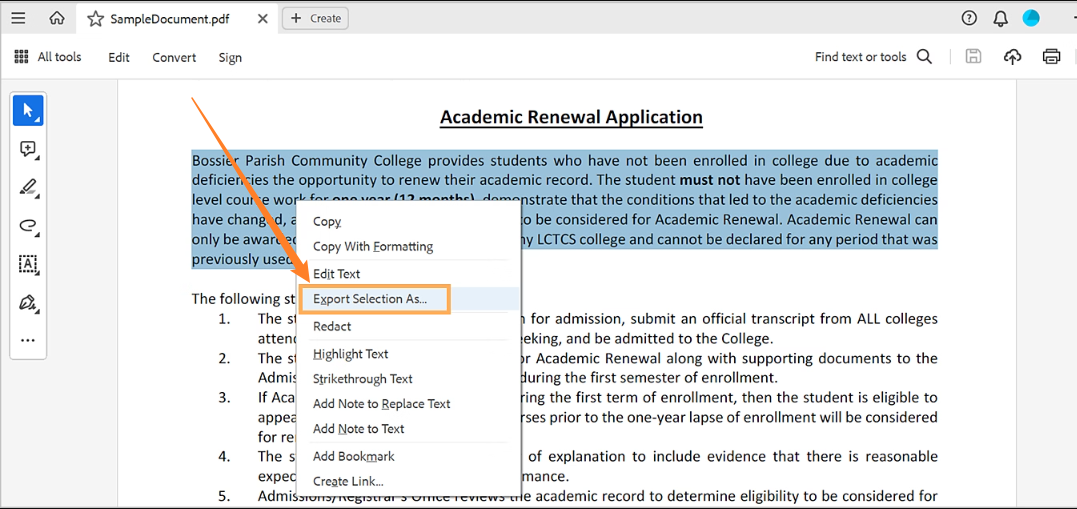
Step 2. Use the Select tool to choose the entire table that you want to save as CSV.
Step 3. Right-click on the selected area and click the Export Selection As option. In the pop-up, expand the Save as type dropdown and choose CSV. Finally, click Save.
How to Convert PDF to CSV on Mac Online
If you don’t want to install any software, online PDF converters can be your choice. Here is a list of online PDF-to-CSV converters for your choice.
- Zamzar
- Smallpdf
- Convertio
Here, I take Zamzar as an example to show you how to convert PDF to CSV on Mac for free.
Step 1. Open your Mac browser and visit the official website of Zamzar.
Step 2. Click Choose Files to upload your PDF file, open the Convert To list, and click the CSV option.
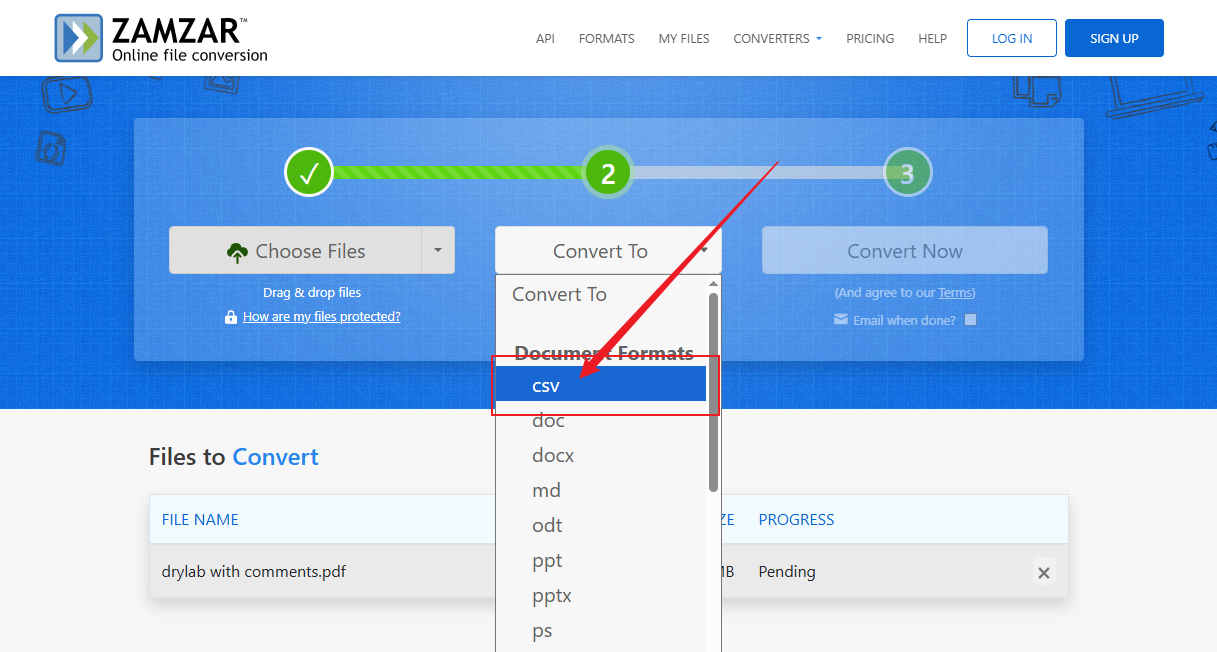
Step 3. At last, click the Convert Now option. Once the PDF to CSV conversion process is over, download the CSV file.
Final Words
It is not difficult to convert PDF to CSV on your Mac as long as you choose the right tool and approach. For PDFs with simple tables, built-in Preview and Automator can be your choice. To handle scanned or image-based PDFs, use Adobe Acrobat Pro. Alternatively, you can use online PDF to CSV converters like Zamzar and Smallpdf.



