


How to Convert PNG to PDF Using Mac Preview
In most cases, some of us use Preview only to open files, ignoring its powerful features. As a built-in Mac program, you don’t need to download and install Preview. It offers various features to handle PDFs and images, such as image conversion, PDF creation, basic editing, and annotation. You can use it to convert PNG to PDF on Mac for free. Additionally, it enables you to convert multiple PNGs into one PDF. Now, let’s learn how to convert PNG to PDF with Mac Preview.
Step 1. Locate your PNG image, right-click it, and select Open With Preview.
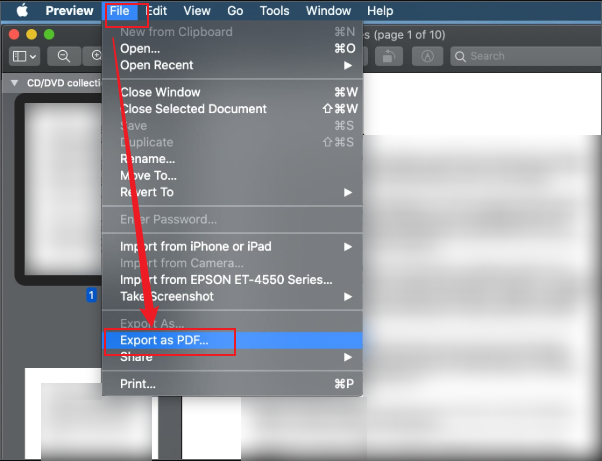
Step 2. Once the PNG image is opened in Preview, click the File option from the top menu bar.
Step 3. Then, select the Export as PDF option. Next, name it and select a folder to save the PDF file. At last, click the Save button.
How to Convert PNG to PDF Online Free on Mac
In addition to using Preview, online converters are also good choices, such as SwifDoo PDF Online Converter, iLovePDF, Smallpdf, FreeConvert, CloudConvert, and more. Take SwifDoo PDF Online Converter as an example; it is a completely free online PDF converter that can handle various PDF conversion tasks. Beyond working as a PNG to PDF converter, SwifDoo PDF Online Converter can also convert JPG or HEIC to PDF. Meanwhile, it can convert PDF to and from Word, Excel, DWG, and PowerPoint.
Additionally, SwifDoo PDF has desktop versions for Windows and Mac and mobile versions for iOS and Android. You can use SwifDoo PDF to view, create, edit, annotate, organize, secure, and print PDFs effectively. What’s more, it enables you to edit and insert images into a PDF, combine multiple images into a PDF, and more. If you are interested in that, go to its download center or click the button below to download it.
Here, let’s see how to convert PNG to PDF online for free on Mac using SwifDoo PDF Online Converter.
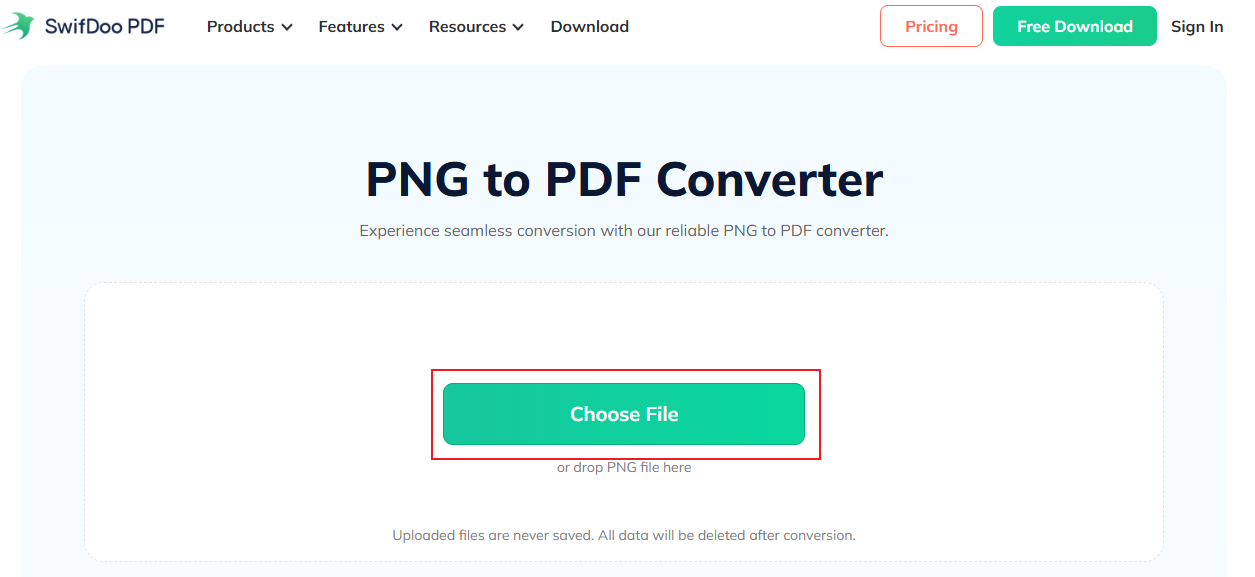
Step 1. Open the browser on your Mac and visit the PNG to PDF Converter website of SwifDoo.
Step 2. Click Choose File to import your target PNG image.
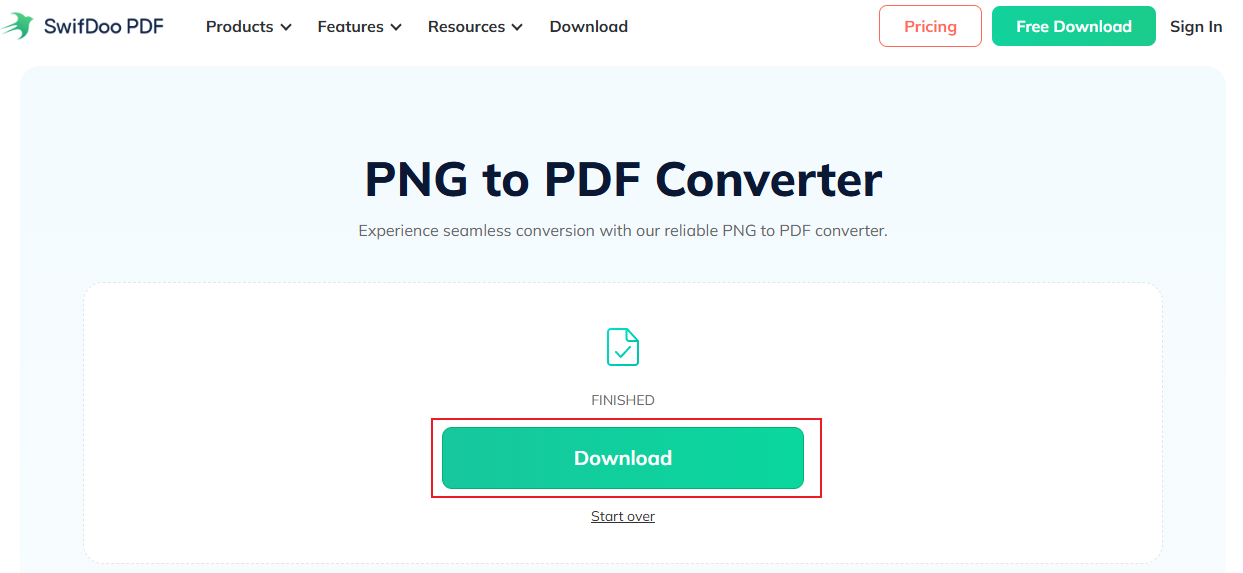
Step 3. Once the PNG is uploaded, this free online converter will start the PNG to PDF conversion automatically. In only a few seconds, the conversion will finish. Click the Download button to save the PDF file.
How to Convert PNG to PDF on Mac via Adobe Acrobat
Adobe Acrobat is a professional PDF tool. As a PDF converter, it enables you to convert PNG to PDF, PDF to DOCX, and JPG to PDF, and handle various file conversions. Furthermore, Adobe Acrobat offers advanced features for image optimization, OCR, form creation, and more. How to convert PNG to PDF on Mac in Adobe Acrobat? Below are the exact steps for your reference.
Step 1. After installing Adobe Acrobat, launch it on your Mac and sign in with your account.
Step 2. Click the Create PDF option in the main interface, and then select and upload your PNG image.
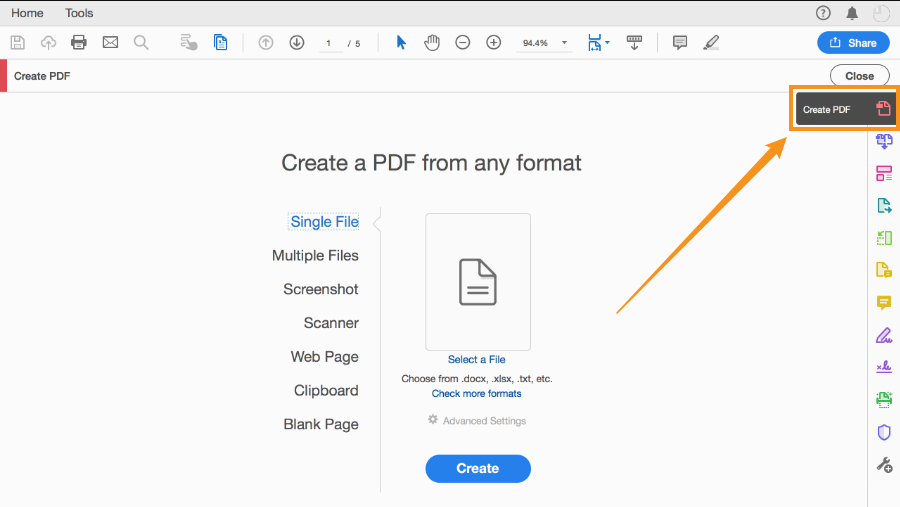
Step 3. Optionally, edit and enhance the PNG image as needed. Finally, save the PDF file.
Other Useful PNG to PDF Converters for Mac
In addition to Preview, SwifDoo PDF Online Converter, and Adobe Acrobat, several third-party tools make PNG to PDF conversion on Mac easy. Here, I have rounded up several useful PNG to PDF converters for your choice. Below is the list:
- Smallpdf: user-friendly interface and easy operation.
- iLovePDF: batch-convert PNGs to PDF and reorder images.
- UPDF: desktop PDF tool for conversion and editing.
- PDF Expert: a powerful PDF editor as a cost-effective Adobe Acrobat alternative.
Quick Wrap Up
How to convert PNG to PDF on Mac effectively? Many methods are available. You can choose the right method based on your workflow. If you prefer free and offline conversion, Preview should be your first choice. SwifDoo PDF Online Converter is ideal for occasional use. If you need to handle professional and high-volume PDF tasks, consider Adobe Acrobat. Now, choose one method and give it a try!



