What Is an XLSM File
XLSM is a Microsoft Excel file format used for macro-enabled workbooks, which can store VBA macro code and Excel 4.0 macro sheets. Meanwhile, XLSM files are commonly used for spreadsheets that automate repetitive tasks, calculations, reporting, data processing, or other workflows through macros.
Sometimes, you need to convert an XLSM file to PDF for preserving the appearance of a report, printing a spreadsheet, or for other purposes. In the following content, let’s explore useful XLSM-to-PDF converters and learn detailed instructions.
How to Convert XLSM to PDF
In this section, I will introduce you to 3 methods to convert XLSM to PDF. They are:
- SwifDoo PDF – useful for desktop PDF workflows and batch Excel-to-PDF conversion.
- Microsoft Excel – best when you already have Excel.
- CloudConvert – convenient when you want to convert XLSM to PDF online.
Here, let’s check them one by one.
Method 1: Convert XLSM to PDF with SwifDoo PDF
If you frequently convert Office spreadsheets to PDF, a desktop application can be more convenient than an online tool. SwifDoo PDF is a desktop PDF tool that combines features for viewing, editing, annotating, organizing, and converting PDFs.
As one of the best PDF converters, SwifDoo PDF enables you to convert PDF to and from a wide range of formats, such as CSV to PDF, PDF to XLSX, PDF to DOCX, PDF to JPG, HTML to PDF, and more. Additionally, SwifDoo PDF is a batch PDF converter that lets you convert multiple files at once. In other words, you can batch convert XLSM to PDF efficiently. Here, let’s learn how to turn XLSM into PDF using SwifDoo PDF.
Step 1. Download and install SwifDoo PDF on your Windows PC, then launch this application.
Step 2. Switch from the Home tab to the Convert tab and click the Office to PDF option.
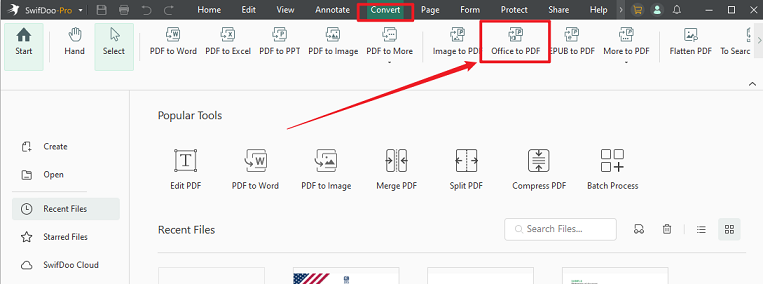
Step 3. Next, click Add Files to import the XLSM files you need to convert.
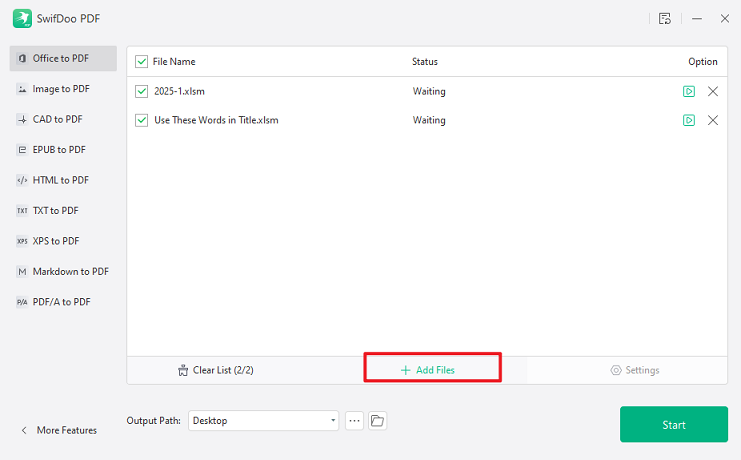
Step 4. Finally, click Start to enable the conversion. Once the conversion process ends, the PDF file will open in SwifDoo PDF. You can use its various edit and annotation features to refine the PDF file as needed.
Method 2: Convert XLSM to PDF with Microsoft Excel
If Microsoft Excel is installed on your computer, you don’t need another converter to turn an XLSM file into a PDF. You can use Excel to save workbooks as PDFs. How to save an XLSM file as a PDF in Microsoft Excel? Below are the exact steps for your reference.
Step 1. Open your target XLSM file in Microsoft Excel.
Step 2. Once the XLSM file opens in Excel, check the worksheet and print settings. For instance, pay attention to charts and images, print area, margins, and scaling.
Step 3. Then, click File and select Save As.
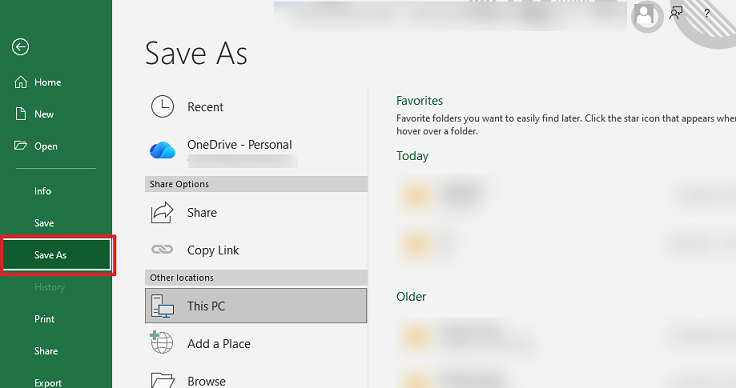
Step 4. Next, specify the saving path, name the file, open the “Save as type” dropdown, and select PDF as the output format. Finally, click the Save button to export the XLSM file as a PDF in Microsoft Excel.
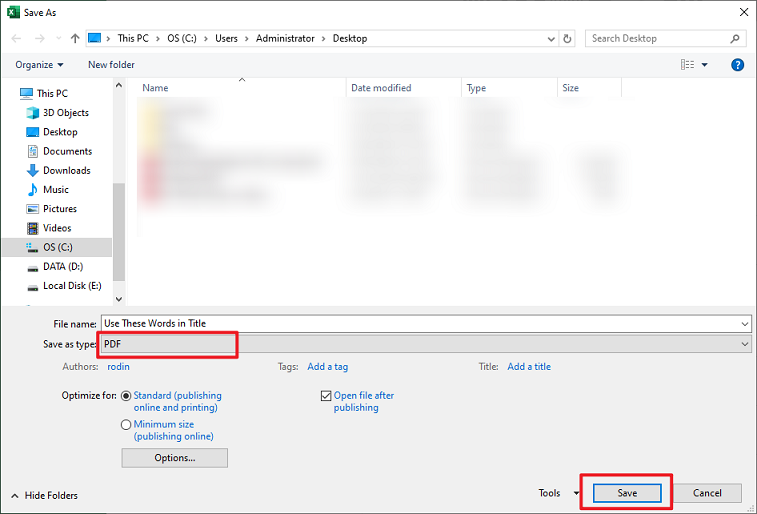
You can open the resulting PDF and check the pages carefully. If there is any content that needs to be revised, use SwifDoo PDF.
Method 3: Convert XLSM to PDF Online with CloudConvert
If you don’t want to install SwifDoo PDF and Microsoft Excel, an online XLSM-to-PDF converter can be a convenient alternative. Among various online options, CloudConvert is a good choice. It provides a dedicated XLSM-to-PDF converter and supports XLSM as input and PDF as output. Additionally, it enables you to convert PDF to XLSM. Below is how to convert XLSM to PDF online using CloudConvert.
Step 1. Open your browser and visit the CloudConvert XLSM to PDF conversion page.
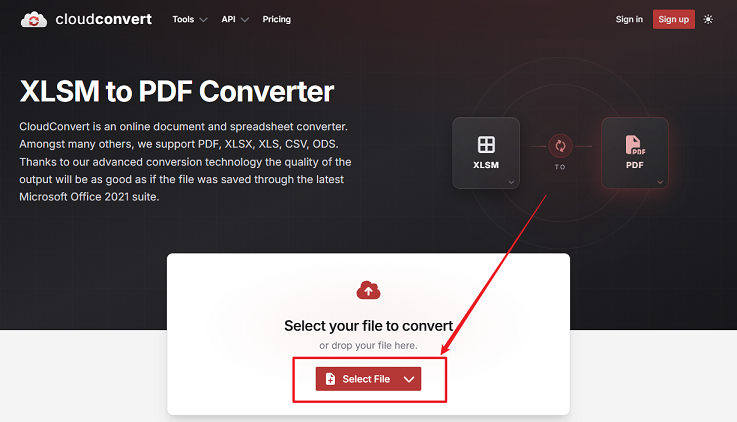
Step 2. Click Select File and choose the XLSM workbook from your computer.
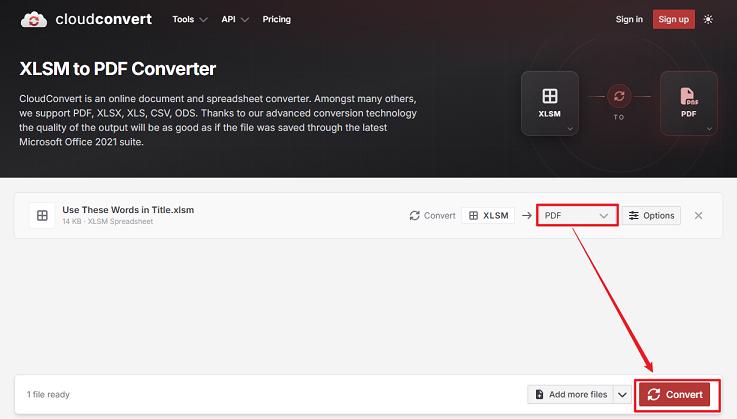
Step 3. After uploading the XLSM file, select PDF as the output format if it isn’t already selected. Then, click the Convert button. When the conversion is finished, download the resulting PDF.
For important financial, business, or confidential workbooks, an offline tool is more reliable than an online tool. Hence, you’d better use SwifDoo PDF when handling confidential workbooks.
Best XLSM to PDF Converters
Among the three converters mentioned above, which one is the best XLSM-to-PDF converter should you choose? The final choice should depend on how you work with XLSM files. Here, I prepare an overview table for your reference.
|
Tool |
Type |
Best For |
Batch Conversion |
Excel Required |
|
SwifDoo PDF |
Desktop |
PDF workflows and batch conversion |
Yes |
No |
|
Microsoft Excel |
Desktop |
Direct XLSM conversion |
Limited |
Yes |
|
CloudConvert |
Online |
Quick browser-based conversion |
Depends on service limits |
No |
XLSM vs. PDF: Which Format Should You Use
Should you convert PDF to XLSM or vice versa? Which format should you use? Generally, the two formats are designed for different purposes.
|
Feature |
XLSM |
|
|
Edit spreadsheet data |
Yes |
Limited |
|
VBA macros |
Yes |
No |
|
Run Excel formulas |
Yes |
No |
|
Data analysis |
Yes |
No |
|
Preserve fixed visual layout |
Moderate |
Yes |
|
Easy to print |
Yes |
Yes |
|
Easy to share |
Moderate |
Yes |
|
Best for |
Editing and automation |
Viewing, sharing, and printing |
Conclusion
If you have installed Microsoft Excel, converting an XLSM file to PDF is easy since Excel supports PDF as an export format. How to convert XLSM to PDF without Excel? If you need to handle financial workbooks or confidential information, desktop tools like SwifDoo PDF are a good choice. Or you can use an online converter like CloudConvert to convert XLSM to PDF quickly. Regardless of the method you choose, I hope this article can be helpful to you.