What Is XLSM and Why Convert PDF to It?
XLSM is Microsoft Excel’s Macro-Enabled Workbook format, similar to the standard XLSM format but supporting VBA macros for automation. PDFs are excellent for sharing fixed layouts, but they are not designed for easy editing or data manipulation.
Hence, if you need to analyze numbers, clean up data, or prepare a file for future automation with macros, convert PDFs to XLSM files. Meanwhile, converting PDFs to XLSM files can extract tables, text, and structured data into a spreadsheet you can sort, filter, calculate, and later enhance with macros if needed.
PDF vs. XLSX vs. XLSM
|
Format |
Main purpose |
Editable |
Supports VBA macros |
|
|
Fixed-layout document |
Limited |
No |
|
XLSX |
Standard Excel workbook |
Yes |
No |
|
XLSM |
Macro-enabled Excel workbook |
Yes |
Yes |
How to Convert PDF to XLSM (Overview of Methods)
Before getting to the step-by-step instructions, I’d like to introduce you to 3 effective ways to convert PDF to Excel XLSM.
- Free online PDF to XLSM converters: fastest for one-off or simple files, no installation required
- Desktop PDF software: better for batch work, high accuracy, and offline use
- Microsoft Excel’s built-in tools: convenient if you already have Excel
Best PDF to XLSM Converters
What is the best tool to convert PDF to XLSM? Only a few tools can directly convert a PDF to XLSM. Most tools technically convert the PDF to XLSM first, then you save the workbook as XLSM. Here, I have prepared a comparison table of the best PDF-to-XLSM converters.
|
Tool |
Free Option |
OCR |
Batch Conversion |
XLSM Output |
Best For |
|
SwifDoo PDF |
Free trial |
Yes |
Yes |
Indirect |
Desktop PDF management |
|
GroupDocs |
Limited daily conversions |
Yes |
Limited |
Yes |
Quick free online conversion |
|
Microsoft Excel |
With Microsoft 365/Excel |
Basic |
No |
Yes, after import |
Users who already have Excel |
|
Aspose |
Yes, with limitations |
Yes |
No |
Yes |
Simple free conversions |
SwifDoo PDF
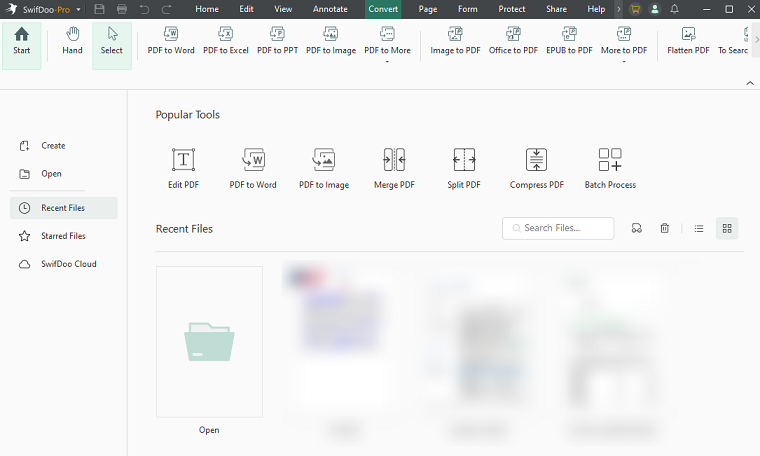
SwifDoo PDF is a dedicated desktop PDF tool that offers features for editing, converting, organizing, annotating, and protecting PDF files. This PDF editor can be quite useful for users who regularly work with PDFs and want additional PDF editing and conversion features, as well as PDF-to-Excel workflows. You can use it to convert PDF to XLSX, CSV to PDF, and handle other conversions.
Best For: Users who regularly work with PDFs on Windows.
Pros:
- Handles PDF files offline
- Converts PDFs to XLSX and other formats
- Offers additional editing and management tools
- Suitable for recurring PDF workflows
Cons:
- Some advanced features require a paid plan
- The final XLSM step still needs to be completed in Excel
GroupDocs
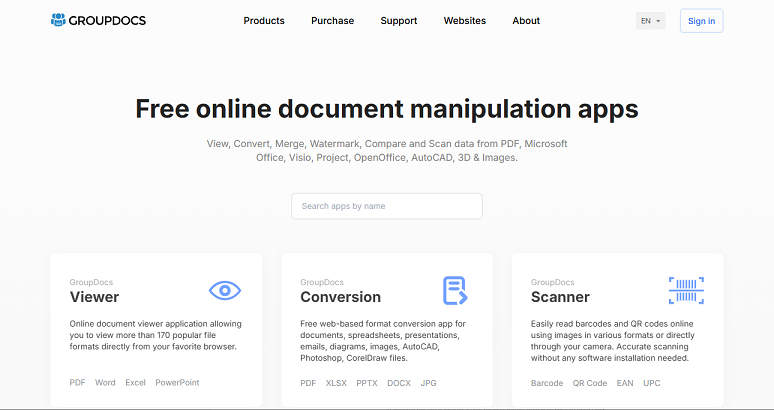
GroupDocs is a browser-based tool that can convert files between different formats, including PDF, Excel-related formats, CAD, and many others. For a PDF-to-XLSM workflow, GroupDocs can be useful when you want to perform the conversion online without installing a full desktop PDF application.
Best For: Users who want a browser-based document conversion solution.
Pros:
- Online and easy to access on both desktop and mobile devices
- Supports a broad range of document formats
- No full desktop PDF application required
- Useful for occasional conversions
Cons:
- Free version has limitations
- Online processing may not be appropriate for highly confidential documents
Microsoft Excel
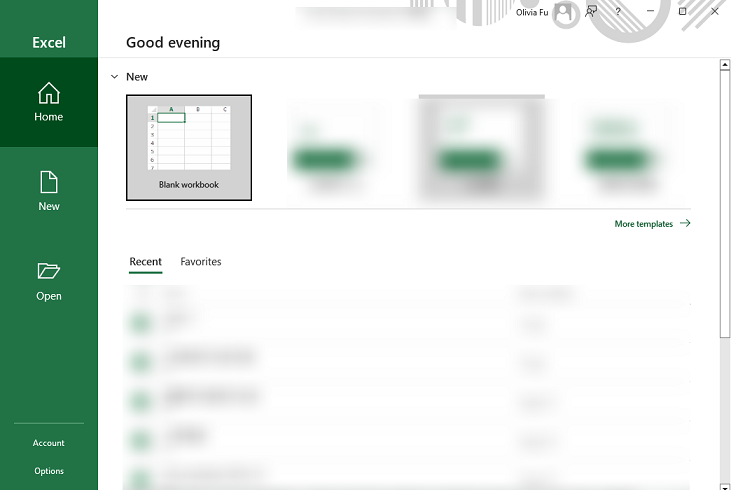
If you already have Microsoft Excel installed, it can be the best choice to convert PDFs to XLSM files. Instead of using a dedicated PDF converter, you can import PDF data through: Data > Get Data > From File > From PDF. Then Excel will display the tables it detects in the PDF. You can load the data directly into a worksheet and finally save the workbook as Excel Macro-Enabled Workbook.
Best For: Users who already have Excel and want to extract structured tables from PDFs.
Pro:
- Direct PDF data import
- Power Query can transform imported data
- Can save the resulting workbook as XLSM
Cons:
- Complex PDF layouts may require manual cleanup
- Table recognition is not always perfect
Aspose
Like GroupDocs, Aspose is also an online PDF to XLSM converter. Meanwhile, it enables you to convert PDF to CSV and other Excel-compatible formats. What’s more, Aspose offers a broad collection of file-processing tools for documents, spreadsheets, PDFs, and other formats.
Furthermore, Aspose is particularly relevant to developers because it provides APIs and libraries for programmatic document and spreadsheet processing.
Best For: Developers and users who need online or programmatic document conversion.
Pros:
- Supports a wide range of file formats
- Provides APIs for developers
- Useful for automated document-processing workflows
Cons:
- Some advanced capabilities require paid usage
- Online conversion may not be ideal for confidential documents
Step-by-Step Guides for Popular Methods
Now that you know the available options, here are the most practical ways to convert a PDF to an XLSM file. Now, let’s check them one by one.
Method 1: Convert PDF to XLSM with SwifDoo PDF
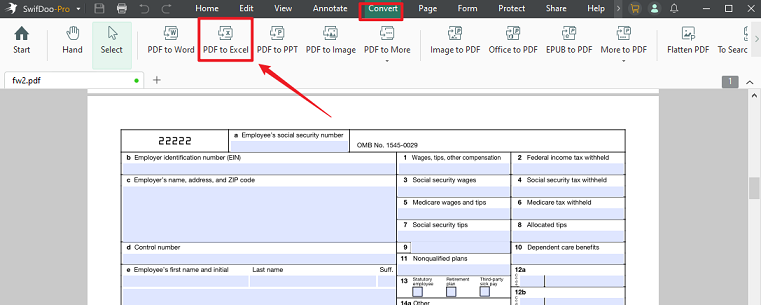
Step 1. Launch SwifDoo PDF on your PC and click Open to import the target PDF file. Switch to the Convert tab and click PDF to Excel.
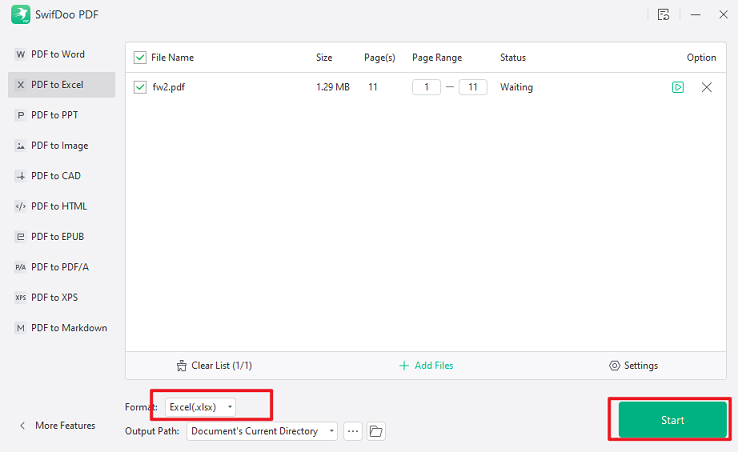
Step 2. Set Excel(.xlsx) as the output format and click Start to enable the conversion.
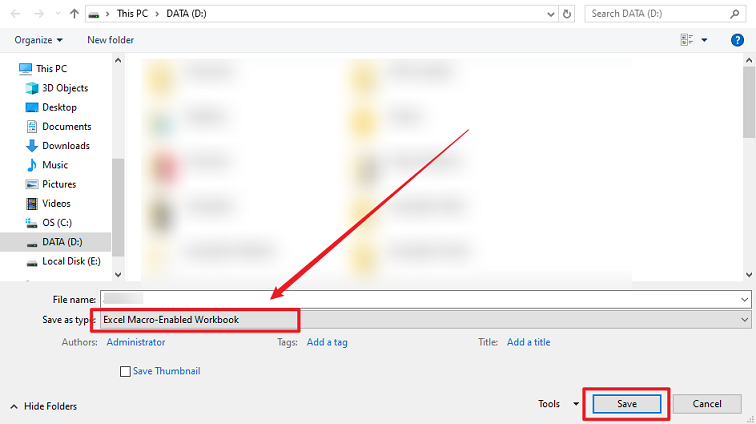
Step 3. Then open the converted file in Excel and check the table structure, numbers, and other content. Next, go to File > Save As, choose the saving path, name it, open the Save as type dropdown, and select Excel Macro-Enabled Workbook. Finally, click Save to save the XLSM file.
Method 2: Convert PDF to XLSM Online with GroupDocs
Step 1. Open your browser and visit GroupDocs’ PDF to XLSM tool.
Step 2. Click the Browse file button to import the target PDF file.
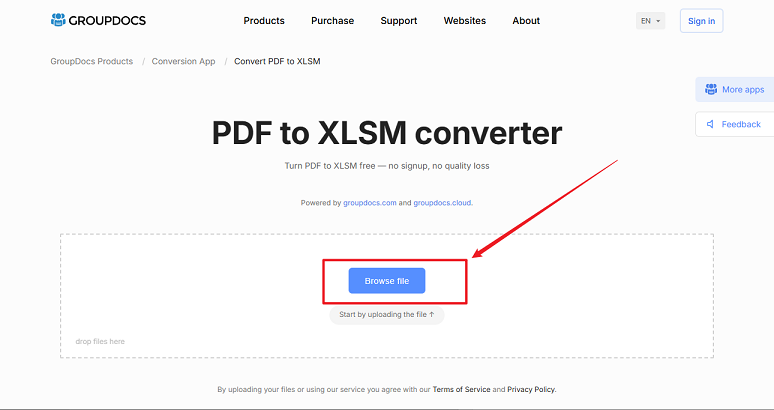
Step 3. Keep the default XLSM output format, then click Convert Now to start the conversion. Once the conversion process is over, download the XLSM file.
Method 3: Convert PDF to XLSM with Microsoft Excel
Step 1. Launch Microsoft Excel and create a new workbook or open the workbook where you want to import the PDF data.
Step 2. Go to Data > Get Data > From File > From PDF to select your target PDF file. Then Excel will open the Navigator window and display the tables it detects. In this window, choose the table you want to import. For instance, you can select Load to bring the data directly into Excel or choose Transform Data to clean or modify it first.
Step 3. Next, review the imported spreadsheet. Once everything is correct, go to File > Save As, specify the saving path, choose Excel Macro-Enabled Workbook, and click Save.
Conclusion
With the right tool and detailed instructions, you can convert a PDF to an XLSM file with ease. How do you convert PDF to XLSM? You can first use online GroupDocs to convert a PDF file to an XLSM file directly. Also, you can use SwifDoo PDF and Microsoft Excel to get an XLSM file from a PDF file. At last, I hope this article can be helpful to you.