How do I convert ODS to PDF? The easiest way is to use an online ODS-to-PDF converter. For offline conversion, you can open the ODS file in LibreOffice Calc or OpenOffice Calc and export it as a PDF. In the following content, I will show you the step-by-step guidance. Now, let’s get started!
How to Convert ODS to PDF Online
If you only need to convert one or a few ODS files and don’t want to install spreadsheet software, an online ODS-to-PDF converter should be your first choice. Among various online converters, PDF24 is a simple and reliable option that offers a free online document conversion tool. You can also use it to convert PDF to ODS. Here, let’s learn how to turn an ODS file into a PDF online with PDF24.
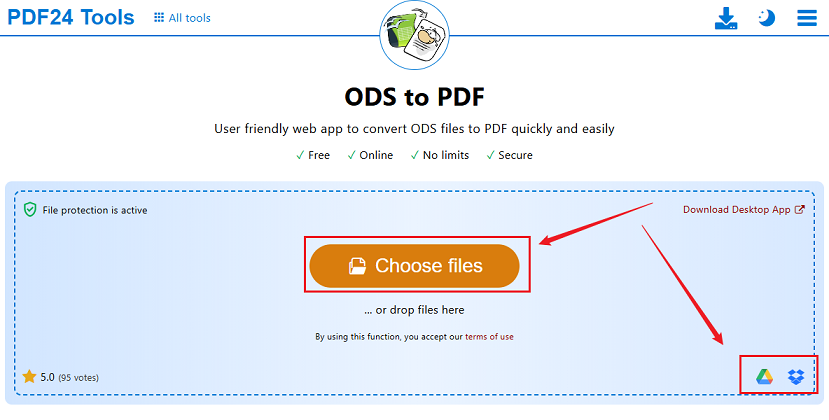
Step 1. First, visit the PDF24 ODS-to-PDF converter in your browser.
Step 2. Then, click the Choose files button to upload your .ods spreadsheet from your device. Alternatively, upload the target ODS files from Google Drive or Dropbox.
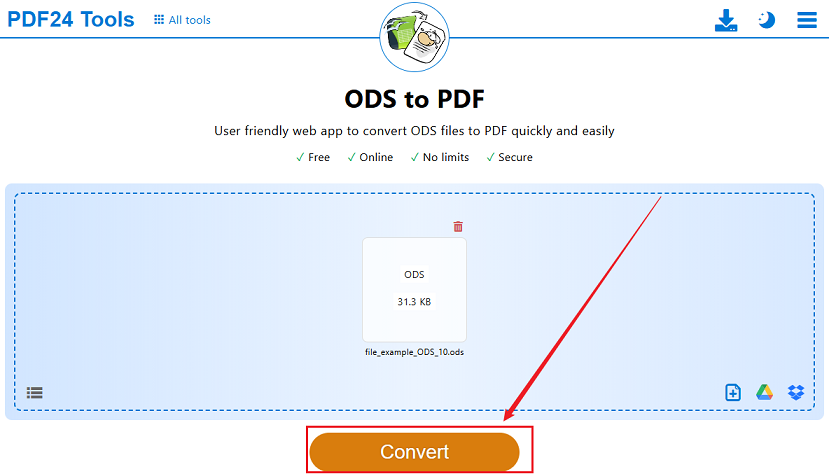
Step 3. Once the ODS file is uploaded, click the Convert button to begin the ODS to PDF conversion.
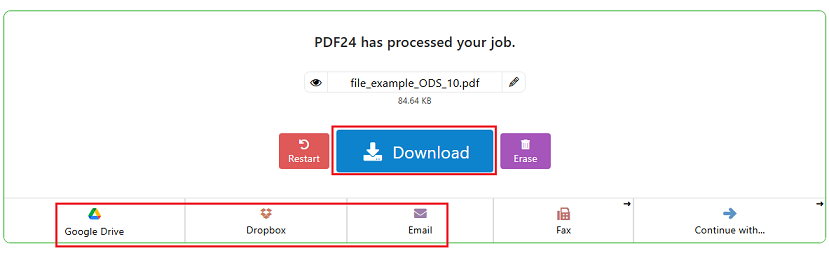
Step 4. When the conversion process is over, click the Download button to save the converted PDF file. Or, you can save the converted PDF to Google Drive or Dropbox or share it via email.
In addition to PDF24, you can also try the following online ODS to PDF converters:
- Smallpdf
- Zamzar
- Google Sheets
- PDF Candy
How to Convert ODS to PDF with LibreOffice Calc
LibreOffice Calc is one of the most natural choices for converting ODS files since it supports the OpenDocument Spreadsheet format. Moreover, it provides dedicated PDF export options. Meanwhile, it allows you to control the range of content included in the PDF and provides additional options such as PDF/A and image-related settings. Below are the exact steps to convert ODS to PDF in LibreOffice Calc.
Step 1. Launch LibreOffice Calc, go to File > Open, and select your ODS file.
Step 2. Here are 2 export options for you to choose from.
- Quick export: Go to File > Export As > Export Directly as PDF or click the Export Directly as PDF icon on the Standard toolbar.
- Full control: Go to File > Export as PDF to access the PDF Options dialog. Here, you can adjust the page range, image compression, security, and more.
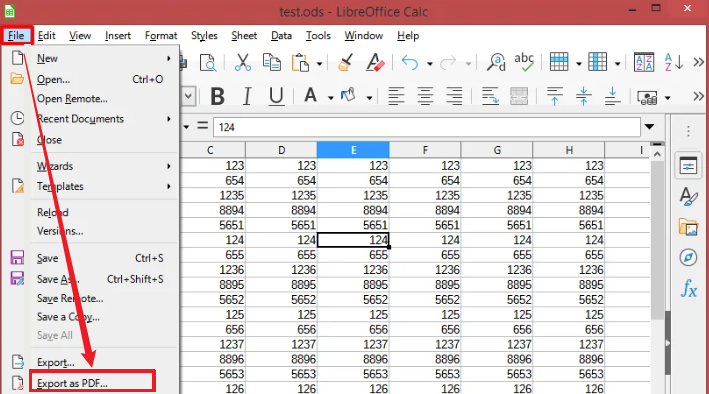
Step 3. After adjusting any settings you need, click Export. Finally, choose a location and filename and save the PDF file.
How to Save ODS as PDF in OpenOffice Calc
Apache OpenOffice Calc is the free spreadsheet program in the Apache OpenOffice suite. It enables you to create and edit ODS files and supports exporting to formats including PDF. How to export an ODS file as a PDF in OpenOffice Calc? Below is the step-by-step guidance.
Step 1. Launch OpenOffice Calc and go to File > Open to open your ODS file.
Step 2. To export with more control over options, go to File and click Export as PDF. On the pop-up PDF Options dialog, you can set settings like page range, image quality, and other content options under the General tab. You can also switch to the Initial View, Links, or Security tab to adjust other settings as needed.
Alternatively, you can make a quick export by clicking the Export Directly as PDF icon on the standard toolbar.
Step 3. Finally, click Export to save the PDF file.
How to Export an ODS File as a PDF with Microsoft Excel
Though ODS is not the native format of Microsoft Excel, it can open ODS files. What’s more, PDF is one of the supported export formats of Microsoft Excel. In other words, you can open an ODS file in Excel and then save it as a PDF. Here, let’s see how to do that.
Step 1. Launch Microsoft Excel and click Open to locate and select the target ODS file. Then the file will open in Excel.
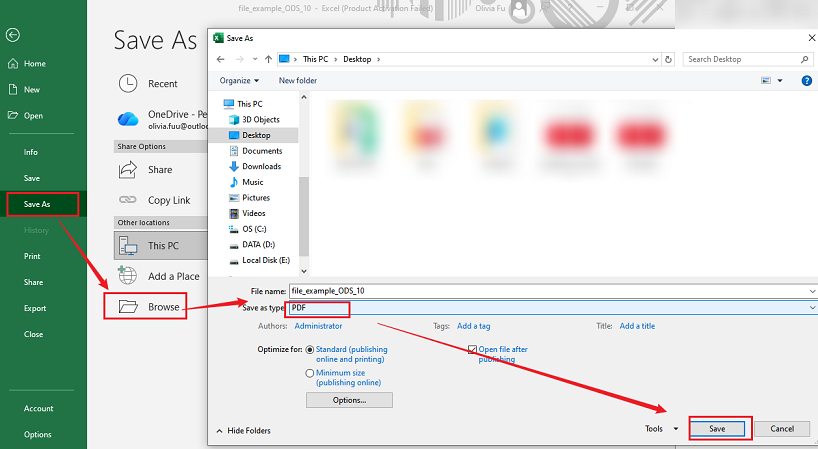
Step 2. Optionally, you can edit the ODS file as needed and then click File from the top menu bar.
Step 3. Select Save As and click Browse to select the destination folder. Next, open “Save as type” to select PDF and name the PDF file. Finally, click the Save button.
How to Convert ODS to PDF for Free
All 4 methods mentioned in this article allow you to turn ODS into PDF for free. Which method should be your choice? Here, I prepared a comparison table for your reference:
|
Method |
Cost |
Internet Required |
Best For |
|
Online ODS-to-PDF Converter |
Often free |
Yes |
Quick conversion |
|
LibreOffice Calc |
Free |
No |
Offline conversion |
|
OpenOffice Calc |
Free |
No |
Offline ODS workflows |
|
Microsoft Excel |
Usually requires a license |
No |
Users who already have Excel |
How to Make an ODS Spreadsheet Fit Properly on a PDF
As we all know, spreadsheets are designed to work with rows and columns, while PDF pages have fixed physical dimensions. Hence, simply converting an ODS file doesn’t guarantee that the resulting PDF will look the way you expect. How to make an ODS spreadsheet fit properly on a PDF? Below are some useful tips for you.
- Set the print area to prevent unnecessary blank pages and keep the PDF focused on the information you actually want to share.
- Change page orientation to landscape for a wide spreadsheet.
- Choose an appropriate paper size before exporting.
- Check and preview the content before exporting as a PDF.
Recommended Way to Edit and Refine PDFs in SwifDoo PDF
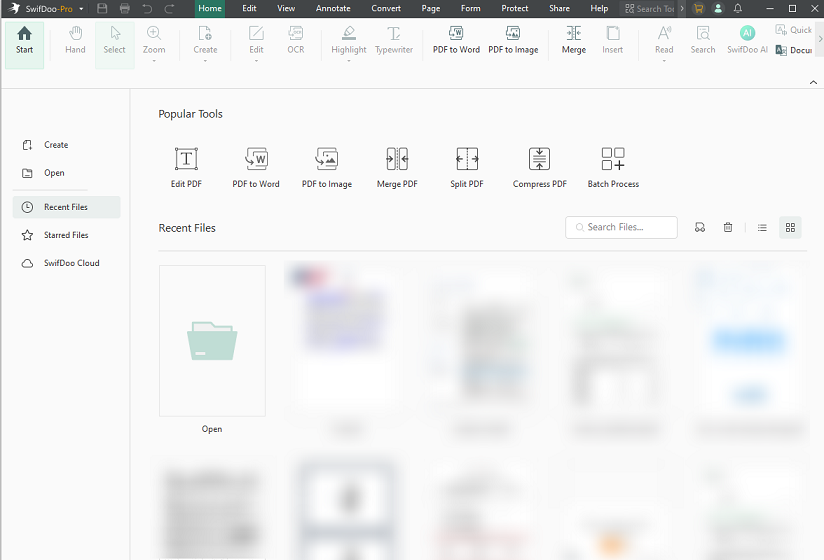
Sometimes you may need to edit the content in the converted PDFs. Instead of converting them back to ODS files, it is convenient to use a dedicated PDF editor. SwifDoo PDF is a full-featured, lightweight PDF editor for Windows, Mac, and Linux. Also, it provides iOS and Android apps.
As an excellent PDF editor, SwifDoo PDF enables you to edit text and images in a PDF, draw on the PDF, and add annotations. Moreover, you can use it to fill out and sign PDFs and flatten sensitive information. Surprisingly, SwifDoo PDF is a PDF converter that can convert PDFs to and from Excel, Word, and other formats. You can download it and explore its useful features.
Final Words
It is not difficult to convert ODS files to PDFs as long as you select the right converter. In this article, I show you 4 effective ways to convert ODS to PDF. If you need a quick conversion, an online converter like PDF24 can be your choice. Also, you can use LibreOffice Calc and OpenOffice Calc to export an ODS file as a PDF offline and at no cost. Additionally, Microsoft Excel allows you to export ODS as a PDF file. Hopefully, this guidance can be helpful to you.