


Can Canva Convert PDF to Word?
When working with PDFs, many users look for simple ways to make them editable in Word. If you are wondering, can Canva convert PDF to Word? The answer is yes, but it does not offer a direct one-click option to download files in .docx format. With Canva, you can upload your PDF, modify the content, and adjust the design effortlessly in the editor.
This process works well for simple documents, but files with complex layouts, images, or fonts may not convert perfectly and may require manual formatting adjustments after conversion to improve accuracy and readability. You can use a reliable PDF to Word converter, such as SwifDoo PDF, to convert it into an editable Word document.
Canva Convert PDF to Word Guide
If you’re planning to convert PDF to Word with Canva Online Converter, we can guide you through it. Here, you’ll discover two effective approaches. You can either use the Canva online converter or work directly on the Canva website—we’ll guide you step by step through both methods for better results.
Use Canva Online Converter
You can handle PDFs with the Canva Online Converter, but it doesn’t convert them directly to Word files. Before using it in Word, you may have to edit or export the file in a compatible format.
Here’s how to convert Canva PDF to Word using an online converter:
Step 1. Go to Canva’s official webpage and use the PDF conversion option. After that, log in or register using your credentials.
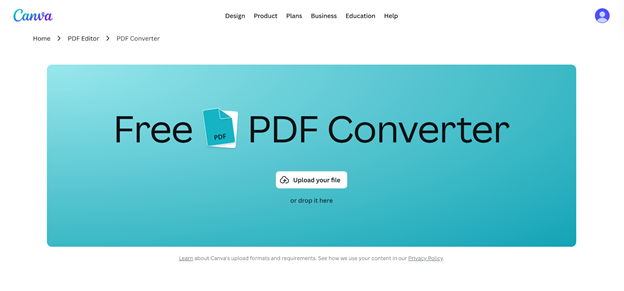
Step 2. Click Upload your file and select the PDF from your device. Alternatively, you can drop it directly into the webpage.
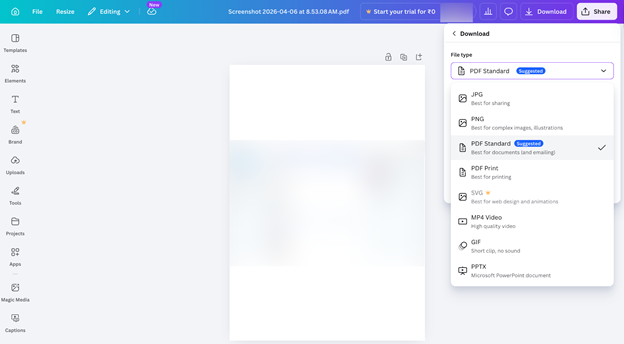
Step 3. The platform converts your PDF into an editable format, so you can adjust text, visuals, and layout directly in Canva. Once finished, click Download in the top right corner, then choose "PDF Standard" or "PDF Print" as the file type.
Step 4. Choose an online or desktop converter to transform your PDF into Word format.
Download PDF as Word from Canva Website
The Canva website lets you edit PDF in Canva and then download the file as a Word document. This approach allows you to make content changes before turning it into an editable file.
Learn how to convert Canva PDF to Word by exporting your PDF as a Word file directly from Canva.
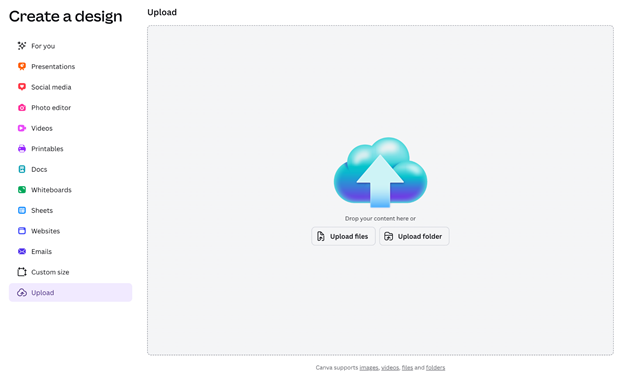
Step 1. Navigate to the Canva website, pick “Upload your file,” or add files by dragging and dropping them.
Step 2. Once uploaded, edit your file and download it as a PDF.
Step 3. Begin on Canva’s homepage and upload the PDF you want to convert from your device. Canva turns your uploaded PDF into an editable layout, so you can quickly make changes. It can be edited the same way as other Canva designs.
Step 4. Use Microsoft Word or a reliable online or desktop converter to convert and download your files.
Another Easy Way to Convert PDF to Word
By now, you’ve learned two easy methods to use Canva to convert a PDF to Word. Even though Canva is handy, it cannot convert directly to Word, requires an internet connection, and may not preserve advanced formatting accurately. Since online tools may not be suitable for private documents, SwifDoo PDF offers a more secure solution.
SwifDoo PDF is a lightweight tool for fast PDF editing and conversion, offering a direct PDF-to-Word conversion without extra steps. With advanced OCR, the software can convert large PDF to Word swiftly while keeping the layout unchanged. You can pick specific pages to speed up the process.
Find out how to convert your PDF to Word using SwifDoo PDF.
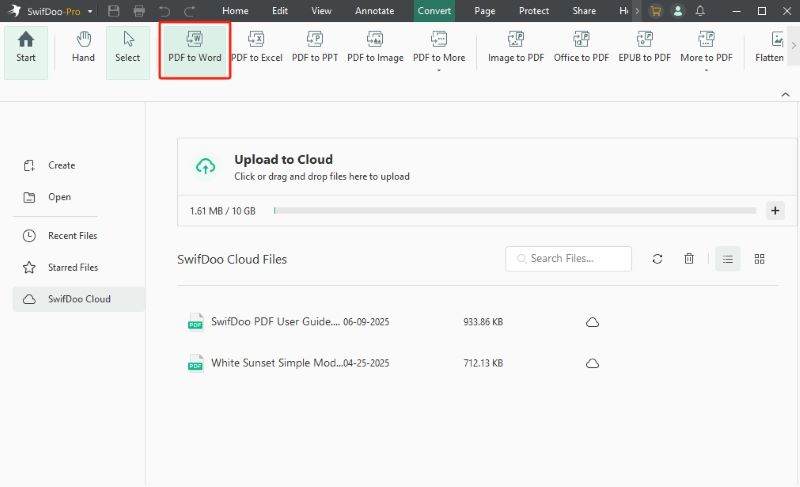
Step 1. Download and launch SwifDoo PDF on your PC. Start on the homepage, navigate to the Convert tab, and choose PDF to Word.
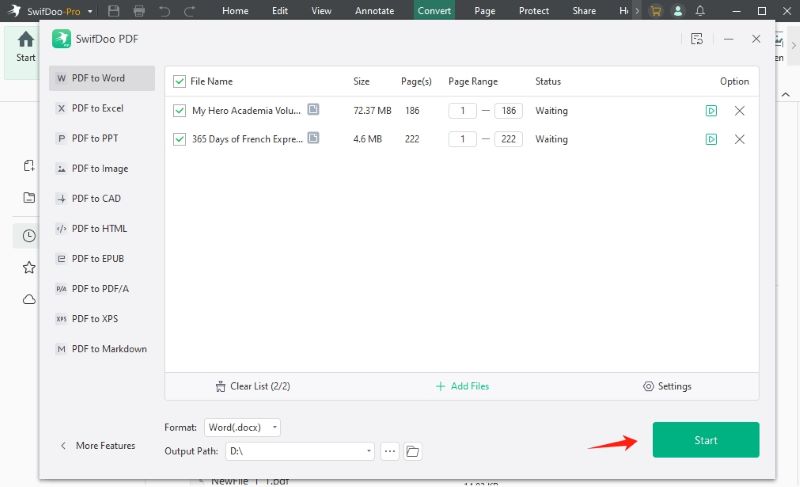
Step 2. Select Add Files, or simply drag your PDFs into the upload area. With SwifDoo PDF, you can batch convert PDF to Word by uploading several files simultaneously.
Step 3. Pick an output folder, hit Start, and save the Word file to your PC.
In addition to converting PDFs to/from various formats, SwifDoo PDF offers comprehensive PDF management. You can manage everything in one place—edit, annotate, merge, split, and protect your files.
It reduces the complexity of everyday PDF tasks and improves efficiency within a single tool. For regular PDF tasks, this reliable solution is a great choice—download it now and boost your efficiency.
Conclusion
Using Canva to convert PDF to Word gives you a simple way to edit and reuse your documents. The two methods shared help you upload, adjust, and prepare files with ease. While it may require an extra step, the process is still beginner-friendly and effective.
Try these methods now and use Canva to convert PDF to Word smoothly, making your document work faster and more conveniently.




