If one of your main workflows involves changing various materials to another format, also consider a top alternative PDF converter.
How to Use Bluebeam to Convert PDF to Word
You can convert a Bluebeam PDF to Word with just a few clicks. Bluebeam Revu also allows you to export a part of a PDF, such as paragraphs, to Word format and convert a PDF to Excel. So, anyone can modify and edit the content without a sweat.
Here is how to convert PDF to Word in Bluebeam.
Step 1: Launch the software to open the PDF you need to convert.
Step 2: Go to File on the tab bar and select the Export option.
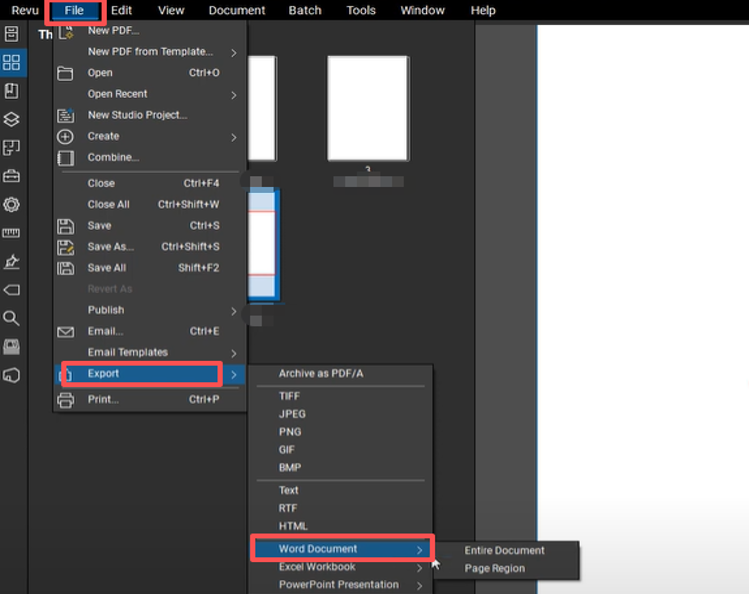
Step 3: Choose Word Document > Entire Document from the context menu.
Step 4: Enter your preferred file name and click Save in the pop-up dialog.

Step 5: In just seconds, Bluebeam Revu will convert the PDF to a Word doc to your selected location.
The pity is that the software cannot batch convert PDFs to Word documents in one go.
Bluebeam Export to Word Not Working
There might be multiple reasons why you fail to convert PDF to Word in Bluebeam or can't use the Export to Word feature. Check out several main causes and how to fix them.
- Bluebeam glitches and setting issues: You can close the program completely and then re-launch it to see if the issue persists. Alternatively, go to “Revu” > “Preferences”, choose “Admin” from the left bar, click the "Options” tab, choose “Backup” to back up your settings, and then click “Reset” to reset the software. After that, follow the above tutorial on how to convert a PDF to Word in Bluebeam to perform your task.
- The Bluebeam PDF converter feature is disabled or grayed out: this occurs because the safe.enx file was missing or not properly placed to your device during installation. You can copy the file to the required path on your computer. How to do that: download the safe.zip file, right-click the zip file, and choose the "Extract All" option; then, copy the extracted safe.enx file to the “Features” folder in the Bluebeam directory. You can right-click in the “Revu” folder to create a “Features” folder if there is not one.
- The add-in in Word is not enabled: Bluebeam integrates with MS Word through an add-in, allowing Bluebeam to convert a PDF to a Word document for editing. You can enable the add-in by choosing "File" > "Options" > "Add-ins" on the left side, clicking the "Manage” dropdown button, selecting “COM Add-ins” > “Go”, checking the “BluebeamOfficeAddIn” box, and hitting "OK".
- Corrupt or incorrect Office installation or version: Check if the installation follows the correct process and that your Microsoft Office works properly. Ensure that your Bluebeam and Office are the same version, either 32-bit or 64-bit.
- Unknown problem: If it’s cumbersome and time-consuming to convert PDF to Word with Bluebeam, try another handy converter. Read on to find out the top pick.
Convert PDF to Word in Bluebeam Alternative
After learning how to convert PDF to Word in Bluebeam, also glance at a fast and lighter converter. SwifDoo PDF is a comprehensive PDF conversion software available for both Windows and online use. It takes very little space on your PC but offers powerful tools. It can convert PDF to various file types, including Word DOCX/DOC, Excel, PowerPoint, TXT, EPUB, JPG, and more. Better yet, batch or bulk conversion is supported for handling multiple files in a short time.
- SwifDoo PDF Desktop
Learn how to convert a PDF file to Word in the Bluebeam alternative - SwifDoo PDF.
Step 1: Run the PDF to Word converter download and installation, and launch it.
Step 2: Go to Convert in the top tab bar to choose the PDF to Word option.
Step 3: Click the middle area in the pop-up window to add your PDF files.
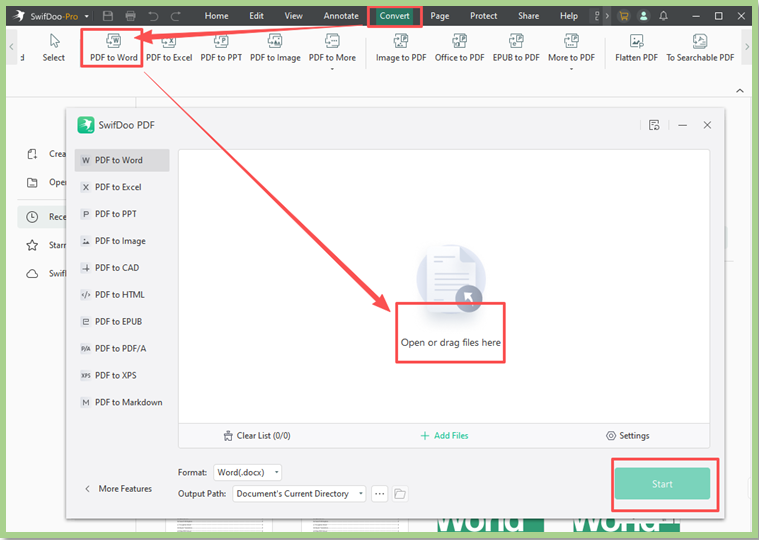
Step 4: Select the file extension of your Word document in the Format drop-down.
Step 5: Specify the export path and click Start to convert the files from PDF to Word immediately.
Tips: If you are to convert a scanned PDF to Word, no need for an extra step. The OCR text recognition engine is enabled by default. Clicking the "Settings" icon in the converter dialog box lets you review the settings.
- SwifDoo PDF Online Converter
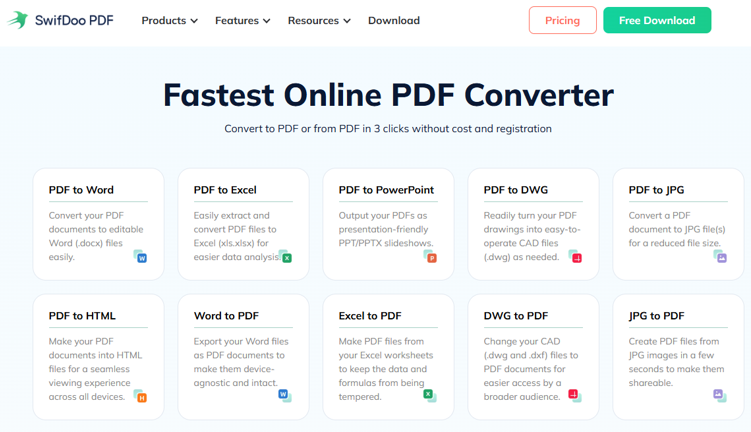
Another alternative way to convert and export PDF to Word in Bluebeam is to use an online converter. SwifDoo PDF online services function well and don't require a sign-up or personal info. It can convert your files to Excel, presentations, DWG drawings, images, HTML web page files, and vice versa.
Step 1: Visit the online tools page and choose the free online PDF to Word converter.
Step 2: Click "Choose File" or drag and drop to upload your PDF.
Step 3: Once the download button appears, the conversion is done.
Conclusion
By following the curated instructions to convert PDF to Word in Bluebeam, you can easily extract data. You can then leverage the Word editing features to recreate your reports or restructure the content. If you desire to change PDFs to Word files without losing overall formatting and layout, give SwifDoo PDF a shot.