


1. Convert PDF Resume to Word Without Losing Formatting
SwifDoo PDF makes it simple to convert a resume from PDF to Word for easy editing and customization. You can convert PDF to Word without losing formatting using this tool, allowing seamless and effortless modifications.
In addition, you can efficiently batch convert PDF to Word, streamlining the process for multiple files at once. In addition to conversion, SwifDoo PDF offers annotation, file compression, and secure sharing. With support for OCR to edit scanned resumes, SwifDoo PDF emerges as an all-in-one PDF solution.
Learn how to convert a PDF resume to a Word document using SwifDoo PDF in a few clicks.
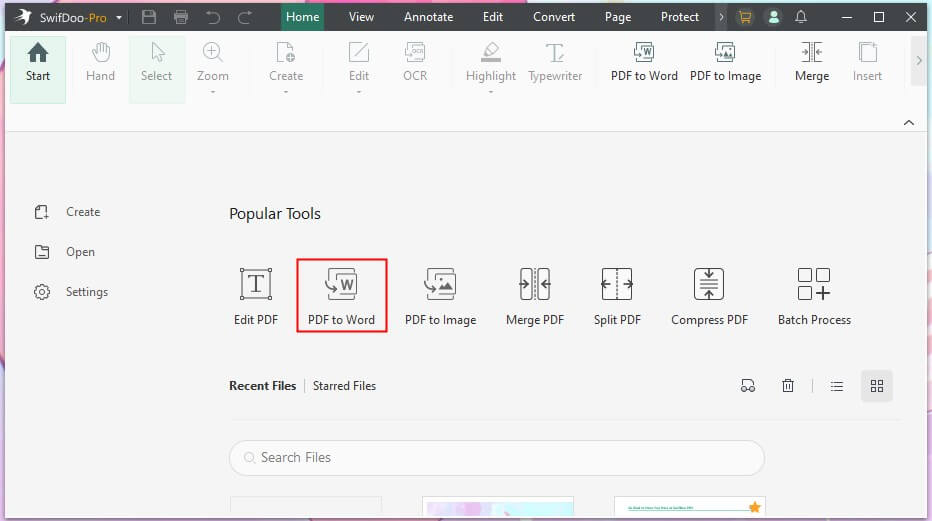
Step 1. Download and launch SwifDoo PDF on your Windows computer. Choose PDF to Word on the home interface.
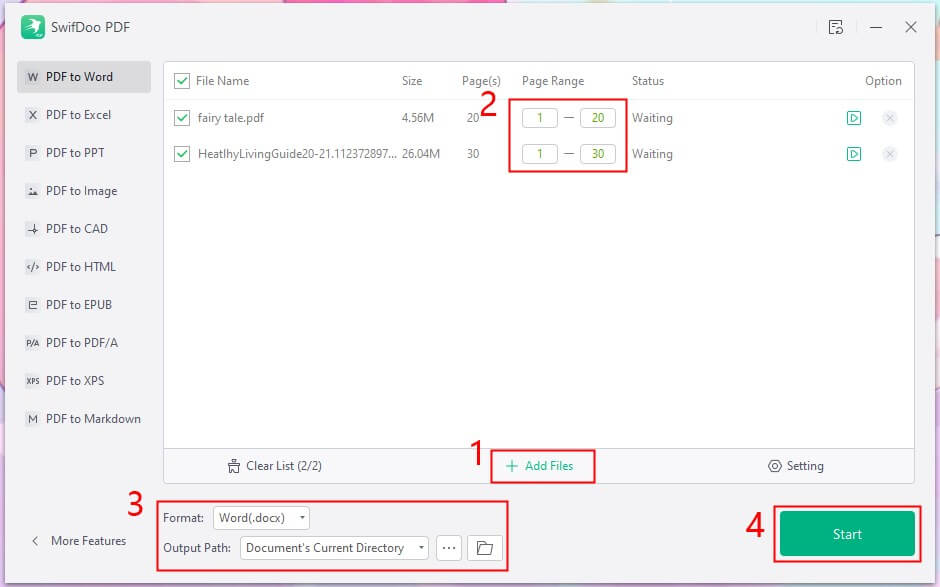
Step 2. In the appearing window, tap Add Files to add all the PDF resume(s) you wish to convert.
Step 3. After uploading your PDF resume, specify the page range. Then choose to convert to Word (.docx) or Word (.doc).
Step 4. Select an output path, then tap Start.
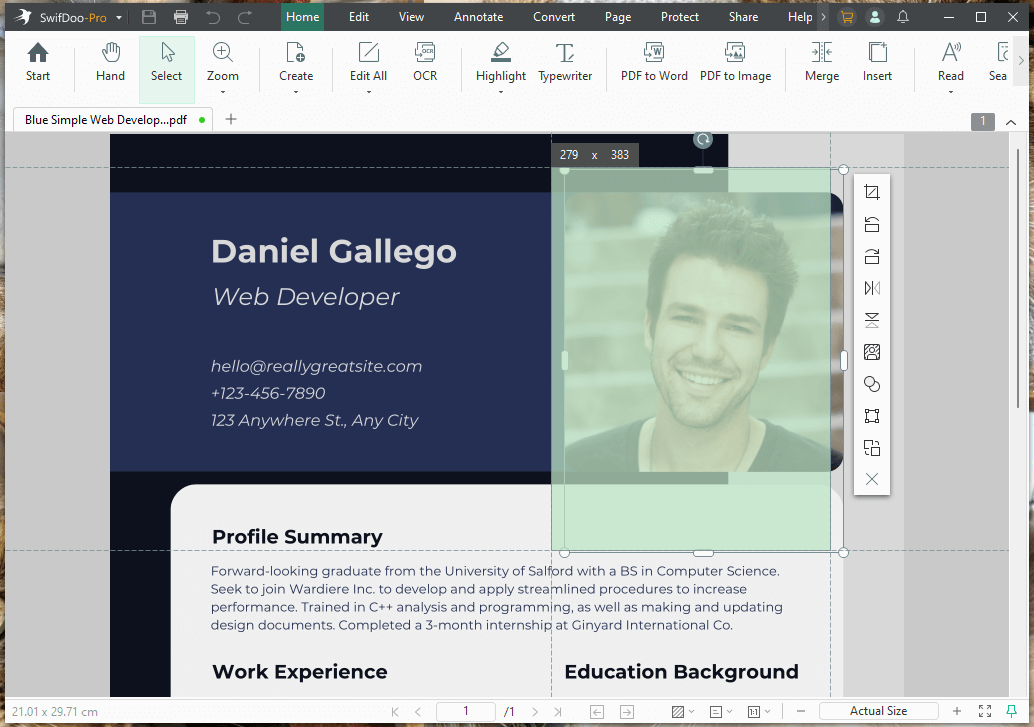
Perhaps you wanted to simplify the editing of your resume, so you decided to make this conversion. However, in reality, Swifdoo PDF offers many tools that allow you to edit a PDF resume just like you would in Word. Try it yourself!
2. Convert PDF Resume to Word Using Microsoft Word
Microsoft Word makes it easy to convert a PDF resume to Word for free, without any extra tools. It enables direct access to PDF content for quick editing. However, this method may cause special formatting, such as tables, images, and columns, to be lost from the original PDF.
Learn how to convert PDF resume to Word document step by step with Microsoft Word with ease.
Step 1. To start, right-click or Ctrl-click the PDF resume you want to turn into a Word document. By doing this, a menu with options will pop up.
Step 2. Select Open with. And choose Word or Microsoft Word from the menu. If you don’t see the option on Windows, select Choose another app and select Word. Then choose Just once.
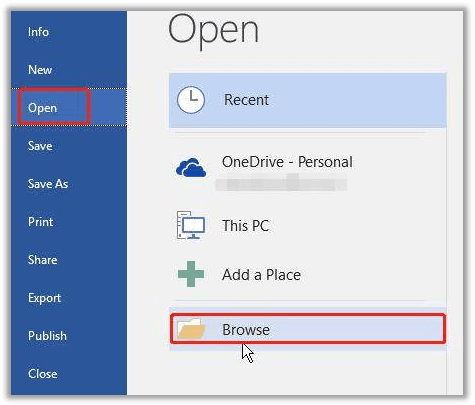
Alternatively, open Word and click the File menu. Select Open and click Browse at the bottom. Click the All Word documents dropdown menu at the lower-right and select All files. Then, choose your PDF resume and tap Open.
Step 3. As soon as you try to open your PDF resume, a pop-up will appear stating, “Word will now convert your PDF to an editable Word document."
Click OK. Your PDF resume will be converted to a Word file and displayed in Word. The conversion time depends on the size of your resume.

Step 4. Make any necessary changes. Once everything is set, click File and tap Save As. Then, hit This PC and enter a file name. Select a save location on the left side of the window. When finished, hit Save to save your resume in Word format.
3. Convert PDF Resume to Word Online for Free
There are numerous online PDF to Word converters, yet reliability varies, and some carry security risks. For safety and reliability, SwifDoo PDF online converter is the best option to convert a PDF resume to Word for free. It lets you quickly convert your PDF to an editable Word document while preserving formatting.
Use these steps to convert a PDF resume to a Word document via the SwifDoo PDF online converter in a few clicks.
Step 1. Launch the SwifDoo PDF online converter on your web browser. Choose the PDF to Word Converter.
Step 2. Click Choose File or directly drop your PDF resume into the workspace.
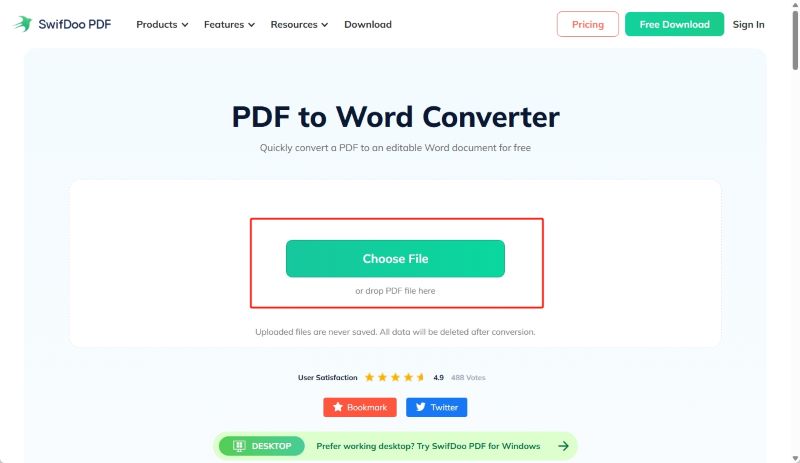
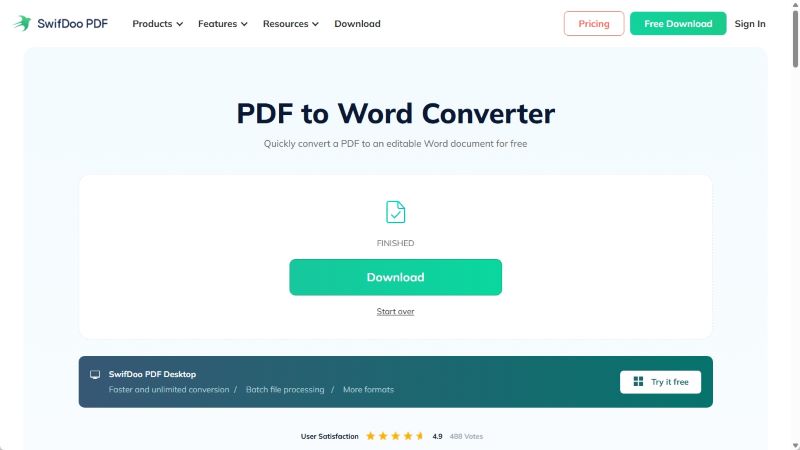
Step 3. As soon as your PDF resume is uploaded, SwifDoo PDF will initiate the conversion. Once the conversion is complete, tap Download to save your converted resume to your device.
Bottom Line
Converting your PDF resume to Word makes it easy to update and tailor it. Whether using SwifDoo PDF, Microsoft Word, or an online tool, each option allows you to convert a PDF resume to Word efficiently while keeping key formatting intact. Selecting the right tool keeps your resume polished, editable, and submission-ready, making the process smooth and stress-free. Hope this guide is helpful!



