


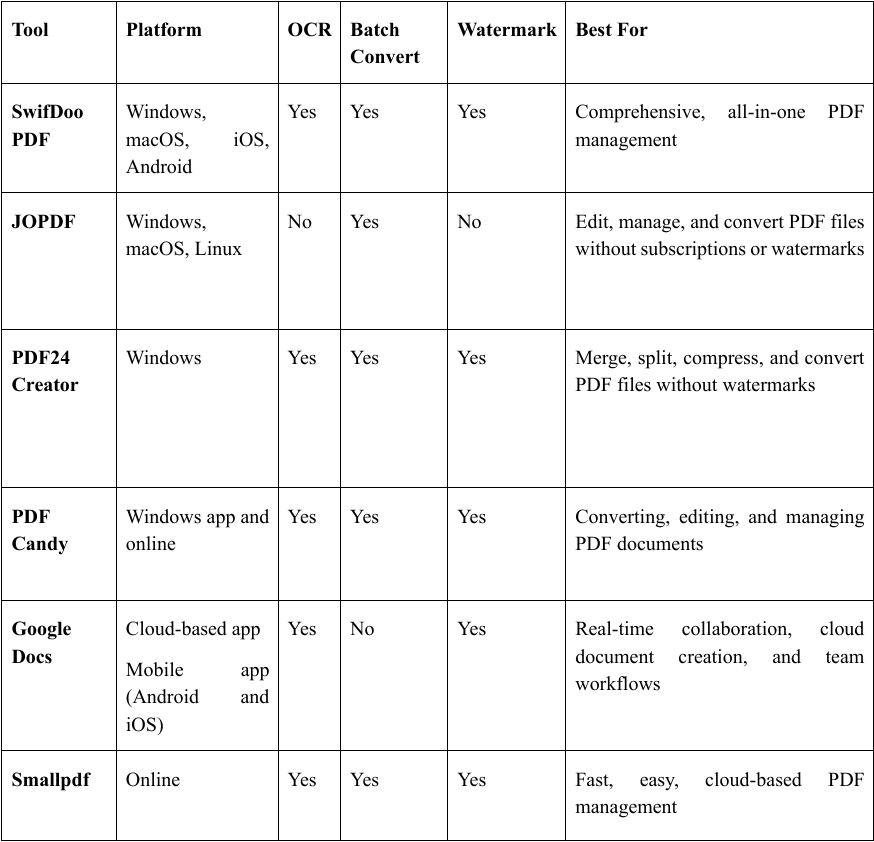
Quick Comparison Table for the Best Free PDF to Word Converters
6 Best Free PDF to Word Converters
Need a quick and reliable way to convert PDF to Word for free? These six best tools ensure precise formatting, easy operation, and rapid outcomes.
#1. SwifDoo PDF
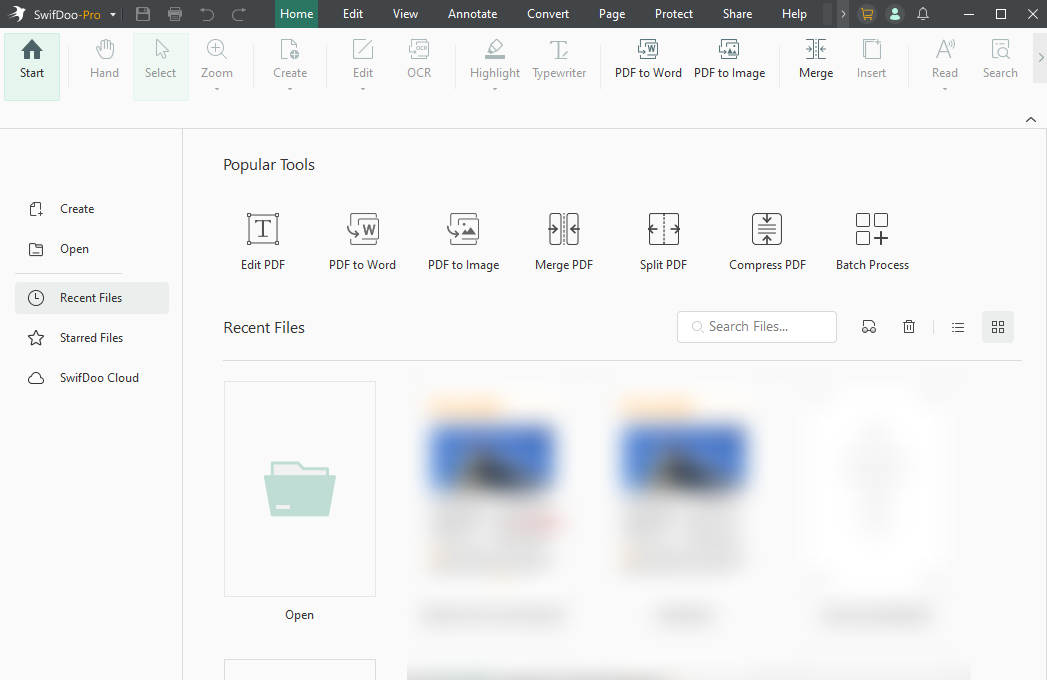
SwifDoo PDF is a lightweight, versatile tool focused on seamless PDF conversion. It's a free PDF to Word converter without watermark that makes fast, accurate conversions while preserving your formatting. Thanks to OCR, you can convert scanned PDF to Word and accurately capture text from images. Handling both standard and scanned PDFs, SwifDoo PDF delivers fast, reliable, and precise conversions, making document editing effortless.
Key Features
- Convert PDF to DOCX, DOC, RTF, and more while preserving your layout and accuracy.
- Use OCR to convert scanned PDFs into searchable, editable text files.
- Edit, convert, compress, merge, split, and protect or sign PDFs.
Pros:
- Intuitive design with no complicated learning required.
- Enjoy a free trial with complete functionality.
- Keeps the original formatting and layout more accurately than many other converters.
Cons:
- Limited free trial period.
Best For: Professionals, students, and businesses seeking document editing, signing, and conversion without pricey subscriptions.
#2. JOPDF
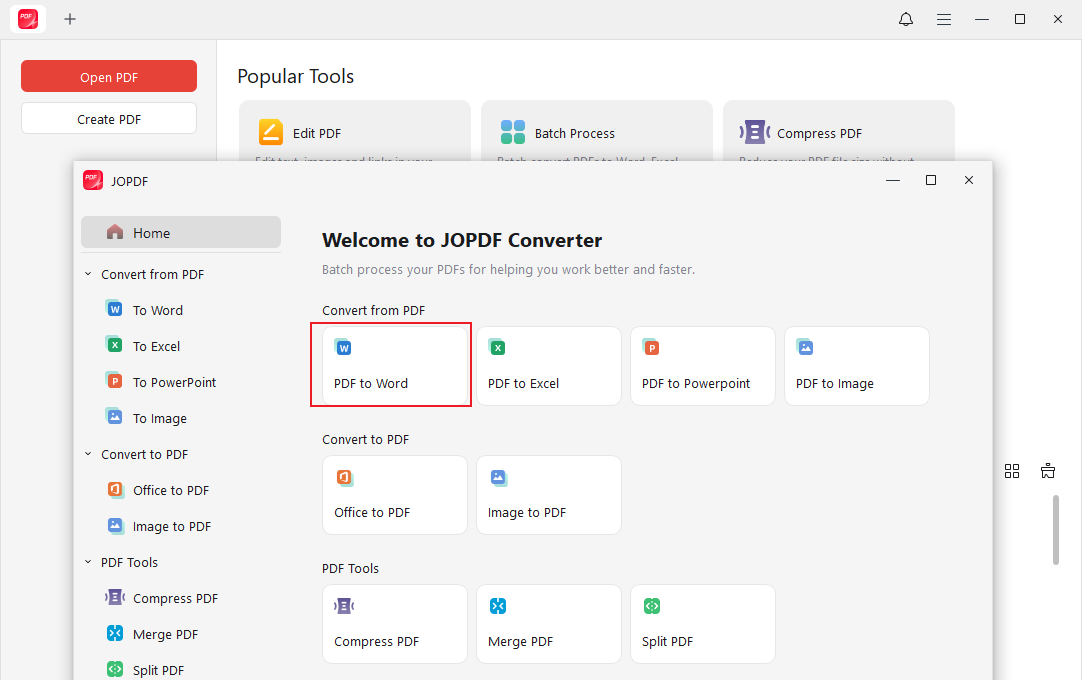
JOPDF, a free PDF to Word converter, makes it easy to convert PDFs into fully editable Word files. You can batch convert PDF to Word, making it easier to process several documents at once. With its user-friendly interface and fast processing, JOPDF ensures that formatting and layout remain intact during conversion. That makes it suitable for both personal and business use.
Key Features
- Easily insert, delete, rotate, split, and reorder pages using a simple drag-and-drop interface.
- Offers over 10 annotation tools, including highlight, underline, strikethrough, and freehand drawing.
- Add a password to keep files safe and compress them with three size-reduction settings.
Pros:
- Lightweight and efficient, it runs quickly even with large files.
- Works on Windows, Mac, and Linux.
- No internet needed—your sensitive data stays secure on your computer.
Cons:
- Does not have a built-in OCR.
Best For: Students, freelancers, and small teams handling PDF editing and organization on a budget.
#3. PDF24 Creator
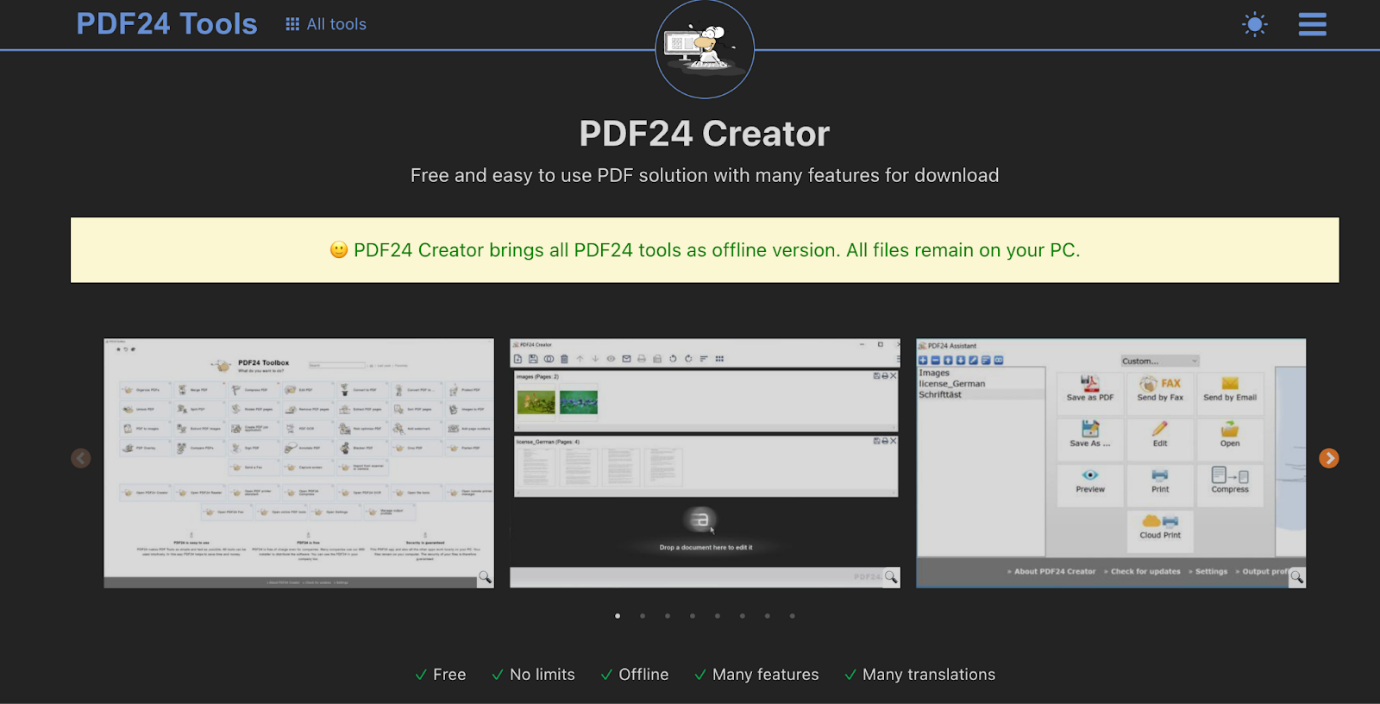
PDF24 Creator allows you to convert PDF to an editable Word document for free. Handle several PDFs together and preserve their formatting to save time. With its intuitive interface and fast processing, PDF24 Creator is ideal for both beginners and professionals who need quick conversions.
Key Features:
- Includes tools to merge, split, compress, extract, rotate, and organize PDF pages.
- Insert custom text, pictures, and page numbers to make your document unique.
- Features OCR to recognize text in image-based PDFs, along with tools to add text, images, and shapes.
Pros:
- Helps with overall PDF management.
- No limits on file size or the number of documents you can process.
- Processes files locally to keep documents private without uploading them to the internet.
Cons:
- It has an old-style interface, and switching between modules may slow your workflow.
Best For: Students and casual editors seeking a free, reliable PDF editor for professional tasks.
#4. PDF Candy
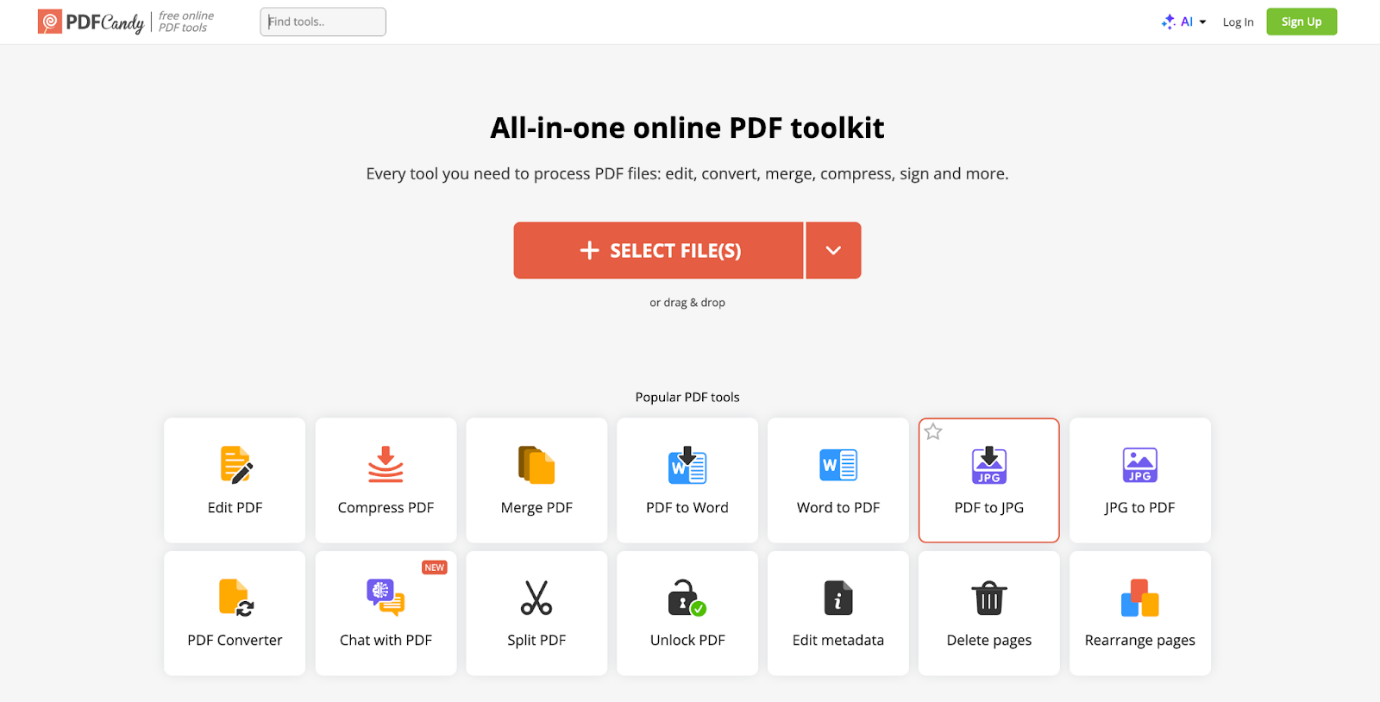
Considered one of the best online PDF to Word converter tools, PDF Candy lets you convert files easily and reliably right in your browser. The clean interface helps users of all levels move through it smoothly. You can also convert multiple PDF files to Word at once, saving time when handling bulk documents. With reliable formatting retention, it ensures smooth and efficient results.
Key Features:
- Edit text, add images and shapes, highlight, and annotate PDFs, and merge, split, rearrange, rotate, crop, or delete pages—all in the browser.
- Add electronic signatures to documents.
- Secure PDFs with passwords, unlock files, add watermarks, and compress file sizes.
Pros:
- Offers over 90 tools in a single platform.
- Maintains formatting accurately during conversions.
- Available as a Windows app that enables offline work.
Cons:
- You need a paid subscription to access unlimited tasks, handle larger files, and enjoy faster processing.
Best For: Students and freelancers needing an affordable way to annotate, sign, or convert documents.
#5. Google Docs
Google Docs gives you an easy online option to convert PDF to Word without software, so you can manage files right in your browser. Just upload your PDF, open it in Docs, and export it as an editable Word file. It also allows simple format conversion, such as .docx, PDF, RTF, and EPUB.
Key Features:
- Real-time collaboration lets multiple users edit, comment, and suggest changes at the same time, with updates shown instantly to everyone.
- Offers built-in templates that are easy to edit for notes, email drafts, or project plans.
- Work on Word documents without changing the file format.
Pros:
- Accessible on any browser and through mobile apps for Android and iOS.
- Works right away—no installation required.
- Free to use with a Google account for personal purposes.
Cons:
- Complex Word documents may lose formatting during import or export.
Best For: Remote workers, students, and creators who want simple, online PDF to Word conversion.
#6. Smallpdf
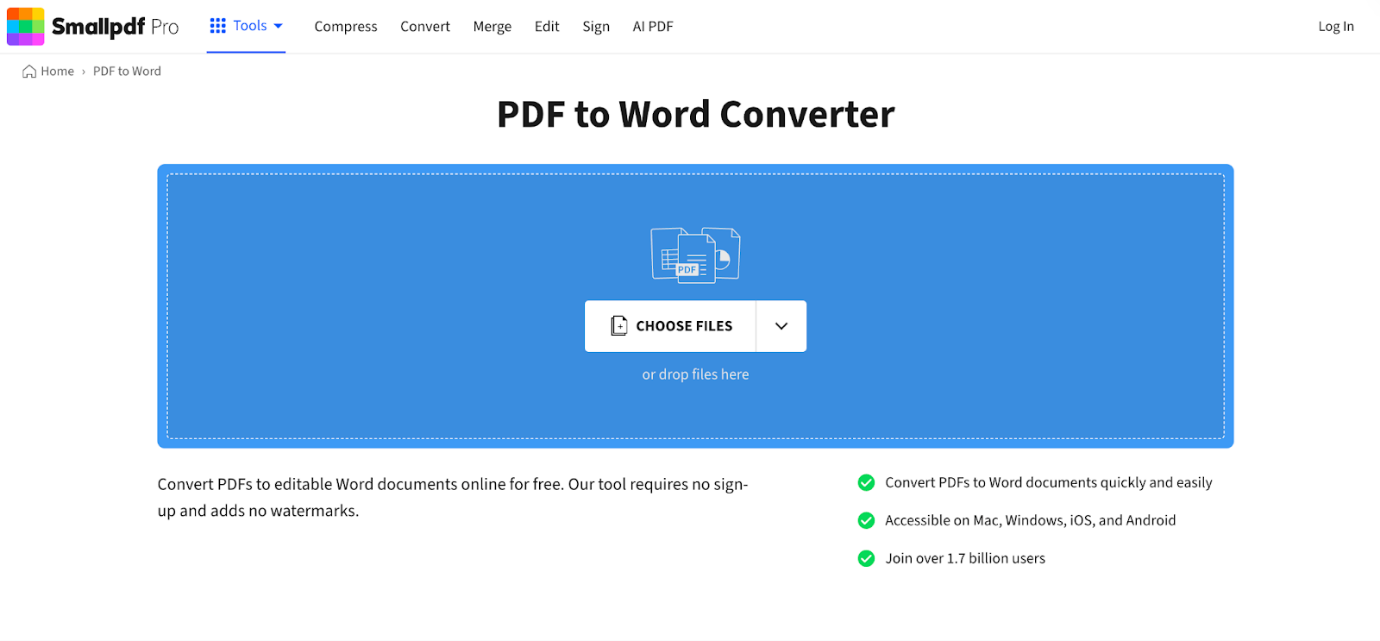
Smallpdf is a well-known online tool with a simple design and quick conversion speed. Working as a batch PDF converter, it allows users to handle multiple files at once. With reliable formatting retention and cloud-based access, Smallpdf makes PDF to Word conversion simple and convenient for everyday use.
Key Features:
- Use it in a browser, with additional desktop and mobile apps.
- Includes AI-powered tools for summarizing and interacting with documents.
- Offers an easy drag-and-drop interface, ideal for users with no technical skills.
Pros:
- Basic tools are available free of charge.
- Compatible with Windows, Mac, Linux, and mobile devices.
- Offers cloud integration & security.
Cons:
- The Pro version may be costly for casual or individual users.
Best For: Users seeking a go-to tool to edit, compress, sign, or convert documents to manage daily document tasks.
How to Choose the Best Free PDF to Word Converter
Picking the right free PDF to Word converter guarantees accurate results, simple editing, and a smooth workflow for work or personal use. Here’s the main criteria list you can consider when opting for the best tool. Check that the tool:
- Maintains fonts, tables, and images
- Supports OCR for scanned PDFs
- Allows large files
- Converts multiple PDFs at once
- Keeps your data safe
How to Convert PDF to Word for Free
You now know 6 free PDF to Word converters that make file editing easy. As an example, SwifDoo PDF allows fast, simple, and free PDF to Word conversion. Here’s how.
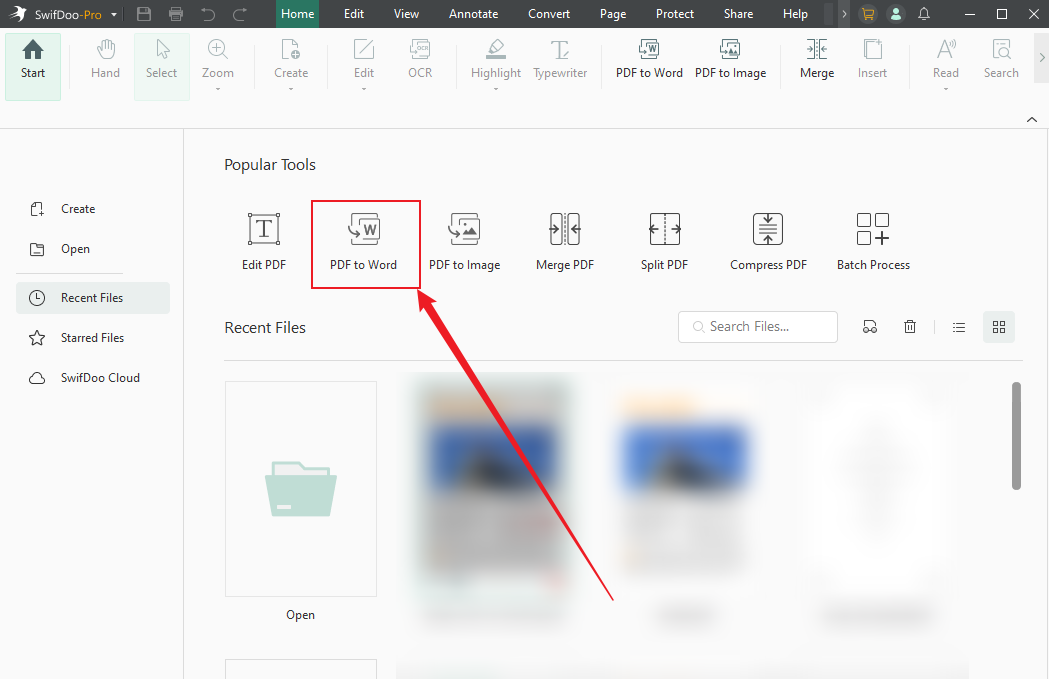
Step 1: Get SwifDoo PDF on your computer and start the app.
Step 2: Choose PDF to Word from the main interface.
Step 3: Click +Add Files in the new window to add your PDF documents.
Adjust the page range, then, in the Format option below, choose Word (.docx) or Word(.doc).
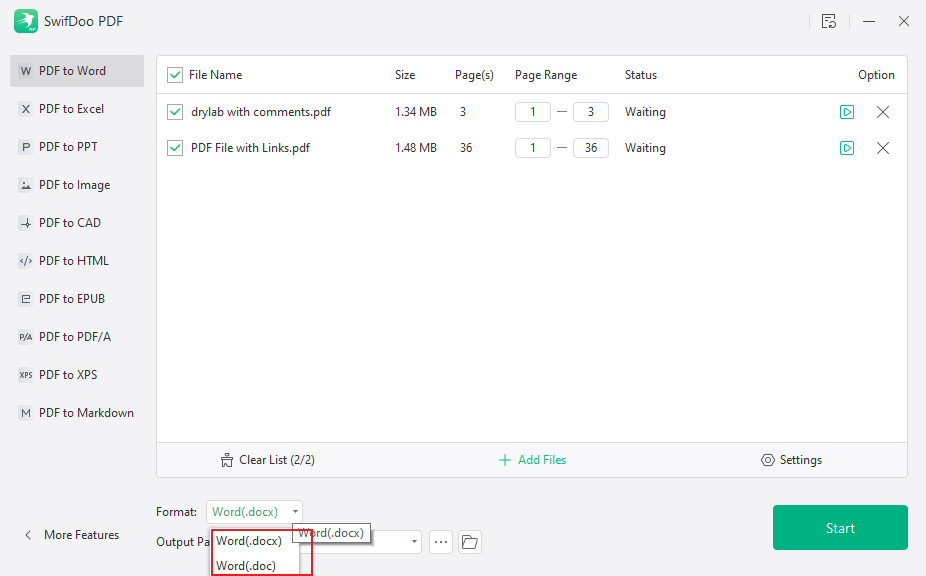
Step 4: Set the Output folder and press Start to begin.
Final Words
Selecting the best free PDF to Word converter depends on your requirements and workflow. For reliable conversions with OCR and offline safety, SwifDoo PDF is an excellent choice. For fast online PDF conversions, PDF Candy, Smallpdf, or Google Docs are great options. Review the features and choose a converter that keeps formatting intact while converting PDFs fast.



