


Best Way to Convert Hindi PDF to Word Without Losing Formatting
SwifDoo PDF is a practical tool that simplifies converting Hindi PDFs to Word while preserving formatting. Your PDFs will become editable Word files without altering fonts, layouts, or images.
In addition to Hindi, it supports Marathi, Khmer, and several other Indian and foreign languages. With SwifDoo PDF, you can convert multiple PDFs at once and save them as DOC, DOCX, or RTF. With OCR technology, it can convert scanned PDF to Word, perfect for both text and image-based files.
Check out how to convert Hindi PDF to Word without losing formatting using SwifDoo PDF.
Step 1. Download SwifDoo PDF on your PC. And launch the app.
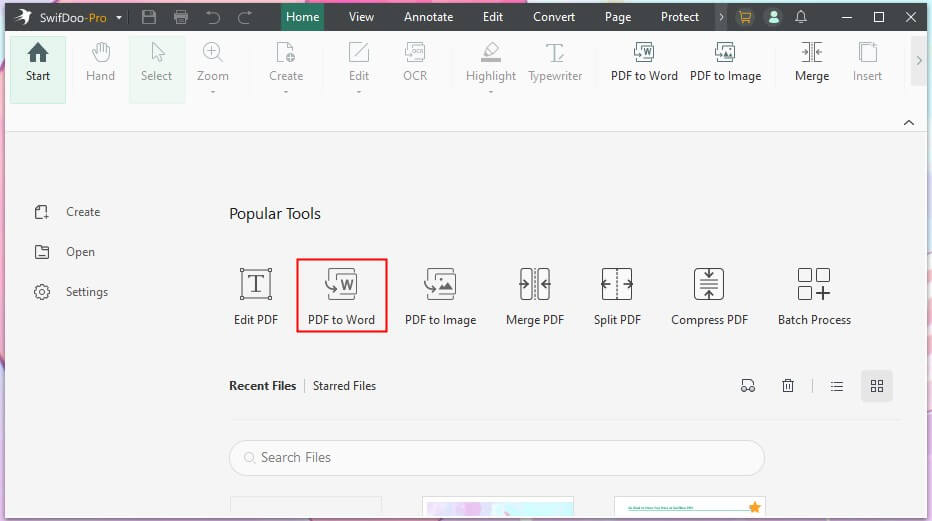
Step 2. Choose PDF to Word from the main interface.
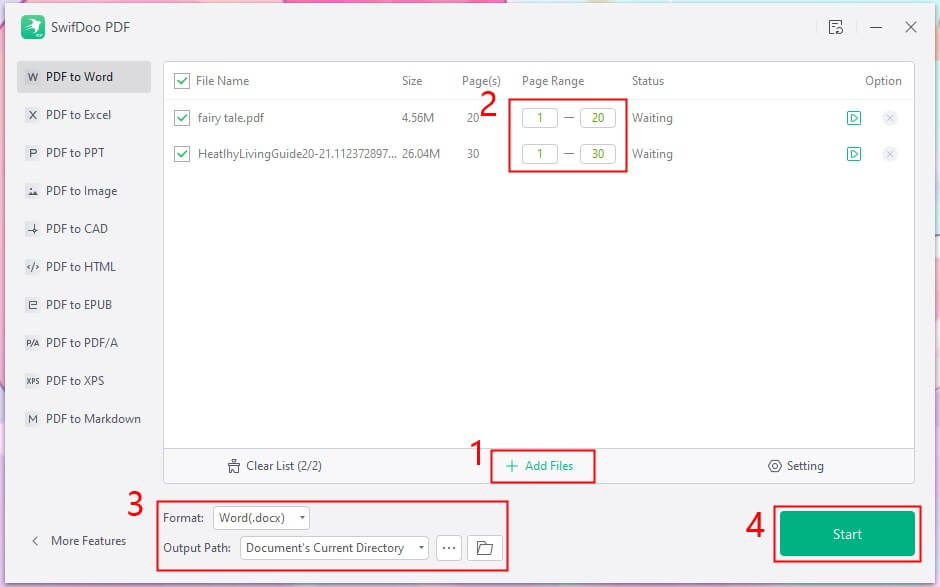
Step 3. Then, drag and drop the Hindi PDF files you wish to convert into the workspace.
Step 4. Tap Start to initiate the PDF conversion. And get your editable Word files.
Additional Features
- Batch convert PDF to Word to save time.
- Convert large scanned PDFs to Word with OCR, without performance issues.
- Easily edit, annotate, compress, merge, split, print, protect, and sign documents.
- Allows you to select specific pages and translate them into any language.
- Leverages AI to analyze and manage your PDFs more efficiently.
Want to simplify your translation and document workflows? Just download SwifDoo PDF. This powerful Hindi PDF to Word converter can quickly complete the conversion without losing any formatting. Enjoy quick, precise, and stress-free document conversion for work, study, or personal use.
Convert Hindi PDF to Word for Free Using Google Drive
Google Drive lets you upload a PDF, access it with Google Docs, and edit the document. Since it operates online, you can use it on any device connected to the internet.
However, Google Drive cannot convert large PDF to Word files efficiently. The formatting might not stay intact, particularly for intricate layouts, images, or non-English fonts like Hindi.
Here’s a simple way to convert a Hindi PDF to Word for free via Google Drive.
Step 1. Launch Google Drive, then upload the PDF you want to convert.
Step 2. Right-click your uploaded PDF, choose Open with, and select Google Docs. Then, it will turn your PDF into an editable document.
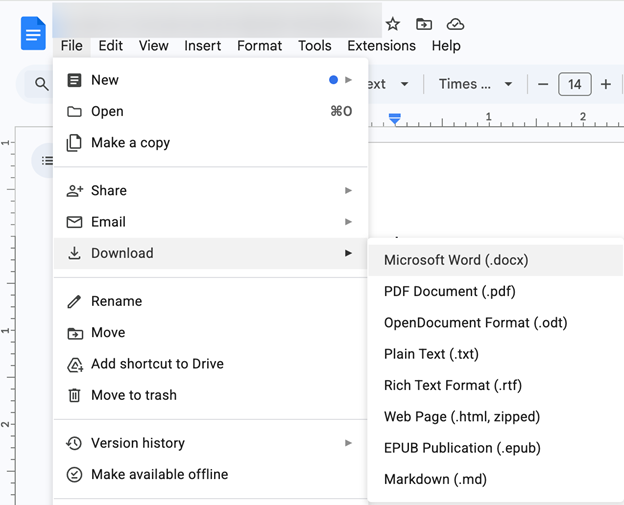
Step 3. While viewing the document, navigate to File > Download > Word (.docx).
Convert Hindi PDF to Word Online
Lastly, you can use online PDF tools to convert your Hindi PDF to an editable Word document without installing anything. Available on any device, they are great for fast, occasional PDF conversions.
Many online converters are available for smooth, easy conversions. For example, PDFgear is a free, easy-to-use tool that helps you convert PDF to Word online in just a few clicks. It converts Hindi PDFs to Word using OCR, ensuring clear text and accurate formatting. Additionally, you can also edit PDF text directly, including Hindi text.
Although simple to use, online converters may struggle with large PDF files. Additionally, they offer fewer batch-conversion features than desktop software.
See how to easily convert Hindi PDF to Word online through PDFgear.
Step 1. Access the PDFgear website through your browser and choose the PDF to Word Converter.
Step 2. Click Select PDF File to import your Hindi PDF. Alternatively, simply drag and drop the Hindi PDF to turn it into a Word document (.docx).
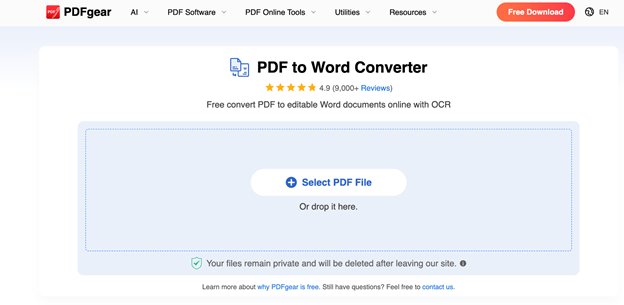
Step 3. Select convert mode: Standard or Advanced. Click Convert to continue. Your file will soon be available in editable Word format.
Step 4. After processing, click Download File to get the converted Word document.
Final Thoughts
Converting document formats can be easy. Reliable software helps you convert Hindi PDF to Word while keeping the original formatting intact.
For the best formatting accuracy, use a desktop tool like SwifDoo PDF; for convenience, try Google Drive, or pick an online converter for quick conversions. Your ideal option will vary based on your needs for accuracy, ease of use, and safety.
Pick a dependable tool now to convert Hindi PDFs efficiently and maintain original formatting!




